Choosing the best iPhone camera settings for photos is easier when you work backwards from the problem. A soft file, a blown sky, skin that has gone orange and a crooked horizon are four different faults, and each one has a specific control in iOS 27 that fixes it.
The settings below are grouped that way rather than by where they sit in the menu. Each line gives the exact path, so you can jump to the group that matches whatever is going wrong with your photos and leave the rest of the Camera settings alone.
Best iPhone Camera Settings for Photos, Grouped by What They Fix
Twenty-one controls decide how an iPhone photo turns out. Sorted by the fault they address, with the path and the setting worth using.
| Fixes | Control | Where it lives | What to set |
|---|---|---|---|
| Detail | Photo Mode | Settings > Camera > Formats | Set 24 MP, never 12 MP |
| Detail | Resolution Control | Settings > Camera > Formats | Turn on, then use per shot |
| Detail | Prioritize Faster Shooting | Settings > Camera | Turn off |
| Detail | Lens Cleaning Hints | Settings > Camera | Leave on |
| Light | Night Mode exposure | Camera controls button | Choose the longer exposure |
| Light | Exposure slider | Tap the frame, drag the sun | Pull down about a third |
| Light | Lens Aperture | Camera controls button | ƒ/1.48 dark, ƒ/4.0 bright |
| Light | Histogram | Camera controls button | Add it, watch the right edge |
| Color | Photographic Styles | Settings > Camera > Photographic Styles | Pick one, keep it mild |
| Color | White Balance | Camera controls button | Fix it for a sequence |
| Color | High Efficiency | Settings > Camera > Formats | Leave on |
| Framing | Grid and Level | Settings > Camera | Turn both on |
| Framing | Additional Lenses | Settings > Camera > Main Camera | Add 28 mm and 35 mm |
| Framing | Macro Control | Settings > Camera | Leave on |
| Framing | Lens Correction | Settings > Camera | Leave on |
| Framing | View Outside the Frame | Settings > Camera | Your preference |
| Control | Shutter Speed | Camera controls button | Slow for water, fast for motion |
| Control | Focus slider | Camera controls button | Lock the lens, set the distance |
| Control | ProRAW Format | Settings > Camera > Formats | Set it if you edit |
| Control | Preserve Settings | Settings > Camera > Preserve Settings | Add exposure and Night Mode |
| Control | Reference Image | Settings > Camera > Reference Image | Turn on if you need proof |
Soft or Mushy Files: Resolution and the Shutter Buffer
If photos look fine on the phone and fall apart on a laptop, the problem is almost always resolution or processing, in that order.
Open Settings > Camera > Formats > Photo Mode and make sure it reads 24 MP. The 24 MP file is assembled from the whole 48 MP sensor rather than cropped out of it, and it is the format the Fusion Main camera is designed around. The 12 MP option exists to save space and it throws away detail to do it.
Back in Settings > Camera > Formats, turn on Resolution Control, or ProRAW & Resolution Control on an iPhone 18 Pro. A format button appears at the top of the Camera screen and lets you take an individual shot at the full 48 MP. Use it for landscapes and detailed scenes, not for everything, because the files are several times larger.

Then turn off Prioritize Faster Shooting in Settings > Camera. It arrives switched on, and what it does is skip processing so the camera can keep up when you tap the shutter repeatedly. Switching it off costs you a fraction of a second between rapid frames and gives every photo the full treatment. If you genuinely need speed, hold the shutter and slide left for Burst instead.
Keeping Lens Cleaning Hints on belongs in this group too. A smudged lens produces exactly the soft, hazy result people blame on settings, and the phone will tell you when the glass needs a wipe.
Blown Skies and Dark Faces: Exposure, Night Mode and Aperture
A white sky cannot be recovered. A dark foreground usually can. That asymmetry is the whole argument for taking exposure off automatic.
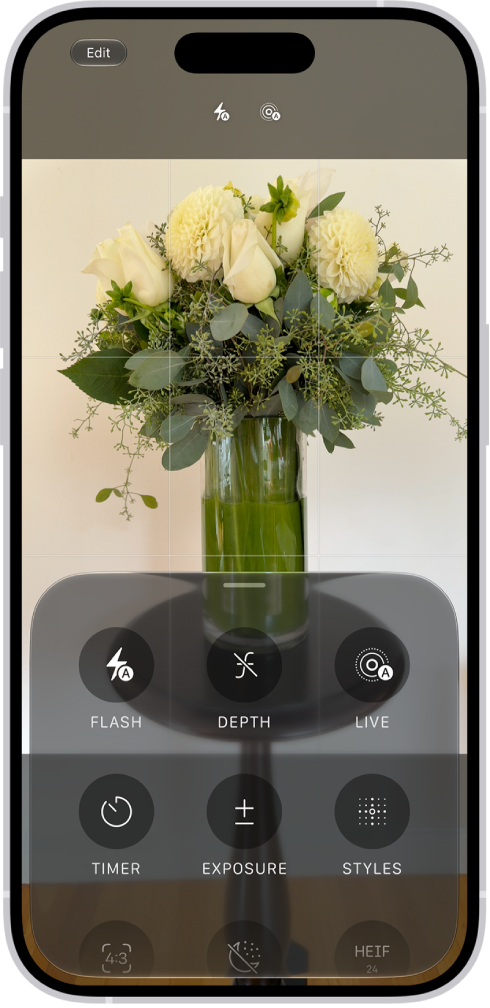
Tap the part of the frame you want sharp and a yellow box appears with a sun beside it. Drag the sun down and the whole shot darkens. Roughly a third of the way down protects highlights without losing much else. Touch and hold the same spot until AE/AF Lock appears and both focus and exposure hold while you move the phone.
That adjustment is thrown away each time the Camera app closes. Go to Settings > Camera > Preserve Settings and turn on Exposure Adjustment so it survives, and Night Mode while you are there so a chosen exposure time is not reset to automatic.
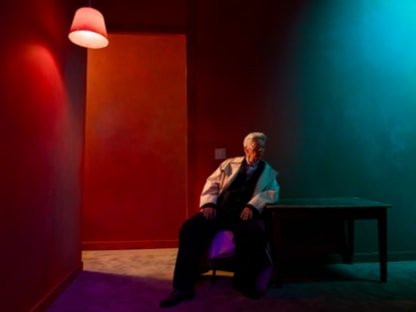
In low light the camera switches to Night mode on its own and picks an exposure. Tap the camera controls button, tap Night Mode, and pick a longer one. Brace the phone against something solid for anything beyond a second or two. If crosshairs appear, the phone has detected movement and lining them up is what keeps the frame sharp.
iPhone 18 Pro adds a physical variable aperture on the Main camera, the first on an iPhone. Four settings run from ƒ/1.48 to ƒ/4.0, moved by a six-blade mechanism rather than simulated in software. The values are listed on Apple’s iPhone 18 Pro specifications alongside the rest of the camera hardware.
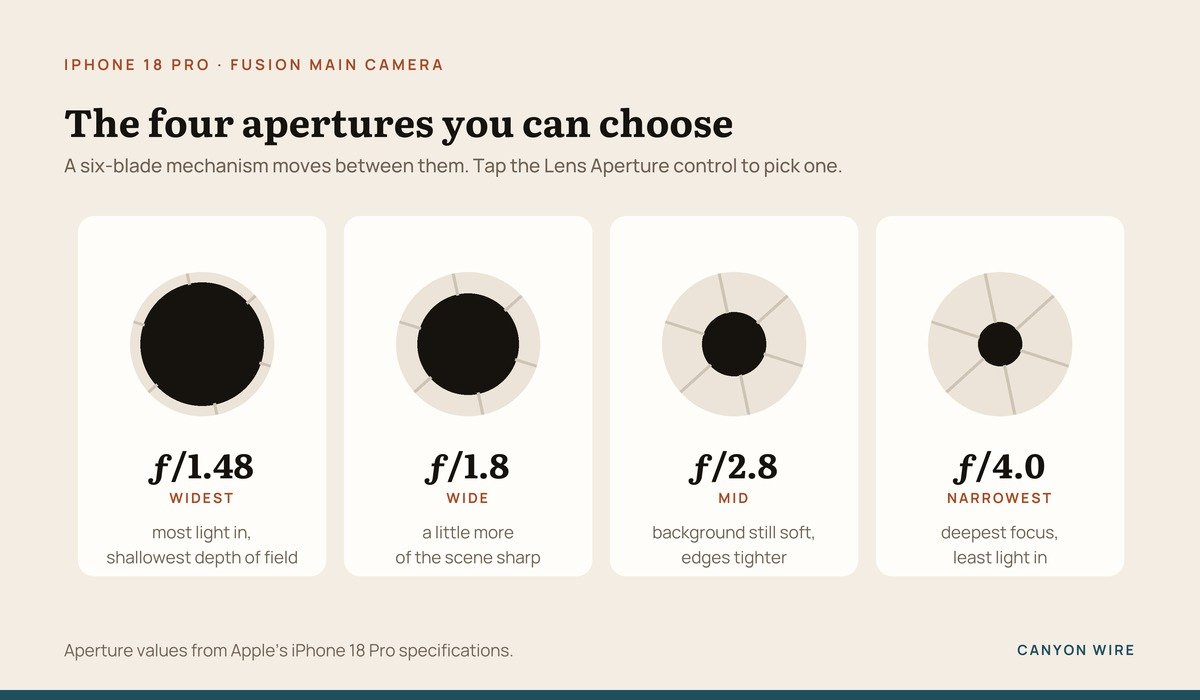
Wide open at ƒ/1.48 lets in the most light and throws the background furthest out of focus, which suits portraits and dim rooms. Closing to ƒ/4.0 keeps more of the scene sharp and is the one to use for a group photo or a landscape where the foreground matters. Turn on Lens Aperture in Preserve Settings or it reverts to automatic.
Color That Looks Wrong: Styles, White Balance and HDR
A Photographic Style is applied while the photo is captured and adjusts particular colors instead of laying a filter over the whole frame. Open Camera, tap the controls button, tap Styles, and swipe through them. The Tone and Warmth sliders set how hard the style lands.
On iPhone 18 Pro and iPhone Duo, Photographic Styles 3 adds Texture options called Soft Skin, Glow and Film, plus a Grain control. Soft Skin on a low setting flatters a portrait. Past about a third of the slider the result reads as processed on anything larger than a phone screen.
One requirement catches people out. Settings > Camera > Formats has to be on High Efficiency for a style to stay editable in Photos later. That is the HEIF container, which also holds roughly half the file size of a comparable JPEG. To clear a style entirely, go to Settings > Camera > Photographic Styles and choose Use Standard.
If a sequence of shots keeps shifting color between frames, the camera is re-deciding white balance each time. On iPhone 18 Pro you can stop that: tap the controls button, tap White Balance, and set a value. HDR itself needs no attention. It is automatic on every current model, and only iPhone 11, iPhone SE second generation and iPhone 12 still carry a manual Smart HDR switch.
Crooked and Badly Framed: Grid, Level and Lens Choice
Turn on Grid and Level in Settings > Camera. Both are off by default and both take one tap.
The grid divides the frame into thirds each way, putting the rule of thirds intersections on screen while you compose. Level is the more immediately useful of the two: aimed at a horizon it draws a line that snaps yellow when the phone is straight, and aimed down at a document it shows a crosshair that confirms the phone is flat.
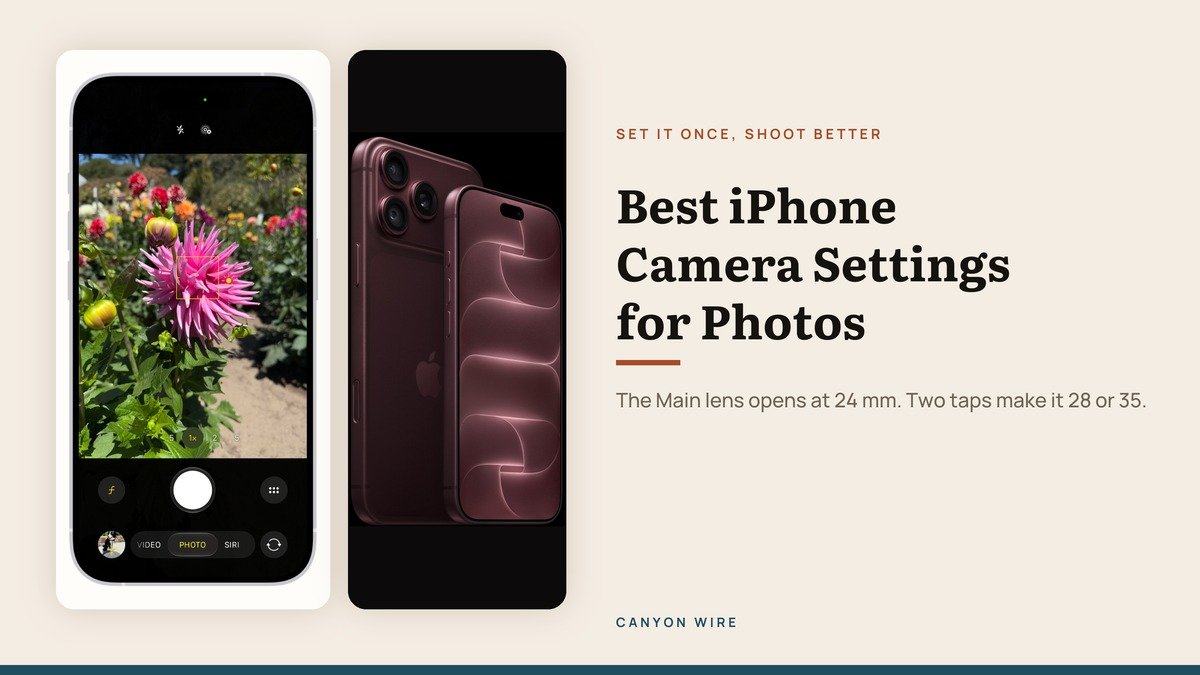
The lens matters more than most people expect. The 1x button on an iPhone 18 Pro is 24 mm, which is wide enough to stretch faces near the edge of the frame. iOS 27 lets you add two longer options to the same lens:
- Set Settings > Camera > Formats > Photo Mode to 24 MP, or the option will not appear.
- Go to Settings > Camera and tap Main Camera, or Fusion Camera, below Photo Capture.
- Under Additional Lenses, switch on 28 mm and 35 mm.
- Under Default Lens, choose the one Camera should open at.
The 1x button then cycles through 1x at 24 mm, 1.2x at 28 mm and 1.5x at 35 mm. On iPhone Air and iPhone Duo the Main lens starts at 26 mm, so the same additions read as 1.1x and 1.4x. For photographs of people, 35 mm is the one to make default.

Leave Lens Correction and Macro Control alone. The first straightens the distortion the Ultra Wide and front cameras introduce at the edges, and switching it off bows faces outward. The second puts a flower icon on screen inside macro range so you can override the automatic switch to Ultra Wide, which happens from about 2 cm away. View Outside the Frame is the one real preference in this group.
Taking Manual Control on iPhone 18 Pro
iPhone 18 Pro models put four manual controls behind the camera controls button, usable in Photo, Video, Cinematic, Slo-mo and Time-Lapse. This is the first time an iPhone has offered them in the stock Camera app.
- Shutter Speed is a slider. Slow it for moving water and light trails, speed it up to freeze a subject mid-movement.
- Lens Aperture is four tapped values between ƒ/1.48 and ƒ/4.0.
- White Balance is a tapped value that stops color drifting between frames.
- Histogram shows the spread of tones across the frame, so clipped highlights are visible before you take the shot.
There is also a Focus tool on iPhone 18 Pro and iPhone Duo. It locks the camera to Ultra Wide, Main or Telephoto, gives you a focus distance slider, and outlines the areas that are sharp. Focus and exposure are separate controls there, so changing one leaves the other alone. Tapping a subject and double-tapping its yellow frame starts tracking, which follows it as it moves.
Reference mode is the other iPhone 18 Pro addition, and it is about provenance rather than quality. Turn it on once at Settings > Camera > Reference Image, tap Add Reference Mode, then swipe to Reference in the Camera app. The phone saves the original signed data from the Main camera sensor alongside the photo, so the file can later be shown to be an unedited capture. It is not offered in every country.
ProRAW, File Sizes and What It Costs You
Apple ProRAW keeps the raw sensor data together with the processing the iPhone would normally bake in, which leaves far more room to move exposure, color and white balance afterwards. It writes a DNG file. Switch it on at Settings > Camera > Formats, pick the file type under ProRAW Format, then use the Format control in the Camera app to turn it on for a particular shot.
It works on every camera including the front one, but not in Portrait mode. The files are large enough that leaving it on permanently will fill a phone, which is the real reason to treat it as a per-shot decision rather than a default.
Shooting 48 MP with Night mode and ProRAW running is also among the heavier things an iPhone does. A long session will warm the phone and drain it noticeably, so if the battery is dropping faster than it should after an afternoon of photos, that is the likely cause rather than a fault.
If You Have an iPhone 17, iPhone Air or an Older Model
Most of this applies regardless of model. Grid, Level, Prioritize Faster Shooting, Photo Mode, Photographic Styles, Preserve Settings, manual exposure and Night mode all behave the same on an iPhone 17 as on an iPhone 18 Pro. What changes is the hardware underneath and the controls that depend on it.
- iPhone 17 pairs a 48 MP Fusion Main at 26 mm with a 48 MP Ultra Wide, so Resolution Control applies. It captures HEIF and JPEG only, so ProRAW does not.
- iPhone Air has the Main camera alone with no Ultra Wide, so there is no 0.5x button and no macro.
- iPhone 17e follows the same HEIF and JPEG rule as the iPhone 17.
- Manual aperture, shutter speed, white balance and the histogram are iPhone 18 Pro features and do not appear anywhere else.
Screen quality shapes what you can judge while shooting, which is worth remembering if you are editing on the phone. A scratched or heavily matted protector makes exposure hard to read, so a clear screen protector is worth more to a photographer than it sounds.
The Order Worth Changing Them In
Three changes carry most of the improvement, and none of them costs storage.
- Turn off Prioritize Faster Shooting. It affects every photo and the trade-off is a fraction of a second.
- Turn on Grid and Level. Framing and a straight horizon lift more photos than resolution ever will.
- Add Exposure Adjustment to Preserve Settings and pull exposure slightly down. Holding highlights is the difference between a usable file and a white sky.
Resolution Control, ProRAW and the manual controls come after those three. All of them cost storage or attention, and none of them rescues a photo that was badly framed or badly exposed in the first place.
Frequently Asked Questions
Which single iPhone camera setting makes the biggest difference?
Turning off Prioritize Faster Shooting in Settings > Camera. It is on out of the box, it affects every photo you take, and the only cost is a slightly longer wait between rapid consecutive shots.
Is 24 MP or 48 MP better for everyday photos?
24 MP. It is assembled from the full sensor, it is quick to write, and it holds up to moderate cropping. Reach for 48 MP when the scene is detailed or you know you will crop hard into it later.
What aperture should I use on iPhone 18 Pro?
Leave it automatic unless you want a specific result. Choose ƒ/1.48 for portraits and low light, where you want a soft background and the most light. Choose ƒ/4.0 for groups and landscapes, where you need the depth of the scene to stay sharp.
Why do my camera settings reset every time?
Because most in-app adjustments are deliberately temporary. Settings > Camera > Preserve Settings controls which ones persist. Exposure Adjustment, Night Mode, Photographic Style and Lens Aperture are the ones worth turning on there.