An iPhone battery draining fast has two possible roots: software that keeps the phone busy, or a battery that can no longer hold its original charge. This guide checks the battery first, because nothing in Settings can fix a worn cell, then runs a one-hour test that separates the two before you change any setting.
The menu paths below apply to iOS 26 and iOS 27. If the phone also runs hot, our phone overheating guide covers the heat side.
iPhone Battery Draining Fast: Software or a Worn Battery?
Check Maximum Capacity in Settings > Battery > Battery Health. Below 80 percent, or with a Service message, the battery is worn and needs replacing. Above that, the cause is software: run a one-hour idle test, then fix location access, mail push, cellular data and any ongoing update work.
Set Aside 30 Minutes and Gather Three Readings
Plan half an hour for the checks and one ordinary day to judge the result. You need an iPhone on iOS 26 or iOS 27 and these three readings written down:
- Maximum Capacity and, on iPhone 15 or later, Cycle Count from Battery Health.
- The percentage you lose in one hour of idle time, measured below.
- The top three apps in Settings > Battery.
Step 1: Read Battery Health and Cycle Count First
- Open Settings and tap Battery.
- On iPhone 15 or later, tap Battery Health. On iPhone 14 or earlier, tap Battery Health & Charging.
- Note Maximum Capacity, the measure of capacity relative to when the battery was new.
- On iPhone 15 or later, note Cycle Count, Manufacture Date and First Use.
- Check whether the word Service appears next to Battery Health.

Apple designs batteries in iPhone 14 models and earlier to retain 80 percent of original capacity at 500 complete charge cycles, and iPhone 15 models and later at 1,000, under ideal conditions. A cycle is an amount of use equal to 100 percent of capacity, however many charges it takes. Apple says the Cycle Count readout needs iPhone 15 or later on iOS 17.4 or later.
You will know the result when you have a single verdict: Maximum Capacity of 80 percent or more points to software, and below it, or with a Service message, points to the battery. Skip ahead to the replacement section in the second case.
Step 2: Run a One-Hour Idle Test to Separate Wear From Software
- Unplug the phone and note the battery percentage.
- Lock the screen and leave the phone untouched on a table for 60 minutes.
- Note the percentage again and write down the difference.
- Repeat the hour with Airplane Mode on, from Control Center.
- Compare the two differences.
A phone that loses the same amount in both runs is not being drained by its radios, which points at a background app, a widget, or the battery. A phone that loses much less in Airplane Mode has a signal or data problem, and Step 4 is the fix. The number is only meaningful against your own later runs, so repeat the identical hour after each change.
Keep the screen locked and the phone off the charger throughout, because use while charging is labelled Connected to Charger in Battery usage and does not count against the battery. You will know it worked when you hold two numbers, idle loss and Airplane Mode loss, to compare after every fix.
Step 3: Close the Location and Mail Push Leaks
- Open Settings, tap Privacy & Security, then tap Location Services.
- Tap each app set to Always that does not need your position when it is closed.
- Choose While Using the App, or Never.
- Tap System Services, below the app list.
- Switch off services you do not use. Apple names location-based suggestions and location-based ads as examples.
- Open Settings, tap Apps, tap Mail, then tap Mail Accounts and Fetch New Data.
- Turn off Push and leave the schedule on Automatically.
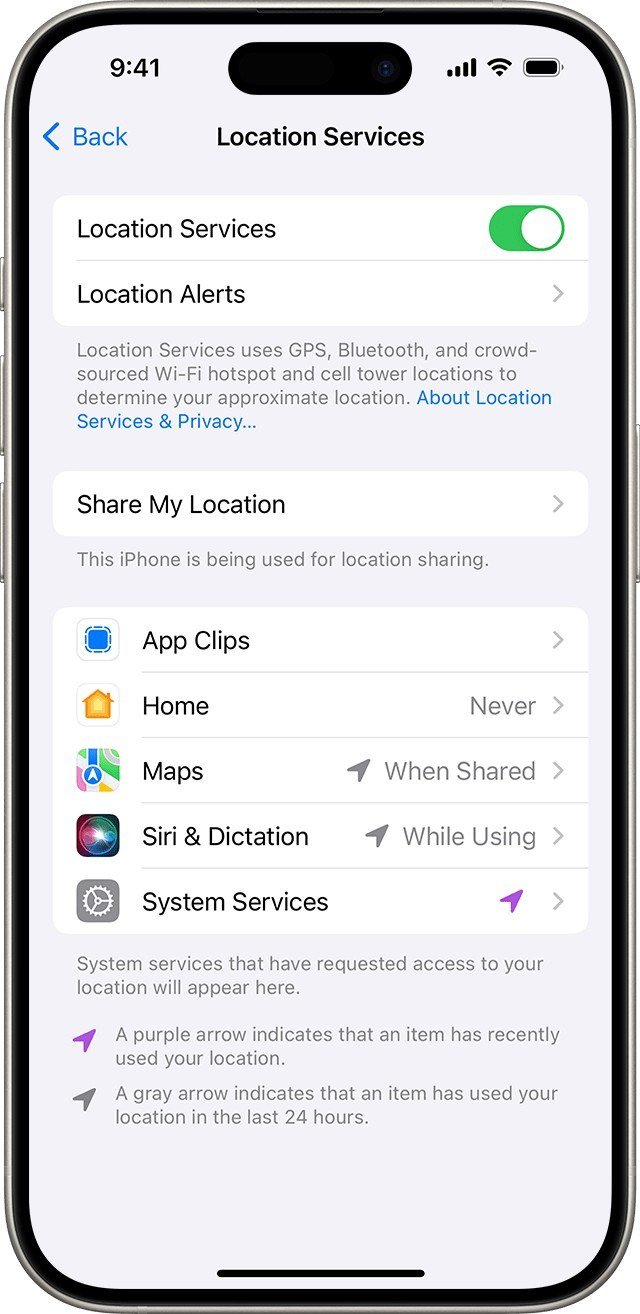

A purple arrow in the list marks an item that recently used your location, and a gray arrow marks use within the last 24 hours. Mail is a push technology case: the server starts the delivery, so the phone does not have to poll for new mail. Apple’s iCloud Mail guidance adds that Push works with one account at a time, and the Automatically setting fetches in the background only while the phone charges on Wi-Fi.
You will know it worked when your Step 2 idle loss falls on the next repeat.
Step 4: Check Which Apps Use Cellular Data and Switch to 5G Auto
- Open Settings and tap Cellular.
- Scroll to the app list and read the data under each app.
- Switch off cellular for any app that does not need it away from Wi-Fi.
- Tap Cellular Data Options, then Voice & Data, and choose 5G Auto on iPhone 12 or later with a 5G plan.

Apple describes 5G Auto as Smart Data mode: the phone moves to LTE when 5G does not noticeably improve speed. Low Data Mode, under Cellular Data Options, pauses background tasks and automatic updates away from Wi-Fi. Connectivity Assist, now under Settings > Wi-Fi, lets cellular supplement a weak network, so a phone stuck on a poor router can be using both.
You will know it worked when the Airplane Mode and normal-mode idle losses from Step 2 move closer together.
Step 5: Handle Drain After an Update
- Open Settings, tap Battery, and look above the Daily Usage chart for an Insight.
- If it reads Ongoing iOS Update or Ongoing Device Setup, wait a few days and check again.
- Open Settings, tap General, then tap Software Update.
- Install the newest release for your iPhone.

Apple lists a major update, a restore from backup and first-time setup among the moments an iPhone runs warm. iOS 27 and iOS 26.7 both shipped on 14 September 2026, and iOS 27 supports iPhone 11 and later. The Insights feature arrived with iOS 18.
You will know it worked when the Insight is gone from the Battery screen.
Step 6: Reduce Screen and Background Load
- Drag the brightness control down in Control Center.
- Open Settings, tap Display & Brightness, tap Auto-Lock and choose a shorter delay.
- Open Settings, tap General, then tap Background App Refresh, and choose Wi-Fi or Off.
- Open Settings, tap Battery, tap Power Mode on iPhone 15 or later, and turn on Low Power Mode when you need it.

Adaptive Power, on iPhone 15 Pro and later, can lower brightness slightly, limit background activity on heavy days and switch on Low Power Mode at 20 percent. Apple ships it on for iPhone 17 Pro, 17 Pro Max, 18 Pro, 18 Pro Max and Duo, and off for iPhone 16 and 15 Pro Max. Low Power Mode turns itself off above 80 percent charge and pauses iCloud Photos meanwhile.
You will know it worked when any High Brightness suggestion vanishes from Settings > Battery and the evening percentage rises.
When Settings Stop Helping: Replacement Cost and Coverage
Below 80 percent Maximum Capacity, or with a Service message, replace the battery. AppleCare covers a replacement at no extra charge below 80 percent. The one-year warranty covers defects but not batteries that wear down from normal use. For out-of-warranty service, Apple’s own estimate tool showed these prices on 24 October 2026, before tax and subject to inspection:
- iPhone 8, 7 and SE (2nd and 3rd generation): $69.
- iPhone 11, 12, 13 and XS: $89.
- iPhone 14, 15, 16, 16 Plus, 16e, 17 and 17e: $99.
- iPhone 16 Pro, 16 Pro Max, 17 Pro, 17 Pro Max and iPhone Air: $119.
- iPhone 18 Pro and 18 Pro Max: $129; iPhone Duo: $229.

After service, open Settings > General > About. Genuine beside Battery means a verified Apple part, and an Unknown message means the battery is not genuine, so Apple warns health data may be inaccurate. Apple quotes up to 36 hours of video playback for the iPhone 18 Pro in its iPhone 18 Pro specifications, from lab testing in August 2026, so judge a new battery against your own day, not that figure.
You will know it worked when Battery Health shows a fresh Maximum Capacity near 100 percent.
Protect the New Battery: Charge Limit and Optimized Charging
- Open Settings and tap Battery.
- On iPhone 15 or later, open the charging options and choose a Charge Limit between 80 and 100 percent.
- On iPhone 14 or earlier, tap Battery Health & Charging and keep Optimized Battery Charging on.
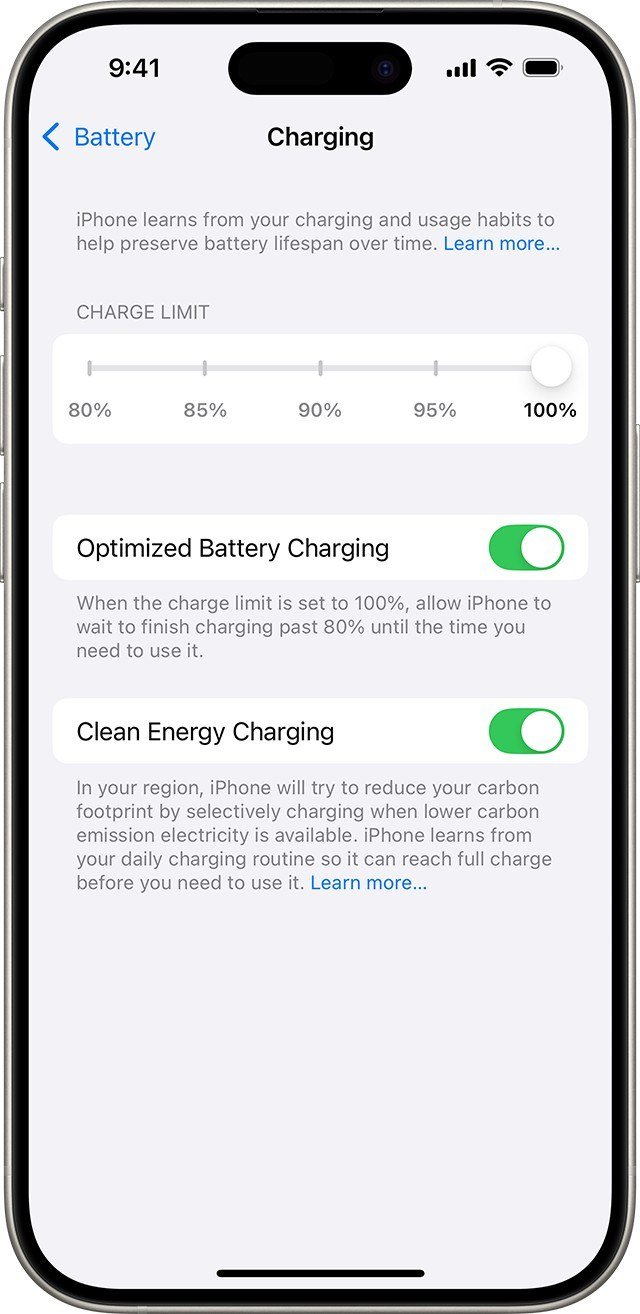
Optimized Battery Charging holds the charge near 80 percent until you need the phone, and needs at least 14 days and nine charges of five hours or more in one place to learn your routine. With a limit below 100 percent the phone still charges fully now and then so its state-of-charge estimate stays accurate. Our iPhone not charging guide covers charging faults.
You will know it worked when a notification on the Lock Screen gives a full-charge time.
Common Mistakes When the Battery Drains
- Closing apps from the app switcher. Apple says it does not change battery life or speed.
- Turning Location Services off completely. Apple warns many iPhone features stop working.
- Testing the phone in the cold. Apple says cold drain is temporary, and that 35 degrees Celsius (95 degrees Fahrenheit) is the ceiling for use and charging.
- Judging the phone during an Ongoing iOS Update Insight.
Frequently Asked Questions
Why does my iPhone battery drain so fast even on standby?
Idle loss comes from background app activity, push mail, location use and a weak signal. Run the one-hour idle test, then repeat it in Airplane Mode to see whether the radios are involved.
Is it normal for battery life to drop after an update?
Yes, for a few days. Apple says update tasks continue in the background and to wait a few days before checking again.
How many charge cycles does an iPhone battery last?
Apple designs iPhone 15 and later batteries to keep 80 percent at 1,000 complete cycles and iPhone 14 and earlier at 500, under ideal conditions.
Does a replacement battery fix drain?
It does when Maximum Capacity is the cause. Apple says a replacement restores capacity and full performance on a degraded battery.





