
An iPhone Unavailable message on the lock screen means the phone has counted several wrong passcodes in a row and has stopped accepting new ones for a while. The phone is not broken and the data is still there. What happens next depends on one thing: whether you can remember the passcode before the timer disappears.
Reading the screen takes a minute. The previous passcode route takes two. A reset takes anywhere from ten minutes to an hour, and it erases the phone, so work down this page in order rather than starting at the end. The steps match iOS 27, with the older button combinations noted where they differ.
What the iPhone Unavailable Screen Is Telling You
Every wrong passcode is checked by the Secure Enclave, a separate processor that holds the keys your data is encrypted with and answers no faster than it chooses to. After a handful of failures it adds a delay, and that delay grows each time. The screen that says iPhone Unavailable, or Security Lockout on some versions, is that delay being enforced.
Two details decide how much trouble you are in. If a countdown is on screen, waiting costs nothing and the passcode will still work afterwards. If there is no countdown and no Forgot Passcode button, the phone has passed the point where it will accept anything except a reset from another device or a computer.
- A timer on screen: the passcode still works, so wait rather than guess.
- A Forgot Passcode button in the corner: you have a route that does not need a computer.
- No timer and no button: the phone needs a computer, or Find Devices from another device.
- A phone that erased itself: the Erase Data setting was on, and it wiped after 10 straight failures.
Repeating the same wrong code does not dig the hole deeper. Apple’s own security documentation counts only consecutive attempts with different passcodes toward the lockout limit, so typing one code twice is not two strikes.
How Long Each Wrong Passcode Locks the Phone
The ladder below is the one the Secure Enclave applies. Restarting the phone during a delay does not clear it, and neither does plugging it in, because the countdown is held on the chip rather than in the software.
| Wrong entries | Locked for | What to do with the wait |
|---|---|---|
| 4 | 1 minute | Wait it out |
| 5 | 5 minutes | The Unavailable screen and the Forgot Passcode button appear |
| 6 | 15 minutes | Stop guessing and read the routes below |
| 7 | 1 hour | Find the Apple Account password while you wait |
| 8 | 3 hours | Plan the reset |
| 9 | 8 hours | Charge the phone before it dies mid-wait |
| 10 or more | No timer at all | The phone has to be connected to a Mac or PC |
Ten consecutive failures end the waiting game. From that point the screen stops offering a countdown and the phone has to be connected to a computer, which is the slowest of the routes below.
Try the Previous Passcode Within 72 Hours
This is the only route that keeps your data, and it only applies if you changed the passcode in the last three days. Since iOS 17, a change starts a 72-hour window in which the old passcode still gets you in. Most lockouts are a passcode changed on a Monday and forgotten on a Tuesday, which is exactly what this covers.
- Enter any passcode until the Unavailable screen appears.
- Tap Forgot Passcode? in the bottom corner.
- Tap Enter Previous Passcode.
- Type the passcode you used before the change.
- Set a new passcode when the phone asks, which it will do immediately.
You will know it worked when the home screen opens and the phone asks you to choose a new passcode rather than returning to the countdown. Nothing is erased and no backup is needed.
Once you are back in, the same feature has a switch worth knowing about. Settings has a Temporary Passcode Reset section that shows exactly how long the old code stays valid and lets you end it early.
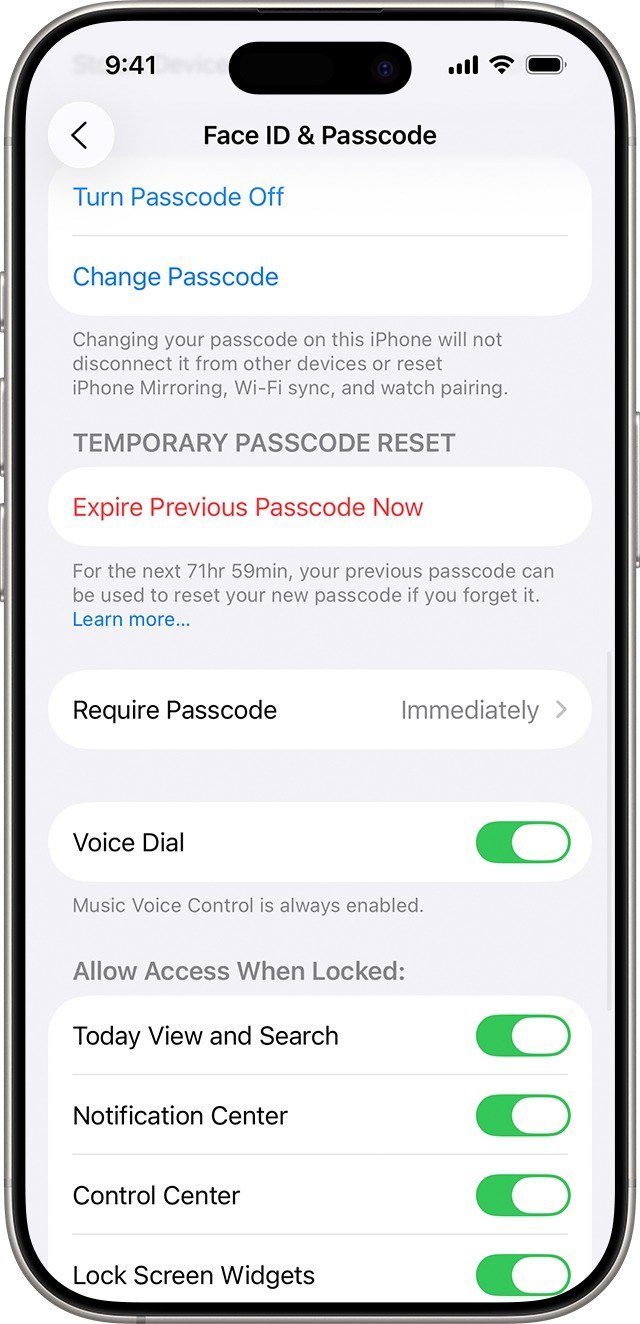
Open Settings, tap Face ID & Passcode, enter the new passcode and tap Expire Previous Passcode Now. Do that if you changed the passcode because somebody had seen the old one, since the window protects them as much as you.
Reset From the Lock Screen Without a Computer
From iOS 15.2 onward the phone can erase and set itself up again with no computer involved. The Forgot Passcode button only appears when four things are true at once, which is why some readers never see it.
- The phone is on a cellular or working Wi-Fi connection.
- Find My was switched on before the lockout.
- The phone is signed in to your Apple Account.
- You know that account password, not just the passcode.
- Enter passcodes from the lock screen until the Unavailable screen appears.
- Tap Forgot Passcode? in the bottom corner.
- Tap Start iPhone Reset on the Security Lockout screen.
- Enter your Apple Account password to sign the account out of the phone.
- Tap Erase iPhone, choosing to keep or delete the eSIM if the phone carries one.
- Follow the setup screens, restore from a backup, and set a passcode you will remember.
You will know it worked when the phone restarts to the Hello screen and the language picker, which means the erase finished and setup is waiting for you.
Keep the eSIM unless you are passing the phone on. Keeping it means your number is live again the moment setup ends. On iOS 16 or earlier the choice does not exist, so call the carrier for a replacement QR code before you start rather than afterwards.
Erase It Remotely From Find Devices
If the phone is in another room, another bag or another city, the same erase can be sent from any browser. This needs Find My to have been on, and it needs the Apple Account password, but it does not need the phone in your hand or a cable.
- Sign in at icloud.com/find on any computer, tablet or phone.
- Pick the locked iPhone from the device list.
- Choose Erase This Device and confirm with your Apple Account password.
- Leave the request in place if the phone is offline, since it runs the next time the phone connects.
You will know it worked when a confirmation email lands in your Apple Account inbox and the device shows as erased in the list. Change your mind before it runs and Stop Erase Request cancels it.
Activation Lock survives the erase. The phone will ask for the Apple Account it was signed into before setup can finish, which is the feature working as intended and the reason a wiped secondhand phone is often useless.
Restore With a Mac or Windows PC
When the phone is offline, Find My was off, or the Forgot Passcode button never appears, a computer does the same job through recovery mode. Any Mac or Windows PC works, including one you borrow, and it does not have to have met the phone before. Apple budgets up to 60 minutes for the restore itself.

- Turn the phone off: hold the side button and volume down together, then drag the slider. On a Home button model, hold the top or side button instead.
- Plug the cable into the computer first.
- Hold the side button while you connect the cable to the phone, and keep holding.
The button differs on older hardware. iPhone 7 and 7 Plus use volume down, and anything with a Home button uses the Home button. Keep holding past the Apple logo, which is the step most people release too early.

- Let go once the computer and cable image appears on the phone.
- Select the iPhone in the Finder sidebar on a Mac, or in the Apple Devices app on Windows.
- Choose Restore when the update or restore prompt appears.
- Wait for the download and installation, then set the phone up and restore a backup.
You will know it worked when the computer shows a progress bar and the phone displays the Apple logo with a progress bar under it. If the phone leaves the recovery screen while the software downloads, repeat the button steps and the restore picks up where it left off.
When the Apple Account Password Is the Real Problem
Three of the four routes above ask for the Apple Account password, and a surprising number of lockouts turn into account problems at exactly that moment. Fix the account first, because no amount of work on the phone gets around it.
- On another Apple device you are signed in on: Settings, your name, Sign-In & Security, Change Password.
- On a borrowed iPhone or iPad: the Apple Support app, Support Tools, Reset Password, then Help Someone Else.
- In a browser: iforgot.apple.com, which hands you back to a trusted device whenever it can.
- With none of those: account recovery, which can ask for your trusted phone number, your account email or the card on file.
Account recovery is the slow door. Apple says it can take several days or longer, and contacting support does not speed it up, so start it the same day rather than after a weekend of trying other things.

The fix for next time sits two taps away in the same settings screen. A recovery contact is someone who can generate a code for you, and it turns a multi-day recovery into a phone call. A recovery key does the opposite if you lose it: setting one switches standard account recovery off, and losing the key locks the account permanently.
Two Mistakes That Turn a Lockout Into a Wipe
The first is guessing. Each new wrong code lengthens the next wait, and if Erase Data is switched on in Face ID & Passcode, the tenth consecutive miss wipes the phone without asking. Handing the phone to a child who then taps at it is the most common version of this.
The second is paid software that promises to open a locked iPhone without erasing it. The passcode is tangled with a key burned into the chip, each guess has to run on the phone itself, and Apple reckons a six-character passcode of letters and numbers would take more than five and a half years to break that way. Those tools either run the same erase you can do for free or they do nothing.
If the phone will not power on at all or the buttons do not respond, this stops being a passcode problem. Check whether the battery is the fault first, and if the screen stays dark through every button combination, Apple service options are the next step.
For anything that follows a restore, the version matters: the lock screen reset needs iOS 15.2 or later and the 72-hour window needs iOS 17 or later, so check that your model still takes current iOS updates before planning around either.
Frequently Asked Questions
Is an iPhone Unavailable screen permanent?
No. Either a timer runs out and the passcode works again, or the phone is erased and set up fresh. The hardware is never locked for good by wrong passcodes, though Activation Lock will keep asking for the Apple Account that was signed in before the erase.
Does restarting the phone clear the countdown?
It does not. The Secure Enclave holds the delay rather than the operating system, so a restart, a charge or a trip to a different network leaves the timer exactly where it was.
Will I lose my photos if I reset the iPhone?
Only the ones that existed nowhere else. Anything in iCloud Photos comes back when you sign in during setup, and anything in a recent backup returns with it. A phone whose last backup is a year old loses a year.
Can an Apple Store open the phone for me?
They run the same erase you would run at home, after asking for proof of purchase and the Apple Account password. Nobody at Apple can read the passcode back to you or get past it without wiping the phone.





