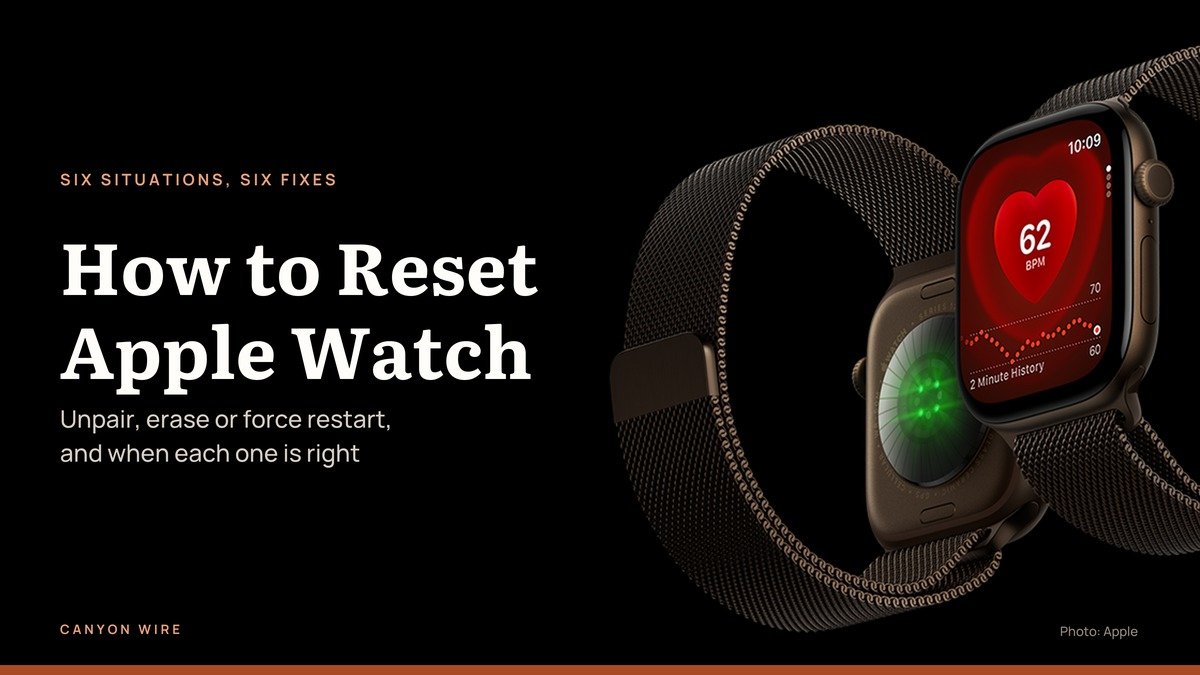
How to reset Apple Watch depends on why you are resetting it. To sell it, unpair it in the iPhone’s Apple Watch app; for a forgotten passcode, erase it on its charger; for a frozen screen, hold the side button and Digital Crown for at least 10 seconds.
The steps below match watchOS 27, which reached Apple Watch Series 9 and later on September 14, 2026, and apply to the current Series 12, Ultra 4 and SE 3. A force restart takes about 10 seconds. An unpair or erase is a longer job, so start with the watch charged and the paired iPhone within reach.
How to Reset Apple Watch: Match the Reset to Your Situation
There are three kinds of Apple Watch reset. A restart reboots it and keeps everything. An erase wipes it but leaves Activation Lock on, so the watch still asks for your Apple Account. An unpair from the iPhone wipes it, backs it up first and removes Activation Lock, which makes it the only reset fit for a sale.
| # | Your situation | Reset to use | Erases data | Removes Activation Lock |
|---|---|---|---|---|
| 1 | Selling, trading in or giving it away | Unpair in the iPhone Apple Watch app | Yes | Yes |
| 2 | Forgot the watch passcode | Erase on the charger (side button, then Digital Crown) | Yes | No |
| 3 | Frozen or stuck on the Apple logo | Force restart (side button + Digital Crown) | No | No |
| 4 | Starting fresh with the same iPhone | Settings, General, Reset on the watch | Yes | No |
| 5 | No iPhone at all | Erase on the watch, then remove it at iCloud.com | Yes | Only after iCloud.com |
| 6 | Handing your old watch to a child | Unpair, then Set Up for a Family Member | Yes | Yes |
Rows 1, 5 and 6 are the only ones that leave the watch ready for a new owner.
Before You Start: Two Passwords and One Charger
Every wipe here asks for at least one secret. Gather these first:
- Your Apple Account password. Unpairing asks for it to switch off Activation Lock. If you have forgotten it, reset it before you touch the watch.
- Your watch passcode. The on-watch erase asks for it. Without it, use the charger method.
- The paired iPhone, unlocked, with Bluetooth on and connected to Wi-Fi or cellular.
- The magnetic charger. The passcode reset only runs while the watch sits on it.
Do not go looking for a pinhole. There is no reset button or SIM slot on any Apple Watch; the holes in the case are for sound and, on Apple Watch Ultra, for water-depth measurement, and nothing should be pushed into them.
Selling, Trading In or Giving It Away: Unpair It
Unpairing is the reset that hands over a clean watch. The iPhone first tries to save a backup, then wipes the watch, so a future watch can restore your faces and settings. Keep both devices close together, then:
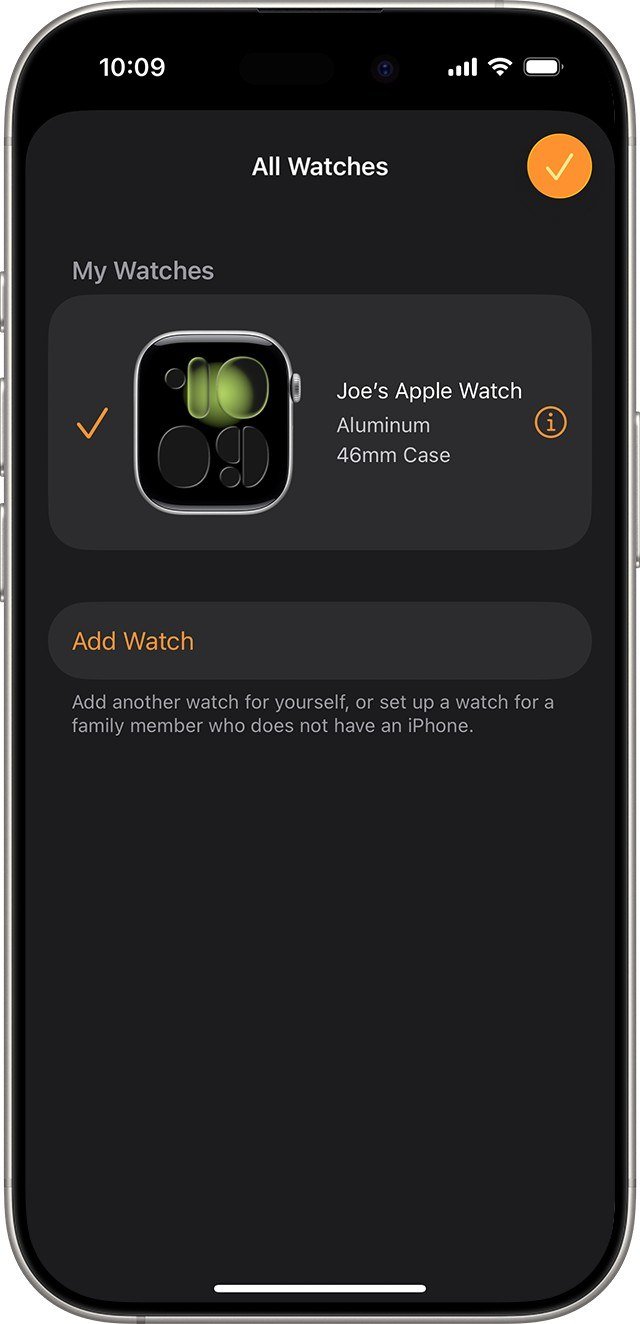
- Open the Apple Watch app on your iPhone.
- Go to the My Watch tab and tap All Watches.
- Tap the info button next to the watch you are selling.
- Tap Unpair Apple Watch, then tap Unpair [your watch name].
- On a cellular model, tap Remove Cellular Plan.
- Type your Apple Account password, then tap Unpair.
You’ll know it worked when the watch is back at factory settings and ready to be set up again, by you or the next owner.
Confirm Activation Lock Is Off
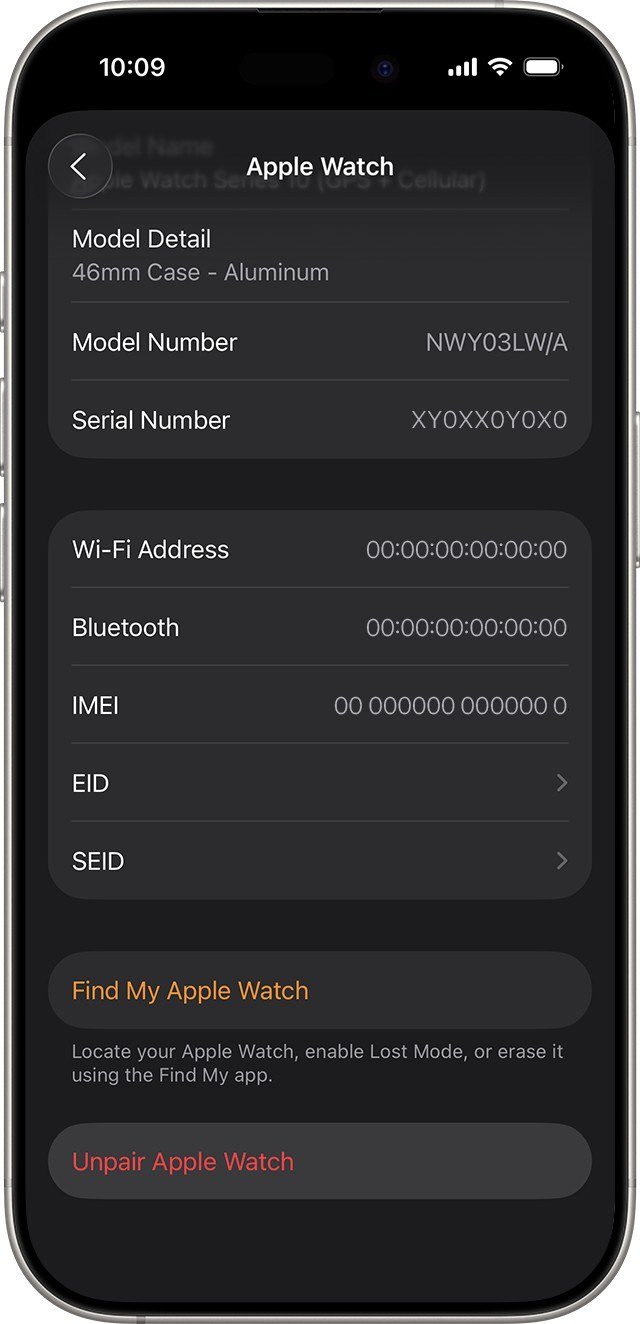
Before the buyer arrives, you can check the lock status on any watch that is still paired. In the Apple Watch app, tap All Watches, then the info button. If the screen lists Find My Apple Watch, Activation Lock on the watch is still on. Unpairing clears it.
Already Handed It Over? Erase It From iCloud.com
If the watch left your hands still locked, you can finish the job from a computer:
- Go to icloud.com/find and sign in with your Apple Account.
- Under All Devices, click the watch name.
- Click Erase, then Next, and enter your password if asked.
- Click Erase again.
- When the erase finishes, click Remove under the watch, then Continue.
Removing a watch without erasing it works differently. An offline watch loses Activation Lock at once and leaves Find My after 30 days, while an online watch cannot be removed, only marked Ready for Repair or Trade In for 30 days.
Buying a Used Apple Watch
A watch that wakes to its passcode screen or its Home screen has not been erased. If setup asks for the previous owner’s Apple Account password, Activation Lock is still on and only that person can remove it, so test the pairing before you pay.
Forgot Your Apple Watch Passcode: Reset It on the Charger
A forgotten passcode does not lock you out for good; it means erasing the watch and setting it up again. If the Erase Data setting is on, the watch wipes itself after 10 failed passcode attempts anyway. To reset it on purpose:
- Put the watch on its charger and leave it there until you finish.
- Press and hold the side button until the power button appears in the upper-right corner of the display.
- Press and hold the Digital Crown until Erase all content and settings appears.
- Tap Reset, then tap Reset again to confirm.
- When it finishes, set the watch up again and choose to restore from a backup.
You’ll know it worked when the erase finishes and the watch starts fresh, ready for setup and a new passcode.
Before the erase, the paired iPhone saves a backup of the watch. This passcode reset does not remove Activation Lock, though, so it suits a watch you are keeping. With the iPhone at hand, the same wipe runs from the Apple Watch app under My Watch, General, Reset, Erase Apple Watch Content and Settings. No charger nearby? A watch-friendly portable charger keeps the watch powered through the reset.
Watch Frozen or Stuck on the Apple Logo
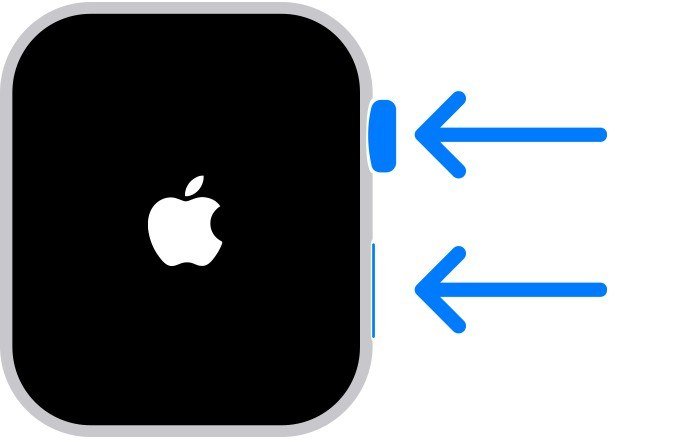
A frozen watch needs a restart, not a wipe. Try the normal restart first: hold the side button until the sliders appear, tap the power button, then drag the Power Off slider. Take the watch off its charger first, because Apple Watch cannot restart while charging.
If it will not power off, force it. Press both the side button and the Digital Crown for at least 10 seconds, until the Apple logo appears, then let go. Nothing is erased.
You’ll know it worked when the screen turns black and the Apple logo reappears; the restart itself can take a few moments.
If the logo stays put after a force restart, the stuck Apple logo fix is to unpair and pair again, keeping the cellular plan and tapping Restore from Backup during setup. A watch showing an iPhone-and-watch animation needs Recover mode instead: put it on its charger, hold an unlocked iPhone on iOS 15.4 or later nearby, and double-click the side button.
Starting Over With the Same iPhone
Sometimes you want a blank watch but plan to keep it. Erasing from the watch wipes its content and settings while it stays paired with your iPhone. Open Settings, tap General, then Reset, then Erase All Content and Settings, and enter your passcode.
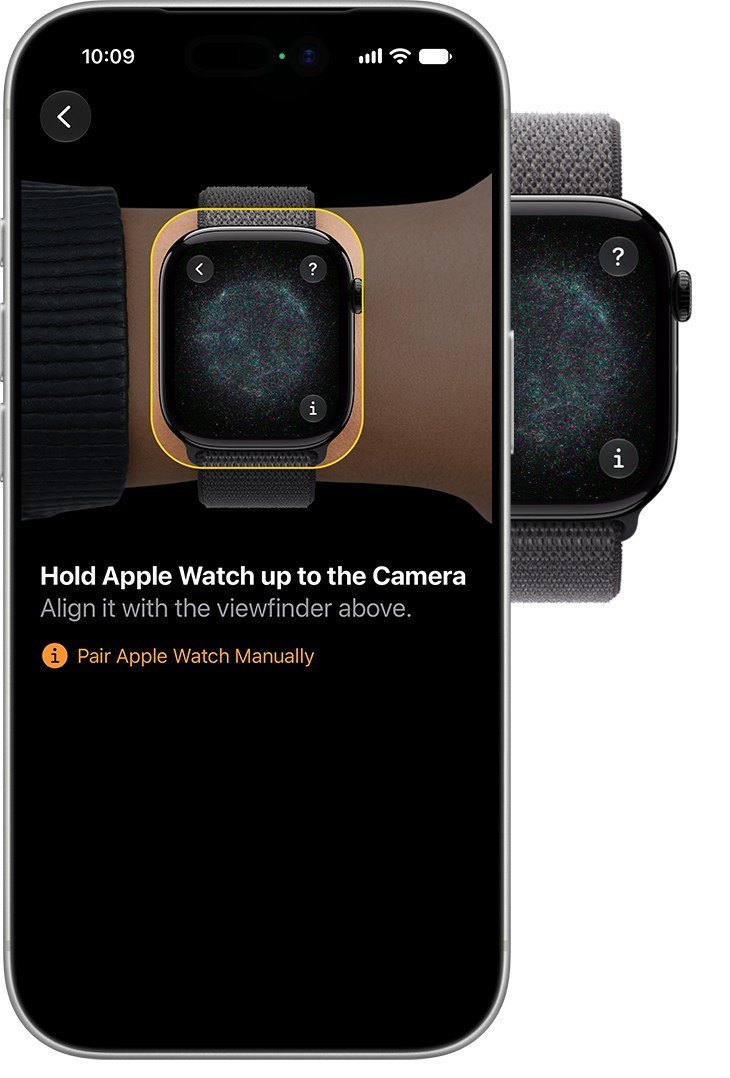
Then set it up again. Hold it near the unlocked iPhone, tap Continue when “Use your iPhone to set up this Apple Watch” appears, tap Set Up for Myself, and center the watch animation in the iPhone camera. Choose a backup to restore when asked.
One version rule: a Series 12 or Ultra 4 needs an iPhone 11 or later on iOS 27, while an SE 3 accepts iOS 26. The Apple Watch Series 12 specs cover the rest of that model.
You’ll know it worked when your watch face, app layout and settings come back from the backup.
No iPhone at All: Erase on the Watch, Clear the Lock Online
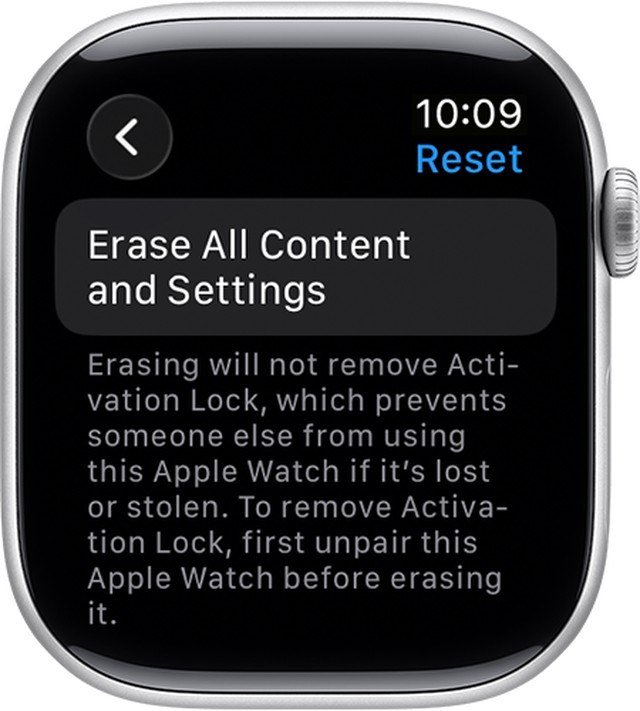
If the paired iPhone is gone, the watch can still wipe itself, but the erase screen warns that Activation Lock stays on:
- Open Settings on the watch.
- Tap General, then Reset.
- Tap Erase All Content and Settings and type your passcode if asked.
- On a cellular model, choose to keep or remove the plan.
- Tap Erase All.
Then sign in at icloud.com/find and remove the watch from your devices, as in the selling section above. Skip that step and the next owner meets a screen asking for your Apple Account.
Keep or Remove the Cellular Plan?
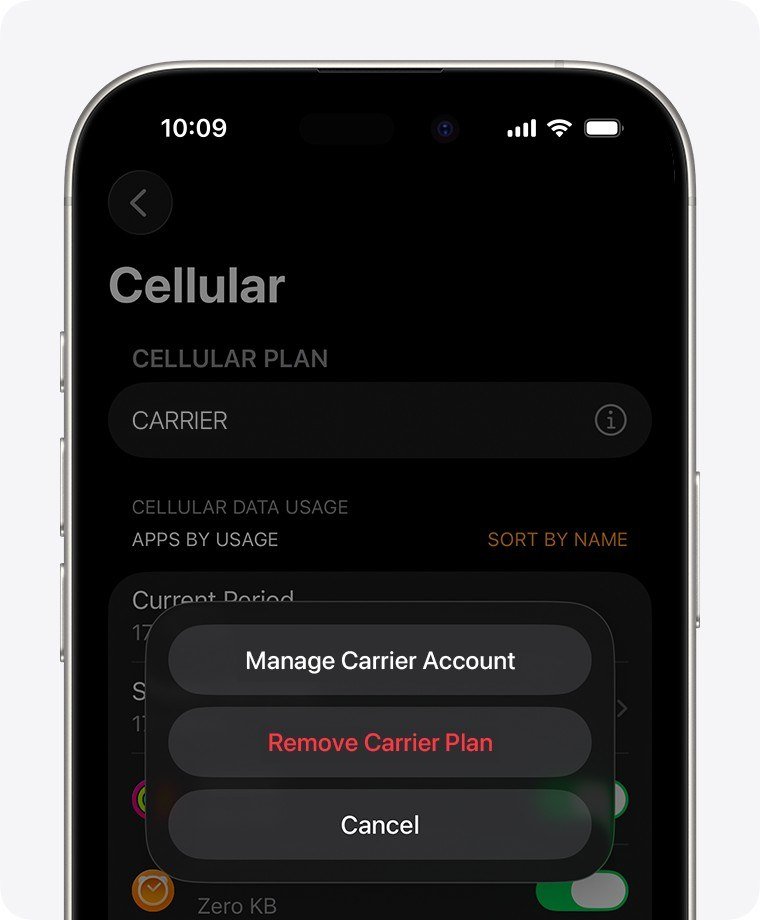
Cellular models ask about the plan during every unpair and erase. The rule is simple:
- Keep it if the watch will pair with the same iPhone again, such as after a stuck logo.
- Remove it when the watch goes to a new owner or another iPhone.
- Call your carrier either way if you want the line closed; removing the plan from the watch may not cancel the subscription, and carrier fees may apply.
You can also drop a plan at any time: in the Apple Watch app, tap My Watch, then Cellular, tap the info button beside the plan, and tap Remove [carrier] Plan.
Resetting a Child’s Watch on Apple Watch For Your Kids

Apple Watch For Your Kids, the feature formerly called Family Setup, runs a watch from a parent’s iPhone. Those watches appear under Family Watches in the parent’s Apple Watch app. They also back up differently: straight to the child’s iCloud account whenever the watch is on power and Wi-Fi, not to the parent’s iPhone.
Passing your own old watch to a child? Unpair it from your iPhone first, since a watch that is not new must be erased before family setup. Then hold it near your iPhone, tap Set Up for a Family Member, and pick the child from your Family Sharing group. A kid’s watch may use a different carrier from your iPhone.
What a Restored Backup Brings Back
Your watch backs up to the paired iPhone automatically, and an iCloud or computer backup of the iPhone carries the watch data along. A restore brings back:
- Watch faces, their customizations and order, plus the Home screen app layout
- System, notification and app settings
- Health and Fitness data, if the iPhone backs up to iCloud or to an encrypted computer backup
- Synced playlists and the chosen photo album
It leaves out the watch passcode, Bluetooth pairings, Apple Pay cards and Messages, so plan to add your cards to Wallet again.
Five Reset Mistakes That Leave a Watch Unusable
- Erasing instead of unpairing before a sale. The erase keeps Activation Lock, and the buyer cannot get past setup.
- Forgetting the Apple Account password. Unpairing needs it to turn off Activation Lock, so reset the password first.
- Removing the plan and assuming the line is closed. The carrier may keep billing until you cancel.
- Restarting on the charger. A normal restart will not run while charging, yet the passcode reset only runs on the charger.
- Probing the case holes. They are openings for sound and, on Ultra, depth measurement, not a reset switch.
If the reset is the first step toward a different brand, the Apple Watch alternatives guide compares smartwatches on iPhone support.
Frequently Asked Questions
Can you reset an Apple Watch without the passcode?
Yes. Put it on the charger, hold the side button until the power button appears, then hold the Digital Crown and tap Reset twice. Activation Lock stays on, so you still need the Apple Account it uses.
Does unpairing an Apple Watch delete my health data?
No. The iPhone backs the watch up before unpairing, and Health and Fitness data is kept when the iPhone uses iCloud or an encrypted computer backup.
Can I unpair an Apple Watch without the iPhone?
Not directly. Erase the watch from its Settings app, then remove it from your devices at icloud.com/find, which turns off Activation Lock.
Does a force restart erase anything?
No. Holding the side button and Digital Crown for at least 10 seconds only restarts the watch. Use it when a normal restart does not work.





