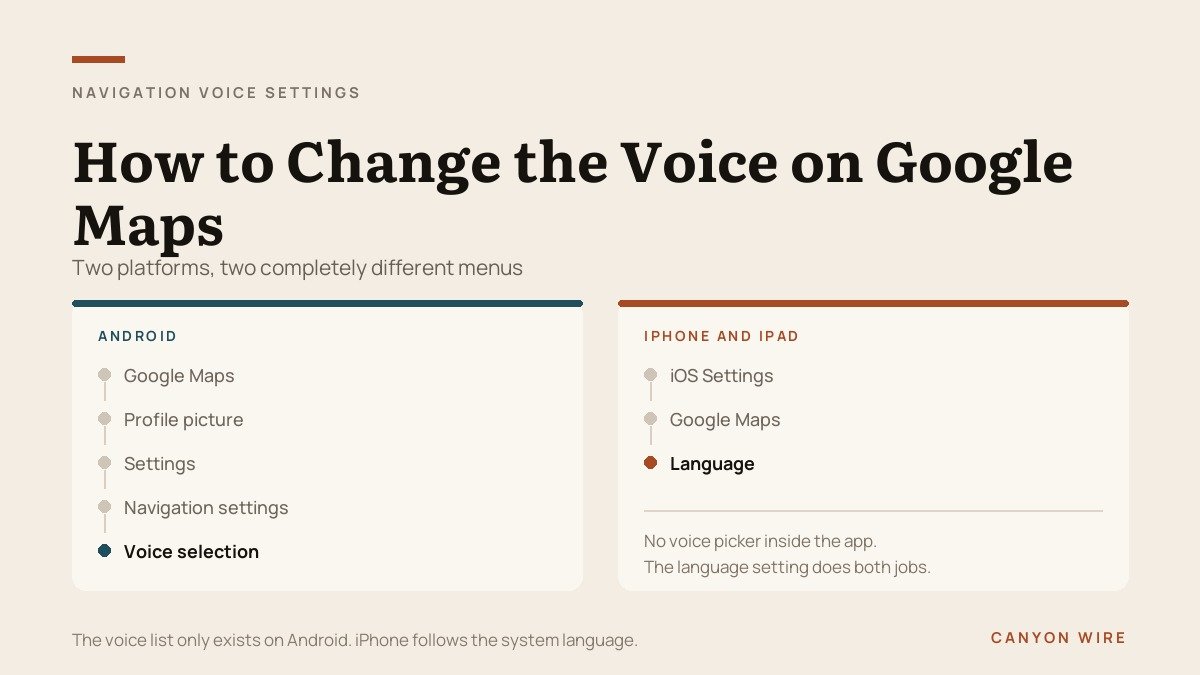
Anyone searching how to change the voice on Google Maps is usually after one of two different things: a different accent, or a voice that is simply easier to hear. Google treats those as separate settings, in separate menus, and only one of them exists on the iPhone.
The reason is structural. Maps does not carry its own bank of voices around. On Android it asks the phone to speak and offers you whichever voices the phone already has, and on iPhone it takes its cue from the system language. Knowing that explains why the menu you are looking for is not where you expect, and why some of the advice written about this topic does not match your screen.
| Goal | Menu path | Works on |
|---|---|---|
| Change voice or accent | Maps > Settings > Navigation settings > Voice selection | Android |
| Change the language spoken | iOS Settings > Google Maps > Language | iPhone and iPad |
| Change every voice on the phone | Phone settings > Text-to-speech output | Android |
| Make it louder or quieter | Maps > Settings > Navigation > Guidance volume | Android and iPhone |
| Send audio to the car | Maps > Settings > Navigation > Play voice over Bluetooth | Android and iPhone |
| Use a recording of your own | Waze > sound icon > Current voice > New voice | Android and iPhone |
How to Change the Voice on Google Maps Step by Step
On Android the control is called Voice selection, and it is one level further down than the main Settings screen. The full route:
- Open Google Maps.
- Tap your profile picture or initial.
- Tap Settings.
- Tap Navigation settings.
- Tap Voice selection.
- Choose from the list, then back out of the menus.
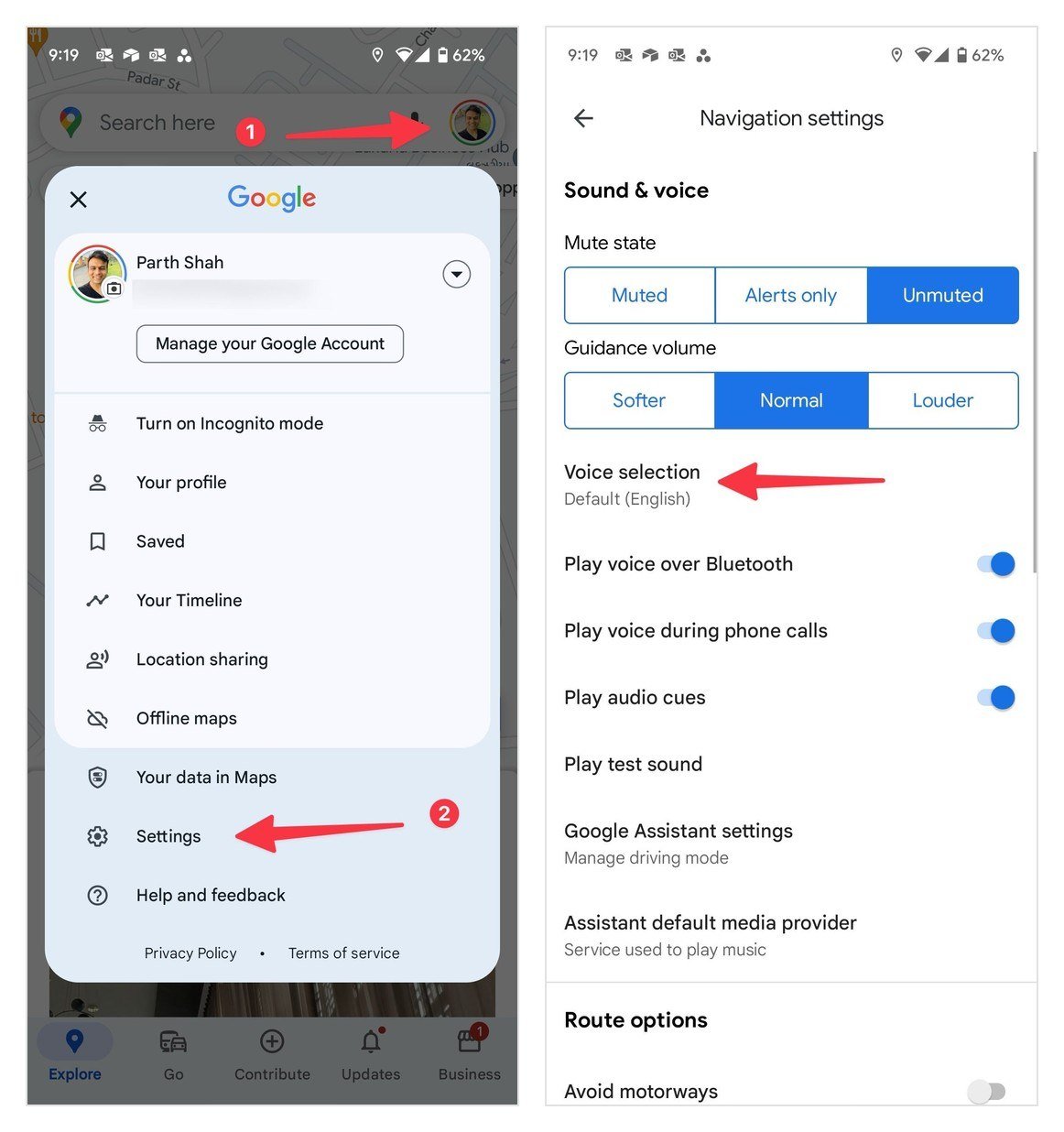
Google frames the last step as picking a voice and language as one choice, and that wording is precise rather than loose. Each entry is a locale. Switching from English (United States) to English (India) or English (Australia) changes the accent and the vocabulary at the same time, so the turns you are given use local road names rather than American ones.
There is a catch on that screen that almost no guide mentions. Only the top entry, Default (English), is labelled Speaks street names. The named locales under it carry no such label, so switching to English (UK) for the accent can quietly cost you the road names in the instructions. For unfamiliar routes that is a poor trade.
Everything else audio-related lives on the same Navigation settings screen rather than in a menu of its own: Mute state, Guidance volume, Play voice over Bluetooth, Play voice during phone calls, Play audio cues and a Play test sound button all sit around Voice selection.
Two limits are worth setting out before you go looking for something that is not there. The list does not contain named characters, and it does not contain anything you have added yourself. What appears is whatever your handset can currently pronounce, which is why two phones of different brands can show different numbers of options for the same language.
The iPhone Route Runs Through System Settings
There is no Voice selection entry in Google Maps on iOS. Looking for it is the single most common reason people conclude the setting has been removed. It was never there. The equivalent change is made in the iOS Settings app:
- Open Settings on the iPhone or iPad.
- Scroll to and tap Google Maps.
- Tap Language.
- Pick the language you want directions spoken in.
The Language screen only offers languages the iPhone already holds. If the one you want is not listed, add it first in Settings under General, then Language and Region, using Add Language. Apps and websites use the first language in that list that they support, which is why the order matters as much as the contents.
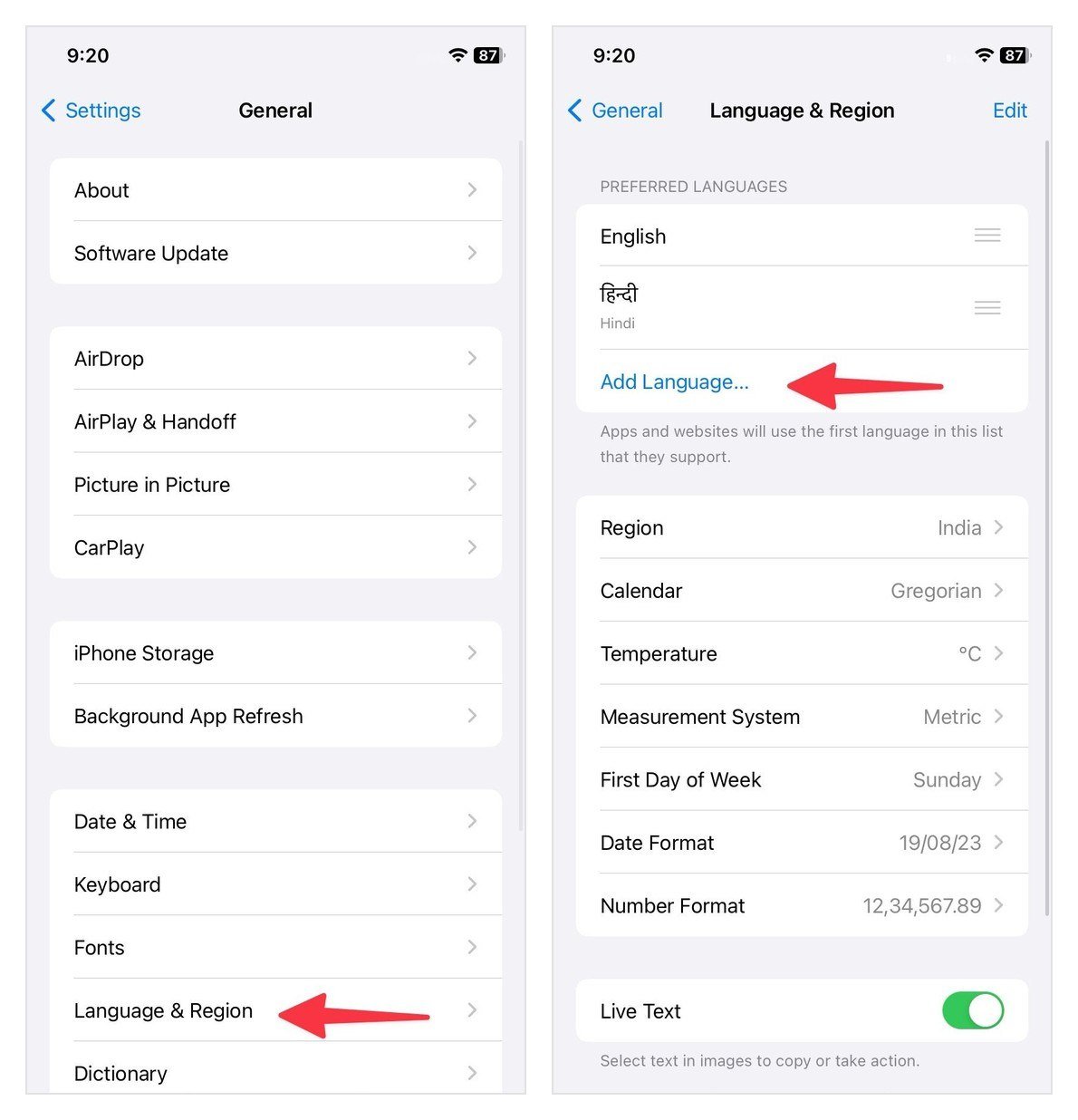
Maps defaults to the system language, so this is also the setting that quietly chose the voice you have now. The catch is that it moves the whole app at once: the spoken directions and the interface change together, with no way to separate them. Checking which iOS version your handset is on is worth a moment first, since the Settings layout shifts between releases, and our list of iPhones that support iOS 27 covers where each model stands.
The Voice Comes From Your Phone, Not From Maps
On Android, the speaking is done by a text-to-speech engine that belongs to the operating system. Maps hands it text and the engine produces the sound. Change the engine and you change every voice Maps can offer, along with the voice used by every other app that reads aloud.
The screen you want is called Text-to-speech output. Google points users at it through Language and input in the phone settings, although handset makers file it under Accessibility or System just as often. Once there, three controls matter:
- Preferred engine. Switching this replaces the entire voice list. Most phones ship with at least two engines installed.
- Voice data. Engines download voices rather than bundling them all. A language showing only one option usually has several more available to install.
- Speech rate. Set here and nowhere else. Dropping it one notch does more for clarity at 70 miles an hour than any change of accent.
This is also the layer to suspect when something sounds wrong rather than merely unfamiliar. A robotic or clipped voice is usually a partially downloaded voice pack, not a bad choice in Maps.
Volume, Muting and Playing Directions Over Bluetooth
A good proportion of people who want to change the voice actually want to change how it reaches them. The screen is named differently on each platform, which trips people following instructions written for the other one: Android calls it Navigation settings and puts it alongside Voice selection, while iPhone calls it simply Navigation. The controls themselves match:
- Guidance volume. Three positions, Softer, Normal and Louder, applied on top of the media volume rather than replacing it.
- The Sound icon. Tapping it during navigation moves between Mute, Hear alerts and Unmute. Hear alerts keeps the warnings and drops the running commentary.
- Play voice over Bluetooth. Decides whether directions reach the car stereo or stay on the phone speaker.
Because guidance volume sits on top of the media volume rather than overriding it, a phone with media turned all the way down stays silent no matter which of the three positions is selected. That ordering catches people who set Louder, hear nothing, and conclude the setting is broken.
That Bluetooth toggle is the usual culprit when music plays through the car and directions do not, or the other way round. Google lists it among the first things to check when voice navigation fails, alongside confirming that the device is not muted. Audio routing between a phone and a car is a recurring source of this kind of problem, as anyone who has worked through our guide to YouTube failing on CarPlay will recognise.
Waze Lets You Record a Voice of Your Own
No version of Google Maps accepts a custom voice, and the celebrity voices it offered years ago were temporary promotions rather than a feature that was later withdrawn from the menu. Waze, which Google owns, does support recordings:
- Open Waze and tap the sound icon.
- Under Current voice, tap the voice already selected.
- Tap New voice.
- Tap a phrase, record it with the microphone button, then stop.
- Listen back, save it, and work through the remaining phrases.
Finished packs can be sent to other people, who hear them while navigating. One rule catches everyone out the first time: a recording currently in use cannot be shared or deleted, so switch to a different voice before trying either.
What you give up is street names. A recorded pack only knows the phrases you read into it, so instructions become generic turns rather than named roads. In unfamiliar cities that is a real downgrade, which is why most people try this once and then go back.
Fixes When Voice Guidance Goes Silent
Silence after a voice change is common and almost never means the change failed. Work down this list in order:
- Start navigating first, then press volume up. Pressing it on the map screen often adjusts the ringer rather than media.
- Tap the Sound icon and confirm it reads Unmute rather than Mute.
- Set Guidance volume to Louder under Settings and Navigation.
- Check Play voice over Bluetooth matches where you are actually listening.
- Leave Maps open on a good connection for a few minutes so the new voice finishes downloading.
If the phone is still silent after all five, test the engine rather than the app. Open Text-to-speech output and use the listen button on that screen. Nothing there means nothing in any app, and the fix is to reinstall the voice data or switch engines. It is a useful habit in general: when one app loses audio, suspect the app, and when several do, suspect the system.
Frequently Asked Questions
Why is there no voice option in Google Maps on my iPhone?
Because the iOS app has never had one. Google Maps on iPhone follows the system language, so the change is made in the iOS Settings app under Google Maps and then Language rather than inside Maps itself.
Can I use a celebrity voice on Google Maps?
No. Voice selection lists languages and accents only. The celebrity voices Google ran in the past were limited promotions and none are available now. Recording your own voice is possible in Waze, but not in Maps.
How do I make the Google Maps voice louder without raising my music?
Use Guidance volume under Settings and then Navigation, and set it to Louder. It scales the directions relative to your media volume, so the voice gets louder while music stays where it was.
Does Google Maps need an internet connection for voice directions?
It needs one to download a voice the first time. After that the audio is on the device. A voice that sounds incomplete on its first outing is usually one that has not finished downloading yet.





