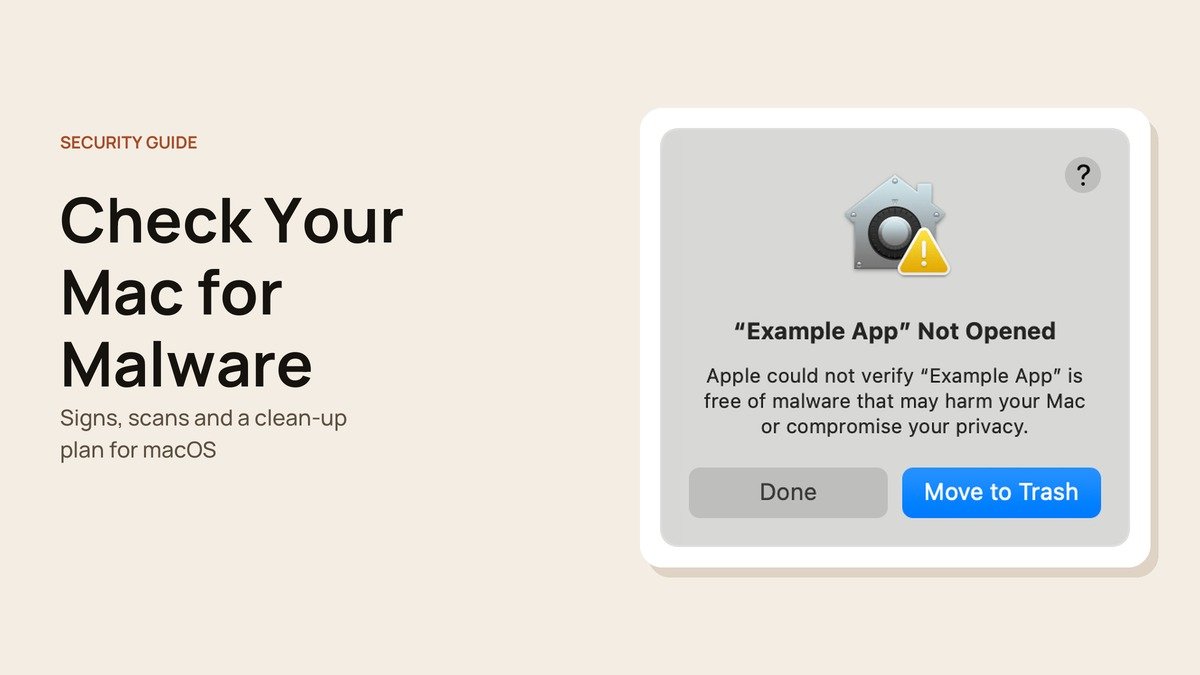
If your Mac has started acting strangely, or you clicked something you now regret, it is worth taking the time to check your Mac for malware properly. macOS blocks a lot on its own, but it has no scan button, and today's Mac threats are designed to look harmless until they have already taken what they came for.
This guide is split into a five-minute health check, a deeper review for when something feels wrong, a removal plan and the habits that keep malware out. It also decodes the security alerts macOS shows, because knowing what each one means tells you how worried to be.
What macOS Security Alerts Mean
| Alert | What happened | What to do |
|---|---|---|
| Apple could not verify the app is free of malware | The app is not notarized | Move it to the Trash unless you fully trust the source |
| Malware Blocked and Moved to Trash | XProtect recognised known malware | Nothing harmed; leave it in the Trash |
| Possible malware, Paste blocked | A suspicious Terminal paste was held back | Do not paste unless you know the command |
| Malware Detected, Paste Blocked | The pasted command contains known malware | Do not run it; there is no override |
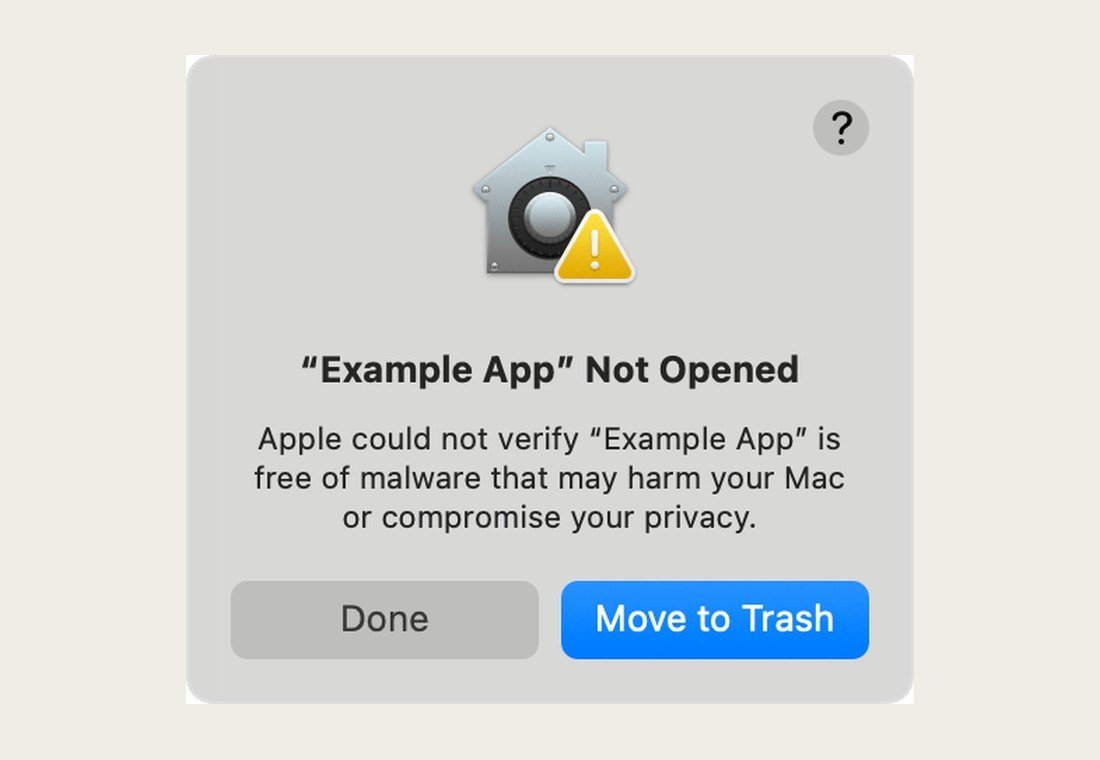
Apple explains in its guide to opening apps safely that Gatekeeper checks the developer signature of apps from outside the App Store and, since macOS Catalina, requires them to be notarized. You can override the warning from Privacy & Security settings, but only do so for software you are certain about.
What Your Mac Does Behind the Scenes
It helps to know what is already working for you, so you can focus on the gaps.
- Notarization revocation: when Apple learns an app is malicious, it can revoke its notarization. Macs check for these revocations in the background far more often than they receive full XProtect updates, so a bad app can be blocked very quickly after it is discovered.
- XProtect signatures: written as YARA rules, these are broad enough to catch variants of known families. macOS checks for new signatures daily and installs them separately from macOS updates.
- Remediation and behaviour analysis: XProtect also periodically checks for infections that have already run and removes them, and uses a behaviour-based engine to spot unknown malware.
What none of these can do is stop you from running something yourself, such as a pasted Terminal command or an app you approve despite a warning. That is where the checks below come in.
Common Types of Mac Malware
| Type | What it does | Typical clue |
|---|---|---|
| Adware | Injects ads and hijacks searches | Changed homepage, redirects, pop-ups |
| Infostealer | Copies passwords, cookies, Keychain data and crypto wallets | Account logins you did not make |
| Backdoor | Gives an attacker remote access | Unknown background items that return after removal |
| Cryptominer | Uses your processor to mine cryptocurrency | Hot Mac and loud fans while idle |
| Fake utility | Poses as a cleaner, codec or updater to install the rest | An app you installed from a pop-up |
The Five-Minute Mac Health Check
Run through these whenever you are unsure. None of them needs extra software.
- Software Update: in System Settings, General, Software Update, install pending updates and make sure Install system data files and security updates is switched on under Automatic Updates.
- Login items: in General, Login Items & Extensions, read the Open at Login list and the App Background Activity list for names you do not recognise.
- Profiles: in General, Device Management, a personal Mac should normally show no profiles at all.
- Browser: confirm your homepage and default search engine are the ones you chose.
- Applications: sort the Applications folder by Date Added and look at the newest entries.
If everything looks normal and the Mac is behaving, you can stop here. If any check turns up something odd, move on to the deeper review.
The Deeper Check: Twenty Minutes That Cover the Rest
Activity Monitor
Open Activity Monitor from Applications, Utilities. On the CPU tab, sort by % CPU and look for an unfamiliar process working hard while you are idle; a cryptominer typically keeps the fans running. Search for the exact name before stopping anything, because macOS processes such as WindowServer and kernel_task are normal.
Browser Extensions in Every Browser
Adware lives in extensions. In Safari, go to Settings, Extensions. In Chrome and other Chromium browsers, open the Extensions page. Remove anything you did not deliberately install. If websites keep redirecting you, our guide to stopping Chrome redirects covers the browser side in detail.
Privacy Permissions
Stealers often try to talk you into granting powerful permissions during what looks like a normal install. Open System Settings, Privacy & Security, and review Full Disk Access, Accessibility and Screen & System Audio Recording. Each list should contain only apps you recognise and use. Switch off or remove anything unfamiliar, especially a wallpaper, cleaner or utility app that has no obvious reason to read all your files.
A Second-Opinion Scan
Install a reputable scanner directly from its developer. Malwarebytes for Mac runs a free on-demand scan and quarantines what it finds. Objective-See's free KnockKnock lists every item set to launch persistently, with VirusTotal results, which is useful for spotting a disguised background task.
Your Accounts
Infostealers go after saved passwords, browser cookies and crypto wallets. Check your Apple Account and email for unfamiliar sign-ins, devices or forwarding rules. Sudden logins from new locations point to stolen session data.
How Macs Actually Get Infected in 2026
Most Mac malware no longer relies on breaking macOS security. It relies on persuading you to bypass it. Security firm Moonlock's mid-2026 macOS threat report describes ClickFix, a trick where a fake CAPTCHA, video-call glitch or broken document asks you to copy a command into Terminal, as the dominant way in. It also lists fake Homebrew, TradingView and LogMeIn downloads as common lures for Odyssey, a stealer built from Atomic Stealer code.
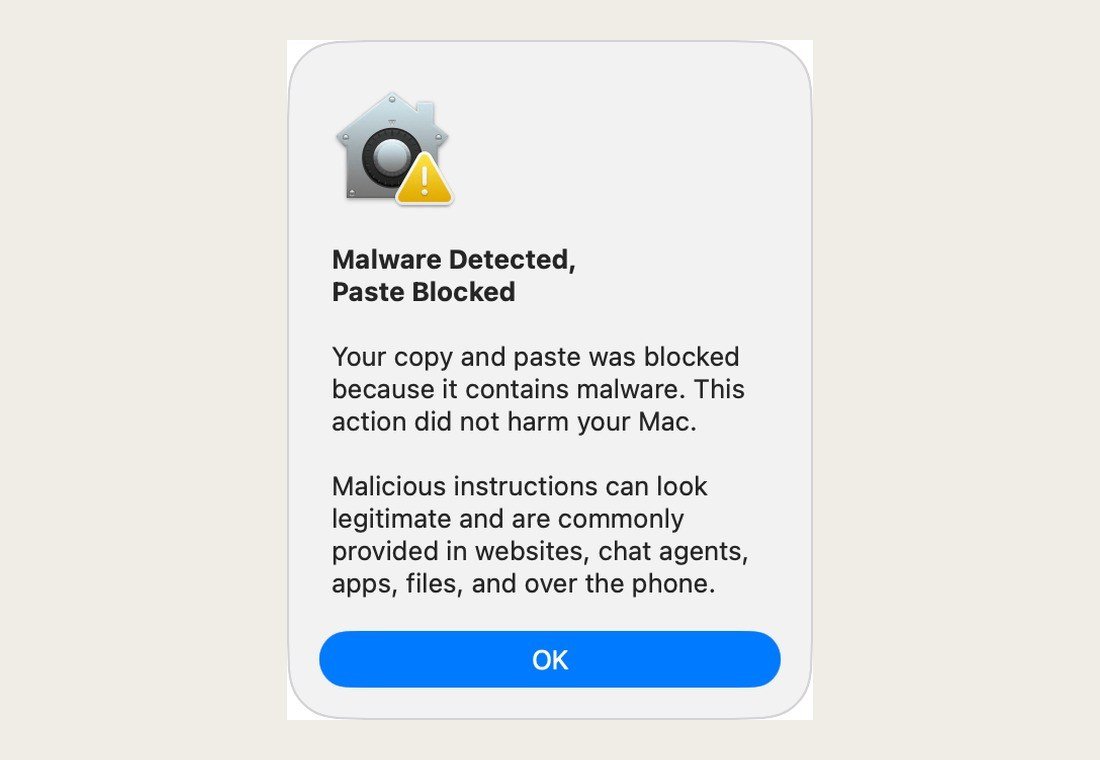
Apple responded in macOS Tahoe 26.4 with Terminal paste protection. A "Possible malware" alert lets you paste anyway if you are sure, while "Malware Detected, Paste Blocked" and "Malicious Script Blocked" stop known malware outright. In both cases Apple says your Mac has not been harmed. Treat any website, chat or caller asking you to run a Terminal command as a scam.
How to Remove Malware From a Mac
- Disconnect from Wi-Fi to cut off any connection to the attacker.
- Delete the suspicious app, remove its login item and background activity entry, and delete any unknown profile.
- Remove unknown browser extensions and reset your homepage and search engine.
- If an item will not quit or delete, start up in Safe Mode (on Apple silicon: shut down, hold the power button until startup options appear, choose your disk, hold Shift and click Continue in Safe Mode) and try again.
- Run your second-opinion scanner again to confirm the Mac is clean.
Then Secure Your Accounts
Assume anything saved in the browser was copied. From another device, change your Apple Account, email, banking and social passwords, turn on two-factor authentication and sign out other sessions. Our guide on creating a strong password helps you replace them properly. Move cryptocurrency to a newly created wallet, since seed phrases are a prime target.
When to Erase Your Mac and Start Over
If you ran a command from a scam, gave an unknown app Full Disk Access, or keep finding items that come back, a clean start is the safest fix. On macOS Monterey or later with Apple silicon or a T2 chip, go to System Settings, General, Transfer or Reset, and choose Erase All Content and Settings. It removes all data, settings and apps while keeping macOS installed.
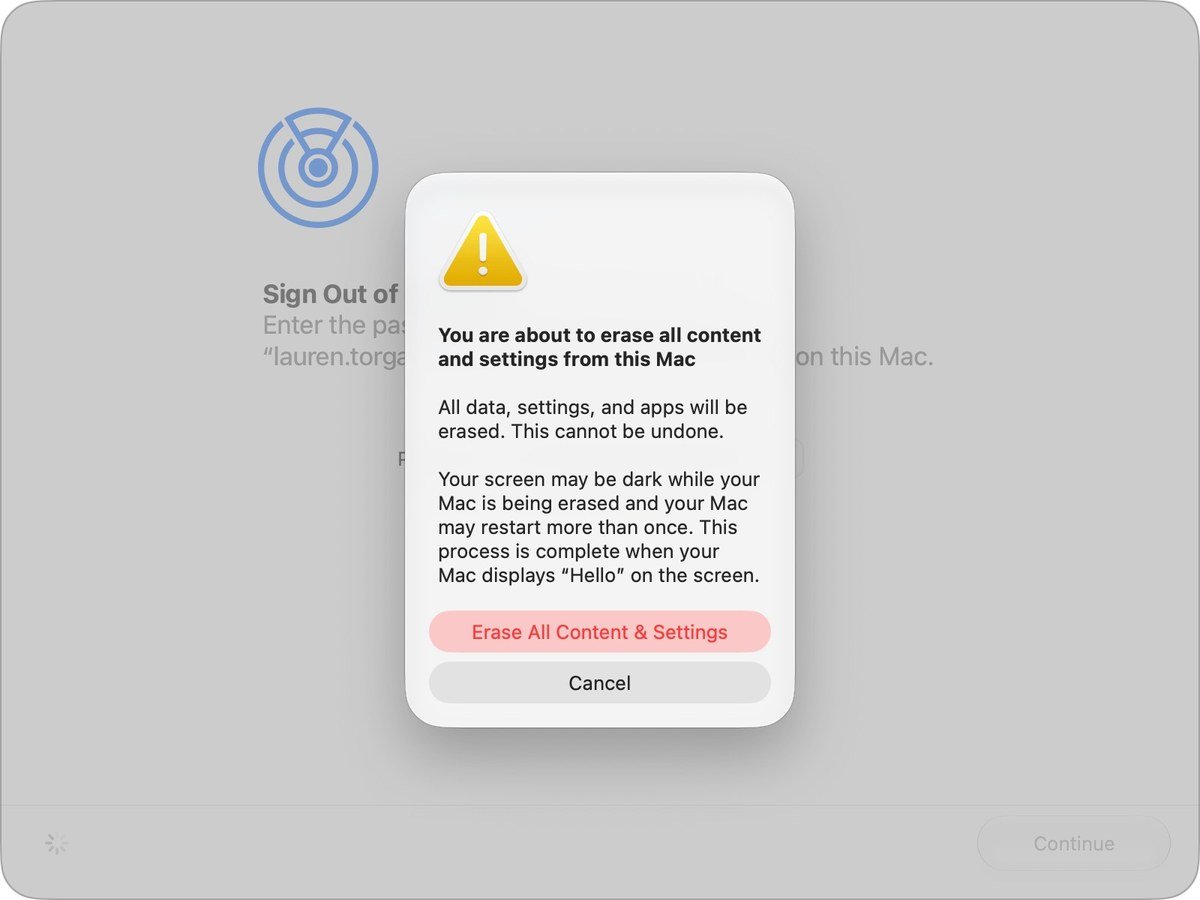
Back up your documents first, but restore files rather than whole apps or system settings, so you do not bring the problem back. Apple's erase guide lists the passwords you will need.
Habits That Keep Malware Off Your Mac
- Download apps from the App Store or the developer's own website, never from pop-ups or search ads.
- Never paste a Terminal command that a website, chat agent or caller gives you.
- Keep automatic security updates on, and install macOS updates promptly.
- Be suspicious of any app that asks for Full Disk Access or your password during an ordinary install.
- Use a password manager so a stolen browser profile does not expose every account.
Frequently Asked Questions
Does a Mac scan itself for malware?
Yes. XProtect checks apps when they launch or change and removes known malware in the background, but you cannot trigger a full scan yourself.
What is the best free way to check a Mac for malware?
Do the manual checks in this guide, then run a free scan with Malwarebytes for Mac or KnockKnock from Objective-See.
Can Macs get infostealers?
Yes. Stealers such as Atomic Stealer and Odyssey target Macs, usually through fake apps and copy-paste Terminal scams.
Should I reinstall macOS after malware?
If you cannot confirm the Mac is clean, Erase All Content and Settings is the simplest way to start fresh.





