You can connect a Bluetooth speaker to your TV in a couple of minutes on most sets made in the last few years. The hard part is not the pairing itself but finding the setting, because Samsung puts it under Sound, Google TV puts it under Remotes and Accessories, and Roku does not offer it for speakers at all.
Start with the table below to find your TV's menu, follow the four-step pairing routine, and use the later sections if your TV has no Bluetooth or the sound runs behind the picture.
Where Each TV Brand Keeps Its Bluetooth Setting
| TV | Start in this menu | Then choose |
|---|---|---|
| Samsung | Sound | Sound Output, then Bluetooth Speaker List |
| LG, 2026 models | Sound | Sound Out, Bluetooth Devices, Connectable Devices |
| LG, 2021 to 2025 | Sound | Sound Out, Use Wireless Speaker, Bluetooth Devices |
| Google TV | Remotes & Accessories | Pair a new remote or accessory |
| Fire TV | Controllers & Bluetooth Devices | Other Bluetooth Devices, Add Bluetooth Devices |
| Apple TV | Remotes and Devices | Bluetooth, then the speaker under Other Devices |
| Roku | Not supported for speakers | Headphone Mode or the Roku app for private listening |
Menu names shift slightly between model years, so if you cannot see the exact wording, look for anything labelled Bluetooth, Sound Out or Audio Output in the same area.
The Four-Step Pairing Routine
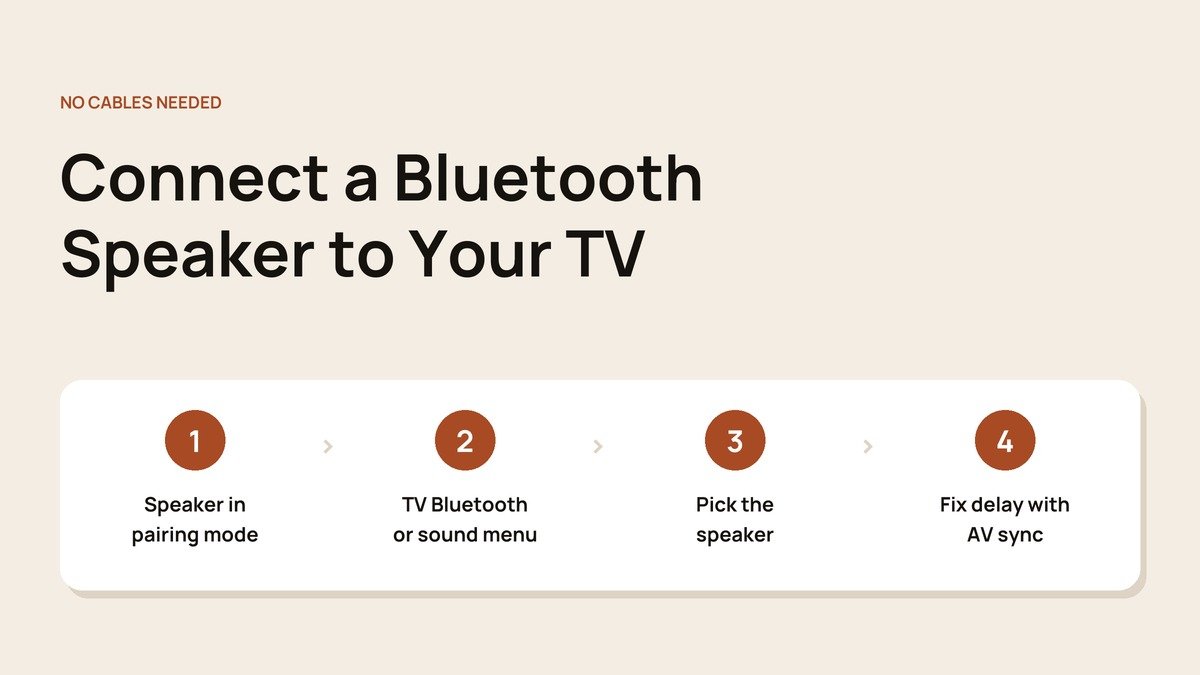
Whatever the brand, pairing follows the same pattern:
- Turn the speaker on and put it in pairing mode, normally by holding its Bluetooth button until a light flashes or you hear a tone.
- Disconnect the speaker from any phone or laptop it was last paired with.
- On the TV, open the Bluetooth menu from the table above and wait for the speaker's name to appear.
- Select it and confirm. TV sound should move to the speaker straight away.
Samsung TVs: Check Which Menu You Have
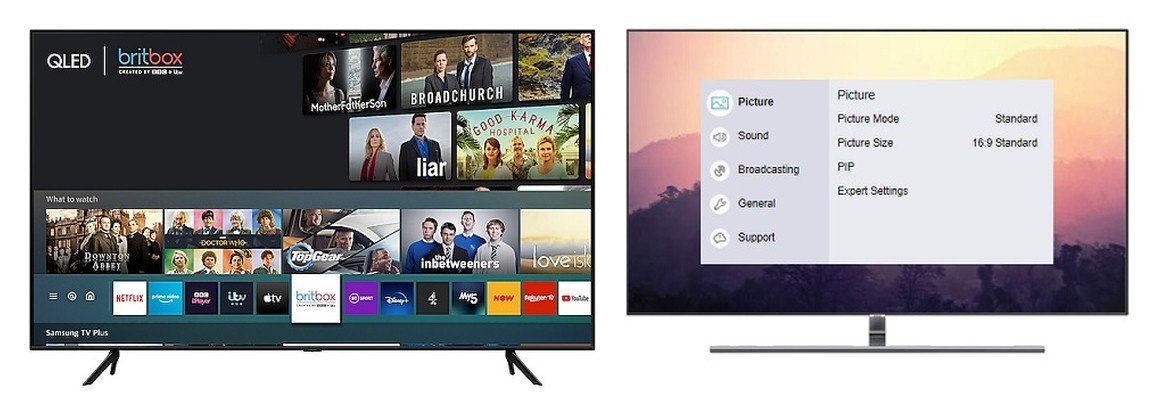
Samsung has used several on-screen designs over the years, and its Bluetooth support page starts by asking you to identify yours. On current models, press Home, open Settings, choose Sound, then Sound Output, and pick Bluetooth Speaker List. If Bluetooth Speaker List is missing from Sound Output, that TV has no Bluetooth audio and needs an adapter.
Once paired, the speaker stays the output until you switch it off, at which point the TV falls back to its own speakers. Older 2016 sets hide the option under Expert Settings and Wireless Speaker Manager instead.
LG, Google TV, Fire TV and Apple TV
LG
Press Settings, choose All Settings, then Sound and Sound Out. On 2026 models select Bluetooth Devices; on 2021 to 2025 models select Use Wireless Speaker first. Pick the speaker under Connectable Devices.
Google TV
Open Settings, then Remotes & Accessories, and choose to pair a new accessory. Speakers that support Fast Pair can skip the search and connect from a pop-up card.
Fire TV
Go to Settings, Controllers & Bluetooth Devices, Other Bluetooth Devices, and Add Bluetooth Devices, then select the speaker.
Apple TV
Apple's Apple TV guide sends you to Settings, Remotes and Devices, Bluetooth, where the speaker shows up under Other Devices. AirPlay speakers can connect over Wi-Fi instead, which avoids Bluetooth delay.
Roku Owners: What Works Instead
Roku TVs and players do not stream TV sound to Bluetooth speakers. Per Roku's Headphone Mode guide, some Roku streaming devices with Bluetooth can pair headphones that support Bluetooth 4.2 or later, and the free Roku mobile app lets up to four phones listen privately. For a speaker, the answer is a Bluetooth transmitter.
To listen privately through the Roku app:
- Install the latest Roku mobile app and connect your phone to the same Wi-Fi network as the Roku.
- Open the app's remote and connect it to your Roku device.
- Tap the headphones icon on the Remote screen, then listen through headphones or earbuds paired to your phone.
- If the sound drifts, open the Gear icon, go to Controls and use Adjust audio delay.
No Bluetooth on Your TV? Add a Transmitter
A small Bluetooth transmitter gives any TV wireless audio. Match it to an output your TV already has:
| TV output | Common on | Worth knowing |
|---|---|---|
| Optical (Toslink) | Most TVs from the last decade | Set TV audio output to optical; PCM if there is no sound |
| 3.5mm headphone jack | Many budget and older TVs | Often mutes the TV speakers when plugged in |
| Red and white RCA | Older TVs | Needs a transmitter with RCA inputs or an adapter cable |
- Plug the transmitter into the output and power it from a USB port on the TV.
- Change the TV's audio output setting to match that port.
- Pair the speaker with the transmitter the same way you would with a phone.
What to Look For in a TV Bluetooth Transmitter
- The right input. Optical gives the cleanest signal on most modern TVs; check the port before you buy.
- A low-latency codec. Transmitters that support aptX Low Latency or aptX Adaptive cut the lag, but only if the speaker supports the same codec. Otherwise both fall back to standard Bluetooth.
- Dual link. Some transmitters connect two speakers or two pairs of headphones at once, which solves the one-device limit on most TVs.
- Optical passthrough. A passthrough port lets a soundbar stay connected while the transmitter sits in the chain.
- USB power. A transmitter that runs from the TV's USB port switches on and off with the TV.
Using Two Speakers, or the Speaker Plus the TV
- Samsung: TVs from 2022 onward support Dual Audio, which sends sound to two Bluetooth audio devices at once.
- LG: on webOS 6.0 and later, Sound Out includes Use Multiple Speakers, which plays a Bluetooth speaker together with the TV's own speakers.
- Google TV: only one Bluetooth audio device connects at a time.
- Any TV: some speaker brands pair two of their own speakers to each other, so the TV only has to connect to one.
Where to Put the Speaker for Better TV Sound
Placement changes TV sound more than most settings. A small speaker tucked behind the TV or inside a cabinet loses clarity, and Bluetooth range drops through solid furniture.
- Put the speaker in front of or beside the screen, roughly at ear height when you are seated.
- Keep it out of corners unless you want more bass; corners boost low notes and can muddy dialogue.
- Leave a clear line of sight between the speaker and the TV or transmitter for a steadier connection.
Speaker Settings Worth Changing
- Auto power-off: many portable speakers sleep after a few minutes of quiet scenes. Turn the timer off in the speaker's app if it keeps disconnecting during films.
- Bass boost: bass-heavy presets suit music but can bury voices. A flatter setting makes dialogue clearer.
- Firmware: update the speaker through its companion app; updates often fix pairing and dropout problems.
Bluetooth Headphones Use the Same Menus
Everything above works for wireless headphones and earbuds too, which is handy for late-night viewing. The same menu that pairs a speaker pairs a headset, and Samsung's Dual Audio can send sound to two pairs of headphones so two people can watch quietly together.
Fixing Lip-Sync and Connection Problems
Bluetooth always adds a small delay, and Samsung itself warns that lip-sync errors may occur. Most TVs include an Audio Delay, AV Sync or Lip Sync setting in the sound menu; nudge it until voices match mouths.
- Turn the speaker off and on, then try pairing again.
- Unplug the TV for about 10 seconds, as Google suggests, to clear a stuck Bluetooth stack.
- Forget the speaker in the TV's list and unplug the speaker for 30 seconds before re-pairing, as LG recommends.
- Test the speaker with your phone. If it fails there too, the speaker is the problem, not the TV.
Choosing new kit? Our Bluetooth speaker picks compare battery and loudness, and our projector guide compares models for a big-screen setup that pairs well with a portable speaker.
Frequently Asked Questions
How do I know if my TV has Bluetooth?
Look for a Bluetooth option in the sound or accessories menu using the table above. On Samsung, a Bluetooth Speaker List entry under Sound Output confirms it.
Will my TV remote control the speaker's volume?
Often, yes. Many TVs pass volume changes to a paired Bluetooth speaker, but some speakers keep their own volume, so set the speaker loud and adjust from the TV.
Why does my TV go back to its own speakers?
When the Bluetooth speaker turns off or drops out of range, most TVs switch output back to the built-in speakers. Reconnect it from the Bluetooth list.
Is a soundbar better than a Bluetooth speaker for TV?
For a permanent setup, yes. A soundbar on HDMI ARC or eARC avoids Bluetooth delay and supports surround formats, while a Bluetooth speaker is easier to move around.
Can I use a Bluetooth speaker with a non-smart TV?
Yes. Plug a Bluetooth transmitter into the TV's optical, headphone or RCA output and pair the speaker with the transmitter. The TV does not need any smart features for this to work.