
Dual monitor setup problems tend to arrive at two moments: the minute you plug in the second screen, and weeks later when something that worked suddenly does not. The good news is that very few of them mean a faulty monitor. Settings, cables and drivers cause most of the trouble.
Below, the fixes are grouped by when the problem shows up, with Windows 11 steps first and Mac steps where the process differs. Start with the one-minute hardware check, because it rules out the most common causes before you touch any settings.
The One-Minute Hardware Check

- Is the monitor switched on and set to the right input (HDMI 1, HDMI 2, DisplayPort, USB-C)?
- Is the video cable pushed fully home at both ends, and the power cable too?
- Does the cable support what you are asking of it? Old HDMI cables can struggle with high resolutions and refresh rates.
- Are you going through a dock, hub or adapter? Try a direct connection to rule it out.
- Does the monitor work with another computer? If not, the monitor or cable is the problem.
Display Modes Explained
Windows has four ways to use a second screen, switched with Windows + P. Picking the wrong one explains a lot of "my monitor is not working" moments.
| Mode | What happens | Best for |
|---|---|---|
| PC screen only | Only the main display shows anything | Laptop closed in a dock, or one screen wanted |
| Duplicate | Both screens show the same desktop | Presentations and screen sharing |
| Extend | One desktop stretched across both | Everyday dual monitor work |
| Second screen only | Only the external display is on | Using a big monitor instead of a laptop screen |
Problems When You First Connect a Second Monitor
The Monitor Shows No Signal
Press Windows + P and choose Extend. Then go to Settings, System, Display, expand Multiple displays and click Detect. If the screen is still blank, press Windows + Ctrl + Shift + B, which resets the graphics driver and often wakes a display that Windows has lost track of. Microsoft's troubleshooting page also suggests trying another cable and another video port before anything else.
Both Screens Show the Same Thing
That is Duplicate mode. Choose Extend from Windows + P, or select the second display in Settings and pick Extend desktop to this display. Then drag the screens in the diagram so their layout matches your desk.
Text Looks Blurry on One Screen
Select the blurry monitor in Display settings and set its resolution to the Recommended value, which matches the panel's native resolution. If everything becomes too small, increase Scale for that display only. Mixing a 4K and a 1080p monitor is fine, but give them different scaling so windows look a similar size on each.
The Screen Went Black After a Settings Change
You probably chose a resolution or refresh rate the monitor or cable cannot carry. Leave it alone and Windows reverts after a short countdown. Change the refresh rate again under Settings, System, Display, Advanced display, avoiding options marked with an asterisk, which force a resolution change.
Problems With a Setup That Used to Work
The Second Monitor Disappeared After an Update
A new graphics driver is the usual suspect. Open Device Manager, expand Display adapters, right-click your graphics card and choose Properties, then use Roll Back Driver on the Driver tab. If that is greyed out, choose Uninstall device, restart, and let Windows reinstall the driver, or download the latest one from your graphics card or laptop maker.
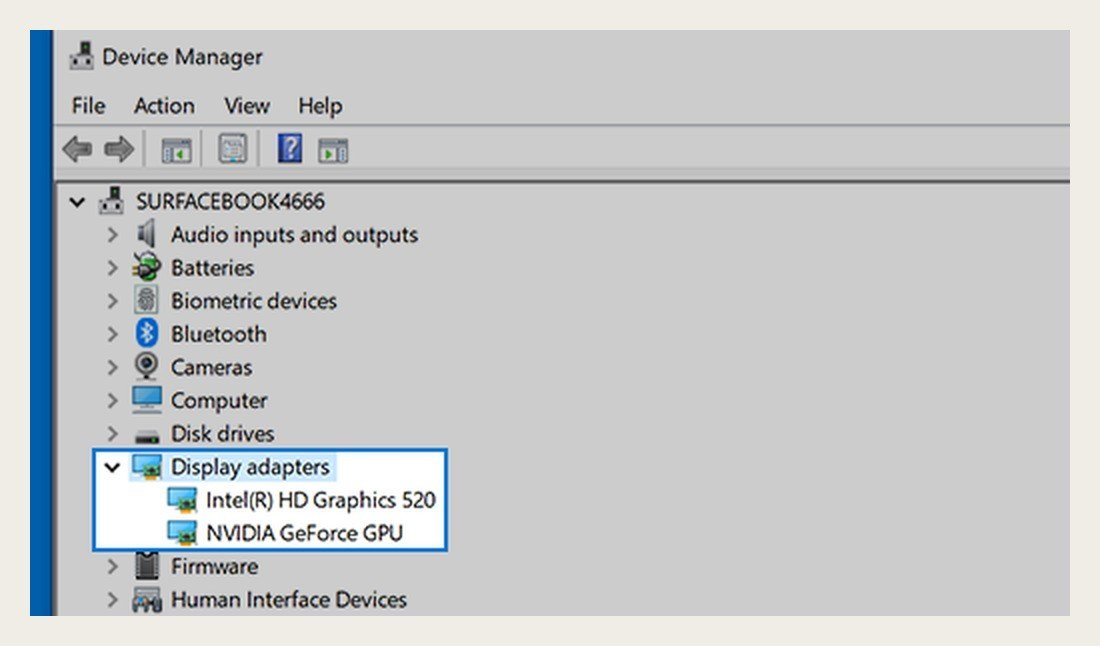
The Monitor Flickers or Drops Out
Intermittent loss of signal points to a connection problem. Reseat or replace the cable, try a different port on both ends, and plug the monitor into the wall instead of a crowded power strip. Cable runs that bend sharply behind a desk or along a monitor arm can wear out, so check that the cable is not kinked or stretched.

Windows Open on the Wrong Screen or Disappear When You Undock
Choose your main screen in Display settings by selecting it and ticking Make this my main display; most apps and games open there. When you disconnect a laptop, Windows minimises windows from the external screen and restores them on reconnection. Microsoft's multiple monitors guide shows where to change that behaviour under Multiple displays.
The Pointer Exits on the Wrong Side
Click Identify in Display settings to see which screen is 1 and which is 2, then drag the boxes into the right order and line up their top edges. Click Apply and move the pointer across to test.
Cables and Ports: What Each Connection Handles
| Connection | Where you find it | Watch out for |
|---|---|---|
| HDMI | Almost every monitor, TV and many laptops | Older cables can limit 4K refresh rates |
| DisplayPort | Most desktop graphics cards and PC monitors | Needs a DisplayPort input on the monitor |
| USB-C | Modern laptops, Macs and some monitors | The port must support DisplayPort Alt Mode for video |
| Thunderbolt | Macs and premium Windows laptops | Docks share bandwidth between every attached screen |
| DVI and VGA | Older monitors and PCs | Lower resolutions, and VGA is analogue and soft |
If a monitor works at 60 Hz but goes blank at its advertised 144 Hz, the cable or adapter is usually the bottleneck rather than the monitor. Use the cable that came in the monitor's box where you can, because it is matched to the panel's resolution and refresh rate.
Gaming on a Dual Monitor Setup
Plug the gaming monitor into the graphics card, not the motherboard's video output, or the game may run on the processor's built-in graphics. Set that screen as the main display so games launch on it, and check each game's display setting, since many let you choose a monitor directly. If a high refresh rate monitor sits beside a 60 Hz one, set each to its own maximum rate in Advanced display, because a newly connected monitor does not always start at its highest rate.
Adding a Third Monitor or More
If two screens work but a third will not, you have probably hit a hardware ceiling. Splitters only clone a single signal. A laptop with one video output needs a dock or a USB-C video adapter for each extra screen, and our comparison of the best docking stations shows how many displays each supports. Desktop graphics cards also have a maximum, listed on the manufacturer's specification page.
Dual Monitor Problems on a Mac
- Display not detected: unplug it from the Mac and from power, reconnect, then put the Mac to sleep and wake it. In System Settings, Displays, hold Option to show Detect Displays.
- Laptop asks to allow an accessory: on Apple silicon MacBooks, approve the display or it stays dark.
- Display stays black with the lid closed: the Mac must be on power and connected to an external keyboard and mouse or trackpad.
- Second or third display will not light up: every Mac has a maximum number of external displays, and hubs do not raise it. Check Display Support in your Mac's specifications.
- Adapter problems: USB-C adapters need DisplayPort Alt Mode or Thunderbolt support to carry video. Our list of the best USB-C to HDMI adapters covers reliable options.
Apple's guide to connecting external displays explains how to identify your Mac's video ports before buying cables.
When It Really Is the Monitor
A quick test settles it. Press the monitor's menu button with nothing connected: if the on-screen menu appears, the panel and its electronics work, and the problem is the signal reaching it. If the power light is on but no menu appears, or the screen stays dark with every cable and every computer you try, the monitor needs repair or replacement, so check whether it is still under warranty before paying for a fix.
Small Fixes That Make Dual Monitors Nicer
- Show the taskbar on both screens from Settings, Personalisation, Taskbar, Taskbar behaviours.
- Move a window to the other monitor instantly with Windows + Shift + Left or Right arrow.
- Match colours by setting both monitors to the same colour temperature and using Calibrate display colour in Windows.
- If a TV is your second screen, turn off overscan in its picture settings so the edges of the desktop are not cut off.
Frequently Asked Questions
Why is only one of my two monitors working?
Check the input setting and cable, then press Windows + P and choose Extend. Click Detect in Display settings if Windows still does not see it.
How do I make my second monitor the main display?
Select it in Settings, System, Display and tick Make this my main display. On a Mac, select the display in Displays settings and choose Main display from the Use as menu.
Can a cable cause dual monitor problems?
Yes. A loose, damaged or underpowered cable causes no-signal errors, flicker and limited refresh rates.
Do both monitors need to be the same?
No. Different sizes, resolutions and refresh rates work together; each runs at its own settings.





