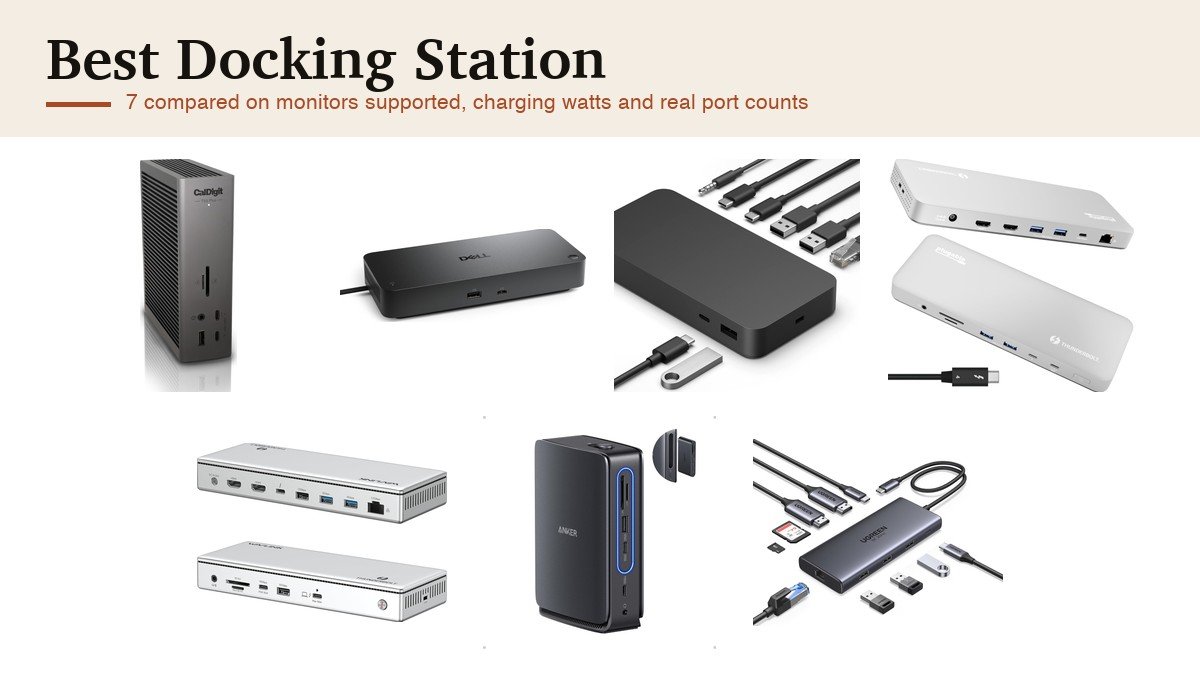
The best docking station for you is not the one with the most ports, it is the one that drives the monitors you own at the refresh rate you want while charging the laptop you actually have. Port count is the number on the box and it is close to meaningless: a 13-in-1 dock that cannot run two 4K screens at 60Hz is worse than a 7-in-1 that can. Tablets have the same mismatch problem in miniature, which our guide to the best iPad 9th generation cases covers.
Two specifications decide everything else. The first is whether the dock is Thunderbolt or plain USB-C, because Thunderbolt carries 40Gbps and can drive multiple independent displays while USB-C docks rely on DisplayPort Alt Mode and share bandwidth. The second is charging wattage, because a dock that supplies 65W to a laptop that wants 100W will slowly lose charge while you work. Everything below states both.
Best Docking Station Picks Compared on Displays, Charging and Connection
Read the display column against the monitors on your desk and the charging column against your laptop requirement. If either falls short, nothing else about the dock rescues it.
| Docking station | Connection | Displays | Charging to laptop | Networking |
|---|---|---|---|---|
| CalDigit TS5 Plus | Thunderbolt 5 | Up to 3 displays across 20 ports | High-wattage PSU | 10 Gigabit Ethernet |
| Dell Pro Smart Dock SD25TB4 | Thunderbolt 4 | Up to four 4K monitors | 130W Dell, 96W others | Ethernet with remote management |
| Microsoft Surface TB4 Dock | Thunderbolt 4 | Two 4K monitors | Full laptop charge in 2.5 hours | 2.5G Ethernet |
| Plugable Thunderbolt 4 Dock | Thunderbolt 4 | Dual 4K HDMI | 100W host charging | Ethernet |
| WAVLINK Thunderbolt 4 Dock | Thunderbolt 4 certified | Dual 4K 60Hz HDMI or single 8K | 96W from a 160W adapter | 2.5G Ethernet |
| Anker Nano 13-in-1 | USB-C | Dual monitor | 100W Power Delivery, 140W adapter | Ethernet |
| UGREEN 10-in-1 | USB-C | Dual 4K 60Hz or single 8K 30Hz | 85W pass-through of 100W | Gigabit Ethernet |
The macOS Limit, Charging Headroom and What Thunderbolt Buys You
The single most common disappointment with a docking station is a Mac user buying a dual-monitor USB-C dock and discovering both screens show the same picture. That is not a fault. Apple Silicon Macs do not support DisplayPort Multi-Stream Transport, so a USB-C dock splitting one video stream into two can only mirror. The UGREEN listing states this plainly. If you use a MacBook and want two independent displays, you need Thunderbolt, where each display gets its own stream, or a dock using DisplayLink compression.
Charging is the second trap. USB Power Delivery negotiates a wattage between the dock and the laptop, and the figure quoted on a dock is what it can supply, not what your machine needs. A 16-inch MacBook Pro or a workstation laptop under load can draw more than 100W, so a 96W dock keeps it alive at idle and loses ground during heavy work. Note also that several docks here reserve wattage for their own ports: the UGREEN supplies 85W of its 100W budget to the laptop and keeps 15W for everything else.
Finally, check how the displays connect. DisplayPort carries higher bandwidth than HDMI at the same generation, so a dock with DisplayPort outputs is more likely to drive high-refresh or high-resolution panels properly. Thunderbolt docks also chain, so a single cable to the laptop can feed a monitor, a drive and a network. If your desk setup also involves a projector rather than monitors, our guide to the best projectors covers the input side of that.
1. CalDigit TS5 Plus: The Most Ports and the Fastest Network
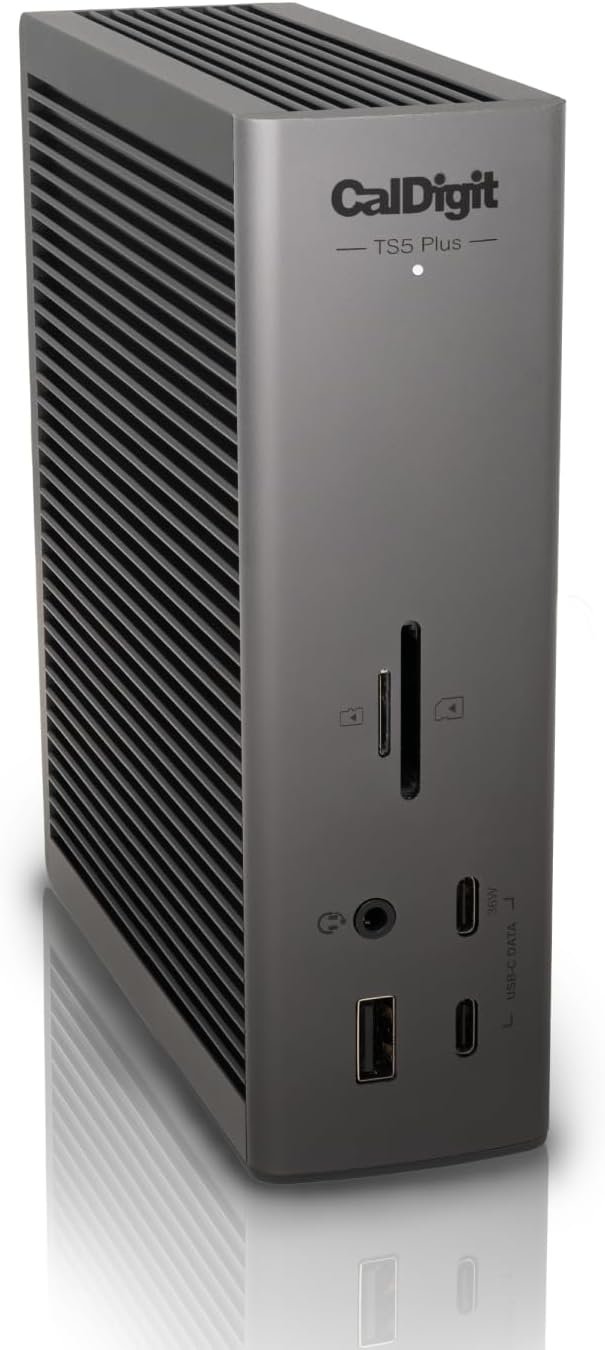
CalDigit has owned the top of this category for several generations and the TS5 Plus is the current argument. Twenty ports on a Thunderbolt 5 connection, which doubles the bandwidth available to Thunderbolt 4, and 10 Gigabit Ethernet rather than the 1 or 2.5 Gigabit everything else here offers.
That networking figure is the one that separates it for a specific audience. If you work off a NAS, shift large video files across a local network, or run a studio where several machines share storage, 10GbE turns the network from a bottleneck into a non-issue. For anyone whose network is a domestic broadband line it is wasted money. The vertical chassis takes less desk space than the flat docks here, and the listing notes that Windows users need to install the 10 Gigabit Ethernet driver separately.
What it does well
- Twenty ports, the most in this guide.
- Thunderbolt 5, with double the bandwidth of Thunderbolt 4.
- 10 Gigabit Ethernet rather than 1 or 2.5.
- Vertical chassis uses less desk area.
What to know before buying
- The most expensive dock here by a wide margin.
- 10GbE is wasted unless your network supports it.
- Windows users must install a driver for the Ethernet port.
2. Dell Pro Smart Dock SD25TB4: Four Monitors and Remote Management

Four 4K monitors from one dock is the headline here, delivered across HDMI 2.1, DisplayPort 1.4, USB-C and Thunderbolt 4, which is more display output than anything else in this guide. For financial, creative or data work where screen area is the constraint, that is the specification that matters.
The rest is aimed at businesses rather than individuals, and some of it is genuinely useful at home too. Charging runs to 130W for Dell laptops and 96W for everything else, which is the highest figure here, and Thunderbolt 4 allows chaining up to six devices. Remote Wi-Fi management through Dell Console and Intel AMT lets an IT department update docks without touching the PC, and the security feature set covers WPA3, PXE boot, MAC filtering and DMA protection.
What it does well
- Up to four 4K monitors, the most here.
- 130W charging for Dell laptops, 96W for others.
- Chains up to six Thunderbolt devices.
- Remote management and business-grade security features.
What to know before buying
- The full 130W only applies to Dell machines.
- Management features are irrelevant to a home user.
- A large flat chassis that occupies desk rather than height.
3. Microsoft Surface Thunderbolt 4 Dock: The Fast-Charging One

Microsoft built this for Surface machines and it works with any Thunderbolt 4 laptop. The specification that stands out is charging speed: a full laptop charge in 2.5 hours, which is faster than most docks manage because most treat charging as a background task rather than a feature.
Connectivity is balanced rather than maximal: three USB-C and three USB-A ports, a 3.5mm audio jack, 2.5G Ethernet and a security lock slot, supporting two 4K monitors. The detail worth calling out is physical. Raised tactile indicators on each port let you find the right one by feel rather than by crawling under the desk with a torch, which is a small idea that no other dock here has bothered with and which you appreciate every single time.
What it does well
- Full laptop charge in about 2.5 hours.
- Raised tactile port indicators you can find by feel.
- Balanced three USB-C and three USB-A layout.
- 2.5G Ethernet and a security lock slot.
What to know before buying
- Two 4K monitors, where the Dell manages four.
- Priced for business buyers rather than individuals.
- Designed around Surface, though it is not limited to it.
4. Plugable Thunderbolt 4 Dock: The One Built for a MacBook

Plugable has designed this one specifically around Apple Silicon MacBooks, which matters because of the DisplayPort limitation that catches so many Mac users out. Being Thunderbolt 4, each of the dual 4K HDMI outputs gets its own stream, so two genuinely independent displays work rather than mirroring.
Thirteen ports cover a downstream Thunderbolt 4 at 40Gbps, a USB-C, four USB-A, SD and microSD at UHS-II speeds, Ethernet and 3.5mm audio, with 100W host charging. It is driverless and plug and play, and the space grey aluminium housing is built to sit next to a MacBook rather than beside it. Plugable includes lifetime support from a North American team, which is unusual in this category and matters if a dock stops being recognised after an operating system update.
What it does well
- Dual independent 4K displays on Apple Silicon Macs.
- UHS-II SD and microSD readers rather than slower ones.
- 100W host charging, driverless and plug and play.
- Lifetime support from the manufacturer.
What to know before buying
- 100W may not be enough for a 16-inch MacBook Pro under load.
- HDMI rather than DisplayPort outputs.
- Fewer total ports than the CalDigit or the Dell.
5. WAVLINK Thunderbolt 4 Dock: Certified Thunderbolt for Less
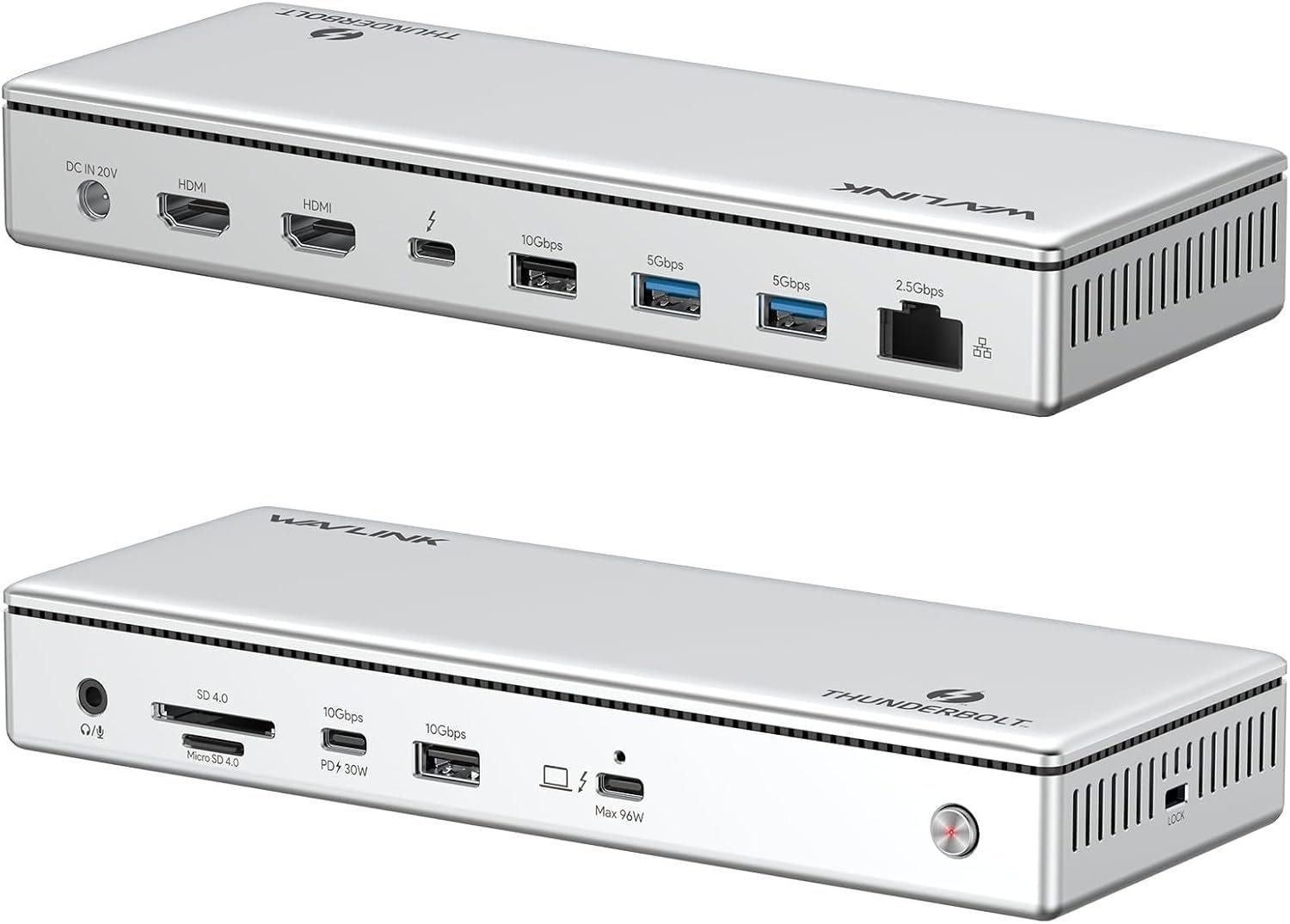
Thunderbolt certification costs money, which is why so many docks in this price bracket are USB-C wearing similar language. This one is genuinely Thunderbolt 4 certified, with true 40Gbps upstream and downstream ports, and that is the whole argument for it.
Specifications match docks costing considerably more: dual 4K 60Hz HDMI or a single 8K output, 96W charging to the host from a 160W adapter, and 2.5G Ethernet that is backwards compatible with slower networks. The card reader is SD and microSD V4.0 rated at 312MB/s, which WAVLINK notes is three times faster than V3.0, and that is a meaningful difference if you offload camera cards regularly rather than occasionally.
What it does well
- Genuine Thunderbolt 4 certification at a mid-range price.
- Dual 4K 60Hz or a single 8K output.
- V4.0 card reader at 312MB/s.
- 2.5G Ethernet, backwards compatible with gigabit.
What to know before buying
- 96W is less headroom than the Dell offers.
- A less established brand than CalDigit or Plugable.
- A 160W power brick to find space for.
6. Anker Nano 13-in-1: A Desk Dock and a Travel Hub in One
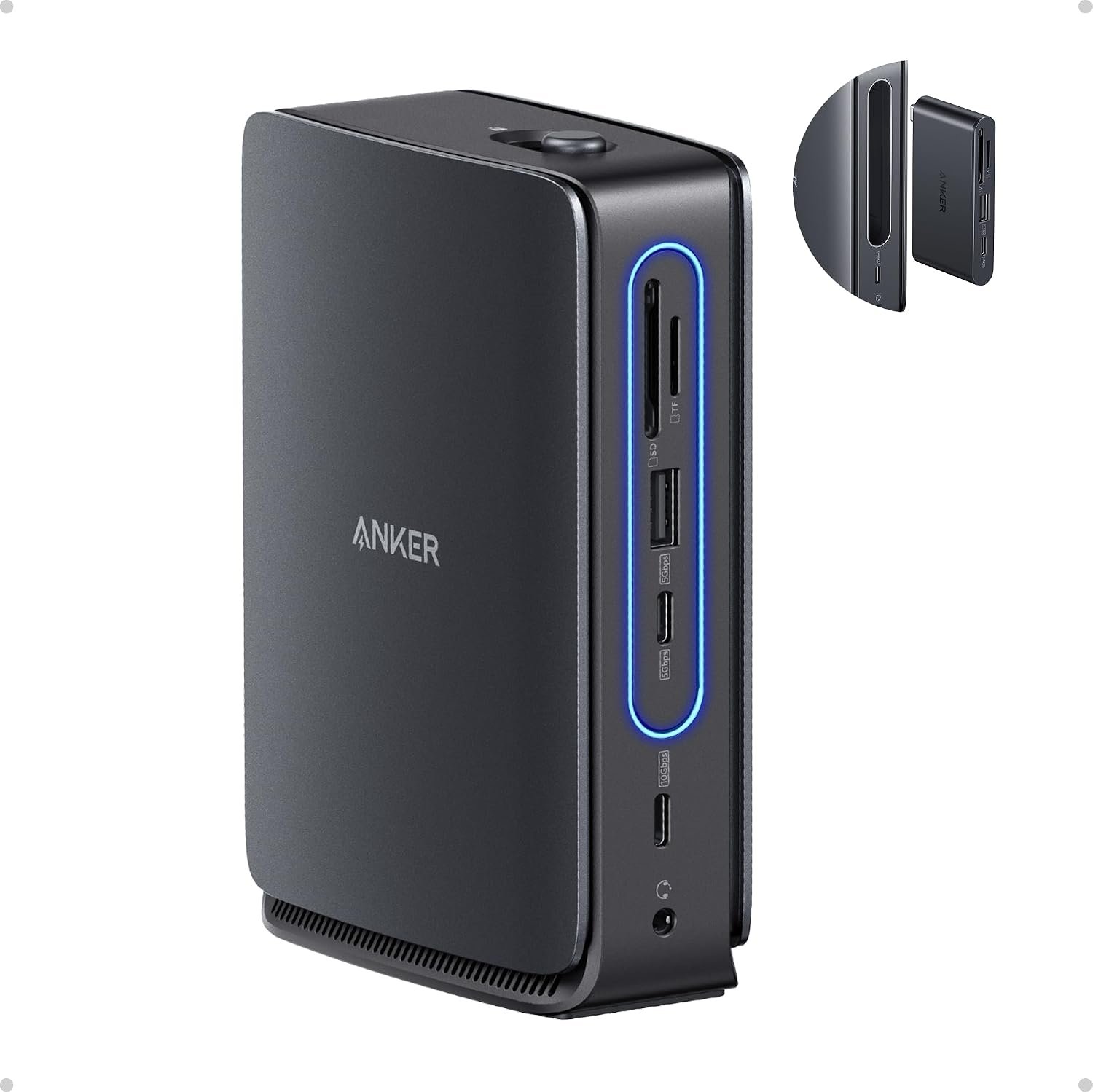
This is the most genuinely novel product in the guide. A 13-in-1 desktop dock with a 6-in-1 portable hub that snaps off the front and goes in a bag, so one purchase covers the home office and the coffee shop instead of two separate devices that each cost nearly as much.
It is USB-C rather than Thunderbolt, which is the compromise and the reason for the price. Charging runs to 100W Power Delivery from a 140W adapter, so there is genuine headroom for the dock’s own ports, and one USB-C data port runs at 10Gbps. One practical note from the listing worth repeating: the dock needs a laptop connected to function at all, so the ports and the light strip stay dead if you were hoping to use it as a standalone charger.
What it does well
- Detachable 6-in-1 hub replaces a second travel accessory.
- 100W Power Delivery from a 140W adapter, so real headroom.
- 10Gbps USB-C data port.
- One purchase covers desk and travel.
What to know before buying
- USB-C rather than Thunderbolt, so bandwidth is shared.
- Dual independent displays will mirror on an Apple Silicon Mac.
- The dock does nothing unless a laptop is connected.
7. UGREEN 10-in-1: The Honest Budget Dock

At the bottom of the range the question is which corners were cut and whether the listing admits it. UGREEN does, which is why this one is here. Ten ports cover two HDMI, a 100W USB-C Power Delivery port, a 5Gbps USB-C data port, three USB-A, Ethernet and an SD and microSD reader.
Displays run to dual 4K at 60Hz or a single 8K at 30Hz, and the listing states outright that macOS limitations mean both docked displays mirror on a MacBook, which is the fact most competitors leave you to discover. Charging passes through 85W of the 100W budget to the laptop and reserves 15W for the other ports, which is again more candid than most. It is also clear that the USB-A and USB-C data ports do not charge or carry video. Buy it for a Windows laptop with two monitors and it is good value.
What it does well
- Ten ports including dual HDMI and a card reader.
- States the macOS mirroring limitation on the listing.
- Publishes the real 85W pass-through rather than the headline 100W.
- Gigabit Ethernet and 5Gbps USB-C data.
What to know before buying
- USB-C, so two independent displays will not work on a Mac.
- 85W to the laptop rather than the advertised 100W.
- No Thunderbolt, so no daisy chaining.
Working Out Which Dock Your Setup Actually Needs
Start from the three things that cannot be compromised: the number of independent displays, the charging wattage your laptop asks for, and whether you are on a Mac. Everything else is convenience. Input is the other half of a desk setup, and our guide to the best keyboards for mac covers what plugs into it.
- Two independent displays on an Apple Silicon Mac: Thunderbolt, or a DisplayLink dock. USB-C will mirror.
- A laptop that charges at 100W or more: look for a dock that exceeds it, not one that matches it.
- Large file transfers over a local network: 2.5G Ethernet at minimum, 10GbE if the network supports it.
- One laptop that travels: a dock with a detachable hub saves buying a second accessory.
- More than two monitors: check the dock supports them independently rather than as a split stream.
- Fast camera card offloads: look for UHS-II or V4.0 readers rather than an unspecified slot.
Cable quality matters more than people expect, because a Thunderbolt dock fed by a passive USB-C cable will quietly fall back to lower bandwidth and you will blame the dock. Use the cable supplied, and if you replace it, replace it with a certified Thunderbolt one. A dock is also the obvious place to hang a webcam and a headset, and our guides to the best webcams and the best gaming headsets cover both ends of a desk setup. The surface under all of it matters too, and our guide to the best desk pad covers leather against cloth. An iPad can take the second-screen role instead, and our guide to the best ipad keyboards covers making it a working machine.
Which Docking Station to Buy
For most people on a Thunderbolt laptop, the Plugable Thunderbolt 4 dock is the right balance: dual independent 4K displays that work properly on an Apple Silicon Mac, fast card readers, 100W charging and lifetime support. If you need more than two monitors, the Dell Pro Smart Dock SD25TB4 drives four and charges at 130W on Dell hardware.
The CalDigit TS5 Plus is the one to buy if 10 Gigabit Ethernet solves a real problem, and a waste of money if it does not. The Microsoft Surface dock is the fast-charging, well-made middle option with the best physical design here. WAVLINK offers genuine Thunderbolt 4 certification for less than the big names. At the budget end, the Anker Nano is the clever pick because the detachable hub replaces a second purchase, and the UGREEN is honest about its limits, which is worth more than another two ports.
Frequently Asked Questions
Why do my two monitors show the same thing on a MacBook?
Because Apple Silicon Macs do not support DisplayPort Multi-Stream Transport, which is what a USB-C dock uses to split one video stream into two. The fix is a Thunderbolt dock, where each display has its own stream, or a dock that uses DisplayLink compression with a driver installed.
Is Thunderbolt worth paying for over USB-C?
If you run more than one external display, move large files, or use a Mac, yes. Thunderbolt carries 40Gbps against USB-C speeds that are shared between video and data, it supports independent display streams, and it can daisy chain devices. For a single monitor and a few peripherals on a Windows laptop, a good USB-C dock is fine and considerably cheaper.
How many watts does my laptop need from a dock?
Match or exceed the wattage of the charger it shipped with. A dock that supplies less will keep the laptop alive at idle and lose ground under load, which shows up as a battery slowly draining while plugged in. Also check whether the quoted figure is what reaches the laptop: some docks reserve part of the budget for their own ports.
Does a docking station slow down my external drives?
It can, on a USB-C dock, because the available bandwidth is shared across video and every data port. A 4K display at 60Hz consumes a large share of it. On Thunderbolt there is far more headroom, which is the practical reason to pay for it if you work off external storage.
Related Articles
- Best Over-Ear Headphones: 7 Compared on Noise Cancelling and Battery
- Wi-Fi 6 vs Wi-Fi 7: What Actually Changes at Home
- Best Wireless Earbuds: 7 Compared on Noise Cancelling and Battery
- Best Gaming Phones: 10 Picked for How You Actually Play
- Best Laptop to Buy: 7 Compared on Screen and Memory
As an Amazon Associate, CanyonWire earns from qualifying purchases.





