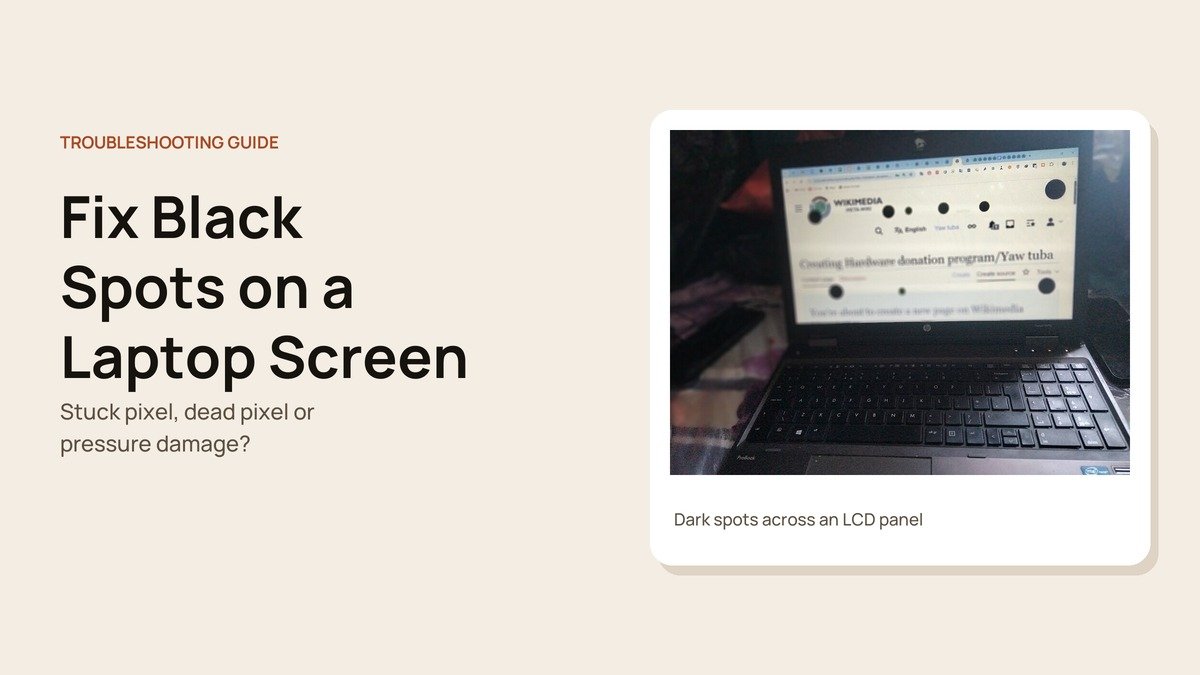
Black spots on a laptop screen are frustrating because they sit in the middle of everything you do. Some are nothing more than a speck of dirt, others are a single failed pixel, and a few are a sign the LCD has been damaged and will keep getting worse.
The good news is that working out which one you have takes minutes, and the steps below run in the order that saves the most time and money: free checks first, a warranty claim next, and a paid repair only when nothing else applies.
What Causes Black Spots on a Laptop Screen

| Cause | What is happening | What it looks like |
|---|---|---|
| Dead pixel | Transistor stuck off, so light cannot pass | Tiny, sharp, black on white backgrounds |
| Stuck pixel | Subpixel stuck on | Tiny, bright red, green, blue or white |
| Dust or debris | Material on the glass or inside the panel | Irregular, grey, may move when wiped |
| Pressure damage | A weight or impact bruised the LCD layers | Blurry patch, fingertip size or bigger |
| Cracked panel | Liquid crystal leaking through a crack | Black blot that grows, often with lines |
Every pixel on an LCD is made of red, green and blue subpixels, each switched by its own transistor. When one of those transistors fails, the subpixel stays off (a dark dot) or on (a bright dot). The defective pixel types follow from which way it fails.
Dead, Stuck and Dark Subpixels: The Terms Explained
Repair shops and warranty pages use precise terms, and knowing them makes a claim much easier. These follow Dell's definitions, which match how most makers describe pixel faults.
- Dark pixel (dead pixel): all three subpixels are permanently off, leaving a black dot that shows on white or coloured backgrounds but disappears on black.
- Dark subpixel: just one of the three is off. It looks like a small dark spot on white, sometimes tinted rather than pure black, depending on which colour failed.
- Bright pixel (stuck pixel): all three subpixels are permanently on, showing a white dot that stands out on dark backgrounds.
- Bright subpixel: one subpixel stuck on, so you see a single red, green or blue dot.
- Partial subpixel: a fragment smaller than half a subpixel, left over from manufacturing. It is too small to see without magnification and is not treated as a defect.
When you contact support, describe the spot in these terms, say how many there are and where, and mention whether they show on white, black or both. That is the information a technician uses to decide whether your screen falls inside the pixel policy.
Step 1: Wipe the Screen and Look Again
Rule out dirt before anything else. Turn the laptop off, then wipe the screen with a clean, dry microfibre cloth. If a mark will not shift, dampen a corner of the cloth with a little water, never spraying the screen itself, and wipe again.
Turn the laptop back on and open a white page. If the spot has moved, changed shape or gone, it was on the surface. If it sits in exactly the same place, carry on.
Step 2: Work Out Which Kind of Spot It Is
Display solid full-screen colours one at a time: white, black, red, green and blue. Any full-screen colour page or your laptop's built-in screen test will do.
- Black on every colour except black: a dead pixel.
- The same bright colour on every background: a stuck pixel.
- A soft, smudged dark area that is worse on white: pressure damage.
- A dark blot with ragged edges or lines: a cracked panel.

Step 3: Make Sure It Is Not Software
Rarely, a dark mark comes from something being drawn on screen, such as a frozen app window or overlay. Take a screenshot and view it on another device. If the spot appears in the image, it is software: close apps or restart. If you can connect an external monitor, check that too; a spot that only appears on the laptop is in the laptop panel. Our guide to fixing laptop screen issues covers the hardware tests for Dell, HP, Surface and Mac.
Step 4: Run a Pixel Fixer on Stuck Pixels
Only worth trying if the dot is bright, not black. Pixel refreshing tools flash rapidly changing colours over the faulty spot, which can free a stuck subpixel. Web-based fixers such as JScreenFix need no install: drag the flashing square over the pixel and leave it for at least 10 minutes, repeating if needed. If an hour of this changes nothing, stop.
Two cautions. A dead black pixel will not respond, because it is not receiving power at all. And Dell, for one, does not support these tools and recommends warranty service instead, so check your cover first if the laptop is new. Avoid pressing or rubbing the spot, which Dell warns can crack the screen and void the warranty.
Step 5: Check the Pixel Policy and Claim a Replacement
Every maker allows a small number of faulty pixels, because they are a normal by-product of making LCD panels. Count your dark and bright dots, then compare them with your maker's limits.

- Dell: laptops with HD+ (1600 x 900) or higher resolution get Premium Panel Exchange, so even one bright pixel or bright subpixel qualifies for a replacement during the warranty. Dark subpixels are allowed up to five. HD screens allow up to two bright pixels.
- Lenovo: a published pixel policy for IdeaPad, Lenovo and ThinkBook laptops sets the limit for bright and dark dots during the warranty period. ThinkPad service manuals treat three or more visible defective pixels as a fault.
- Apple: asks owners concerned about pixel anomalies to bring the Mac to an Apple Store or authorised provider for examination, which may be charged.
- Other brands: search your model number with the words "pixel policy", or ask support directly.
Partial subpixels, tiny dim fragments that need magnification to see, are not counted as defects by Dell. If you can clearly see a dot from a normal viewing distance of about 35 to 50 cm, it counts.
Step 6: Replace the Panel When the Damage Is Physical
Pressure marks, clusters of dark circles and spreading blots are damage to the LCD itself. No setting, app or cleaning will remove them, and many spread over time. A repair shop can usually swap the panel as a separate part, although on touchscreen models the glass and panel are often bonded together, so the whole display assembly is replaced and the bill is higher.
- Back up your files now, using an external display if you need to.
- Stop pressing on the screen and avoid flexing the lid.
- Check for accidental damage cover, since standard warranties generally exclude impact and pressure damage.
- Get a written quote and compare it with the value of the laptop.
If the repair costs more than the laptop is worth, our explainer on what a Chromebook is covers an affordable alternative.
Spotted It on a New Laptop? Use the Return Window
A dead pixel found in the first days of ownership is easiest to solve at the shop rather than through the maker. Many retailers will exchange a laptop inside their return window without arguing about pixel counts, while a warranty claim later is judged against the policy table. Check the screen on white, black and solid colours as soon as you unbox it, and keep the packaging until you are happy.
If you are past the return window, open the warranty claim with photos of the spot on a white and a black background, taken square on so the dot is clearly visible. It speeds up the conversation with support and gives you a record if the number of faulty pixels grows.
How to Keep New Black Spots From Appearing
- Clear the keyboard before you close the lid, so nothing presses into the panel.
- Use a padded sleeve and keep heavy items off the laptop in your bag.
- Pick the laptop up by its base rather than the screen.
- Do not leave it in a hot car or in strong sunlight.
- Clean with a soft cloth and plain water rather than rough paper or strong chemicals.
Frequently Asked Questions
Why are there black spots on my laptop screen?
Usually a dead pixel, dust or damage from pressure or a crack. A sharp tiny dot is a pixel; a blurry or growing patch is damage.
Can I fix a dead pixel on a laptop?
No. A dead pixel has stopped working completely, and the only fix is a new panel, which may be free under the maker's pixel policy.
How long should I run a stuck pixel fixer?
At least 10 minutes per attempt. If the pixel is still stuck after about an hour, it is unlikely to recover.
Will black spots on a laptop screen get bigger?
Dead pixels stay the same. Spots from pressure or a crack often spread, so back up and arrange a repair.





