
A thin green line on your phone screen tends to appear overnight, run from top to bottom, and stay there. Before you can fix it you need to know whether the screen is drawing something wrong or the phone is sending it something wrong, because the two have completely different cures.
Work through the four fixes below in order. The first takes under a minute and decides whether the rest are worth your time, and the last section lists the manufacturers that will replace an affected display for free.
How to Fix a Green Line on a Phone Screen: The Short Answer
Quick method: screenshot the screen and view the image on another device. A clean screenshot means the display panel has failed and needs replacing, ideally under a free brand programme. If the line is in the screenshot, restart, test in safe mode, update, and only then factory reset.
What You Need Before You Start
- A second screen, such as a laptop or another phone, to view a screenshot on.
- A recent backup of your photos and messages, in case you reach the reset stage.
- Your purchase receipt or invoice, which most repair programmes ask for.
- Ten to fifteen minutes for the software checks.
Why Green Lines Show Up on OLED Phone Screens
Nearly every phone that gets this fault uses an AMOLED display, where each pixel makes its own light and is switched by a thin transistor layer behind it. The usual explanation for a line is a fault along one column of that layer, which leaves every pixel in the column stuck on, and green is the colour most owners report.
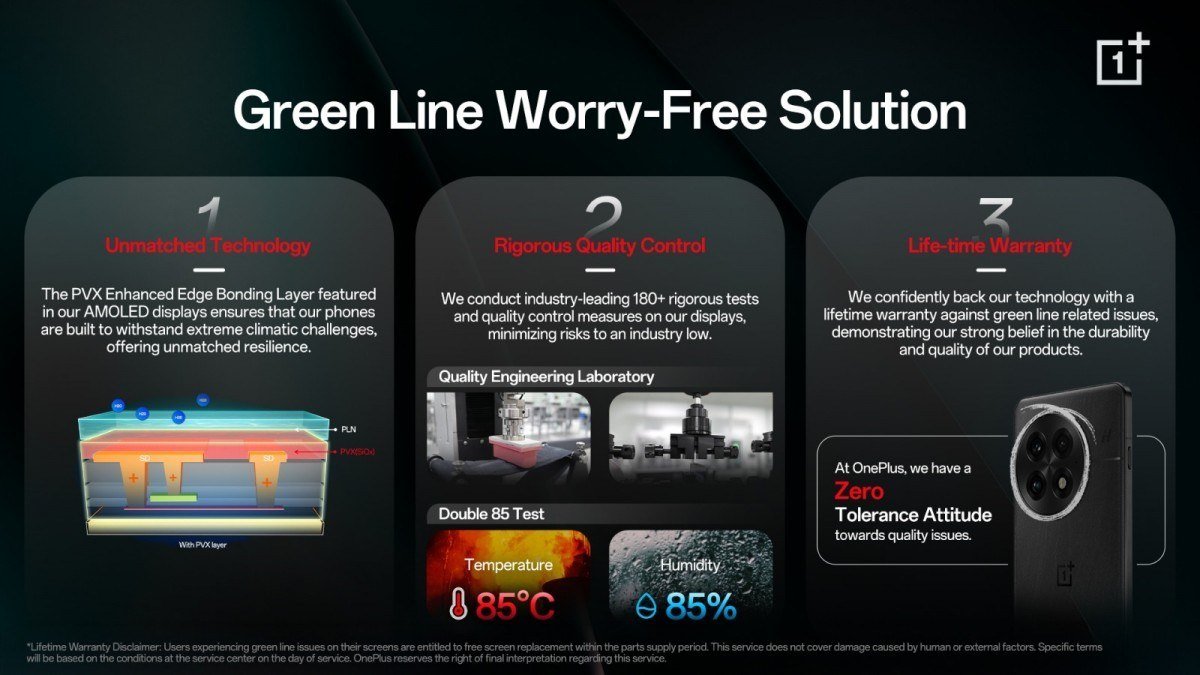
OnePlus has been unusually open about the cause. It says the fault has several contributing factors and responded with a sealed panel edge, a PVX bonding layer meant to slow moisture and oxygen getting in, along with more than 180 quality tests, including holding panels at 85°C and 85 percent humidity.
Fix 1: Find Out Whether the Line Is in the Panel
- Open any screen where the line is clearly visible, such as a white web page.
- Press Power and Volume down together to save a screenshot.
- Send the screenshot to yourself and open it on a laptop or another phone.
- If the image is clean, the panel is faulty and you can skip to the repair section. If the line is in the image, carry on with Fix 2.
This works because a screenshot records what the phone renders before it reaches the glass. A line that only your eyes can see lives in the hardware.
Fix 2: Restart, Then Test in Safe Mode
A restart clears passing glitches. If the line survives it, safe mode loads the phone without downloaded apps, which tells you whether one of them is drawing over the screen.
Samsung Galaxy, from the Power menu
- Press and hold the side button and Volume down together, or swipe down and tap the Power icon.
- Touch and hold Power off.
- Tap Safe mode. Your Galaxy restarts with “Safe mode” in the bottom left corner.

Samsung Galaxy, from a switched-off phone
Samsung's safe mode guide also lists a second route: turn the phone on and, when the Samsung logo appears, press and hold Volume down until the phone finishes starting. To leave safe mode, simply restart, or tap the “Safe mode is on” notification and choose Turn off.

Google Pixel
On a Pixel 6 or later, hold Power and Volume up, then touch and hold Power off or Restart and tap OK. Older Pixels use a long press on Power instead. Google's Pixel help page covers both. If the line vanishes in safe mode, remove recently installed apps one by one, restarting normally after each.
Fix 3: Update the Phone and Clear Out Recent Apps
- Open Settings and check for a system update; install it and restart.
- Update your apps from the Play Store as well, so nothing is left running an old build.
- Uninstall anything that draws over other apps, such as screen dimmers, colour filters or floating widgets, and see whether the line goes.
Fix 4: Factory Reset, Only for a Software Line
A reset is worth doing only if the line appeared in your screenshot in Fix 1. Back up first, then use the reset option in Settings. If the line returns on a freshly reset phone, the fault is in hardware after all, however it behaved in the screenshot.
When the Green Line Is Hardware: Repair Programmes by Brand
A failed panel needs a new screen, and three manufacturers have offered dedicated coverage for this exact fault.
| Brand | Programme | What it covers | Status |
|---|---|---|---|
| OnePlus | Lifetime display warranty for green line faults (India) | Free screen within the parts supply period; drops and external damage excluded | Running |
| Pixel 8 and Pixel 9 Pro / 9 Pro XL extended repair programmes | Vertical line from bottom to top, or flicker, for 3 years from purchase | Running | |
| Samsung | One-time free screen replacement (India) for S20, S21, Note 20 and S22 Ultra | Phones bought within 3 years with no physical or water damage | Ended 30 April 2024 |
| Other brands | Standard manufacturer warranty | Component failure on an in-warranty phone | Check with the maker |
Google's Pixel 9 Pro programme has taken repairs since 8 December 2025 at Google walk-in centres, authorised repair centres and online. A display replaced under it is warranted for 90 days or the rest of the original warranty, whichever is longer.
Outside these programmes, a line that appears on its own on an in-warranty phone is a component failure, which standard warranties normally cover. A phone with a cracked screen or liquid damage is usually excluded from all of them.
Protect Your Data While the Screen Is Replaced
A display repair means handing an unlocked phone to a stranger. Both Samsung and Google build a mode that lets the technician test the phone without seeing your files, so turn it on before you leave home.
Samsung Galaxy: Maintenance mode
- Set up a screen lock if you do not already have one; the mode needs it.
- Open Settings and go to Device care.
- Tap Maintenance mode, then Turn on.
- Choose whether to create a log. The log records recent app use and system errors, which can help the technician find the fault.
- Tap Restart. The phone comes back with only pre-installed apps available.
Anything the technician creates in Maintenance mode, including accounts and files, is deleted automatically when you switch it off. The same option sits in the Samsung Members app under Support, then Repair Service.
Google Pixel: Repair mode
- Install any waiting system update first; Repair mode needs the December 2023 Android 14 update or later and at least 2 GB of free space.
- Open Settings, tap System, then Repair mode.
- Enter your PIN, pattern or password when asked. Do not share it with the technician.
- Let the phone restart into Repair mode.
When you get the phone back, open the same menu or tap the Repair mode notification to exit. Any changes made while it was on are removed. Neither mode replaces a backup, though: if a repair swaps a part that holds storage, the phone may still have to be wiped. Take your SIM card out before you hand it over.
What to Tell the Repair Centre
- Your screenshot result. A clean screenshot points straight at the panel and saves diagnostic time.
- When the line appeared, and whether a drop, a splash or an update came first.
- Your purchase date and proof. Google's Pixel programmes run for three years from the original retail purchase, and the phone's IMEI or serial number has to qualify.
- Any cracks or water exposure. Cracked glass or liquid damage can disqualify a phone from free programmes, so expect the repair facility to inspect it before agreeing to cover it.
Two more habits help a new panel last: keeping the phone cool, which our guide to phone overheating covers, and fitting a decent protector, like the picks in our Galaxy Z Fold 8 screen protector roundup.
Frequently Asked Questions
Can I fix a green line on my phone screen myself?
Only when the cause is software. If the line appears in screenshots, the restart, safe mode, update and reset steps can clear it. A line that never appears in screenshots needs a new display.
Will a factory reset remove a green line?
Only a software line. A reset rewrites the phone's software, so it cannot repair a display column that has failed.
Is a green line covered by warranty?
Usually, if the phone is in warranty and undamaged, because the fault is a component failure. OnePlus in India and Google for the Pixel 8 and Pixel 9 Pro models go further, with coverage beyond the normal warranty.
Does the green line spread to the rest of the phone?
No. It is limited to the display. The battery, storage and cameras keep working normally, so you can keep using the phone until the screen is replaced.





