If your iPhone won’t turn on, work up a short ladder instead of pressing everything at once: charge it, force restart it, check whether it is secretly awake, deal with an Apple logo that will not clear, and only then restore it. Each rung is more drastic than the one before, and the data-erasing step comes last.
This page follows iOS 27, the version in Apple’s current iPhone User Guide, and the button sequences work on every generation. A phone that merely will not accept a cable belongs with the iPhone not charging fix list. What follows is for the phone that stays dark or never finishes starting.
iPhone Won’t Turn On: The Five Rungs and What Each Costs
An iPhone that won’t turn on needs, in order, a 30-minute charge on a wall outlet, a force restart for your model, a call to test whether it is secretly awake, and a recovery mode Update if the Apple logo sticks. Restore erases everything, so it comes last, and a failed Restore points to hardware service.
| Rung | What you do | Time | Success looks like |
|---|---|---|---|
| 1 | Charge on a wall outlet, cable you trust | 30 to 60 minutes | A red battery sliver or the Apple logo |
| 2 | Force restart for your model | About 1 minute | The Apple logo, then the lock screen |
| 3 | Black-screen test: ring it, play a sound, cool it | 5 minutes | A ring, a sound, or a lit display |
| 4 | Apple logo fix: wait, then recovery mode and Update | 5 minutes to 1 hour | The lock screen stays up |
| 5 | Restore, or book service | Up to 60 minutes | The Hello screen, or a repair booking |
Before Rung One: Cable, Outlet, Second Phone and a Computer
Four things save a second trip later:
- A wall outlet and an adapter and cable that charge another device
- A second phone, to ring the dark one
- A Mac with Finder (macOS Catalina or later) or a Windows PC with Apple Devices, installed from the Microsoft Store
- A USB cable that can charge your phone
- Your Apple Account password, because Find My asks for it after a restore
Rung 1: Rule Out a Drained Battery

Apple pairs its force restart with a charge: an hour on power if the screen stays dark, 30 minutes if a low-battery picture shows. Plug into a wall outlet, make sure the cable seats firmly at the phone, and wait. The port picture shows what a clean one looks like; port and adapter diagnosis belongs to the charging guide linked at the top.
- Connect the cable and adapter to a wall outlet.
- Leave the phone for 30 minutes without pressing a button.
- Look for the red battery sliver, which means the phone is alive and charging.
- With a blank screen, keep it on power for one hour in total, then press the side button.
You will know it worked when a red sliver or the Apple logo appears.
A battery left empty for months is a harder case. Apple warns that a battery stored fully discharged can drop into a deep discharge state and no longer hold a charge, and a lithium-ion cell also loses charge by itself over time, a process called self-discharge. A phone that sat in a drawer through winter is a candidate for both.
Cold matters too. Apple says an iPhone used outside its 0 to 35 degrees C rating can turn off, and that battery life returns when it warms up. Bring a cold phone indoors for a while before charging it.
Rung 2: Force Restart for Your Model
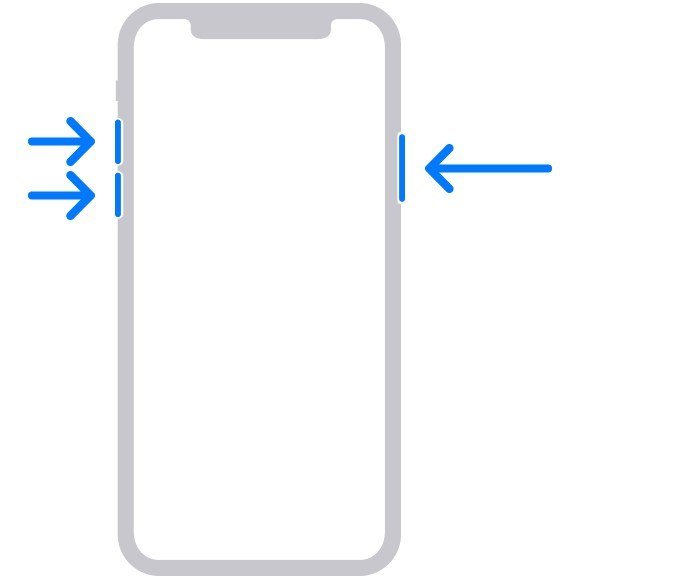
A force restart reboots the system with no erase step. Choose your row:
| Your iPhone | What to press |
|---|---|
| iPhone 8 and later, plus iPhone SE (2nd and 3rd generation) | Press and release volume up, press and release volume down, then hold the side button |
| iPhone 7 and iPhone 7 Plus | Hold side button and volume down together |
| iPhone 6s and earlier, plus iPhone SE (1st generation) | Hold the Home button and the top or side button together |
The Face ID sequence is also the one for iPhone 8 and the iPhone SE (2nd and 3rd generation), which still have a Home button. The picture above shows the three buttons. Hold the final side-button press past the 10-second mark, because Apple notes the Apple logo can take longer than that to appear.

On iPhone Duo, the volume up press is the button nearest the side button, and the other volume button is volume down. Release the side button once the Apple logo shows.
You will know it worked when the Apple logo appears and the phone starts normally.
Rung 3: Black Screen Test for a Phone That Might Be Awake
The phone may be running with the display off. Three tests take five minutes:
- Call the iPhone from another phone. A ring or a vibration means iOS is running.
- Wait for a ring or notification tone, or play one from icloud.com/find with Play Sound, which sounds for about 2 minutes when the phone is online.
- Wake the phone and three-finger triple-tap the screen, or four taps with Zoom on. If VoiceOver is on, this toggles Screen Curtain, which blanks the display on purpose.
- Shade a hot phone. Apple says the display dims or goes black when the interior temperature exceeds the normal operating range.
You will know it worked when the display lights, or the phone rings. A ringing phone with a permanently black display points to a display fault, which the green line fix also helps you recognize, and one that also overheats may need a look at heat and battery.
Rung 4: Stuck on the Apple Logo or Looping
A logo means the hardware is alive, so the work is deciding whether to wait or intervene. Check the bar first.
A progress bar is moving or frozen
Restoring or transferring on iOS 13 or later can leave the logo and bar on screen for more than an hour. Apple’s rule: only when the bar has not moved for at least one hour, connect to a computer and enter recovery mode.
No bar, or the logo restarts again and again
Apple names an Apple logo with no progress bar for several minutes as a recovery mode case. Repeated restarts are what a crash at startup looks like, so force restart first. If the loop returns, connect a computer and choose Update, which preserves your data.
You will know it worked when the lock screen appears and stays up.
Rung 5: Recovery Mode Restore From a Mac or Windows PC
Recovery mode installs iOS from a computer. The restore can run up to 60 minutes, so connect the phone to power and plan for it.
- Update macOS, or install the latest Apple Devices app on Windows.
- Connect the iPhone with a USB cable.
- Press and release volume up, press and release volume down, then hold the side button.
- Hold through the Apple logo until the Connect to computer screen shows.
- On a Mac, select the iPhone under Locations in the Finder sidebar. On Windows, open Apple Devices, select the iPhone and choose General.
- Choose Update. Choose Restore only if Update fails, since Restore erases all data.
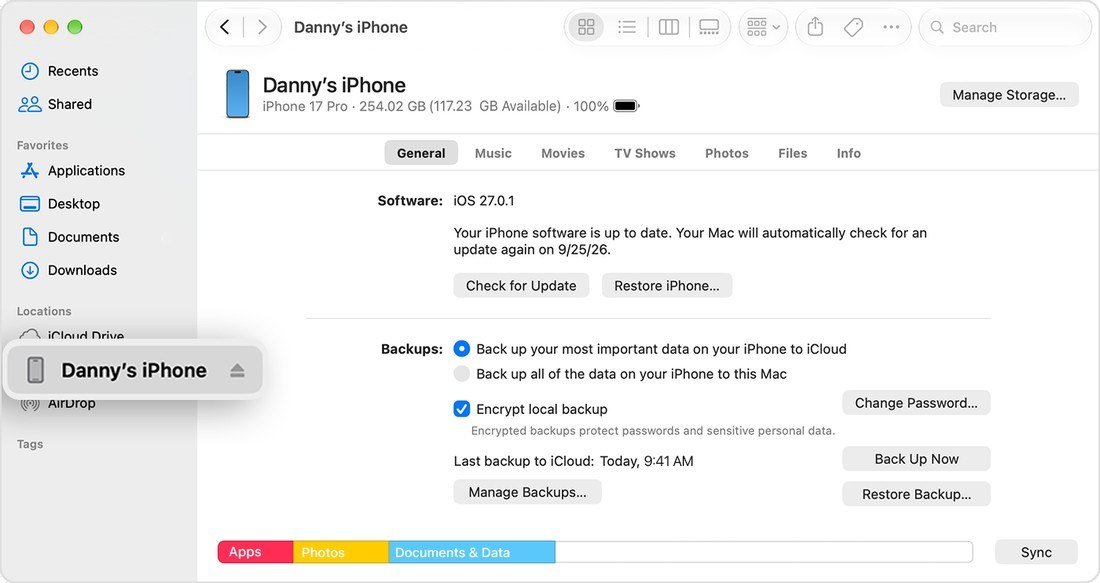
A download longer than 15 minutes can drop the phone out of the recovery screen. Let the download finish, switch the phone off and repeat the button sequence. The iPhone 7 uses the side button with volume down, and the 6s and earlier use the Home button with the top or side button.
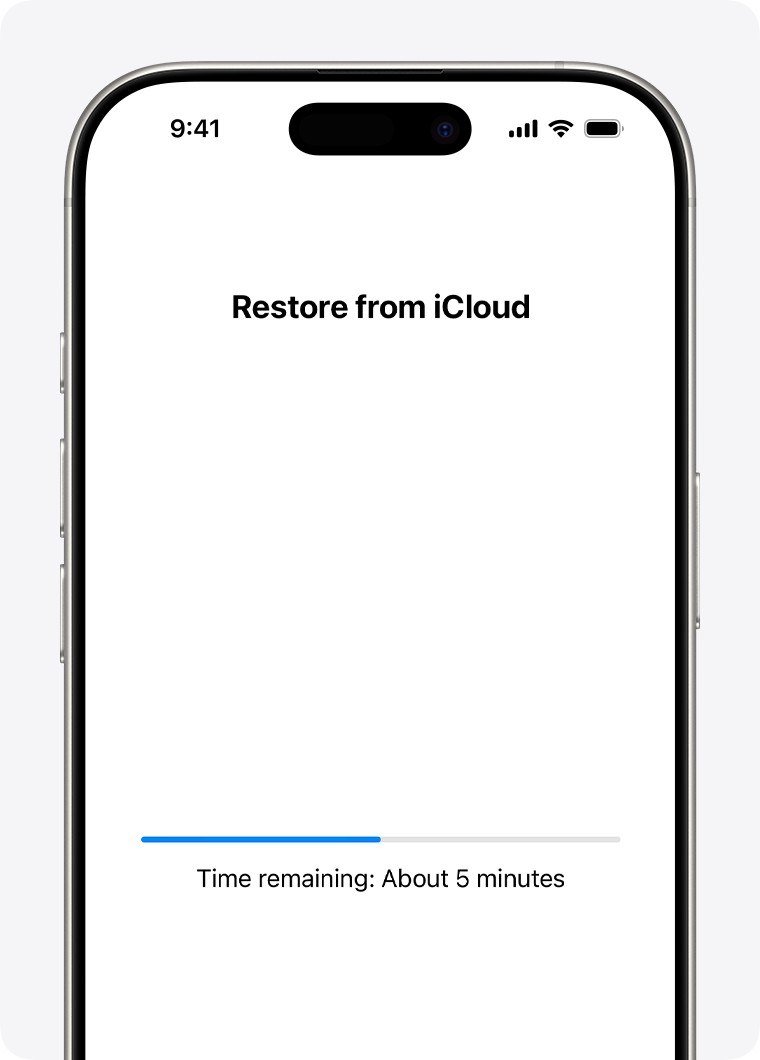
When a Restore finishes, the Hello screen appears. Follow setup to the Transfer Your Apps and Data screen and choose From iCloud Backup, or restore from a backup on the computer under Restore Backup. The phone must stay on Wi-Fi and power until the bar completes.
You will know it worked when the Hello screen appears and your apps start downloading.
Past Rung 5: Signs of a Failed Screen, Battery or Board
When Update and Restore both fail, or the buttons do nothing, the fault is hardware. The signs below tell the parts apart:
| What you see | Likely part | Why |
|---|---|---|
| Ring, vibration or Play Sound works; display stays black after cooling | Screen or its cable | Software cannot repair a display that iOS is still driving |
| Red indicator in the SIM slot | Liquid contact | Apple says the One-Year Limited Warranty does not cover it |
| Shuts off at low charge or in cold air; Battery Health flags a significant health drop | Aged battery | Apple ties unexpected shutdowns to low charge, high chemical age and cold |
| No sign of life after 60 minutes on a second cable and outlet | Battery or board | The power path is the only part left |
| Buttons do nothing in recovery mode, or Restore fails twice | Button or board | A clean install rules out the software |
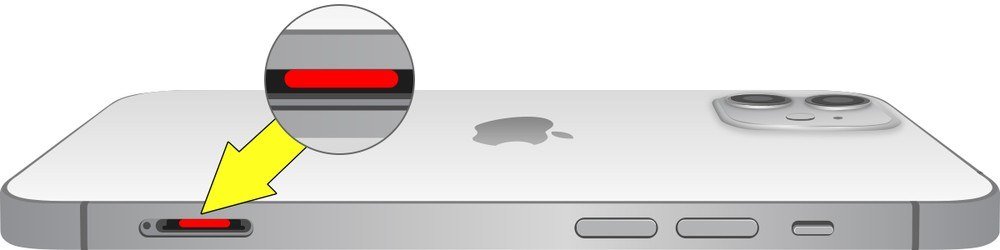
A liquid contact indicator sits in the SIM slot on tray models. It is normally white or silver and turns fully red after contact with a liquid containing water, and humidity alone does not trigger it.

Once the phone runs again, open Settings > Battery > Battery Health. iPhone 14 batteries and earlier are designed to keep 80 percent capacity at 500 full cycles under ideal conditions, and iPhone 15 models at 1000. The picture shows Maximum Capacity and Cycle Count; its Unverified banner appears when the phone cannot confirm a genuine Apple battery. Apple builds hardware and software into the phone to manage charging and temperature, the job a battery management system does in any lithium-ion pack. Even so, Apple states that rechargeable batteries are consumables whose capacity eventually declines until they need replacing.
Apple offers service at a Genius Bar, through an Apple Authorized Service Provider, or by mail with a prepaid box.
Three Slips That Cost People Their Data
- Picking Restore first. Update keeps your data. Restore is the last choice in the window.
- Letting go of the side button early. Recovery mode needs the hold to continue past the logo.
- Forgetting the Apple Account password. A restored phone with Find My on asks for it.
Frequently Asked Questions
How do I know if my iPhone is completely dead?
Charge it for an hour on a wall outlet, then force restart it. If it shows no logo and does not ring when called, the fault is the battery, the port or the board.
Can I force an iPhone to turn on?
Yes. A force restart uses the buttons for your model and does not erase anything. Hold the final side-button press past 10 seconds.
My iPhone rings but the screen is black. Is my data gone?
A ringing phone is running, so its storage is still working. Try the three-finger tap for Screen Curtain, cool the phone down, and book a display repair if it stays black.
What does the Apple logo then black screen mean?
It means startup is failing partway. Force restart, then use recovery mode and choose Update before Restore.





