Knowing how to block someone on Instagram takes about four taps, and nobody is told. The part worth understanding is the scope, because a block no longer stops at the profile in front of you. It is designed to cover the other accounts that person already has and any new ones they go on to create, which is what makes it the right answer to someone who keeps coming back under a different name.
There is one gap in that coverage, and one situation where a blocked person can still see your messages. Both are below.
Three places to block from
Instagram offers the same action in three different places, and they do the same thing. Pick whichever one you are already looking at.
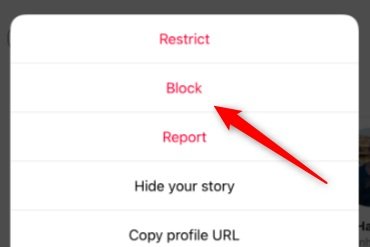
- From their profile. Open it, tap the options menu in the top right, then tap Block.
- From a chat. Open the conversation, tap the information icon at the top, then tap Block and confirm.
- From your settings. Open your profile, tap the menu in the top right, and under Who can see your content tap Blocked. Tap Add in the top right and search for the person.
The settings route is the only one that works when you cannot reach the person’s profile, which happens when they have already blocked you or made their account private. It is also where the list of everyone you have blocked lives.
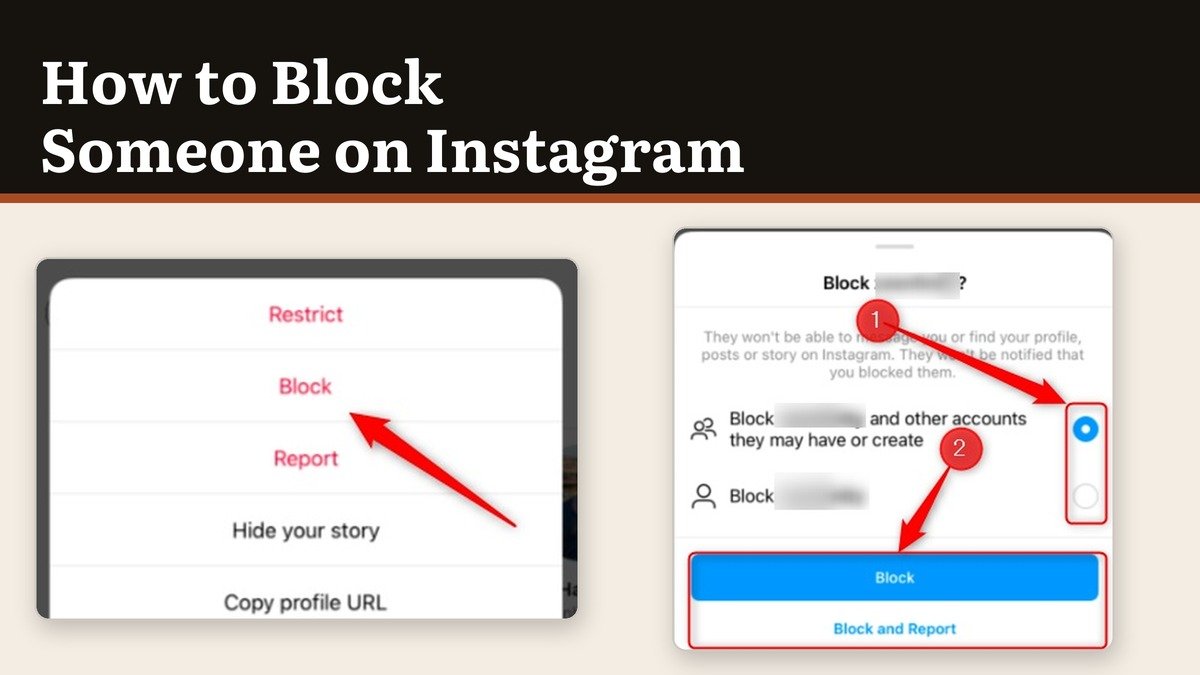
How to block someone on Instagram, step by step
- Open your profile and tap the menu in the top right.
- Under Who can see your content, tap Blocked.
- Tap Add in the top right and search for the person.
- Tap Block to the right of their name.
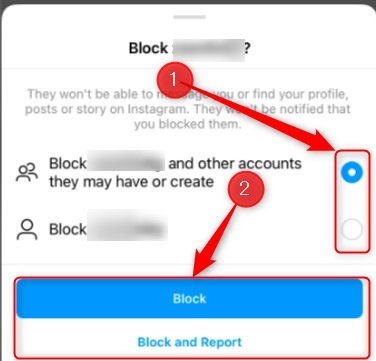
- Choose whether to block that account only, or that account along with other accounts they may have or create.
- Tap Block at the bottom to confirm.
Step five is the one that matters and the one people tap past. The wider option is what carries the block across to profiles they make later. Choosing the narrow option blocks a single username and nothing else, which is rarely what someone reaching for the block button actually wants.
What the block does on their side
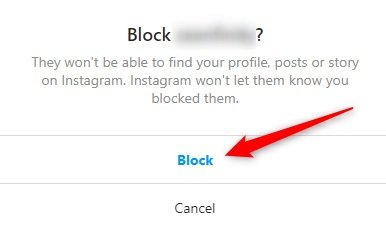
No notification goes out. The confirmation screen says so directly. From their point of view your profile simply stops existing: it will not come up in search, the posts are gone, and messages will not send.
| What they could do before | After the block |
|---|---|
| Finding your profile in search | No longer possible from that account |
| Seeing your posts, reels and stories | No longer possible |
| Sending you messages or calls | No longer possible |
| Their old likes and comments on your posts | Still there until you delete them |
| Accounts of theirs you already follow | Not covered, and must be blocked one by one |
| A group chat you are both in | You both still see each other if you stay |
The last two rows are the gaps. An account of theirs that you already follow is not swept up by the wider block and has to be blocked individually. And in a group chat you both belong to, Instagram asks whether you want to stay or leave; if you stay, the two of you can still read each other’s messages inside that group.
Their old likes and comments also stay where they are. Blocking is forward-looking, so clearing the history is a separate job you do by deleting the comments from your own posts.
Unblocking, and what it does not bring back
Open your profile, tap the menu, go to Blocked, and tap Unblock beside the name, then confirm. The entry leaves the list straight away.
Unblocking does not restore the follow. If they followed you before, they will need to follow you again, and the same is true in reverse. This catches people out on every platform that offers blocking, and our walkthrough of blocking someone on Snapchat runs into the same gap between unblocking and refriending.
When restricting is the better choice
Blocking is obvious. A profile that suddenly cannot be found tells the other person something, even without a notification, and in a workplace or a family that can make things worse rather than better.
Restricting is the quiet alternative. A restricted person cannot see when you are online or whether you have read their messages, their new comments on your posts are visible only to them unless you approve them, and their chat slides into message requests where you can read it without them knowing. Press and hold any comment to restrict its author.
For a wave of accounts rather than one person, Limits is the better tool: it temporarily hides comments and new chats from everyone except your close friends, or from accounts that followed you in the past week, for up to four weeks. If unwanted contact is a recurring problem, it is worth working through a wider privacy clean-up rather than handling it one account at a time.
Frequently Asked Questions
Does Instagram notify someone when you block them?
No. Instagram never sends a notification for a block. They can work it out by noticing that your profile has stopped appearing in search and that messages will not deliver, but nothing tells them directly.
Can a blocked person still see my comments on other posts?
Your comments on accounts they can still reach remain visible to them, because those posts belong to someone else. Blocking governs your own profile and your own content, not everywhere your name appears.
How do I see who I have blocked on Instagram?
Open your profile, tap the menu in the top right, and tap Blocked under Who can see your content. Every account you have blocked is listed there with an unblock button.
If I block and unblock someone, do they stop following me?
Yes. The block removes the follow in both directions and unblocking does not put it back. This is the usual way to make someone stop following a public account, since removing a follower outright only works on private accounts.