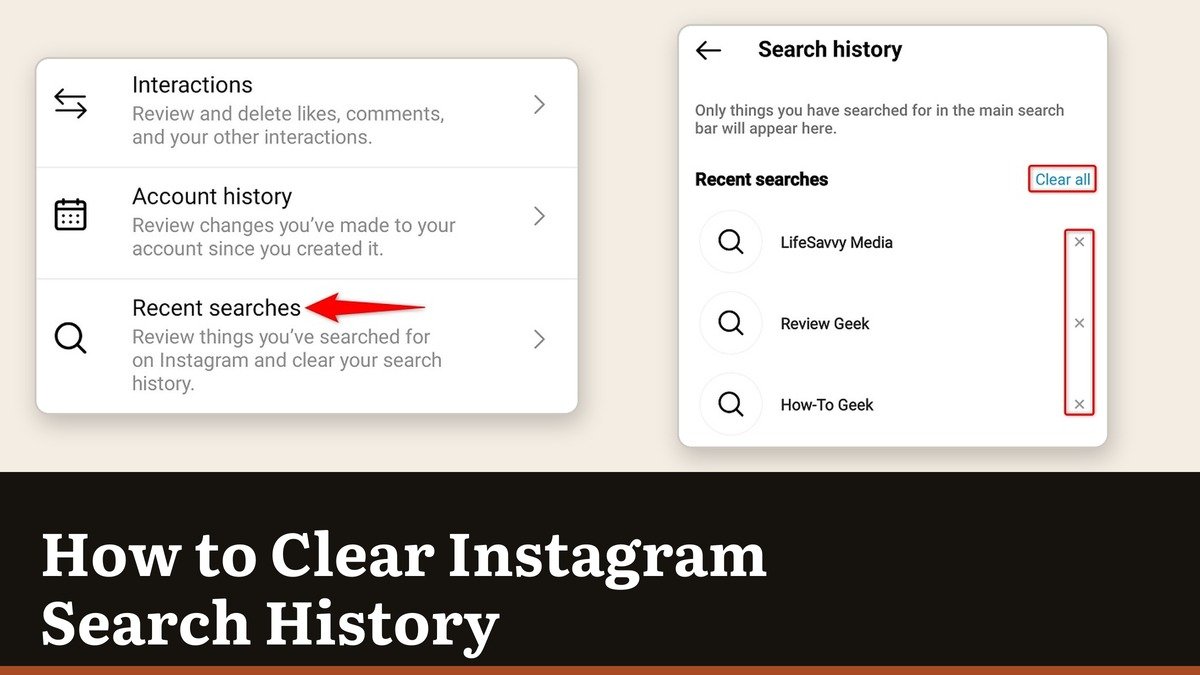
Instagram keeps every account and hashtag you have ever looked up and pushes them back at you the moment you tap the search bar. It is meant to be convenient, and it usually is, right up until someone else picks up your phone. Knowing how to clear Instagram search history takes about fifteen seconds once you know which menu it hides in.
There are two documented routes because Instagram is part way through moving people to a new settings layout. One of them works on every account today. The other is still reaching people, and Instagram says so itself on the setting.
The route that works on every account
This one lives under Your activity, which is where Instagram files everything it has recorded about how you use the app.
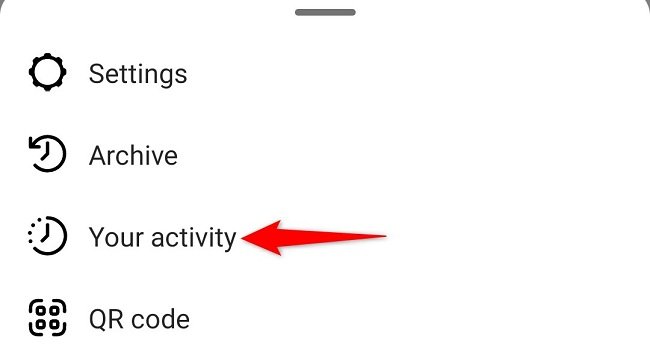
- Tap your profile picture in the bottom right.
- Tap the menu in the top right.
- Under How you use Instagram, tap Your activity.
- Tap Recent searches.
- Tap Clear all, then confirm.
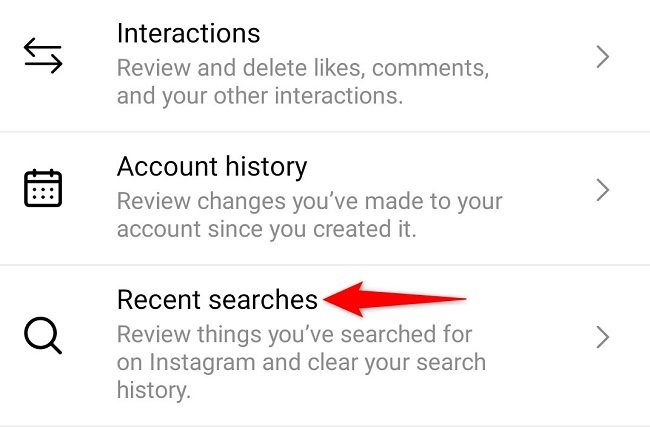
Recent searches sits alongside Interactions and Account history on the same screen, which are worth a look while you are there. Interactions holds every like and comment you have left and lets you delete them in bulk. Account history records the changes you have made to the account itself.
How to clear Instagram search history from the search bar
The fastest version skips the settings entirely. Tap Search, and the recent list appears before you type anything. Tap Clear all next to Recent to empty it, or tap the X beside a single row to remove just that one.
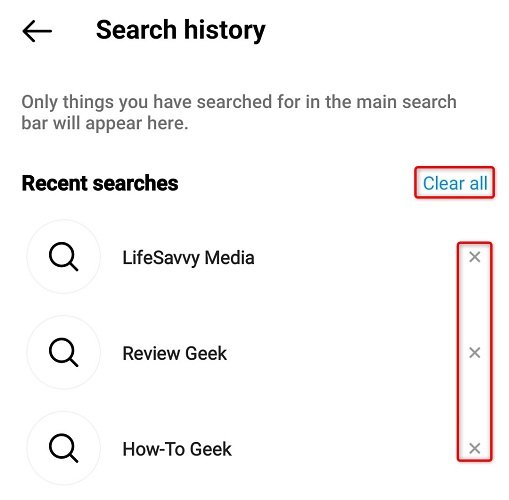
Removing one entry is usually what people actually want. There is no reason to wipe a year of useful shortcuts because of one search you would rather not have sitting at the top of the list.
The Accounts Center route
The newer home for this setting is inside the shared Meta settings panel, and it handles search history across the accounts linked there rather than just this one.
- Open your profile and tap the menu in the top right.
- Tap Meta Account, then Your information and permissions.
- Tap Search history.
- Tap the account whose searches you want to clear.
- Tap Remove next to any search to delete it.
| Route | Where it is | Availability |
|---|---|---|
| Your activity | Profile menu, under How you use Instagram | Always available |
| Accounts Center | Meta Account, Your information and permissions | Still rolling out |
| The search bar | Tap Search, then Clear all beside Recent | Fastest, in the app and on web |
If Search history is missing from that menu, your account has not been moved yet. Instagram notes this directly on the setting and points you back to the Your activity route, which is why the first method above is the one to rely on.
Why the searches come back
This is the part that makes people think the clear button is broken. It is not. Clearing the history is temporary, and searches you clear may reappear once you search for them again. Instagram rebuilds the recent list from what you do next.
Two other things also survive a clear. Accounts you interact with a lot keep showing up as suggestions in the search box even with an empty history, because those suggestions come from your activity rather than your typing. And clearing the history does not remove the search data Instagram holds on its own servers, which is governed by its data policy rather than by this button.
If the aim is for nobody to see what you looked at, the search history is one of several trails worth attending to, and it is the least durable of them. Our wider guide to protecting your privacy online covers the ones that persist after you have cleared this list.
Clearing it on a computer
The web app keeps the same control in a slightly different place. Click Search in the left rail, and the recent list drops down with Clear all beside the Recent heading. Individual entries have an X of their own.
Clearing on one device clears it everywhere, because the list belongs to the account rather than to the phone. There is no need to repeat the job on each device you sign in on. The same is true of most account-level settings, including the ones covered in our walkthrough of blocking someone on Instagram, which also apply across every device at once.
Frequently Asked Questions
Can other people see my Instagram search history?
Not remotely. The recent list only appears on your own phone, or to someone signed into your account. Nobody you searched for is told that you looked them up.
Why do cleared searches keep reappearing?
Because clearing is temporary by design. Anything you search for again goes straight back into the list, and frequently visited accounts can appear as suggestions without being searched at all.
Does clearing search history delete what Instagram knows about me?
No. It empties the list you can see. The activity Instagram records on its own systems is handled separately through its data policy and the export and deletion tools in Accounts Center.
Can I stop Instagram saving searches in the first place?
There is no setting to switch it off. The practical options are clearing the list when you need to, or removing individual entries as you go rather than letting them accumulate.