How to fix slow internet depends on which of its four homes it lives in: the modem and the line, the router, the wireless link and the device in your hand. Test them in that order, wired first, and the layer that loses speed shows itself in one evening. Most of the fixes cost nothing in 2026.
Picture a family of four on a weeknight: one 4K stream, one 1080p stream, a Teams call and a game download. When that feels slow, the cause is rarely the plan alone. If a device cannot join Wi-Fi at all, our WiFi not working guide covers that case. Here the connection works and the speed does not.
Why Is My Internet So Slow?
Your internet is slow because one layer between the wall and the device cannot carry what the others deliver. A wired speed test separates the line and modem from Wi-Fi. If wired is fine, fix the wireless hop. If wired is also low, look at the modem, the cable and the plan.
| Layer | What to measure | Warning sign |
|---|---|---|
| Modem and line | Wired speed test at day and at 7pm to 11pm | Wired far below the plan at every hour |
| Router | Wired test through the router versus straight from the modem | Large drop only when the router is in the path |
| Wireless hop | Wi-Fi test beside the router, then in the problem room | Big gap between the two rooms |
| Device | Same test on a second device, same spot | Only one device is slow |
How to Fix Slow Internet: Measure Before You Change Anything
Prerequisites: one computer with an Ethernet port or adapter, a cable rated Category 5 or better, your plan speed from the bill, and about 25 minutes plus one evening run. Microsoft advises running tests in several places and recording them, so every later change has a baseline.
- Step 1. Stop downloads, backups and streams on every device.
- Step 2. Connect the computer to the router with Ethernet and switch its Wi-Fi off.
- Step 3. Run a speed test twice and record download, upload and latency.
- Step 4. Reconnect over Wi-Fi beside the router and run it twice more.
- Step 5. Repeat in the problem room, then repeat everything between 7pm and 11pm.
You will know it worked when you have six or more numbers, each in the same units. Speed tests use megabits per second: a 100 Mbps result is at most 12.5 megabytes per second in a download.
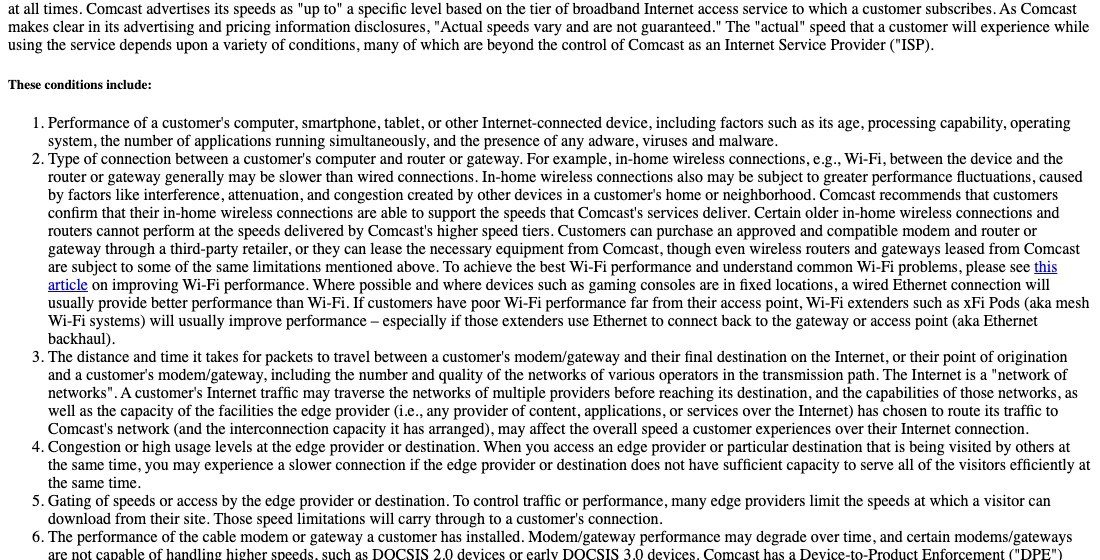
Xfinity tells customers its plan is sized for all devices at once and that Ethernet beats Wi-Fi because of potential wireless interference, and Comcast says in-home Wi-Fi can fluctuate with interference, attenuation and congestion.
Layer One: The Modem and the Line
If the wired result is far below the plan, start here. Providers sell “up to” speeds, and Comcast states that actual speeds vary and are not guaranteed. Still, a persistent gap at all hours means something in the path is limiting you.
Cable modems are a common limit. Comcast says certain modems cannot handle higher tiers, such as DOCSIS 2.0 devices or early DOCSIS 3.0 devices, and that modem performance may degrade over time. DOCSIS 3.0 introduced channel bonding and DOCSIS 3.1 supports up to 10 Gbps down, as the DOCSIS specification history shows.

- Step 1. Read the label on your modem for its DOCSIS version, or look up the model number.
- Step 2. Restart it, since a restart creates a new connection to your provider and drops every device for a few minutes.
- Step 3. Swap the Ethernet cable and try another router port, because gigabit over twisted pair needs Category 5 or better and 100 meters at most.
- Step 4. Compare the 7pm to 11pm run with the daytime run. Comcast cites FCC testing that counts Monday to Friday 7pm to 11pm as peak.
You will know it worked when the wired result moves toward the plan. If it does not, send your timed numbers to the provider.
Layer Two: The Router, Its Settings and Its Age
Test the router by comparing a wired result straight from the modem with one through the router. A big drop means the router or its settings. Apple’s guidance for routers is specific: firmware set to update automatically, radio mode set to All, every band enabled, and WMM enabled so video and voice get priority.
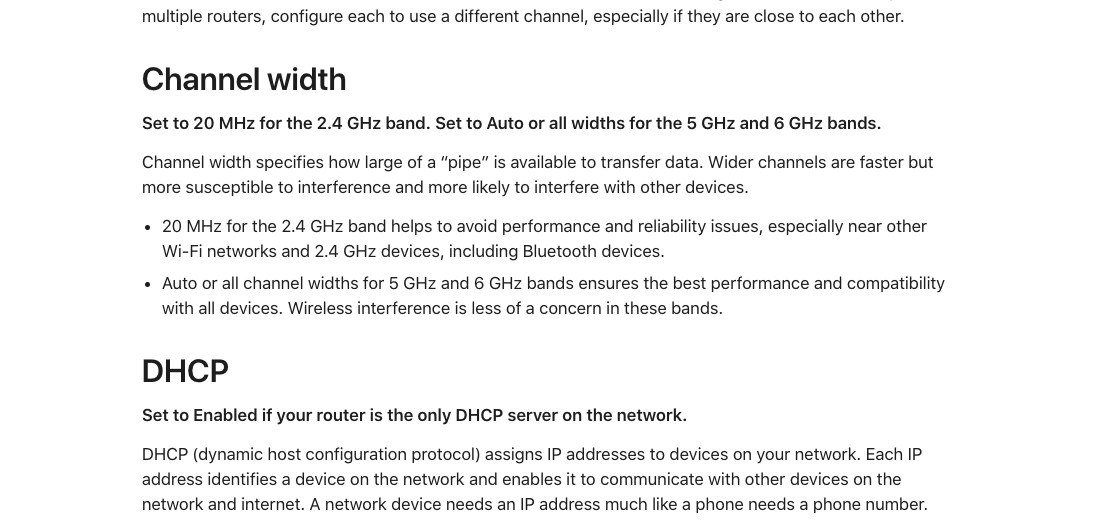
- Set the channel to Auto, and give each nearby router a different channel if you run several.
- Set 2.4 GHz channel width to 20 MHz, because wider channels pick up more interference. Leave 5 and 6 GHz on Auto.
- Keep one DHCP server and one NAT device on the network. A modem and a router both doing NAT is the double NAT Apple warns about.
- Avoid WEP, TKIP and mixed WPA/WPA2 modes, which Apple says reduce reliability and performance.
Age matters. Comcast says certain older routers cannot perform at its higher tiers. On paper, Wi-Fi 4 reaches 600 Mbit/s, Wi-Fi 5 reaches 6,933 and Wi-Fi 6 reaches 9,608. You will know it worked when the through-router wired result matches the modem-direct one.
Layer Three: The Wireless Hop, Band by Band
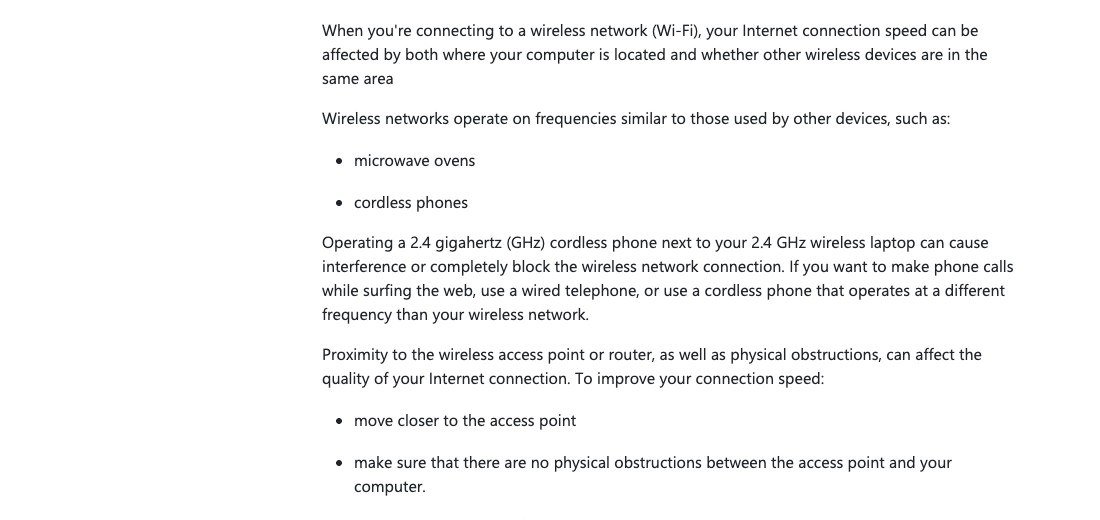
Microsoft lists three consumer bands. 2.4 GHz has longer range, passes walls best and works with the most devices, but it is slower and shares airtime with microwaves, cordless phones and Bluetooth. 5 GHz is faster and less crowded but weaker through walls. 6 GHz is quickest near the router and weakest through walls.
- Step 1. Join 5 GHz, or 6 GHz if both router and device support Wi-Fi 6E, in the problem room and retest.
- Step 2. Move the router to the middle of the home, higher up, out of corners and clear of metal cabinets.
- Step 3. Keep 2.4 GHz cordless phones away from the router.
- Step 4. If a room is still weak, add a mesh node connected by Ethernet back to the router, which Comcast says helps most.
You will know it worked when the problem-room result stops trailing the near-router result by a wide margin. On Wi-Fi 7 gear, Multi-Link Operation lets a device use more than one band at once, and the Windows 11 Network band (channel) value shows several bands when it is active.

For the full comparison of generations, see Wi-Fi 6 vs Wi-Fi 7. If your link drops rather than slows, read why WiFi keeps disconnecting.
Layer Four: The Device and What Runs on It
When wired and Wi-Fi both look healthy on a second device, the slow one is the culprit. Microsoft names spyware, viruses, browser add-ons, low memory and heavy programs, and says its own Wi-Fi troubleshooting should end processes that use heavy bandwidth.

- Step 1. On a Mac, open Activity Monitor, click Network and watch Data received/sec and Data sent/sec while idle.
- Step 2. Quit whatever moves data without your say, such as a backup or a game updater.
- Step 3. On Windows, run netsh wlan show drivers and check Radio types supported for 802.11ax or 802.11be. An adapter without them limits a new router.
- Step 4. Run a malware scan if one browser or machine stays slow.
You will know it worked when this device matches the others in the same spot. Windows 11 supports Wi-Fi 7 from version 24H2.
Delay and Stutter: When the Speed Test Looks Fine
Speed tests report bandwidth, but calls and games depend on latency and jitter. A lag below about 100 ms is generally needed for online games, and Teams ties robotic voices to jitter or packet loss. Quality of service is the router feature that prioritizes some traffic over others.
- Step 1. Turn on QoS or the router’s smart queue option, and keep WMM enabled.
- Step 2. Wire the console or work computer where you can.
- Step 3. On Windows, run ping /t to your router, start a download elsewhere and watch whether round-trip times jump.
You will know it worked when ping times stay steady while the download runs. A jump is the signature of bufferbloat, where an oversized buffer queues packets on a busy link.
Upgrade Math: When a Plan or Hardware Change Is the Honest Answer
Return to the family of four. A 4K stream is 15 Mbps by Netflix’s figure, a 1080p stream is 5, a Teams-style 1080p call takes about 3 down and 3.8 up by Zoom’s figures, and a game download takes whatever is left. Over 23 Mbps down is already committed before the download starts.
- Upgrade the plan when wired speed matches the plan but the plan is below your concurrent total.
- Replace the modem when wired speed is low at every hour after a cable and port swap, and the modem is early DOCSIS 3.0 or older.
- Replace the router or add wired mesh when wired is fine and the wireless hop stays weak.
- Check the ports on a plan above 1 Gbps. A gigabit port tops out at 1 Gbit/s, and 2.5 Gbit/s links run over Cat 5e up to 100 meters.
- Look for the Wi-Fi CERTIFIED seal on new routers, since the Wi-Fi Alliance says a maker can claim Wi-Fi 7 without certifying.
Mistakes That Make Slow Internet Worse
- Judging from one Wi-Fi test. Distance and time of day both move the result.
- Changing everything in one sitting. You lose track of what helped.
- Paying for more speed first. If the weakness is Wi-Fi, a faster plan changes nothing.
Frequently Asked Questions
Why is my internet so slow at night?
Evening is the busiest period for most homes and networks. Comcast cites FCC testing that treats 7pm to 11pm on weekdays as peak, so run a timed wired test then and compare it with daytime.
How can I make my internet faster for free?
Move the router to a central, raised spot, join 5 GHz near it, set the channel and width correctly, update the router firmware and stop background downloads.
Is it my router or my internet provider?
Test wired from the modem directly, then through the router. Low speeds straight from the modem point to the provider or modem. A drop only through the router points to the router.
Does a faster plan fix slow Wi-Fi?
Not by itself. Xfinity notes a single device often cannot use a whole plan over Wi-Fi, so check the wireless hop and the device first.





