
Learning how to screenshot on Windows starts with one question: what do you need in the picture? For the whole screen as a file, press Windows + PrtScn; for one window, Alt + PrtScn; for any area, Windows + Shift + S.
Windows 11 and Windows 10 in 2026 also record the screen, capture games and pull text out of an image. Below, each kind of capture gets its own method, steps and a check that it worked. Each method takes under a minute, and the whole read about ten.
How to Screenshot on Windows in Three Shortcuts
Press Windows + PrtScn and Windows saves the full screen as a PNG in Pictures, Screenshots. Press Windows + Shift + S to choose Rectangle, Window, Full screen or Freeform; the capture goes to the clipboard and opens in Snipping Tool. Press Windows + Shift + R to record a video of part of the screen.
Before You Capture: Version, Keys and Apps
- Windows version: every method here works on Windows 11; Windows 10 differences are flagged. Windows 11 renamed Snip & Sketch to Snipping Tool in 2021.
- A PrtScn key: labeled PrtSc, Prt Scr or Print Screen. No key? See the laptop section.
- Snipping Tool: built in. Search “snipping tool” from Start and choose Pin to taskbar.
- Xbox Game Bar: needed only for games. Search Settings for “xbox” to turn it on.
Match the Capture to the Shortcut: 8 Common Jobs
| # | You want | Use | Result goes to |
|---|---|---|---|
| 1 | Whole screen, saved as a file | Windows + PrtScn | PNG in Pictures, Screenshots |
| 2 | Whole screen, to paste | PrtScn (Windows 10) or Full screen mode | Clipboard |
| 3 | One window | Alt + PrtScn or Window mode | Clipboard |
| 4 | A rectangular area | Windows + Shift + S, Rectangle | Clipboard and Snipping Tool |
| 5 | An odd shape | Windows + Shift + S, Freeform | Clipboard and Snipping Tool |
| 6 | A menu that closes on click | Snipping Tool with Delay | Snipping Tool |
| 7 | A video of the screen | Windows + Shift + R | MP4 in Videos, Screen Recordings |
| 8 | A game | Windows + Alt + PrtScn | PNG in Videos, Captures |
Rows 2 to 5 put the image on the clipboard first. Paste it with Ctrl + V before you copy anything else, or it is gone.
Capture the Whole Screen
For a file you can attach or upload, Windows + PrtScn is the fastest route. It captures the full screen and saves it in the Screenshots subfolder of Pictures without opening any app.
- Set up the screen the way you want it to look.
- Press Windows + PrtScn.
- Open File Explorer and select Pictures, then Screenshots.

To paste instead of save, Windows 10 copies the full screen with PrtScn alone. On Windows 11, PrtScn opens the snipping bar by default, so choose Full screen there. That default can be turned off in Settings by searching for “print screen.”
You’ll know it worked when the screen dims briefly and a new file named Screenshot with a number appears in the folder.
Capture One Window
A single window keeps the taskbar, notifications and other apps out of the picture. There are two ways.
- Click the window so it is active.
- Press Alt + PrtScn to copy just that window.
- Paste it with Ctrl + V into an email, chat or document.
For a file and a markup editor instead, press Windows + Shift + S, choose Window mode and click the window. A red outline marks what will be captured.

You’ll know it worked when the pasted image shows that window alone, with no desktop around it.
Capture a Region or a Freeform Shape
Windows + Shift + S is the shortcut for anything smaller than a window: a chart, a paragraph, a product photo. The screen turns slightly gray, signaling it is ready.
- Press Windows + Shift + S.
- Choose Rectangle from the mode menu on the bar.
- Drag from one corner of the area to the opposite corner.
- Release the mouse to capture.
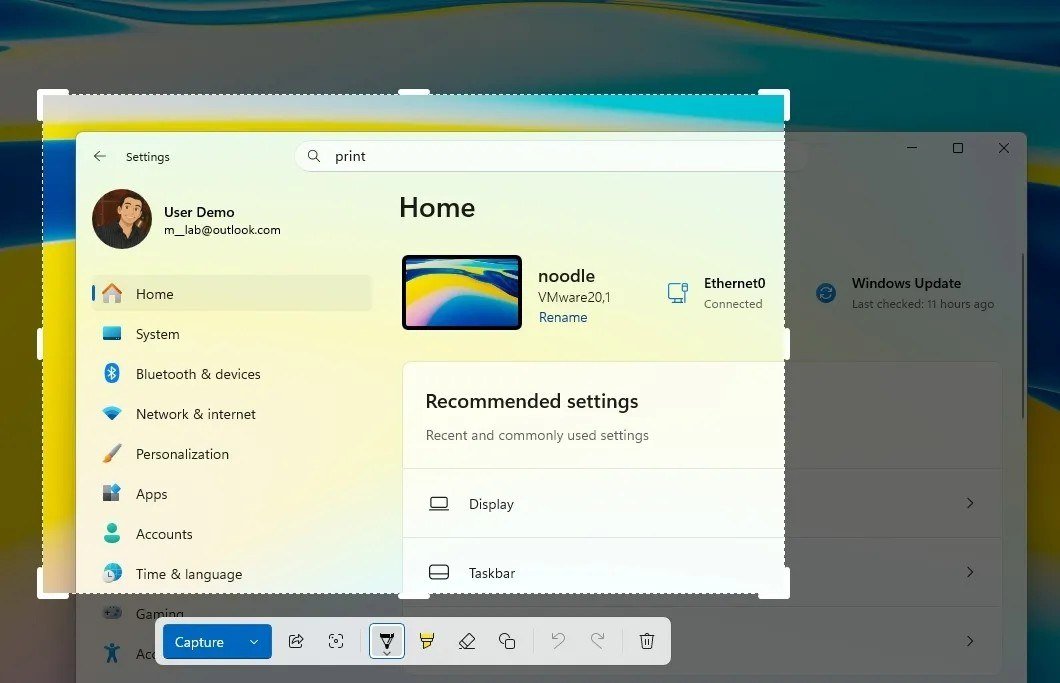
Freeform works the same way, except you draw any outline you like around the object. It suits round logos or irregular shapes where a rectangle would grab clutter.
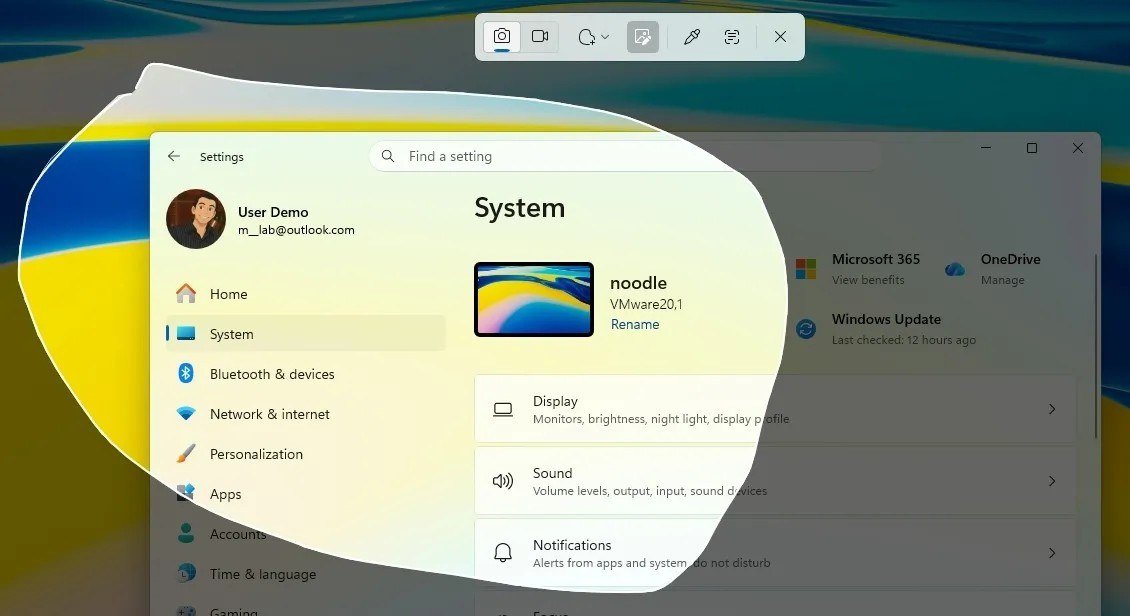
Windows 11 Snipping Tool saves each snip to the Screenshots folder automatically, and keyboard users can press Alt + M to change mode and Ctrl + S to save a copy elsewhere.
You’ll know it worked when the capture opens in Snipping Tool or pastes with Ctrl + V.
Capture a Menu or Tooltip With a Delay
Right-click menus and dropdowns close the moment you press a shortcut. A timed capture solves it.
- Open Snipping Tool from Start.
- Select the Delay option and pick 3, 5 or 10 seconds.
- Select New to start the countdown.
- Open the menu you want before the timer ends.
- Draw around it when the screen turns gray.

On the older Windows 10 Snipping Tool, you can also open the app, open the menu and press Ctrl + PrtScn to freeze the screen with the menu showing.
You’ll know it worked when the menu is visible in the capture rather than closed.
Record a Video of Your Screen
Snipping Tool has recorded video since a rollout that began in December 2022 with version 11.2211.35.0. Use it for a bug report or a quick how-to.
- Press Windows + Shift + R.
- Drag a box around the area to record.
- Select Start.
- Select Stop when you are done.
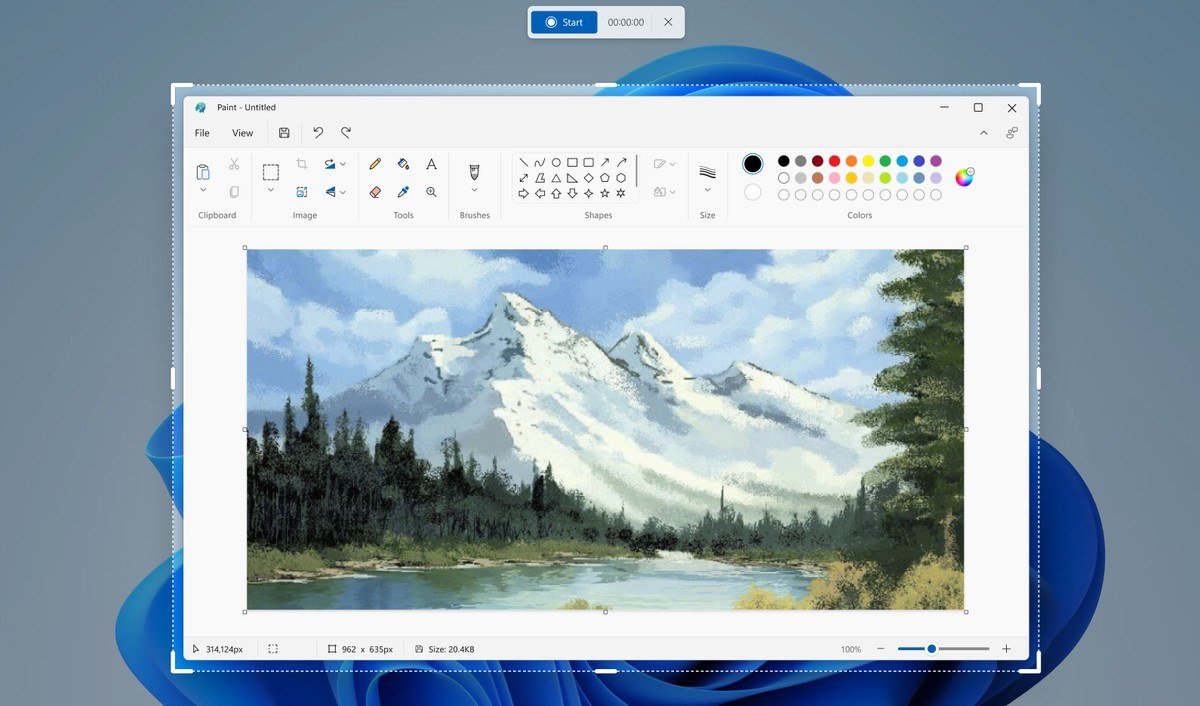
Windows saves the MP4 in the Screen Recordings subfolder of Videos. Edit in Clipchamp adds captions through Transcribe media and sets audio volume from 0 to 200 percent. On Windows 10, record with Game Bar or Clipchamp instead.
You’ll know it worked when a timer counts up during recording and the MP4 appears in Screen Recordings.
Capture a Game
Xbox Game Bar captures games without leaving them. Press Windows + Alt + PrtScn for a screenshot; Game Bar saves it as a PNG in the Captures folder inside Videos.
- Windows + Alt + R starts and stops a clip, saved as an MP4 named after the game with the date and time.
- Windows + Alt + G saves the last moments of play when background recording is on.
- Windows + G opens Game Bar, and Widget Menu, Gallery shows every capture.
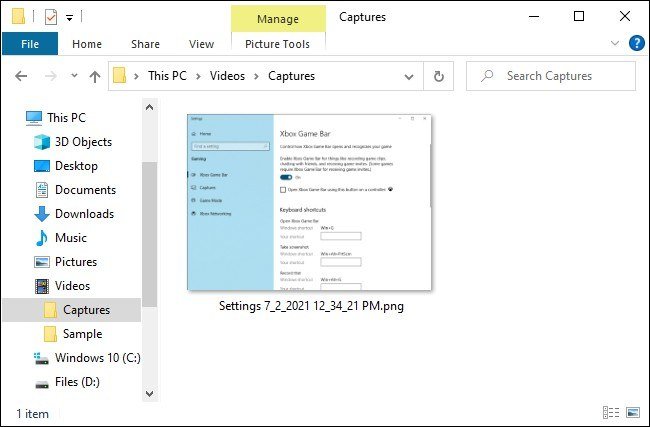
Some full-screen games hide Game Bar. If the shortcuts do nothing, press Windows + G until the screen flashes twice, then return to full screen. Since October 2024, some Game Bar features need Windows 10 22H2 or newer. For capture-ready hardware, see our best gaming laptop picks.
You’ll know it worked when a “Screenshot saved” notice appears and the PNG shows in Videos, Captures.
Copy Text or Hide Private Details Before Sharing
After a capture, the Text actions button in Snipping Tool reads every word in the image. You can select and copy a line, use Copy all text, or press Ctrl + A then Ctrl + C. Recognition happens on your PC, not online.
Quick redact blacks out email addresses and phone numbers in one click, and Redact Text in the right-click menu hides anything else you select. Microsoft introduced both in September 2023.

Laptops, Surface and Keyboards Without PrtScn
- No PrtScn key: press Fn + Windows + Space Bar.
- PrtScn on a function layer: hold Fn with the key.
- Surface Pro, Book, Go or Studio: hold Power, then press Volume Up. It does not work on Surface Laptop.
- Surface keyboards: Fn + Spacebar opens screen snip; Fn + Alt + Spacebar copies the active window.
Microsoft details each combination on its Surface screenshot and recording page. A laptop that only shipped with DOS has no Snipping Tool at all; our explainer on what a DOS laptop is covers why.
What Changed From Windows 10 to Windows 11
Snipping Tool itself is old: it shipped with Windows Vista and began as a Tablet PC add-on, as its Snipping Tool history shows. Windows 10 version 1809 brought Snip & Sketch, and Windows 11 replaced both with a single Snipping Tool. Since 2023, Windows 11 PrtScn opens the snipping bar, while Windows 10 PrtScn still copies the full screen.
Finding Screenshots, Recordings and Captures
- Pictures, Screenshots: Windows + PrtScn files and Snipping Tool snips.
- Videos, Screen Recordings: Windows + Shift + R videos.
- Videos, Captures: Game Bar screenshots and clips.
If the Screenshots folder is empty, OneDrive may hold it. The “Save screenshots to OneDrive” setting no longer exists; screenshots reach OneDrive when Pictures is backed up through OneDrive folder backup, so check OneDrive, Pictures, Screenshots. Mac owners can compare the routine in where screenshots go on a Mac.
Common Screenshot Mistakes
- Never pasting: clipboard captures vanish when you copy something else.
- Pressing PrtScn on Windows 11 and expecting a full copy: it opens snipping unless you change the setting.
- Forgetting Fn: on many laptops PrtScn does nothing without it.
Frequently Asked Questions
Where are screenshots saved on Windows 11?
Windows + PrtScn and Snipping Tool save to Pictures, Screenshots. Screen recordings go to Videos, Screen Recordings, and Game Bar captures go to Videos, Captures.
How do I screen record on Windows?
Press Windows + Shift + R, drag over the area, select Start and then Stop. Game Bar also records games with Windows + Alt + R.
Why does Print Screen open the Snipping Tool?
Windows 11 turned that behavior on by default in 2023. Search Settings for “print screen” and switch the toggle off to make PrtScn copy the full screen again.
How do I screenshot on a laptop?
Use Windows + Shift + S, which needs no PrtScn key. Keyboards without PrtScn can also use Fn + Windows + Space Bar.





