
Most software advertised as a free PDF editor cannot edit a PDF. It can write on top of one, fill in its boxes, sign it or cut it into pieces, but the sentence already printed on page three stays exactly as it is. That gap between the word edit and what the software does is why this search ends in frustration so often.
Ten tools are sorted below by what they genuinely change. Four alter existing text. Four annotate, fill and sign. Two only operate on whole pages. All of them are free, and the right one depends entirely on which of those three things you need.
Why Editing a PDF Is Hard in the First Place
A PDF is a description of where marks go on a page, not a document with paragraphs in it. There is often no record of which characters form a sentence, which font they belong to, or how the line should reflow if one word gets longer.
Changing text therefore means reconstructing all of that, then rebuilding the layout around it. That is why the feature appears in paid software so often, and why the free tools that manage it tend to cap how much you can do per hour.
Three distinct capabilities come out of this, and the table below labels every tool with one of them.
- Edits existing text. Changes the words already in the file and reflows what is around them. PDFgear, Stirling PDF, Sejda and LibreOffice Draw.
- Annotates, fills and signs. Adds a layer on top: comments, highlights, form entries, a signature. Preview, Edge, Foxit PDF Reader and Okular.
- Page-level only. Merge, split, rotate, compress, convert. The content is untouched. PDF24 Tools and PDFsam Basic.
A scanned document is a separate problem again. If the page is a photograph of text, nothing here will edit it until optical character recognition has run over it first.
Free PDF Editors Compared: What Each One Can Change
All ten tools covered below, with what each is actually capable of.
| # | Tool | Platforms | What it does | Free tier | Best for |
|---|---|---|---|---|---|
| 1 | PDFgear | Windows, macOS, iOS, Android, browser | Edits existing text | Free, no limits published | Editing text without paying anything |
| 2 | Stirling PDF | Self-hosted, browser | Edits existing text | Free and open source, self-hosted | Keeping documents off somebody else’s server |
| 3 | Sejda | Browser, Windows, macOS, Linux | Edits existing text, not in scans | 200 pages or 50 MB, 3 tasks per hour | One quick text fix in a browser |
| 4 | LibreOffice Draw | Windows, macOS, Linux | Edits existing text, awkwardly | Free and open source | Offline text edits with nothing uploaded |
| 5 | Apple Preview | macOS | Annotate, fill and sign | Included with macOS | The signing tool already on your Mac |
| 6 | Microsoft Edge | Windows, macOS | Annotate, fill and sign | Included with Windows | The one already open on Windows |
| 7 | Foxit PDF Reader | Windows, macOS, Linux, iOS, Android | Annotate, fill and sign | Free reader, editing is paid | A fast reader with real annotation tools |
| 8 | Okular | Windows, macOS, Linux | Annotate, fill and sign | Free and open source | Annotating with no company attached |
| 9 | PDF24 Tools | Browser, Windows | Page-level tools only | Free, online and offline | Every page operation in one place |
| 10 | PDFsam Basic | Windows, macOS, Linux | Page-level tools only | Free and open source | Splitting and merging large documents |
Free PDF Editors That Change Existing Text
These four alter the words already in the document. They are the only ones here that do.
1. PDFgear: Editing text without paying anything
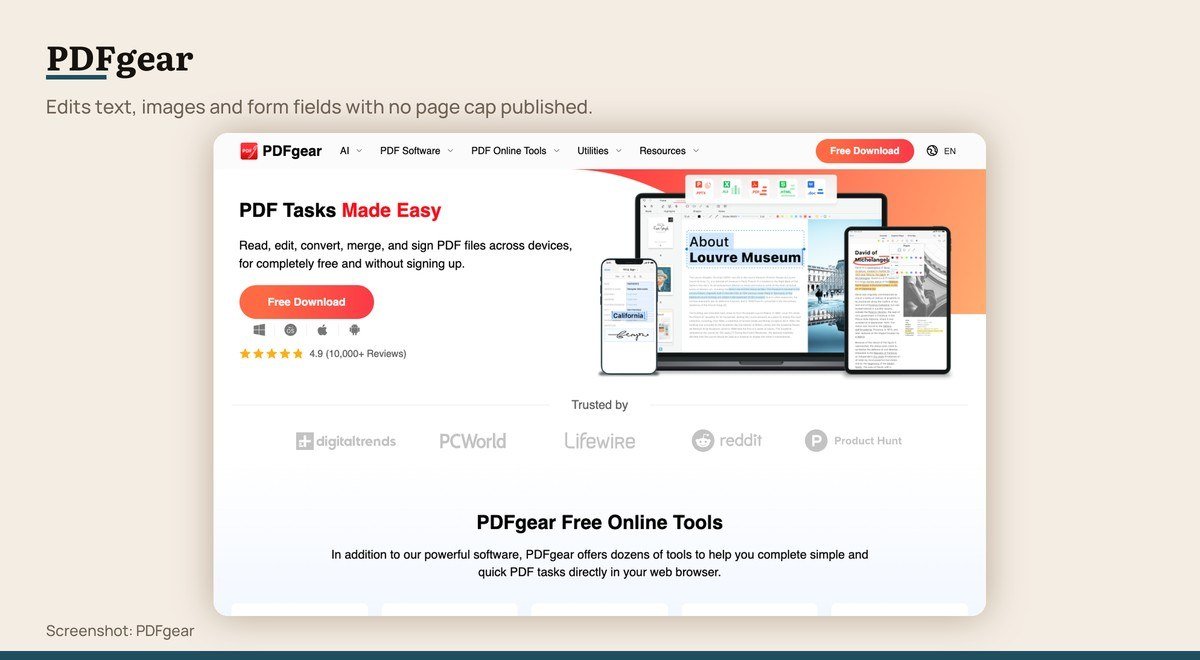
Platforms: Windows, macOS, iOS, Android, browser · Version: 3.0.1 · Updated: October 22, 2026 · What it does: Edits existing text · Free tier: Free, no limits published
PDFgear is the surprise of this category: a full editor, free, with no page cap and no task limit published anywhere on its site. Its own pitch is to make a PDF as editable as a Word file, covering text, images, shapes, signatures, links and form fields.
The thing to keep in mind is that nothing in that arrangement is guaranteed. The company publishes no pricing page at all, which means there is no stated commitment to the current terms. Version 3.0.1 arrived on October 22, 2026, so it is actively developed.
2. Stirling PDF: Keeping documents off somebody else’s server

Platforms: Self-hosted, browser · Version: 3.2.2 · Updated: October 24, 2026 · What it does: Edits existing text · Free tier: Free and open source, self-hosted
Stirling describes itself as a free, private PDF editor you can run on any infrastructure, and that last part is the point. Self-host it and no document ever leaves your network, which matters for anything with a client name or a salary in it.
It carries more than sixty tools including a text editor, and version 3.2.2 landed on October 24, 2026. Setting it up needs Docker or similar, so it is the one option here that asks for an afternoon before it saves you anything. A hosted tier exists with a monthly allowance.
3. Sejda: One quick text fix in a browser

Platforms: Browser, Windows, macOS, Linux · Version: Browser service · Updated: Rolling release · What it does: Edits existing text, not in scans · Free tier: 200 pages or 50 MB, 3 tasks per hour
Sejda is the most honest free tier in this list because it publishes the exact numbers: a free service for documents up to 200 pages or 50 MB and three tasks per hour, with files automatically deleted after two hours.
It genuinely edits existing text rather than stamping new text on top, though not in a scanned document, where the text is an image. The desktop version swaps the hourly cap for three tasks a day. For a single correction before sending a contract back, it is the fastest route.
4. LibreOffice Draw: Offline text edits with nothing uploaded

Platforms: Windows, macOS, Linux · Version: 26.8 · Updated: 2026 release · What it does: Edits existing text, awkwardly · Free tier: Free and open source
Draw is not a PDF program, it is a vector editor that happens to import PDFs, and it is already installed on millions of machines as part of LibreOffice. Nothing is uploaded and nothing is metered.
The catch is structural. An imported page arrives as dozens of separate text boxes rather than flowing paragraphs, so changing a sentence often means rearranging boxes by hand. It works, and on a long document it is miserable.
LibreOffice Draw download page
Tools for Annotating, Filling and Signing
Most PDF work is actually this: sign the lease, fill the form, mark up the draft. Two of these are already installed on your computer.
5. Apple Preview: The signing tool already on your Mac
Platforms: macOS · Version: Bundled with macOS · Updated: Ships with macOS · What it does: Annotate, fill and sign · Free tier: Included with macOS
Every Mac can already fill a form, add text boxes, highlight passages, reorder pages and apply a saved signature, without installing anything. Preview does all of it, and most people reaching for a free PDF editor on a Mac have simply never opened the markup toolbar.
What it will not do is change a sentence that is already in the document. Preview adds a layer on top; it does not reflow the original text. For signing and filling, which is most PDF work, that distinction never comes up.
6. Microsoft Edge: The one already open on Windows

Platforms: Windows, macOS · Version: Bundled with Windows · Updated: Rolling release · What it does: Annotate, fill and sign · Free tier: Included with Windows
Edge opens PDFs by default on Windows and will let you type into form fields, draw, highlight and sign, then save the result. For the Windows user who needs to fill in one form, the software is already running.
Like Preview, it annotates rather than edits. It also cannot reorder or delete pages, which Preview can, so it is the weaker of the two built-in options once a job goes beyond filling boxes.
7. Foxit PDF Reader: A fast reader with real annotation tools
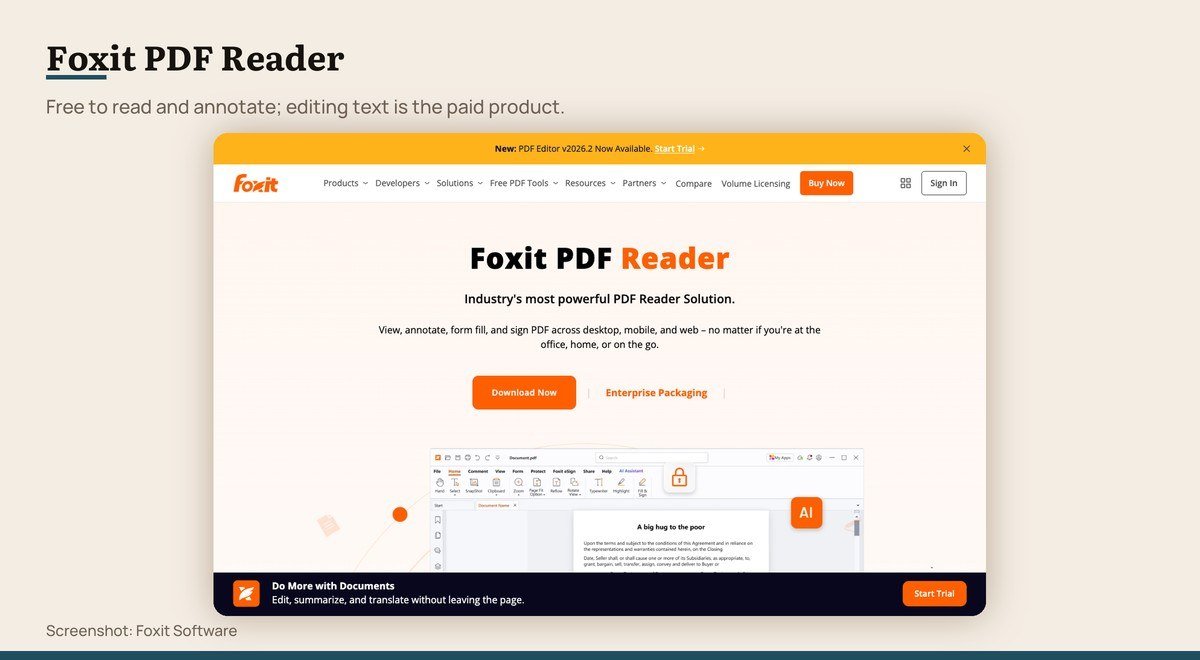
Platforms: Windows, macOS, Linux, iOS, Android · Version: Current release · Updated: Rolling release · What it does: Annotate, fill and sign · Free tier: Free reader, editing is paid
Foxit’s free reader is built for marking up documents rather than opening them, and the division is stated plainly: read, annotate and collaborate for free, with editing reserved for the paid Foxit PDF Editor.
Within that boundary it is the most capable annotator here, with comment threads and review workflows that suit a document passing between several people. Expect the upgrade prompt, which is the price of a free tier from a company whose business is the paid one.
8. Okular: Annotating with no company attached
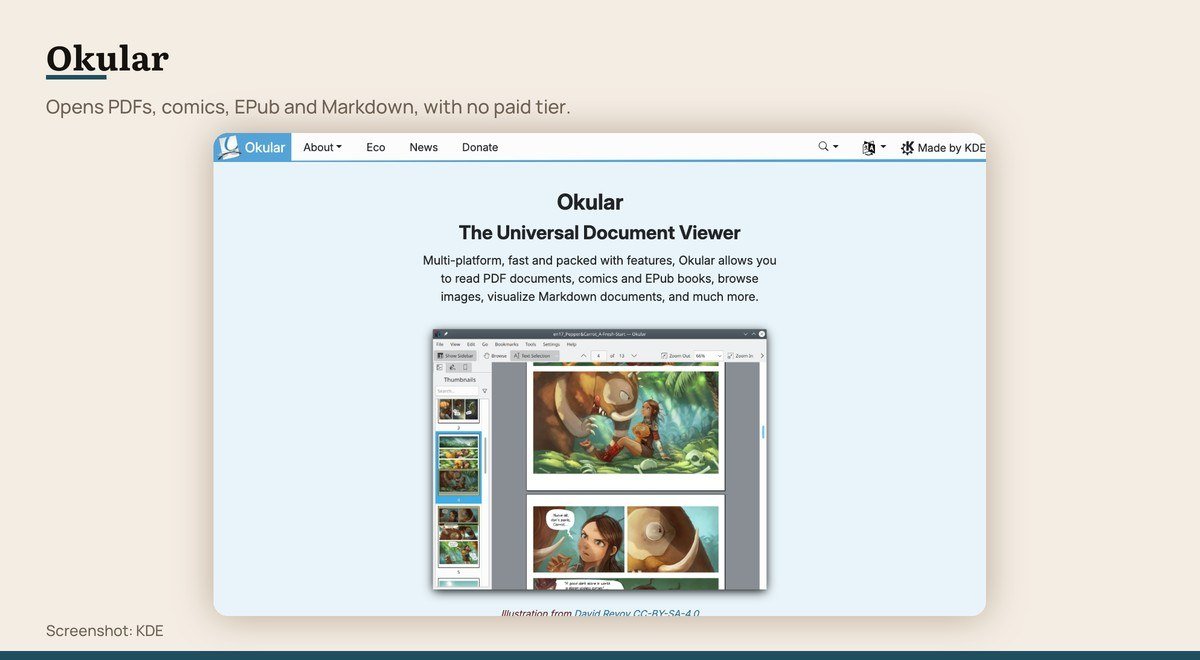
Platforms: Windows, macOS, Linux · Version: Current KDE release · Updated: Rolling release · What it does: Annotate, fill and sign · Free tier: Free and open source
Okular calls itself the universal document viewer, and it earns the word: PDFs, comics, EPub books, images and Markdown all open in it. Annotations, highlights, form filling and signatures are all included.
It is open source with no paid tier, so nothing is held back and nothing nags. The interface is plainer than Foxit’s and the Windows build gets less attention than the Linux one, where Okular is the default on many systems.
Page Surgery: Merging, Splitting and Compressing
Neither touches the content. Both do the structural work that the editors above handle clumsily.
9. PDF24 Tools: Every page operation in one place
Platforms: Browser, Windows · Version: Current release · Updated: Rolling release · What it does: Page-level tools only · Free tier: Free, online and offline
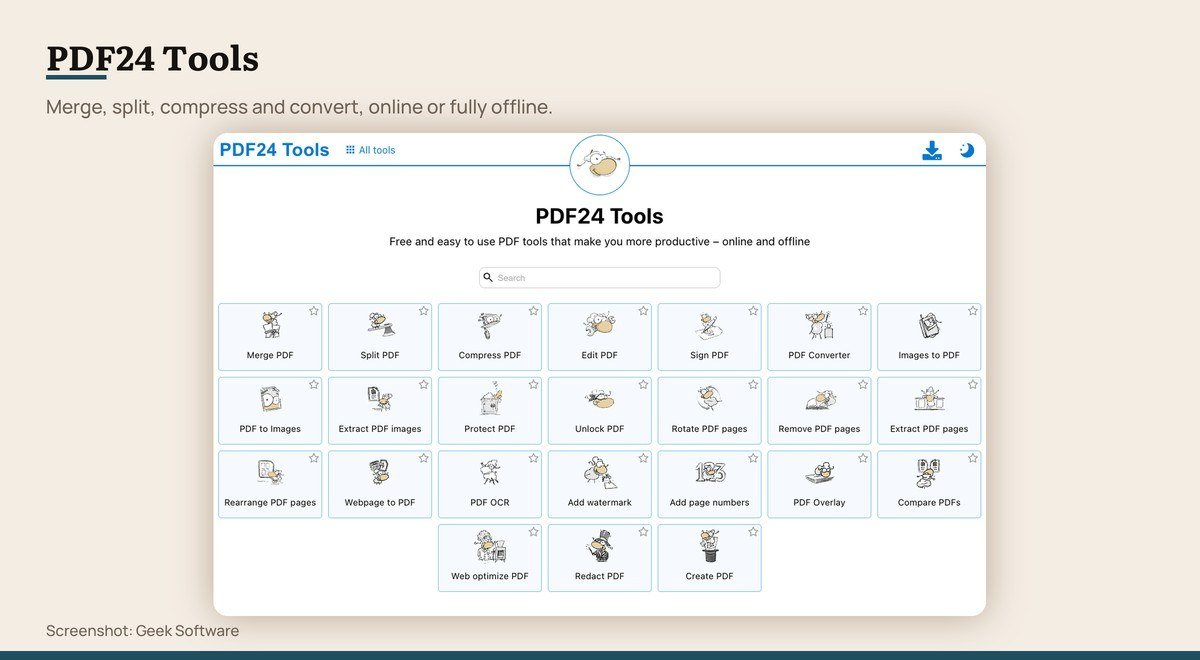
PDF24 is a toolbox rather than an editor: merge, split, compress, convert, rotate, extract images, protect and unlock, free both online and as a Windows install. The offline version is the one worth having, since the file never leaves the machine.
It will add content to a page but will not rewrite the text already there. Treat it as the thing you reach for when a document needs reshaping rather than rewording.
10. PDFsam Basic: Splitting and merging large documents

Platforms: Windows, macOS, Linux · Version: Current release · Updated: Rolling release · What it does: Page-level tools only · Free tier: Free and open source
PDFsam Basic does one narrow job properly. Its own description is a free and open source PDF split and merge that works on your own computer, with nothing uploaded anywhere.
Splitting a 600-page scan by bookmark or merging forty files in a defined order is tedious in a browser tool and trivial here. It does not annotate, sign or edit text, and it does not pretend to.
Where the Free Limits Bite
The free text editors pay for themselves in restrictions rather than money, and the restrictions are not the same shape.
- Throughput. Sejda publishes the clearest numbers in the category: up to 200 pages or 50 MB, three tasks an hour online, three a day on the desktop build.
- Privacy. Browser tools upload the document to a server. Sejda deletes files after two hours. Stirling self-hosted, LibreOffice Draw and PDFsam never send the file anywhere.
- Setup cost. Stirling PDF is the most capable free option and needs a container running before it does anything at all.
- Unstated terms. PDFgear publishes no pricing page, so there is no stated commitment to the free terms it currently offers.
For anything confidential, the question is not which tool is best but which one keeps the file on your own machine. That narrows ten down to four before features enter the conversation.
The Three Tests Each Tool Had to Pass
A current release or active maintenance. A free tier that completes a real task rather than previewing one and demanding payment at the save step. And a clear statement of what it does to the document.
That last test removed several popular names. Tools that let you build a whole edit and then put the export behind a subscription are the standard pattern in this category, and none of them appear above.
Inkscape was also left out. It opens a PDF one page at a time as a drawing, which technically allows a text change and in practice destroys the document’s structure.
Adjacent categories were kept out too. The free photo editors overlap on exporting a page as an image, and the note taking apps that import PDFs for markup answer a different question from this one.
Choosing Between Them
If you need to change words and the document is not sensitive, start with PDFgear, which asks for nothing and caps nothing it publishes. If it is sensitive, self-host Stirling PDF or use LibreOffice Draw offline.
If you need one quick correction and nothing installed, Sejda does it in a browser inside its published limits, and tells you what those limits are before you start.
If the job is signing or filling, stop reading and open Preview on a Mac or Edge on Windows. Both are already there, and for the most common PDF task of all, neither needs replacing.
If the document needs reshaping rather than rewording, PDFsam Basic for splitting and merging offline, or PDF24 Tools for the long tail of conversions and compressions.
Frequently Asked Questions
Can I edit the text in a PDF for free?
Yes, with PDFgear, Stirling PDF, Sejda or LibreOffice Draw. Those four change the words already in the file. Most other free PDF software only adds a layer on top, which looks similar on screen and behaves very differently.
Why can I not edit a scanned PDF?
Because the page is an image of text rather than text. Optical character recognition has to run first to turn the picture into characters, and even then the result is a new text layer rather than the original typesetting.
Is it safe to edit a PDF in a browser?
It depends on the document. Browser tools upload the file to a server to process it. Sejda states that files are deleted automatically after two hours. For anything with personal or client data in it, use an offline tool instead.
What is the best free PDF editor for Windows?
PDFgear for changing text, Edge for filling and signing since it is already installed, and PDFsam Basic or the offline PDF24 Creator for merging and splitting. No single free tool on Windows does all three well.





