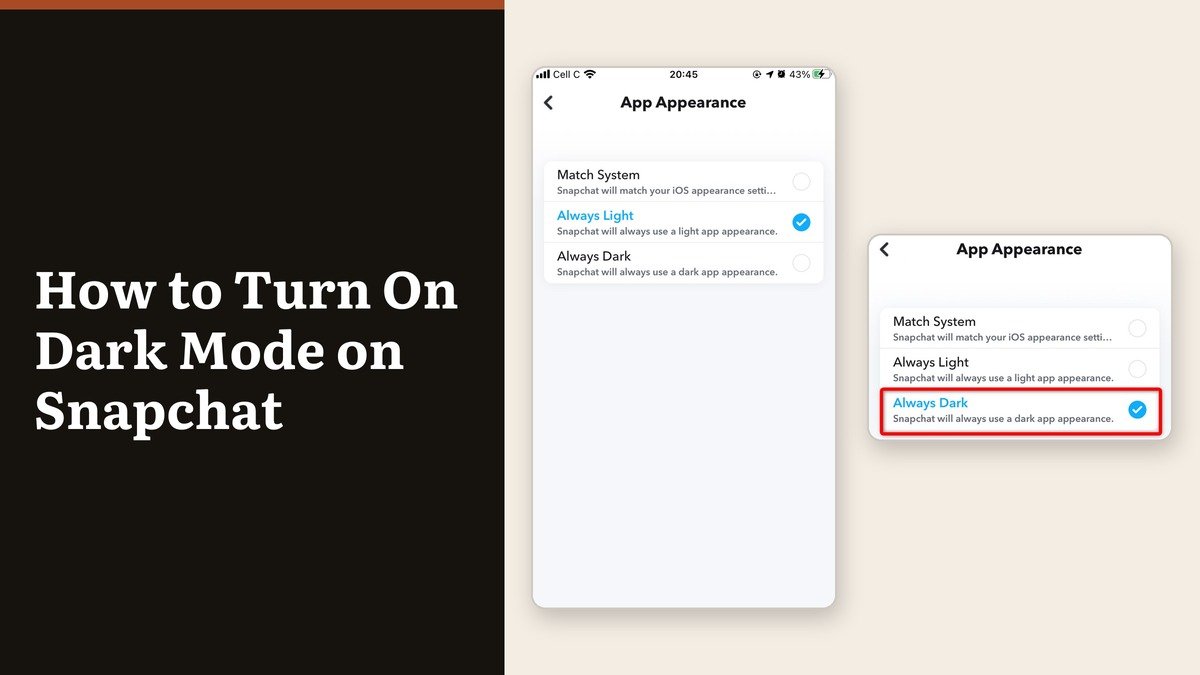
How to turn on dark mode on Snapchat comes down to one screen that is filed somewhere nobody looks. It is not in Display and not in the main alphabetical settings list. It sits under a heading called Shortcuts, near the top of Settings, named App Appearance.
The procedure is the same on iPhone and Android. Snapchat publishes a single path for both and draws no distinction between them, so anyone who cannot find it is almost always running an old build rather than an unsupported one.
Turn on dark mode on Snapchat in four taps
- Tap your profile icon at the top of the camera screen.
- Tap the gear icon for Settings.
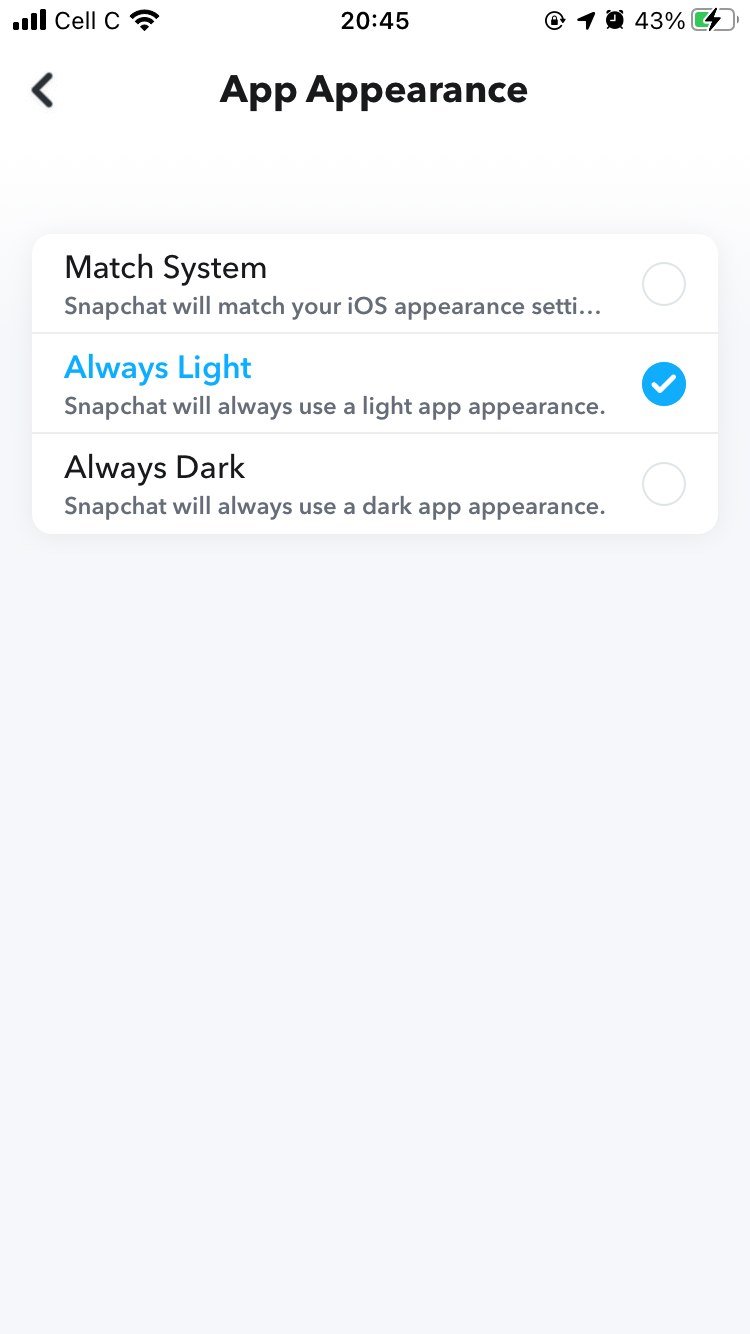
- Under Shortcuts, tap App Appearance.
- Choose the dark theme, then tap Apply Theme.
That last tap is the one people skip. Selecting the option puts a tick beside it and changes nothing until Apply Theme is pressed, which is why the app so often appears to ignore the setting.
Three options, two naming conventions
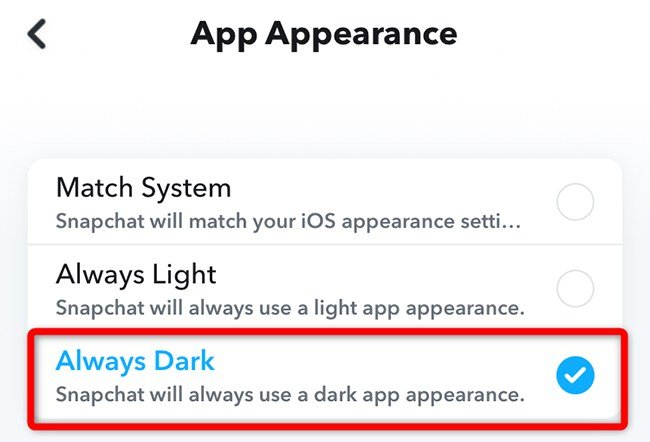
The choices do the same three jobs whichever words your build uses. The dark one appears as either System Dark or Always Dark, and the light one as System Light or Always Light.
- The dark theme holds Snapchat dark regardless of what the phone is doing.
- The light theme holds it light, and is how you switch dark mode off again.
- Match System, where it is offered, follows the phone’s own light and dark schedule.
Match System is usually the better pick on a phone that already changes at sunset, since it stops Snapchat being the one bright rectangle left at night.
What actually turns dark
Dark mode restyles the interface around your content. The content keeps its own colours, which accounts for most of the disappointment.
| Part of the app | After switching |
|---|---|
| Chat list and Stories | Dark |
| Memories and Settings | Dark |
| The camera viewfinder | Unchanged |
| Snaps you send and receive | Unchanged |
| What other people see | Unchanged |
The viewfinder is the big one. It shows whatever the lens is pointed at, so there is nothing for a theme to darken, and a bright camera screen is not a sign the setting failed.
Not to be confused with Custom App Themes
Snapchat+ subscribers get a separate feature that recolours the capture button, the badge icon and the accent colours. It lives behind the Snapchat+ membership card rather than in App Appearance, it is a paid extra, and Snapchat notes it rolls out gradually and may not have reached every subscriber.
Dark mode itself is free and available to everyone, so a missing App Appearance row points at an out-of-date app rather than a missing subscription. Update from the store, reopen Settings, and it should be there. If the app is sluggish as well as stubborn, the cause is usually thermal rather than cosmetic, and our guide to a phone that keeps overheating covers what to check.
Custom App Themes are not dark mode
Snapchat+ subscribers get a second, paid appearance feature, and searching for dark mode often lands people on it instead. Custom App Themes sits behind the Snapchat+ membership card in My Account, not under App Appearance, and it recolours parts of the interface rather than switching the whole app to a dark palette.
- From My Account, tap your Snapchat+ membership card to open the subscriber options.
- Tap Custom App Themes and swipe through the carousel.
- Tap Apply Theme to set it.
- Tap Customise Theme to change the capture button, the badge icon and the tab and badge colours one by one.
Snapchat says this feature rolls out slowly to subscribers and may not be available yet. Dark mode has no such restriction and no price, so the two are worth keeping separate in your head when a settings screen does not look like the one in a guide.
When the theme will not stick
A theme that reverts, or an App Appearance row that is simply absent, has a short list of causes.
- Apply Theme was not tapped. The tick alone is not the setting.
- Match System is selected and the phone is switching itself back at sunrise. Pick the fixed dark option if you want it dark all day.
- The app is out of date. Update from the store and reopen Settings before hunting further.
- You are looking below the Shortcuts group, in the longer alphabetical list where App Appearance does not live.
None of this touches your account, so there is nothing to back up and nothing to lose by experimenting. If the app itself is unstable rather than just stubborn, that is a different problem, and our checklist for a connection that keeps dropping is the faster place to start.
Frequently Asked Questions
Where is dark mode in Snapchat settings?
Under Shortcuts, near the top of Settings, as App Appearance. It is not in the longer list further down, which is where most people hunt for it.
Does Snapchat dark mode work on Android?
Yes. Snapchat gives one set of steps headed for Android or iOS, with no platform exceptions and no note that the feature is partial anywhere.
Can I schedule Snapchat to go dark at night?
Not inside Snapchat. Choosing Match System makes the app follow the schedule your phone already runs, which achieves the same thing.
Why did nothing change after I picked the dark option?
Apply Theme was probably not tapped. The selection alone does nothing; the confirm button below the list commits it.