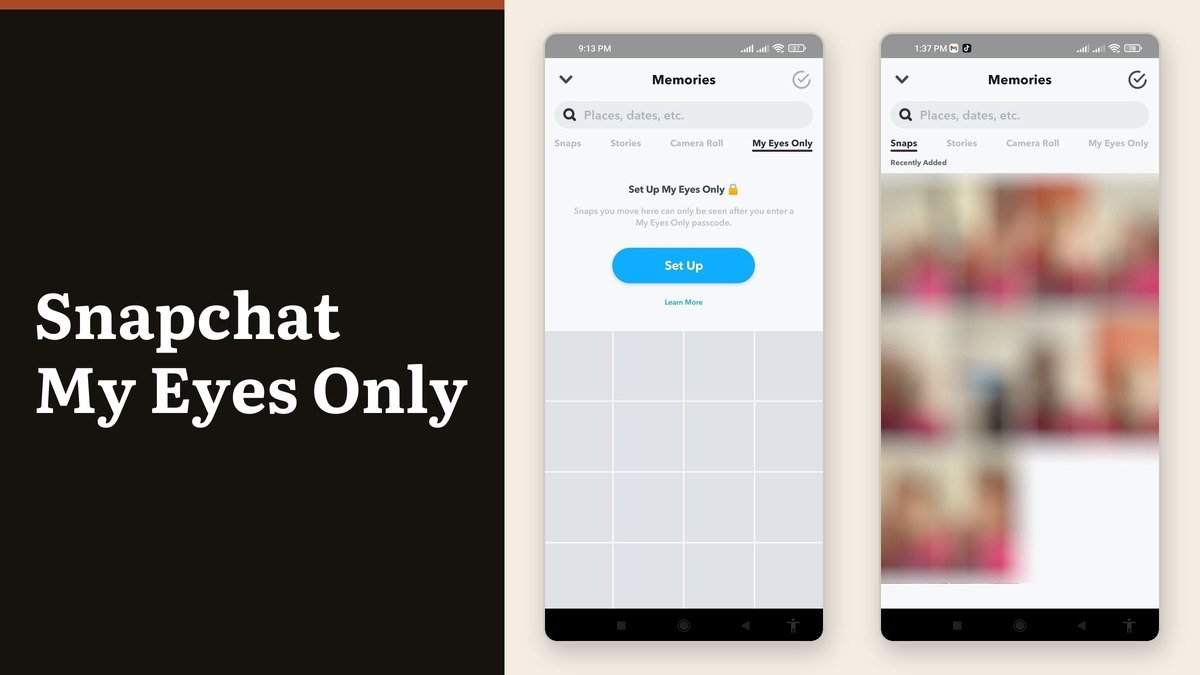
Snapchat My Eyes Only is a locked tab inside Memories. Snaps moved there need a passcode to open, and that passcode is the only key: Snapchat says Team Snapchat cannot help you access or recover what is inside if you forget it.
The feature is worth using and badly worth understanding first, because the reset path that looks like a safety net is not one. It issues a new passcode by deleting everything the old one protected.
Where My Eyes Only sits in Snapchat
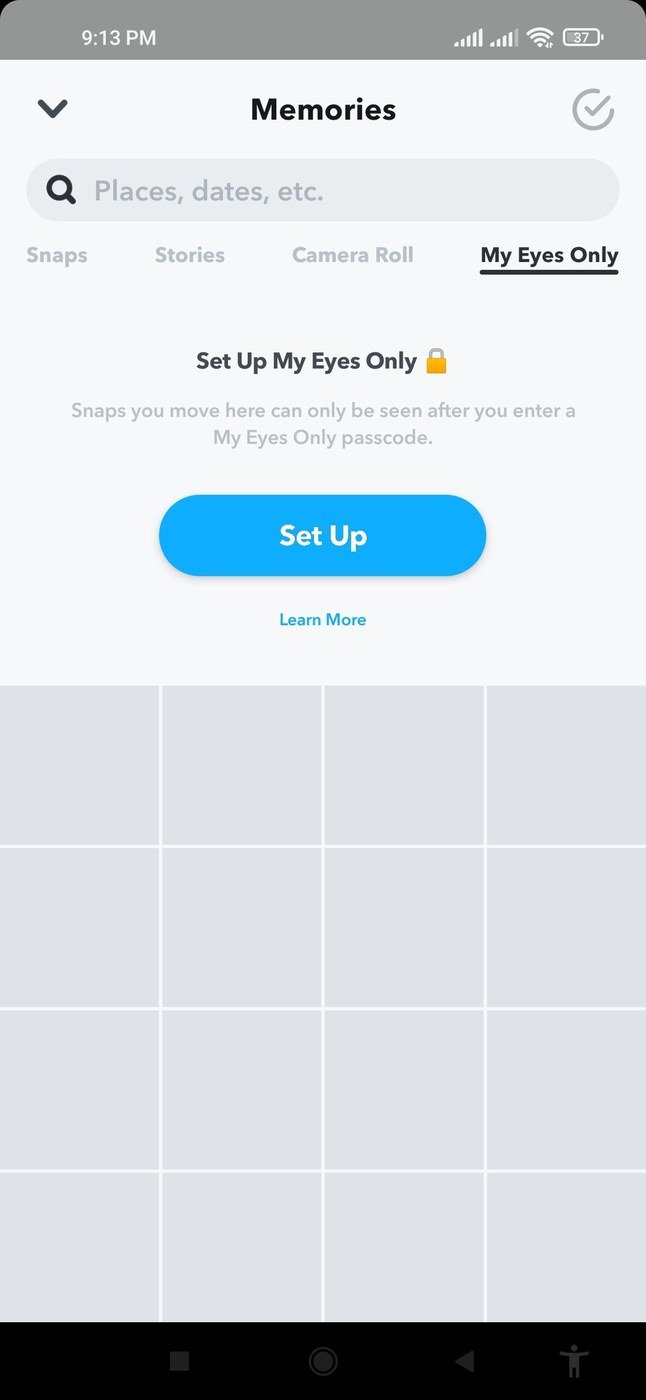
Swipe up from the camera screen to open Memories, then swipe left past Snaps, Stories and Camera Roll until you reach My Eyes Only. Before setup it shows a prompt rather than content; afterwards it asks for the passcode every time.
You need something in Memories before any of this is useful. Snapchat requires at least one Snap or Story saved there, or content shared into the app from your camera roll, and it does not back up your camera roll itself.
Setting it up
- Open Memories and press and hold a Snap.
- Android users tap Hide straight away; on an iPhone the option sits a level down, under More, as Hide Snap (My Eyes Only).
- Tap Quick Setup.
- Enter a four-digit passcode, then enter it again to confirm.
- Tick the acknowledgement that a forgotten passcode cannot be recovered, tap Continue, then Finish.
For something stronger than four digits, tap Use Passphrase on the Create New Passcode screen and set an alphanumeric one. Snapchat publishes no length or complexity rules beyond that, so the choice is yours and so is the consequence of losing it.
The passcode rules that matter
| Question | Answer |
|---|---|
| Default passcode | Four digits |
| Alternative | An alphanumeric passphrase via Use Passphrase |
| Forgot it | Reset deletes everything behind it |
| Support recovery | Not possible, by design |
| Changing it safely | Only while you still know the current one |
The third row is the whole article in one line. Snapchat’s Forgot Passcode flow asks for your account password, then asks you to acknowledge that creating a new passcode deletes all Snaps in My Eyes Only. Snaps saved under the former passcode are deleted, and Support cannot recover either the passcode or the Snaps.
Keep the passcode somewhere that is not the phone it protects. The reasoning is the same as in our guide to creating a password worth keeping, with the difference that this one has no reset link worth using.
Changing it the safe way
There is a non-destructive route, and it only works while you still remember the current passcode.
- Swipe left in Memories to My Eyes Only.
- Tap Options, then Change Passcode.
- Enter the current passcode.
- Create the new one, enter it again, acknowledge the no-recovery warning and tap Finish.
Do this the moment you suspect you might forget the old one. Once you cannot enter the current passcode, Change Passcode is unavailable and Forgot Passcode is the only door left.
What can go in, and the backup warning
Not everything qualifies, and the limit catches people mid-move.
- Photo Snaps and video Snaps under 10 seconds only. Longer videos cannot be moved in.
- Move several at once with the Memories selector icon, then Hide Snaps (My Eyes Only) and Move.
- iPhone has a default toggle, Save to My Eyes Only by Default, under Settings then Memories. Snapchat lists it for iOS only.
- Check Backup Progress before you log out. Under Settings, My App, Memories it should read Complete.
Snapchat is firm that Memories which were not successfully backed up cannot be recovered, and that you should confirm the backup is complete before logging out, moving to another device or uninstalling the app. Anything genuinely irreplaceable deserves a copy outside Snapchat as well, which is what our guide to cloud storage and file sharing is for.
Opening it day to day
Once it is set up, reaching the locked Snaps is the same three moves every time, and there is no stay-signed-in shortcut by design.
- Swipe up from the camera screen to open Memories.
- Swipe left to the My Eyes Only tab.
- Enter your passcode.
Moving a Snap back out works the same way in reverse, from inside the tab once it is open. Nothing in My Eyes Only appears in the ordinary Snaps or Stories tabs while it is locked, which is also why a quick glance at Memories is not a reliable way to check whether something saved correctly.
Frequently Asked Questions
Can anyone at Snapchat unlock My Eyes Only for me?
No. Snapchat says Support cannot recover forgotten passcodes or deleted Snaps, and that a representative will never ask for the passcode because they do not need it.
What happens if I enter the wrong passcode repeatedly?
Snapchat publishes no attempt limit or lockout rule for My Eyes Only. What it does document is that the reset path deletes the contents, so repeated guessing is safer than reaching for Forgot Passcode.
Is My Eyes Only content included in my Memories backup?
Snapchat does not say either way. Its only published guidance is the general instruction to confirm Memories are completely backed up before logging out, switching device or uninstalling.
Can I use a word instead of four digits?
Yes. Tap Use Passphrase at the bottom of the Create New Passcode screen for an alphanumeric passphrase instead of the four-digit default.