No internet connection on a device that still shows Wi-Fi bars means it is talking to your router but nothing is getting past it. In 2026 the quickest fix starts with three tests that split the fault into device, router or provider, followed by the exact menu paths for Windows, Mac, iPhone and Android.
Allow 15 to 30 minutes. If the Wi-Fi will not join, use the Wi-Fi not working guide first. If the link joins but keeps dropping, this dropout guide fits better.
No Internet Connection on Wi-Fi: The Three-Test Triage
Three tests narrow a no internet connection fault to the device, the router or the provider. Run them before changing a setting. Each takes about two minutes and none needs a login.
| Test | How | If it fails | If it passes |
|---|---|---|---|
| Second device | Load a site on another phone or laptop on the same Wi-Fi | Router, modem or provider | Your device |
| Mobile data | Turn Wi-Fi off on your phone and load the same site | The site or the app | The Wi-Fi network |
| Direct cable | Plug a laptop into the modem with Ethernet | Modem or provider | The router |
You will know it worked when one row flips the result. Google’s Pixel guidance uses the same logic: if other devices work, suspect the phone, and if the phone joins but has no internet, suspect the connection.
Windows: From the No Internet Icon to a Working Adapter
Windows shows “No Internet” under the network name when its probe fails. The probe resolves www.msftconnecttest.com and fetches connecttest.txt, which should return “Microsoft Connect Test”. A proxy or firewall can make that probe fail on a working link, so load a real page too.
- Windows 11: open Get Help and run the Network and internet troubleshooter. Windows 10: Settings > Network and Internet > Status > Network troubleshooter.
- Settings > Network & internet > Proxy: turn off any manual proxy.
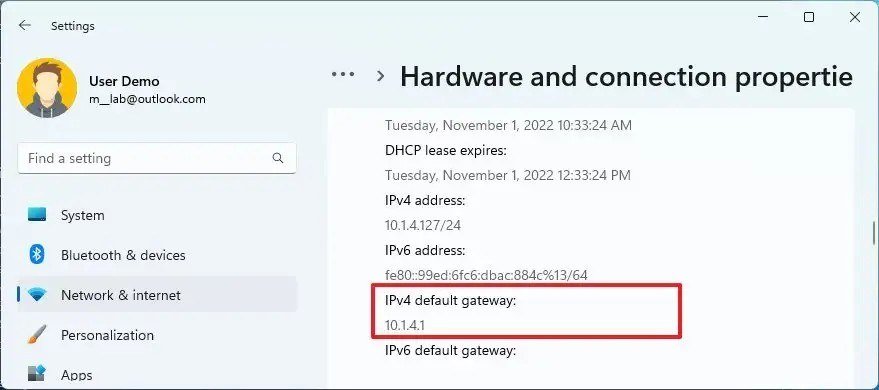
- Settings > Network & internet > Wi-Fi (or Ethernet), open the connection and read IPv4 address and IPv4 default gateway.
- In an administrator Command Prompt, run ipconfig /release, ipconfig /renew and ipconfig /flushdns in that order.
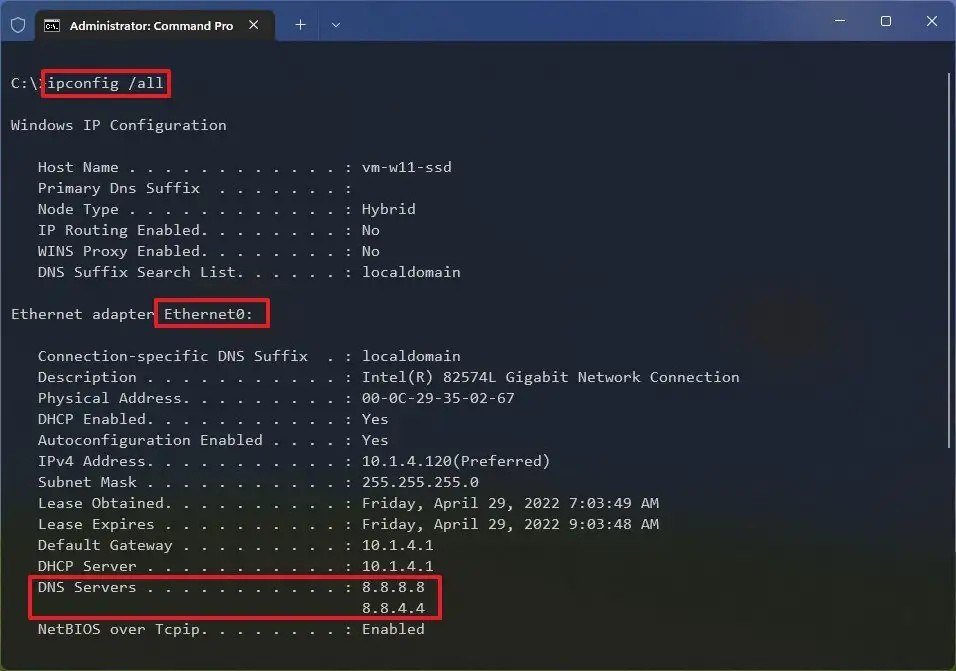
- Run ipconfig /all, copy the DNS Servers address and ping it. A valid IP address with a silent DNS server means the resolver is the problem.
- Still stuck: Settings > Network & internet > Advanced network settings > Network reset > Reset now.
The first screenshot shows the IPv4 default gateway in Settings. The second shows the DNS Servers lines that ipconfig /all prints.
Network reset removes and reinstalls network adapters, and Microsoft warns that VPN clients and Hyper-V virtual switches may need setting up again. Keep it for last.
You will know it worked when the flyout changes from No Internet to Connected within seconds. If the address starts with 169.254, Windows could not get an address from the router. The link-local rules in RFC 3927 describe those addresses as non-routable, which is why nothing loads.
Mac: Yellow Status, Renew the Lease and Wireless Diagnostics
- Open Apple menu > System Settings > Network and read the dot beside Wi-Fi. Green is connected, yellow reads Self-assigned IP, red is not connected.
- For yellow, click the service, choose Details > TCP/IP and click Renew DHCP Lease, then Apply. Save your work first, since Apple warns unsaved changes can be lost.
- Hold Option and click the Wi-Fi icon, then choose Open Wireless Diagnostics.
- In Terminal (Go > Utilities) ping the router, and press Control-C to see packet loss. Apple expects 0.0% on a healthy path.
- Check Date & Time, because Apple lists a wrong clock among the causes, and update macOS if another network lets you download it.
For a stubborn Mac, Apple’s other lever is a new network location. Choose Network > Action menu > Locations > Edit Locations, add one and test, which resets network settings without losing the current set.
You will know it worked when the status dot turns green and a page loads.
iPhone: When No Internet Connection Shows Under the Network Name
On an iPhone, Settings > Wi-Fi puts “No Internet Connection” under the joined network. Apple traces it to DHCP trouble, DNS problems or a network outage.
- Tap the info button beside the network and confirm the IP address, subnet mask and router fields are filled in.
- In Settings, make sure Airplane Mode is off, then open Wi-Fi and turn off Connectivity Assist.
- Remove any VPN or security app, restart the phone and test again.
- To try another resolver, tap the info button > Configure DNS > Manual > Add Server. Cloudflare notes this applies to that Wi-Fi network only.
- Last resort: Settings > General > Transfer or Reset iPhone > Reset > Reset Network Settings. It erases saved Wi-Fi passwords, cellular, VPN and APN settings.
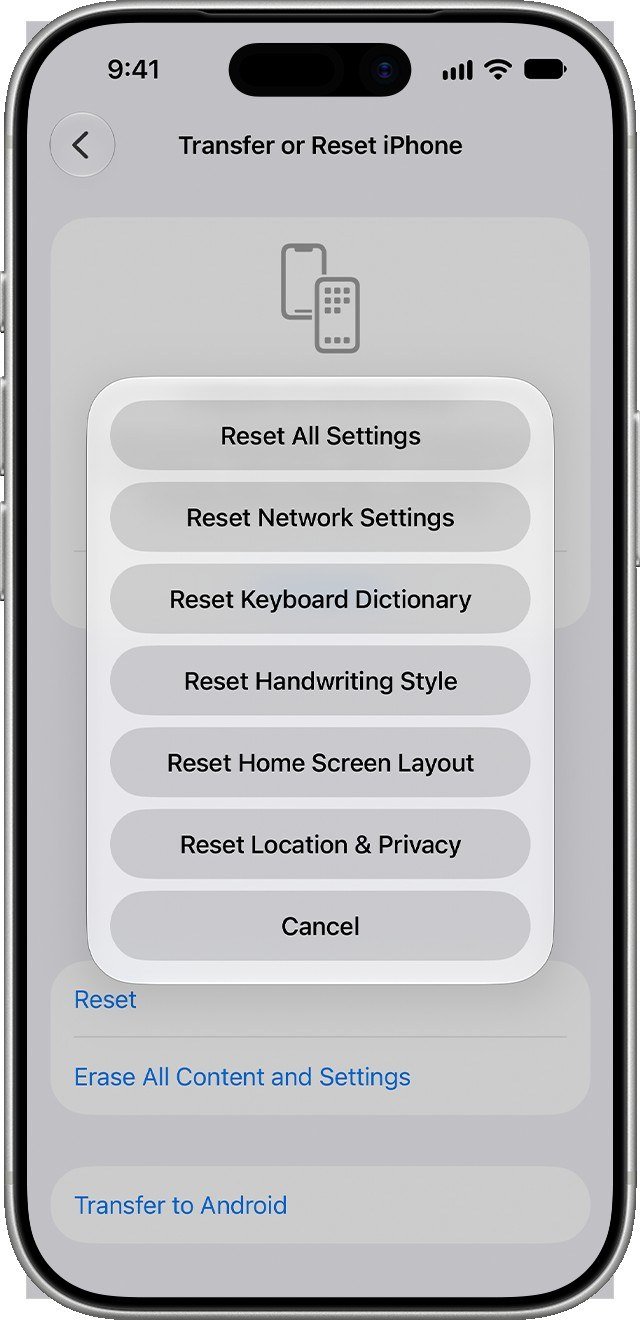
Apple adds that if the phone connects after a reset but still has no internet, contact the provider.
Android: Exclamation Mark, Private DNS and Auto-Switch
- The Wi-Fi icon shows an exclamation point. After each step below, open a web page to check.
- Settings > Network & internet > Internet: forget the network and add it again.
- Settings > Network & internet > Private DNS: choose Automatic and tap Save. Google says phones use Private DNS by default on networks that support it.
- Settings > System > Date & time: turn on Set time automatically.
- Restart in safe mode. If Wi-Fi works there, a downloaded app is the cause.
- Settings > Network & internet > Adaptive connectivity: turn on Auto-switch to mobile network so data takes over when Wi-Fi has no internet.

You will know it worked when the exclamation point disappears. Samsung and other makers move Private DNS, so search Settings for it if the path differs.
Modem Lights and the Provider Side of the Link
When every device fails, the modem lights come before the router. NETGEAR’s CM1000v2 manual says the Online light turns solid green once the modem is online, which can take up to 10 minutes after power-up. Blinking green means it is still synchronising with the provider.
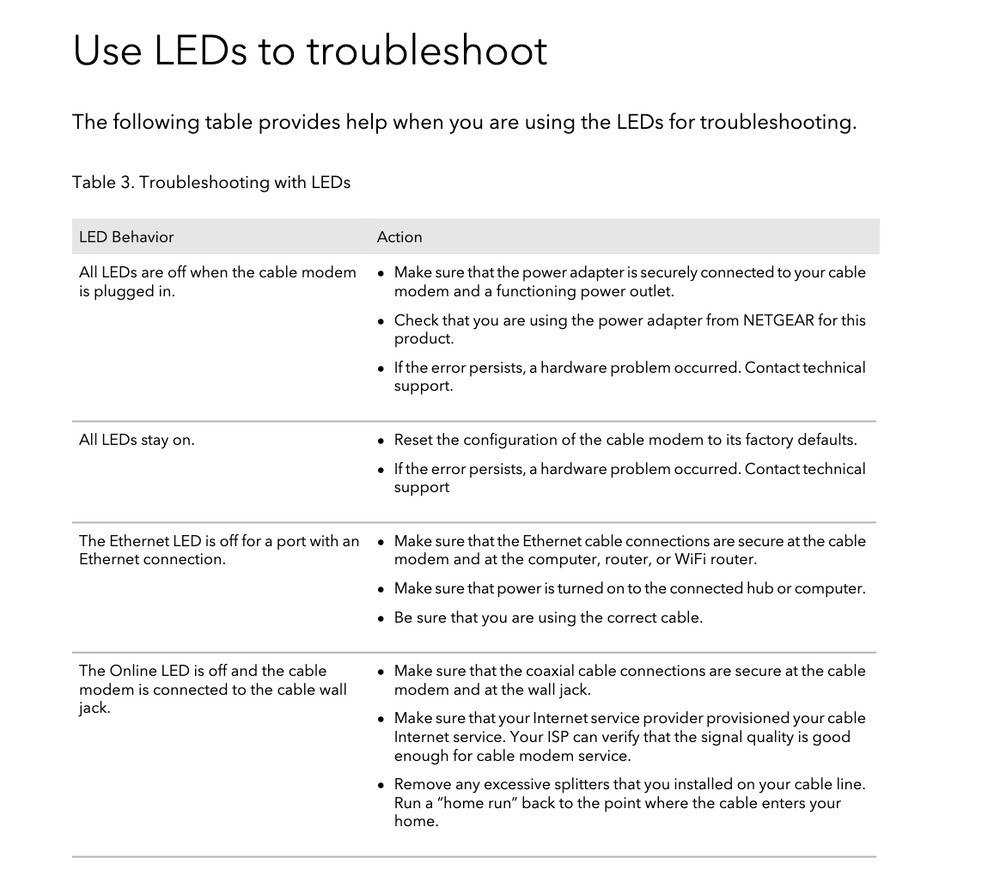
- Online off while the coax is connected: tighten the cable, confirm the provider has provisioned the service and remove extra splitters.
- Online green, nothing loads: make sure the modem’s MAC address is registered with the provider. The label on the unit carries it.
- Status page: this model opens at http://192.168.100.1, and the computer needs an address in the 192.168.100.2 to 192.168.100.254 range.
Brands differ on colour names, so read your own manual. A VPN service will not fix any of this, but turn it off during testing so it cannot hide the result.
Tracing the Path With tracert and traceroute
The traceroute tool sends packets with a time-to-live that starts at 1 and climbs, so every router on the path reports back in turn. Windows calls it tracert, stops at 30 hops by default and shows an asterisk for any hop that stays silent.
- Run ipconfig on Windows, find Default Gateway and ping it. Microsoft says replies mean you reach the router, so the modem or provider is at fault.
- Run tracert 8.8.8.8 (Mac: traceroute 8.8.8.8). Hop 1 should be the gateway.
- If hop 1 answers and every hop after it times out, the break is at your router’s WAN side or the line beyond.
- Ping 8.8.8.8 then a site name. If the number works and the name fails, the problem is DNS.
Apple cautions that some devices block ping, so judge from the pattern, not one silent hop.
Cables, Ports and Link Speed
- Reseat the cable at both ends and try a different port on the router or switch.
- On the NETGEAR modem, an Ethernet light that shows amber means 10 or 100 Mbps, while green means 1000 Mbps.
- Fast Ethernet and Gigabit Ethernet over twisted pair need Category 5 cable or better, with runs up to 100 metres.
- A Mac with a red “Not connected” Ethernet entry has nothing attached or no link.
A laptop with no Ethernet port needs an adapter, and a dock with a LAN jack serves the same purpose.
Public Wi-Fi: The Captive Portal Test Pages
Hotels, airports and cafes hold traffic until you sign in. Open http://captive.apple.com, or the Microsoft address http://www.msftconnecttest.com/connecttest.txt, because plain HTTP can be redirected to the sign-in page and an https site cannot. Android users should tap the sign-in notification, and Apple says to type captive.apple.com into Safari when the page does not appear.

You will know it worked when captive.apple.com shows Success after you sign in.
Two Routers, Bridge Mode and Double NAT
Stacking a router on an ISP gateway creates double network address translation. Google says most people see no noticeable effect on performance, so it rarely explains a total outage, though it can disturb gaming and port forwarding.
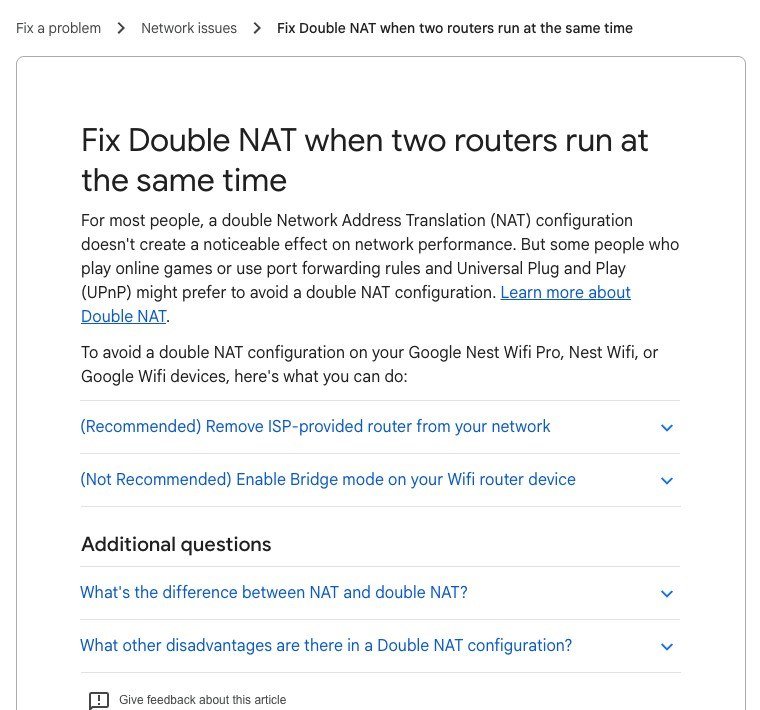
To remove it, unplug the ISP’s separate router and cable the modem to yours, or put a combined gateway in bridge mode. Bridge mode switches off DHCP and routing on that unit, so one device alone should hand out addresses.
Four Habits That Make It Worse
- Resetting the router to factory defaults before testing a cable to the modem.
- Restarting the router while the modem is still offline.
- Judging by one site instead of loading two unrelated ones.
- Skipping the date check, since Apple and Google both list a wrong clock among the causes.
Decision Guide: Your Side, the Router or the Provider
Use the evidence you collected to choose who has to act.
| Evidence | Points to | Action |
|---|---|---|
| Online light off, coax tight | Provider provisioning or line signal | Call the provider; remove splitters |
| Online light green, nothing loads | Modem MAC not registered | Give the provider the MAC on the label |
| Every light off when plugged in | Power adapter or modem hardware | Check the adapter, then contact support |
| Gateway answers, direct cable also dead | Modem or provider side | Report an outage |
| Gateway answers only by cable | Wi-Fi router radio | Update the router, then replace it |
| One device only | That device | Use the Windows, Mac, iPhone or Android section |
Replacing an old router only helps if the direct-cable test proves the router is at fault.
Frequently Asked Questions
What does “No internet, secured” mean on Windows?
It is the Windows 11 label for a password-protected network where the internet check failed. Run the troubleshooter, renew the address and flush DNS.
Why does my phone say connected without internet?
The phone joined the router, but a check packet got no reply. DHCP, DNS or an outage are the causes Apple lists. Test another device first.
Is pinging 8.8.8.8 safe?
Yes. It is a Google Public DNS address and a ping only asks it to answer. If it replies while site names fail, DNS is the issue.
How long should a modem take to come online?
NETGEAR’s manual allows up to 10 minutes for the Online light to turn solid green after power-up. Longer than that points to the cable, splitters or provider.





