Laptop screen issues fall into a handful of patterns, and each one has a cause you can pin down in a few minutes. A black display on a laptop that is clearly running, a flicker that comes and goes, lines that were not there yesterday: some are a Windows driver having a bad day, and some are a panel on its way out.
Fixing the right thing means knowing which kind you have before you start. Below are the checks that decide it, followed by six common faults with the fix that actually works for each.
Two Tests That Decide Every Laptop Screen Fix
Run both of these first. Together they tell you whether to reach for Device Manager or a repair shop.
Test 1: Plug In an External Monitor
Connect a monitor or TV over HDMI or USB-C (thin laptops may need one of the USB-C to HDMI adapters we have tested), then press Windows + P and pick Duplicate.
- The external picture is fine: look at the laptop's panel, backlight or hinge cable.
- The external picture has the same fault: look at the graphics driver or graphics chip.
- Nothing appears on either: the laptop may not be finishing its startup, so treat it as a boot problem.
Test 2: Run the Hardware Diagnostics
Laptop makers build screen tests into the firmware, so they run before Windows loads. A fault visible in one of these tests is hardware, full stop.
- HP: power on and tap Esc about once a second until the Startup Menu appears, then press F2 for System Diagnostics. HP PC Hardware Diagnostics UEFI offers Symptom Tests, System Tests and Component Tests, and a Fast Test takes about four minutes.
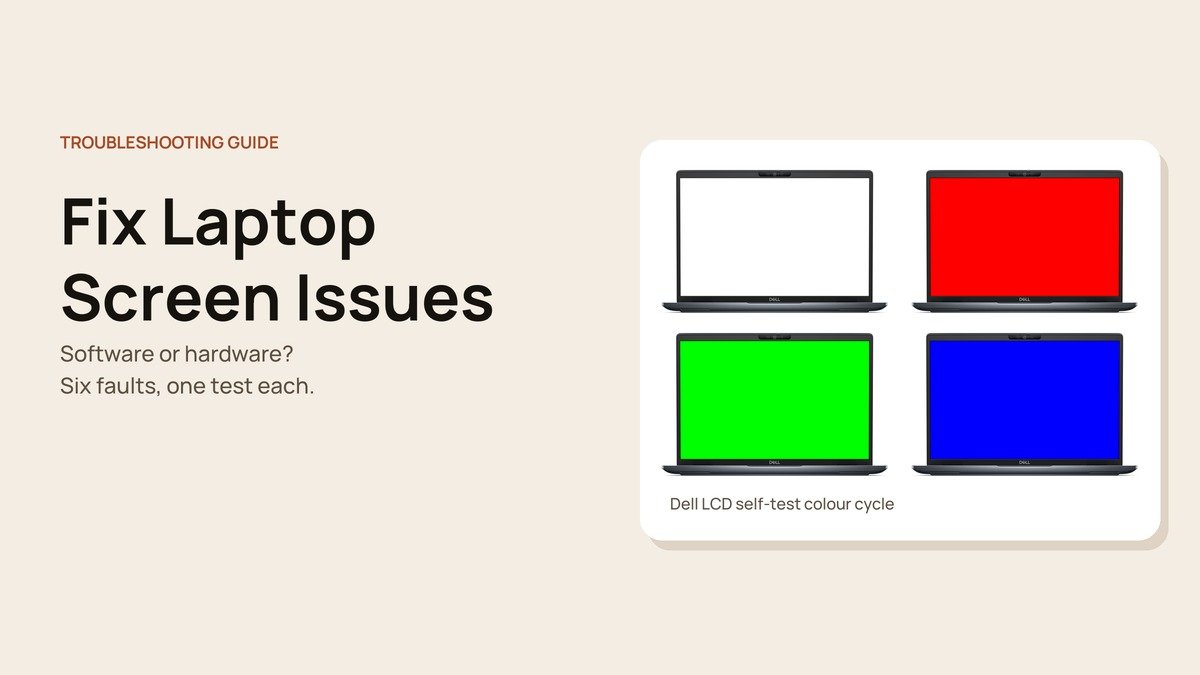
- Dell: from fully off, hold D and press the power button to start the LCD self-test, which fills the screen with solid colours. Esc ends it.
- Surface: hold Volume up while pressing and releasing power to open UEFI, and check whether the fault is still there.
- MacBook: start Apple Diagnostics (on Apple silicon, hold the power button until Options appears, then hold Command-D). macOS Tahoe 26 and later let you choose the built-in display test.
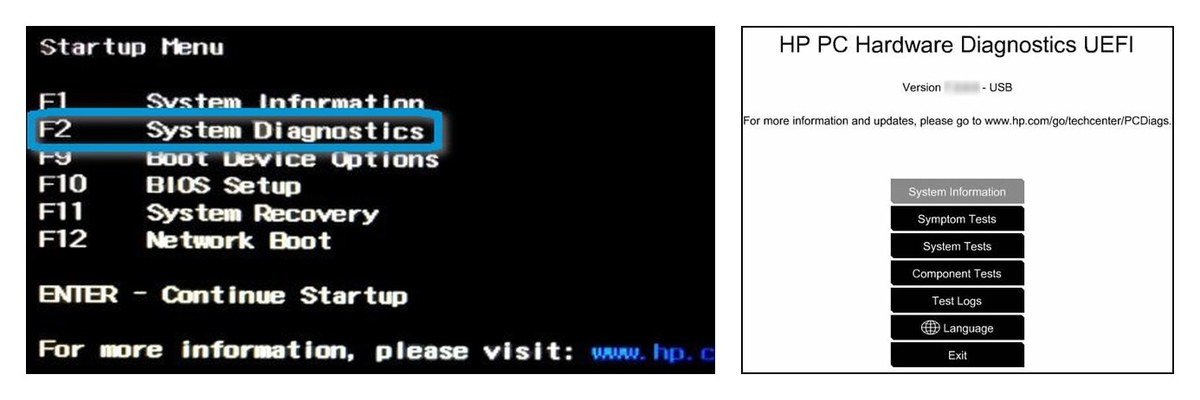
If the diagnostic finds a failure, HP shows a 24-digit failure ID and a QR code. Write it down, because support uses it to approve a repair.
Laptop Screen Issues at a Glance
| Fault | Usual cause | How to tell | Fixable at home? |
|---|---|---|---|
| 1. Black screen | Driver, display mode, backlight | Fails only in Windows: software. Faint image under a torch: backlight | Yes, unless the backlight failed |
| 2. Flickering | Display driver or an app | Task Manager steady: app. Task Manager flickers: driver | Usually |
| 3. Lines | Panel, hinge cable or graphics chip | Lines in the hardware test: panel or cable | Rarely |
| 4. Dim or changing brightness | Adaptive brightness, battery saver, backlight | Fine at full brightness on AC: a setting | Usually |
| 5. Stuck or dead pixels | Individual pixel failure | Dot visible in the hardware test: panel | Rarely |
| 6. Cracks and ink blots | Physical damage | Visible damage needs no test | No |
1. Black Screen While the Laptop Is On
Fans spinning, keyboard lit, maybe a startup chime, but nothing on the display. Microsoft's blank screen guide lists a set of quick fixes, and they are worth trying in this order:
- Windows + Ctrl + Shift + B resets the graphics driver. A beep or a blink means it worked.
- Windows + P, then P and Enter, switches display mode in case the picture is going to a projector or monitor that is no longer connected.
- Ctrl + Alt + Delete, and if the blue security screen shows, open Task Manager and restart Windows Explorer. A black screen with only a mouse pointer is often Explorer stalling.
- Hold the power button for 20 seconds for a full forced restart.
Still black after signing in or after an update? Get into Safe Mode. Force the laptop off with a 10-second hold on the power button, start it, and repeat until Windows loads its recovery environment. From Choose an option, go to Troubleshoot, Advanced options, Startup Settings, Restart, then press F5 for Safe Mode with Networking.

In Safe Mode, open Device Manager, expand Display adapters, right-click the graphics adapter and roll back or update the driver. If the trouble began recently, System Restore in the same Advanced options menu takes Windows back to an earlier restore point.
If none of that brings the picture back, hold a torch close to the dark screen. Seeing a faint desktop means the backlight has died while the panel still works, and that is a hardware repair.
2. Screen Flickering
Flicker in Windows almost always traces back to a display driver or an app that does not get along with it. Open Task Manager with Ctrl + Shift + Esc and watch it.
- Task Manager stays steady: an app is the cause. Update the apps you installed most recently, or uninstall them one at a time, restarting after each, until the flicker stops.
- Task Manager flickers too: the driver is the cause. In Device Manager, open the graphics adapter's Properties and use the Driver tab to Roll Back Driver after a recent update, Update Driver otherwise, or Uninstall Device and restart so Windows reinstalls it.
Get drivers from Windows Update or your laptop maker's support page rather than a driver-download site. If the flicker is visible in the hardware diagnostics as well, it is a loose cable or failing panel, and no driver will fix it.
3. Lines on the Laptop Screen
Thin horizontal or vertical lines rarely come from software. The pattern tells you where to look:
- Fixed lines of one colour that stay put no matter what is on screen usually mean failed rows or columns in the panel.
- Lines that flicker or change as you tilt the lid suggest the display cable, which bends through the hinge every time you open the laptop.
- Lines that also show on an external monitor point back to the graphics chip or driver, so try the driver steps first.
A cable is usually a cheaper repair than a panel, so tell the technician whether the lines move with the lid. Until then, an external monitor keeps the laptop fully usable.
4. Dim Screen or Brightness That Keeps Changing
This one is usually a setting. In Windows 11, open Settings, System, Display and select Brightness, where Microsoft lists the automatic options:
- Change brightness automatically when lighting changes uses the light sensor. Turn it off if the screen dims in a bright room.
- Change brightness based on content adjusts brightness and contrast to what is on screen. Set it to Off, Always or On Battery Only; laptops default to On Battery Only, which is why dark film scenes dim the screen when you unplug.
- Battery saver can lower brightness on battery, so check it if the dimming only happens off the charger.
If the screen is dim even at full brightness on AC power, or one edge is darker than the rest, the backlight is ageing. That shows up in the hardware test too.
5. Stuck or Dead Pixels
A single dot that stays black, white or one colour whatever the screen shows is a stuck or dead pixel. It cannot show the right part of the image, and it is a panel fault. Check it in the hardware test: if the dot is visible on every test colour, it is in the panel. One pixel is usually something you learn to ignore, while several clustered together are worth a warranty claim, since makers set their own limits on how many pixel faults count as a defect.
6. Cracks, Ink Blots and Pressure Damage
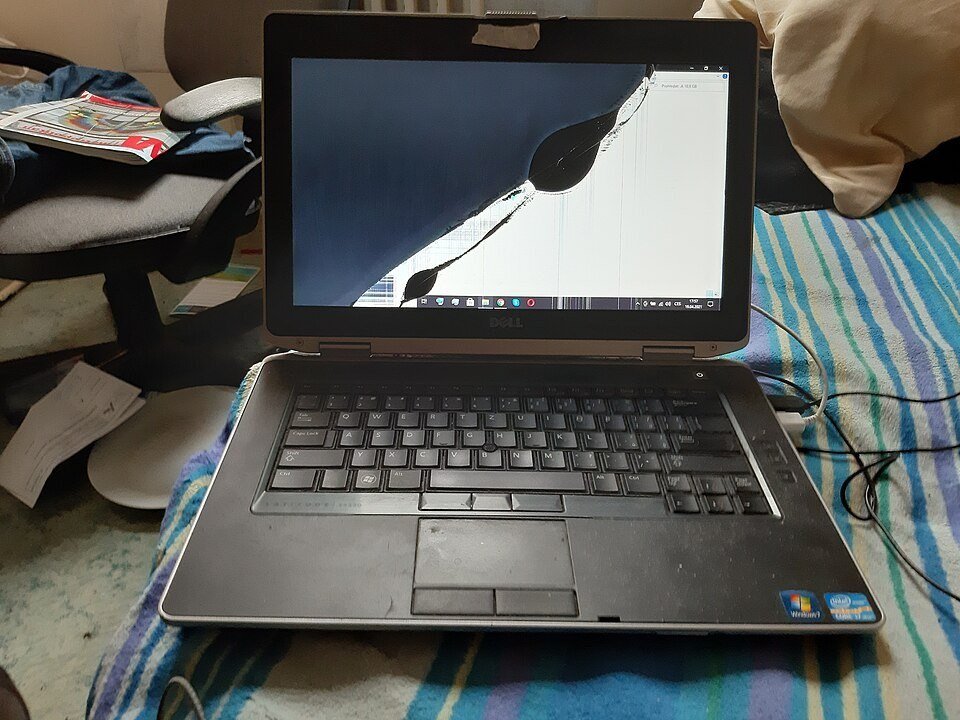
Dark blots that spread from a crack, colour bleeding around a point of impact, or a spider-web pattern all mean the LCD is physically broken. The only fix is a new panel, so the useful steps are about protecting everything else:
- Back up your files now, using an external monitor if you cannot read the built-in screen.
- Avoid pressing on or flexing the lid, which pushes the damage further across the panel.
- Check whether an accidental damage plan, credit card protection or home insurance covers the repair, since a standard warranty usually does not.
- Ask for a quote before agreeing to the work. On an older laptop, the panel and labour can cost a large share of a new machine.
If a repair does not make sense, our explainer on what a Chromebook is covers a lower-cost replacement worth considering.
Frequently Asked Questions
What causes most laptop screen issues?
Software faults usually come from the graphics driver, often after an update. Hardware faults come from the panel, its backlight or the display cable in the hinge.
Why does my laptop screen go black but the laptop is still on?
The graphics driver may have stalled, the display mode may be set to an external screen, or the backlight may have failed. Try Windows + Ctrl + Shift + B first.
Can I fix lines on my laptop screen myself?
Only when the lines come from the driver, which you can confirm if they also appear on an external monitor. Lines visible in the hardware test need a repair.
How do I test my laptop screen for hardware problems?
Use the firmware test: hold D at power-on on a Dell, press Esc then F2 on an HP, or run Apple Diagnostics on a Mac.





