
An iPhone not charging is rarely one problem. A phone that shows nothing, one that stalls at 80 percent and one that flashes an alert point at different parts, so read what the screen does before you change anything.
Budget about 15 minutes for the swap test and the port check, and up to an hour for a recovery restore. The steps match iOS 27.0.1 on iPhone 11 and later, and each Settings path notes where an iPhone 14 or earlier differs.
iPhone Not Charging: Four Symptoms, Eight Tests
Match the behavior to the cause. Nothing at all points to the cable, adapter, port or a frozen system. A stop at 80 percent or a Charging On Hold message is protection, not damage. An alert means moisture or an unsupported accessory. A phone that charges only on a wireless pad needs service.
| # | Test | Minutes | Start here when |
|---|---|---|---|
| 1 | Swap cable, adapter and outlet one at a time | 5 | Nothing happens, or the bolt flickers |
| 2 | Clear the port, then restart and force restart | 5 | Cable will not seat, or the screen is frozen |
| 3 | Read the 80 percent and heat messages | 2 | Charging stops short or says Charging On Hold |
| 4 | Act on the alert text | 5 | Liquid, Accessory or Charger alerts |
| 5 | Update iOS | 15 | Old software, or an update waiting |
| 6 | Test wireless charging | 5 | Telling a port fault from a battery fault |
| 7 | Check battery health and the genuine-part label | 3 | An older or repaired iPhone |
| 8 | Restore from a Mac or PC | 60 | Apple logo for minutes, or a Connect to computer screen |
Run the tests in this order; each costs less than the next.
What to Have in Hand Before the First Test
- A second cable and a second adapter, ideally from a different box.
- A wall outlet, since a computer port can charge more slowly and a computer that is off drains the battery.
- A Mac, or a PC with the Apple Devices app, for tests 5 and 8.
- About 10 minutes of patience per test: Apple’s service steps wait 10 minutes on a wall adapter before judging a charge.
Test 1: The Swap That Splits Outlet, Cable and Adapter
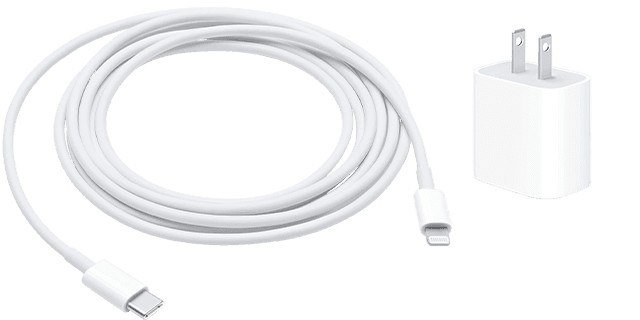
Change one thing at a time, or the result tells you nothing. An iPhone 15 or later needs a USB-C cable and a USB-C Power Delivery adapter; an iPhone 14 or earlier uses Lightning. The Lightning to USB-C adapter picks help if you are mixing the two.
- Plug the original cable and adapter into a different wall outlet.
- Return to the first outlet and swap only the cable.
- Swap back, then change only the adapter.
- Note which swap made the charging bolt appear. The part you removed is the fault.
- Wait 10 minutes before you call a result.
Do not test with a hub, a car port or a multi-port charger. A wired charger of 7.5W or less, or a hub, can make charging slow, and a USB-A adapter holds an iPhone 15 or later to 7.5W.

Newer iOS tells you when the charger is the weak link. With iOS 18 or later, a Slow Charger message appears on the Lock Screen and in Settings > Battery. Apple states that it does not mean the iPhone or charger is faulty. With iOS 26, a charger that is connected but not charging produces an Incompatible Charger message in the same place.
You’ll know it worked when the bolt shows within 2 minutes and Settings > Battery lists a time to 80 percent.
Test 2: Nothing Happens, So Check the Port and the Software
Clear the Port Without Making It Worse
Debris in the port can stop the plug from seating.
- Power the iPhone off and pull every cable.
- Light the port and look for lint.
- Twist a small, clean, dry, soft-bristled brush with no metal in it to loosen the debris.
- Brush it outward, away from the connector.
- Power on and press the cable in firmly.
Compressed air, bleach and hydrogen peroxide are all on Apple’s do-not-use list.
Restart, Then Force Restart

A normal restart on an iPhone X or later: hold either volume button and the side button until the slider appears, drag it, and wait 30 seconds. If the screen does not respond, force restart on an iPhone 8 or later:
- Press and quickly release Volume Up.
- Press and quickly release Volume Down.
- Hold the side button until the Apple logo appears, even past the slider.
Then charge for 30 minutes. A phone that will not wake can need up to an hour on the charger.
You’ll know it worked when the Apple logo appears and the Lock Screen shows a bolt.
Test 3: Charging Starts, Then Stops at 80 Percent

Optimized Battery Charging pauses at 80 percent when the iPhone expects a long charge, then finishes near your usual unplug time. It learns from 14 days of habits and 9 charges of 5 hours or more in one place. Apple explains the same limits under thermally limited charging, which covers the heat pause too.
- Open Settings and tap Battery.
- iPhone 15 or later: tap Charging. iPhone 14 or earlier: tap Battery Health & Charging.
- Turn Optimized Battery Charging off, or on an iPhone 15 or later raise Charge Limit to 100 percent.
- To finish a charge once, go back to Battery and tap Resume Charging or Charge to 100%.
With Charge Limit under 100 percent, an iPhone 15 or later still charges to 100 percent now and then so its percentage stays accurate.
Heat and Cold Are Not Faults

Apple designs iPhone for 32 to 95 degrees F (0 to 35 degrees C). Past the limits, charging slows or stops, including wireless, and the Lock Screen reads Charging On Hold. Cool a hot phone away from sunlight, take off the case and lock the screen; warm a cold one indoors. Charging resumes alone.
You’ll know it worked when the percentage climbs past 80, or the On Hold message disappears by itself.
Test 4: Let the Alert Name the Problem
Each alert text points to a fix:
- Accessory Not Supported or Certified. Plug straight into the charger with no adapter between, clear the port, restart, try another cable and install the latest iOS. Causes include a dirty port, a damaged accessory or a USB charger not built to charge devices.
- Liquid Detected or Charging Not Available. Unplug both ends, tap the connector side down on your hand and leave the phone in dry airflow for at least 30 minutes, up to 24 hours if the alert returns. Skip heat, compressed air, cotton swabs and rice.
- Incompatible Charger. Swap the charger, as in Test 1.
- Temperature screen. Power off and cool down, as in Test 3.
A cable that triggers the alert every time may be damaged, and an Apple cable that does it every time means the iPhone might need service. Apple lets you override a liquid alert in an emergency, but charging a wet connector can corrode the pins.
Test 5: Update iOS From the Phone or From a Mac

- Back up to iCloud or a computer.
- Connect to power and Wi-Fi.
- Open Settings, tap General, then tap Software Update.
- Tap Download and Install when an update appears.
If the phone will not hold power long enough, update with a Mac or PC and the same cable. The screen above shows iOS 26.7 and an offer for iOS 27; the current release is iOS 27.0.1, or 27.1 on iPhone Duo.
You’ll know it worked when Software Update reports the installed version with no newer one waiting.
Test 6: Wired Fails, Wireless Works

This one test separates a bad port from a bad battery. Unplug the cable, because wired charging wins when both are connected. Place an iPhone 8 or later face up and centered on a Qi-certified pad, or a MagSafe charger on an iPhone 12 or later. Remove any thick, metal or battery case. Both run on inductive charging, and the pads carry the Qi standard. If the phone turns on or charges only this way, the wired path has failed. A MagSafe power bank is a cordless way to repeat the test away from a desk.
You’ll know it worked when the status bar shows the battery bolt a few seconds after the iPhone lands on the pad.
Test 7: Battery Health and the Genuine-Part Label

- Open Settings and tap Battery.
- iPhone 15 or later: tap Battery Health. iPhone 14 or earlier: tap Battery Health & Charging.
- Read Maximum Capacity and, on an iPhone 15 or later, Cycle Count.
- Open Settings > General > About and look beside Battery for Genuine or Unknown.
Apple designs the battery in an iPhone 14 or earlier to keep 80 percent of its capacity at 500 complete cycles and in an iPhone 15 to keep it at 1,000. A battery that needs charging more and more often may be due for service, and Apple handles that through its battery service and recycling program. An Unknown label can come with unexpected behavior while charging, and a nongenuine battery can stall a charge near 1 percent.
You’ll know it worked when Maximum Capacity matches the age of the phone and Battery reads Genuine.
Test 8: Restore From a Mac or PC
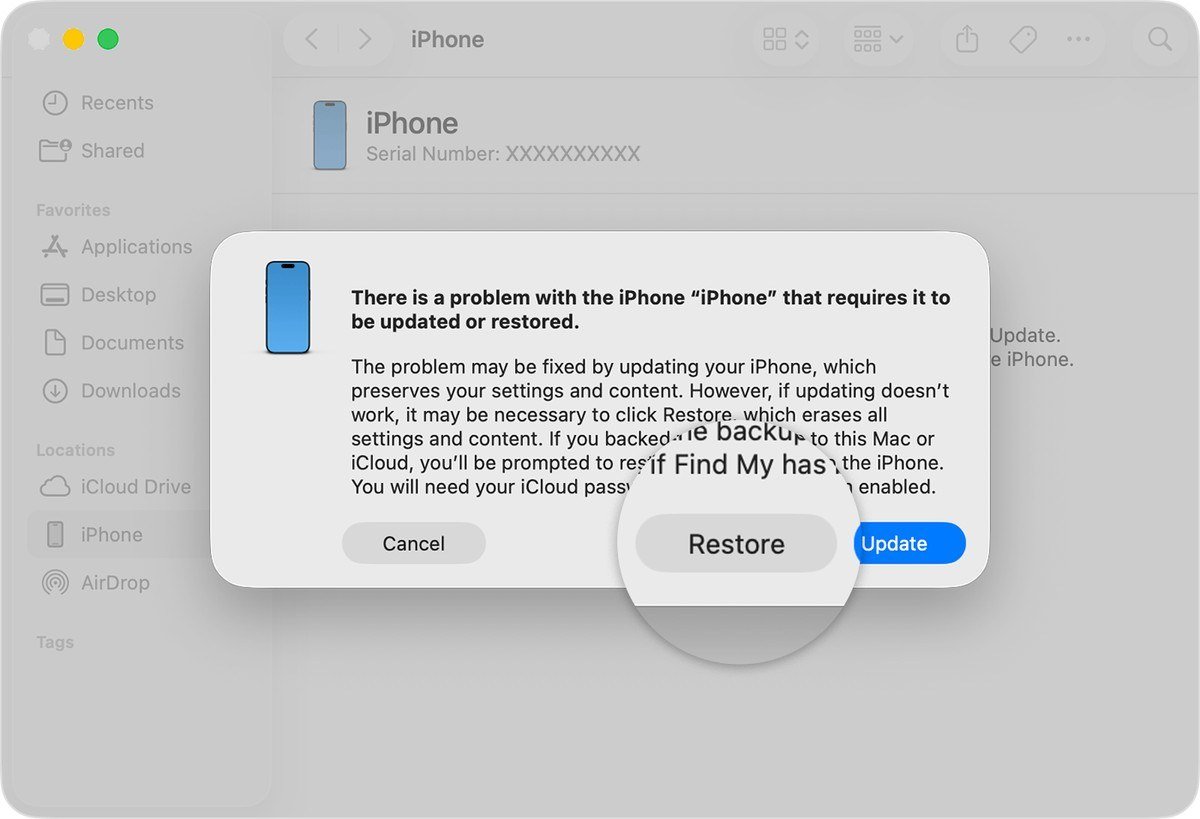
Use recovery mode when the Apple logo lingers for minutes, the computer does not recognize the iPhone or the Connect to computer screen appears. On an iPhone 8 or later:
- Connect the iPhone to a Mac or to a PC running the Apple Devices app.
- Press and quickly release Volume Up, then Volume Down.
- Hold the side button until the computer-and-cable screen appears.
- Select the iPhone in Finder under Locations, or in Apple Devices.
- Choose Update first. Choose Restore only if Update fails, since Restore erases the data.
- Let the download finish. If it passes 15 minutes and the iPhone leaves the screen, repeat the button steps.
DFU mode sits below recovery mode: it loads no operating system, needs physical access and restores through an IPSW file in Finder or Apple Configurator. Apple separates recover, revive and restore in its platform-support documentation. A revive, available in Apple Configurator, attempts to keep your data.
You’ll know it worked when the Hello screen appears and the bolt shows once the iPhone is plugged in.
When the Answer Is a Repair
Book an Apple Store or Apple Authorized Service Provider visit if any of these holds after the eight tests:
- The phone charges only wirelessly.
- A liquid alert returns with every Apple cable after a day of drying.
- The restore fails or a button sticks.
- The battery reads Unknown or significantly degraded, which Apple says is not a safety issue.
Lines on the display are a separate repair; fixing a green line on a phone screen covers it.
Four Mistakes That Waste an Hour
- Changing three parts at once. The swap test only works one part at a time.
- Cleaning the port with metal. Use a non-metallic brush.
- Treating 80 percent as damage. Check Charge Limit and Optimized Battery Charging first.
- Charging a wet phone. Dry it, then try again.
Frequently Asked Questions
Why is my iPhone charging so slowly?
A wired charger of 7.5W or less, a wireless charger under 10W, a hub or a multi-port adapter can all slow charging. Heavy apps and a warm battery slow it too. Check Settings > Battery for a Slow Charger message.
Can I charge an iPhone that shows Liquid Detected?
Wait. Dry the phone in open air for at least 30 minutes and up to a day. Wireless charging works if the back is dry. Apple allows an emergency override, but a wet connector can corrode.
Will a restore repair a damaged charging port?
No. A restore reinstalls iOS and erases the data, so it only fixes software faults. A connector that fails the wireless test needs a technician.
What does an Incompatible Charger message mean?
With iOS 26, it appears in Settings > Battery when the iPhone detects a charger that is connected but not charging. Try another charger and cable.





