
Wifi not working shows up in four different ways in 2026, and each one has a different cause: connected with no internet, refusing to join, missing from the network list, or dropping out every few minutes. Read what your phone or PC says before you touch the router, because the wording tells you which fix to try first.
This guide sorts the fixes by symptom for iPhone, Android and Windows, after a five-minute triage that applies to all of them. Allow 30 minutes for a stubborn case, and have the Wi-Fi password and a second device within reach.
Wifi Not Working? Start With What the Device Says
Test a second device first. Connected with no internet means a lost address, DNS or provider fault. Refusing to join means a saved profile, password or security mismatch. No networks listed means the radio is off or the band is unsupported. Dropping out means power saving, channel overlap or distance.
What to Have Ready
- A second phone or laptop on the same network.
- The Wi-Fi password, because forgetting a network deletes it.
- Access to the modem and router, so you can read their status lights.
- Cellular data on a phone, to check the provider’s outage page while home internet is down.
Five-Minute Triage Before Any Setting Changes
Three tests separate a house problem from a device problem, and none needs a tool.
- Join the same network on a second phone or laptop. Apple says that if other devices connect, the router and network are working.
- Take the failing device to another network. Google says a phone that connects elsewhere has a network problem.
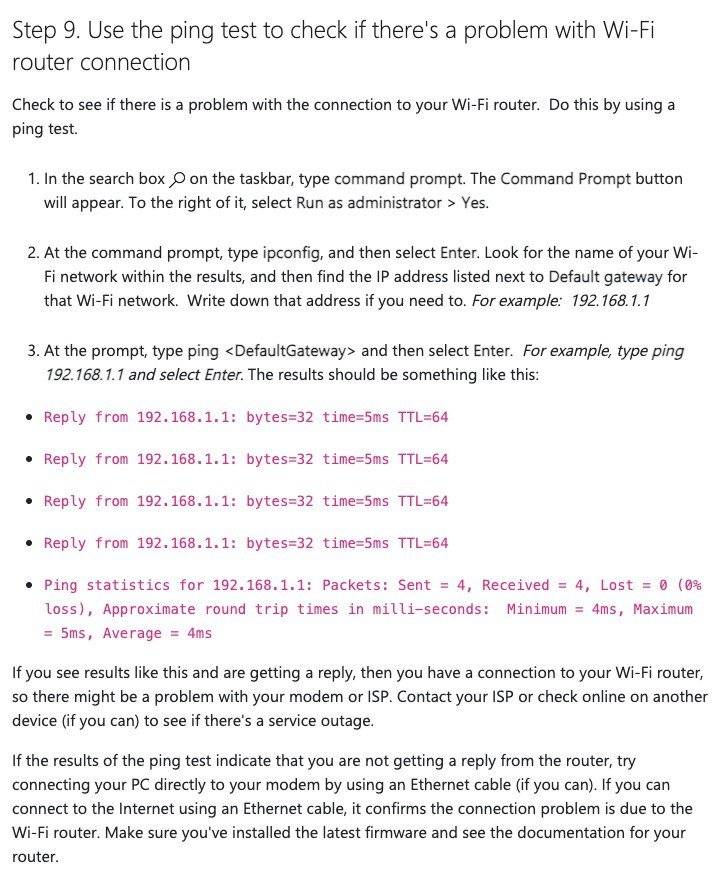
- On Windows, run ipconfig and note the Default gateway address, then run ping followed by that address. Microsoft says replies mean the router link is fine and the modem or provider is at fault. No replies mean you should plug the PC into the modem with Ethernet.
If every device is offline, restart the equipment. Unplug the router, then the modem, and wait at least 30 seconds. Some modems hold a backup battery, so if the lights stay on, remove the battery. Plug the modem in, wait for its lights to stop blinking, then plug the router in and give both a few minutes.
If the lights still show a connection failure, cables are loose or the provider has an outage, and no setting on your device will help. Call with the modem make and model and the light colors ready.
You will know it worked when you can say which of three places holds the fault: the device, the router, or the provider.
Wifi Connected but No Internet: Address, DNS and Provider
Windows decides it has no internet by sending a small HTTP request to a server and getting nothing back, which puts the No Internet label under the network name. The device joined the router but cannot reach beyond it.
- Turn Wi-Fi off and on and rejoin.
- Open Command Prompt as administrator and run ipconfig /release, then ipconfig /renew, then ipconfig /flushdns.
- Open Settings > Network & Internet > Proxy and turn off any manual proxy.
- Run ipconfig and read the address. One starting with 169.254 means Windows could not get an address from the router, so check that DHCP is enabled on the router.
- Run ipconfig /all | findstr /c:”DNS Servers”, then ping the DNS server it lists. If it fails, switch to another DNS server.
The address comes from DHCP, the protocol that hands each device an IP address from the router’s pool. Apple’s router guidance sets lease time to 8 hours at home so the router can reclaim addresses from devices that left, because a full pool leaves new devices unable to reach the internet.

Two router faults copy this symptom. Apple warns that DHCP enabled on both the modem and the router can cause address conflicts, and NAT enabled on both creates double NAT that can cut access to some resources. Disable one of each if you chain a provider modem to your own router.
Phones have DNS settings too. On Android, Settings > Network & internet > Private DNS should read Automatic unless you chose a provider on purpose. On an iPhone, Settings > Wi-Fi, then the network’s More Info button, lets you configure DNS and HTTP Proxy for that network.
You will know it worked when a webpage opens and ipconfig shows an address that does not start with 169.254.
Wifi Will Not Join: Passwords, Saved Profiles and Security
A saved profile goes stale when the router’s name, password or security mode changes. Forgetting the network forces the device to start clean, and Apple notes it helps after any change to router settings.

- Windows: Settings > Network & internet > Wi-Fi > Manage known networks, select the network, click Forget.
- iPhone: Settings > Wi-Fi, tap the More Info button beside the network, then Forget This Network and Forget.
- Android: Settings > Network & internet > Internet > Saved networks, tap the network, tap Forget, then Add network.
Retype the password slowly after you rejoin. If a correct password still fails, Microsoft lists restarting the router or restoring its factory settings and updating its firmware as the next steps.
Old security modes cause quiet failures. Apple names WEP, WPA Personal, WPA/WPA2 mixed mode and anything using TKIP as settings that reduce reliability, and recommends WPA3 Personal or WPA2/WPA3 Transitional. An iPhone that fails on one network only can also try Private Wi-Fi Address under that network’s More Info screen, after updating iOS.
You will know it worked when the network shows Connected on Windows or a blue checkmark on iPhone.
No Networks in the List: The Radio, the Switch and the Band
When the list is empty while neighbors’ networks appear on other devices, work through the hardware chain in order.
- Check for a physical Wi-Fi switch on the laptop and turn Airplane mode off.
- Open Device Manager, expand Network adapters, right-click the Wi-Fi adapter and choose Enable device.
- Press Win + R, type services.msc, find WLAN AutoConfig, and choose Restart.
- Open the adapter’s Properties, then the Advanced tab, and confirm Wireless Mode or Band allows your network’s frequency.
An adapter that supports only 2.4 GHz cannot see a 5 GHz network, which Microsoft lists as a cause. On an iPhone, Apple says Location Services must be on for Networking & Wireless under Settings > Privacy & Security > Location Services > System Services, because countries set different allowed channels. A hidden network will also stay out of the list until you add it by name.
You will know it worked when your home network appears in the list again at normal signal strength.
Wifi Keeps Dropping: Power Saving, Channels and Distance
Random drops usually come from the PC powering the adapter down, a crowded channel, or a weak signal. Microsoft’s fix for drops on Windows is two settings, one in the Control Panel and one in Device Manager.
- Power plan: Control Panel > Hardware and Sound > Power Options > Change plan settings > Change advanced power settings > Wireless Adapter Settings, then set Power Saving Mode to Maximum Performance.
- Adapter: Device Manager > Network adapters > Properties > Power Management, and clear Allow the computer to turn off this device to save power.
Then look at the channel. Most routers ship on a preset channel and never move, which Microsoft says leaves them congested wherever neighbors are close. Microsoft advises picking 1, 6 or 11 on 2.4 GHz and the channel with the fewest neighbors on 5 GHz, all of it inside the shared ISM radio band.
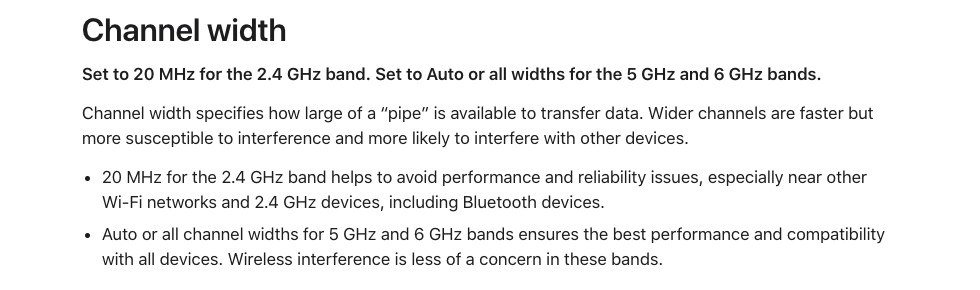
Apple adds a width rule: 20 MHz on 2.4 GHz, Auto on the faster bands. Keep microwaves, cordless phones and Bluetooth devices away from the router, because they share 2.4 GHz. Our longer piece on why wifi keeps disconnecting goes deeper on this one symptom.
You will know it worked when a video call lasts an hour with no reconnect notice.
Last Resort: Network Reset on iPhone, Android and Windows
A network reset clears every saved network and setting, so use it only after the steps above. Have the password for each network ready.

iPhone: Settings > General > Transfer or Reset iPhone > Reset > Reset Network Settings. Apple says this erases saved Wi-Fi networks and passwords, cellular settings, and VPN and APN settings.
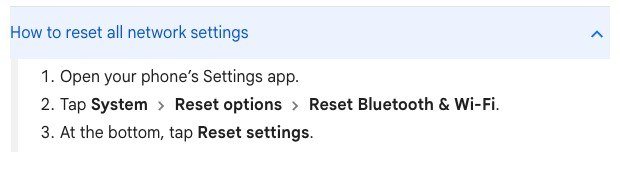
Android: Settings > System > Reset options > Reset Bluetooth & Wi-Fi, then Reset settings.

Windows 11: Settings > Network & internet > Advanced network settings > Network reset > Reset now. On Windows 10 it sits under Status. Microsoft warns that VPN clients may need reinstalling and known networks may switch to a public profile.
If a VPN is the suspect, turn it off first. Our guide to protecting your privacy online covers choosing one that does not break the connection.
When the Router or Adapter Is the Answer
Hardware is the answer when the wired test passes, the restart changes nothing, and the symptom returns within days. TP-Link says routers older than five or six years struggle with a modern home’s device count, and that a mesh system fixes dead rooms that placement cannot. The IEEE 802.11 standards page lists 802.11ax-2021 as an amendment to 802.11-2020, which 802.11-2024 now supersedes, so the radio standard has moved on twice since many older routers shipped.
Wi-Fi Alliance says Wi-Fi 6E adds up to seven 160 MHz channels in the 6 GHz band, and Microsoft says you need a 6E router plus a PC and driver that support it. See Wi-Fi 6 vs Wi-Fi 7 before you buy.
Frequently Asked Questions
Why is my wifi not working on one phone only?
The router and provider are fine. Forget the network on that phone, rejoin, and check Airplane mode and the date and time before you reset network settings.
Why is wifi connected but no internet on my laptop?
Usually a missing address or DNS answer. Run the ipconfig release, renew and flushdns commands, then check for a 169.254 address.
Should I restart the modem or the router first?
Unplug the router first, then the modem. Power the modem back first and the router after its lights settle.
Does a network reset fix wifi not working?
It fixes corrupted settings, but it deletes saved networks, so it is the last step on every device.





