There is no single best free file converter, because converting a two-hour video and converting a Word document are not the same problem. The tool built for the format beats the general-purpose one every time, and usually by a lot.
Ten are grouped below by what they convert. The last two are browser services, included for the times you cannot install anything, and they are the only ones here that meter you or keep a copy of your file.
Local Tool or Browser Service
This is the first decision and it settles most of the others.
- A local tool converts on your machine. No upload, no cap on size or quantity, no retention, and it works without a connection.
- A browser service uploads the file, converts it on a server and hands it back. Convenient on a machine you cannot install software on, and metered in every case.
Convertio states 100 MB per file and about ten jobs a day in its terms, while its homepage advertises 1 GB. Online-Convert describes its free tier only as limited, with 75 MB per file on its help pages, and deletes files at the latest after 72 hours.
For anything confidential that difference is the entire decision, and LibreOffice converting a document to PDF offline answers most of what people reach for a website to do.
Free File Converters Compared: Limits, Platforms and Where Your File Goes
Every tool covered below, with the free limit and where the conversion actually happens.
| # | Tool | Platforms | Where it runs | Free limit | Best for |
|---|---|---|---|---|---|
| 1 | HandBrake | Windows, macOS, Linux | On your computer | None | Converting video properly |
| 2 | FFmpeg | Windows, macOS, Linux, command line | On your computer | None | Anything, if you can use a command line |
| 3 | XnConvert | Windows, macOS, Linux | On your computer | Free for private and educational use only | Batch images without a command line |
| 4 | ImageMagick | Windows, macOS, Linux, command line | On your computer | None | Batch image conversion |
| 5 | Audacity | Windows, macOS, Linux | On your computer | None | Audio formats and editing together |
| 6 | LibreOffice | Windows, macOS, Linux | On your computer | None | Office documents and PDFs |
| 7 | Calibre | Windows, macOS, Linux | On your computer | None | Ebooks and documents for e-readers |
| 8 | Pandoc | Windows, macOS, Linux, command line | On your computer | None | Markdown, Word, LaTeX and HTML |
| 9 | Convertio | Browser | Uploaded to their servers | 100 MB per file, roughly 10 jobs a day | A quick conversion, once you know the real limit |
| 10 | Online-Convert | Browser | Uploaded to their servers | Credits renewing every 24 hours, 75 MB per file | Unusual formats in a browser |
Converting Video
Two tools, one with a window and one without, and between them they handle essentially any video.
1. HandBrake: Converting video properly

Platforms: Windows, macOS, Linux · Version: 1.11.2 · Where it runs: On your computer · Free limit: None
HandBrake describes itself as an open source tool, built by volunteers, for converting video from nearly any format into a selection of modern, widely supported codecs. That sentence is the whole product and it has been true for two decades.
Presets do the hard part: pick the device or the platform and it chooses the codec, bitrate and resolution for you. Nothing is uploaded, nothing is metered, and a two-hour film converts as easily as a two-minute clip. Version 1.11.2 is the current release.
2. FFmpeg: Anything, if you can use a command line
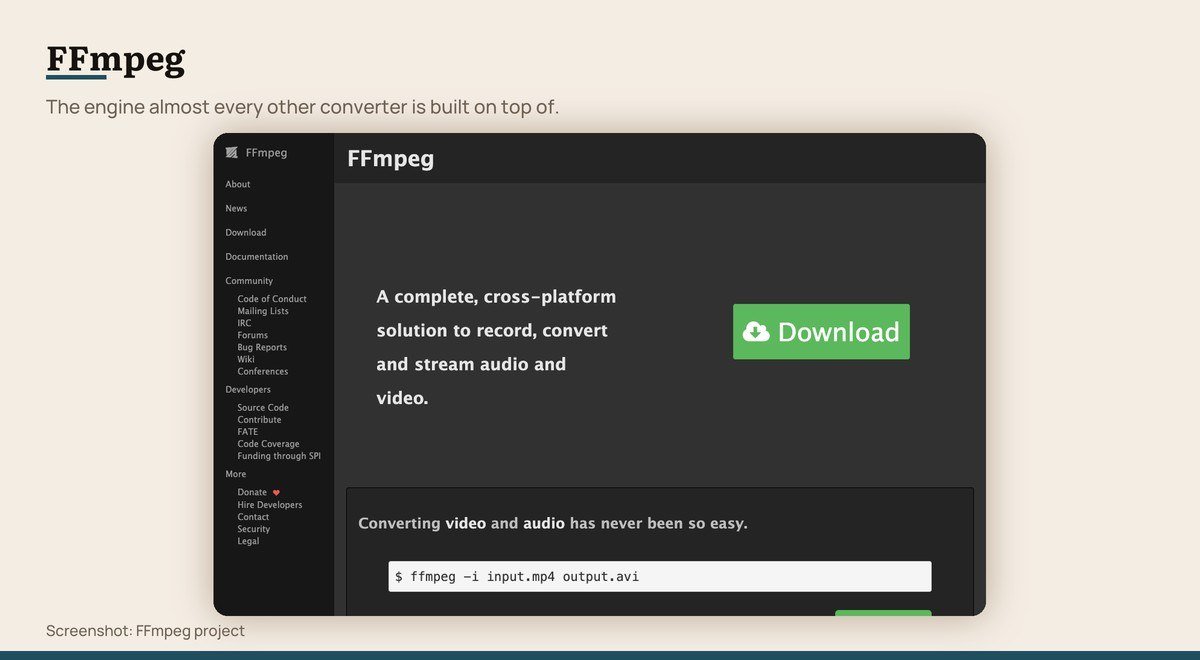
Platforms: Windows, macOS, Linux, command line · Version: 9.0.2 · Where it runs: On your computer · Free limit: None
FFmpeg is the library doing the actual work inside a startling number of the tools on this page, and inside most video players and streaming services. Used directly it converts essentially any audio or video format into any other.
The barrier is the interface, because there is not one. Everything happens through a command line with a syntax that rewards learning and punishes guessing. Learn three commands and you will outgrow every graphical converter here.
Converting Images in Bulk
Both batch hundreds of files at once. Pick based on whether you want an interface or a script.
3. XnConvert: Batch images without a command line

Platforms: Windows, macOS, Linux · Version: 1.118.0 · Where it runs: On your computer · Free limit: Free for private and educational use only
XnConvert does what ImageMagick does and shows you a window while doing it. Drop in several hundred images, build a chain of actions such as resize, watermark and convert, then run it over the lot.
The licence is the thing to note: it is free for private and educational use, and company use needs a paid licence. For a household it is free in the ordinary sense; for a business it is not.
4. ImageMagick: Batch image conversion

Platforms: Windows, macOS, Linux, command line · Version: 7.1.2-34 · Where it runs: On your computer · Free limit: None
ImageMagick handles images the way FFmpeg handles video: comprehensively, from a command line, in over 200 formats. Converting four hundred photographs from HEIC to JPEG is one line and finishes while a web service is still uploading the first file.
It also resizes, crops, composites and annotates, which makes it a scripting tool rather than only a converter. Version 7.1.2-34 is the current stable release.
Audio, Documents and Ebooks
Four specialists, each better at its own format than any general converter.
5. Audacity: Audio formats and editing together

Platforms: Windows, macOS, Linux · Version: 4.0.1 · Where it runs: On your computer · Free limit: None
Audacity converts between WAV, MP3, FLAC, OGG and the rest, and because it is an editor rather than a converter you can trim, normalise and remove noise in the same pass.
For a straight format change FFmpeg is faster. For anything where you also want to hear what you are doing, Audacity is the better tool and costs nothing. Version 4.0.1 is the current release.
6. LibreOffice: Office documents and PDFs

Platforms: Windows, macOS, Linux · Version: 26.8 · Where it runs: On your computer · Free limit: None
For documents and spreadsheets, the conversion tool most people need is an office suite that opens the format and saves another one. LibreOffice reads and writes DOCX, XLSX, PPTX, ODF and exports PDF, free and offline.
It is also the quiet answer to uploading a confidential contract to a web converter. Open it, save as PDF, done, with the file never leaving the machine. Version 26.8 is the current release.
7. Calibre: Ebooks and documents for e-readers
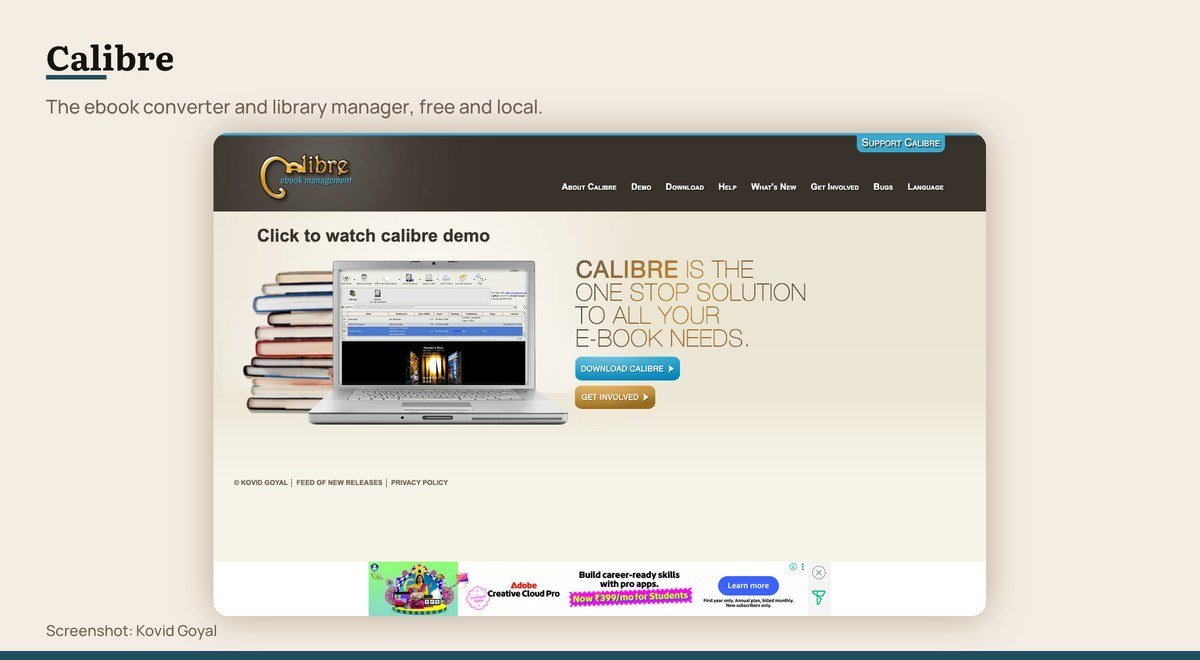
Platforms: Windows, macOS, Linux · Version: 9.17 · Where it runs: On your computer · Free limit: None
Calibre converts between EPUB, MOBI, AZW3, PDF, DOCX and most other book formats, and manages a library at the same time. For moving a book between a Kindle and a Kobo it is the only free tool that reliably works.
Conversion quality depends heavily on the source. A well-made EPUB converts cleanly; a PDF built from scanned pages converts into a mess, because the layout was never text in the first place.
8. Pandoc: Markdown, Word, LaTeX and HTML

Platforms: Windows, macOS, Linux, command line · Version: 3.12.1 · Where it runs: On your computer · Free limit: None
Pandoc is the document equivalent of FFmpeg, converting between Markdown, Word, HTML, LaTeX, EPUB and a long list of academic formats while preserving headings, footnotes, citations and tables.
It is what people writing papers and documentation use, and it is wasted on a one-off file. For anyone who writes in Markdown and has to deliver Word documents, it removes an entire category of tedium. Version 3.12.1 is current.
Browser Tools for When Nothing Is Installed
Useful on a locked-down machine, metered everywhere else, and both hold your upload for a while.
9. Convertio: A quick conversion, once you know the real limit

Platforms: Browser · Version: Web service · Where it runs: Uploaded to their servers · Free limit: 100 MB per file, roughly 10 jobs a day
Convertio is one of the better known browser converters and its free terms are genuinely unclear. The homepage advertises a 1 GB maximum file size while the terms of use and the help centre both state 100 MB, along with about ten conversions or ten conversion minutes per 24 hours.
Plan around the smaller number. Retention is at least consistent: input files are deleted immediately and converted output after 24 hours.
10. Online-Convert: Unusual formats in a browser

Platforms: Browser · Version: Web service · Where it runs: Uploaded to their servers · Free limit: Credits renewing every 24 hours, 75 MB per file
Online-Convert covers a long tail of formats, including ebook, archive and hash conversions that most rivals skip. Its free tier is described on the pricing page only as limited, with credits that renew every 24 hours.
A 75 MB per file ceiling appears on its help pages rather than in the plan table. Downloads are blocked after 24 hours and files deleted at the latest after 72, which is the longest retention of the online tools here.
What a Conversion Costs the File
Converting between two lossy formats discards detail a second time, because the file is decoded and re-encoded by a codec that throws away what it judges you will not miss. MP3 to AAC and JPEG to WebP both lose something.
From a lossless original, such as WAV, PNG or a camera RAW file, the first conversion loses nothing. That is the real argument for keeping originals rather than for picking a particular tool.
Video has an escape route. Changing the container without re-encoding the stream, which transcoding tools call remuxing, is instant and lossless. HandBrake and FFmpeg both offer it and browser converters generally do not.
The Three Tests Each Tool Had to Pass
A current release. A free version that completes a real conversion rather than previewing one. And a clearly published limit where a limit exists, since an unstated cap is worse than a small one.
Adapter was cut for listing a version that appears to be about a decade old with no release date, and Format Factory for offering its download through a mirror that could not be checked for bundled extras. VLC was left out because its site could not be reached to verify anything about it.
Speed was not compared, because it depends on the file, the codec and the hardware rather than on the tool, and for browser services mostly on your upload connection.
Choosing Between Them
Match the tool to the format. HandBrake for video, XnConvert or ImageMagick for images, Calibre for ebooks, LibreOffice for office documents, Audacity for audio. Each of those beats a general converter at its own job.
Learn FFmpeg if you convert video or audio regularly, because almost everything else on this page is built on it and using it directly removes every limit at once.
Keep a browser service bookmarked for the locked-down laptop and the unexpected format, and use it knowing the file is uploaded and held. Never send a contract or a medical document through one.
Convert as late as you can and keep the original, because a free video editor will import most formats directly and a free photo editor will usually export the format you needed anyway.
Frequently Asked Questions
What is the best free file converter?
There is no single one. HandBrake is the best free video converter, ImageMagick and XnConvert the best for images, Calibre for ebooks and LibreOffice for office documents. A tool built for the format beats a general converter every time.
Is it safe to convert files online?
For ordinary files, yes. For anything confidential, no, because the document is uploaded to a server and retained: Convertio deletes output after 24 hours and Online-Convert at the latest after 72. Use an offline tool for anything sensitive.
Why does my converted video look worse?
Because it was re-encoded. Converting between two lossy formats discards detail a second time. Remuxing, which changes the container without touching the video stream, avoids it entirely and HandBrake and FFmpeg both support it.
Do I need to pay for a file converter?
No. Every tool on this page converts files without payment, and the offline ones impose no limits at all. Paid tiers of the browser services buy throughput and larger files rather than better conversions.





