Before installing a free screen recorder, open the one you already own. Windows has had a capture tool behind the Windows key and G for a decade, and every Mac opens a recording toolbar with Shift, Command and 5. Both are uncapped and both are free.
Ten are grouped below into three kinds: the built-in tools, the open source applications that impose no limits, and the hosted services whose free tiers are drawn tightly enough to matter.
Three Kinds of Free Recorder
The kind decides what the limits look like far more than the individual product does.
- Built in. Already installed, no caps, nothing to sign up for. The macOS toolbar, the Xbox Game Bar and QuickTime Player.
- Open source. Unlimited and free permanently, with setup as the price. OBS Studio, ShareX and Screenity.
- Hosted free tiers. Polished, with sharing attached and a cap somewhere. Clipchamp, ScreenPal, Loom and FlashBack Express.
The thing none of these groups advertises is whether the recorder captures the sound your computer is playing, as opposed to what your microphone hears. That single capability separates a usable recording of a video call from a useless one.
Free Screen Recorders Compared: Caps, Audio and Platforms
Every tool below, with the free limit and system audio support that decide most choices.
| # | Tool | Platforms | Free limit | System audio | Best for |
|---|---|---|---|---|---|
| 1 | The macOS recorder | macOS | None | System audio needs macOS 27 or later | The recording you can start in two seconds |
| 2 | Xbox Game Bar | Windows | None for most uses | Yes | A quick capture on Windows with nothing installed |
| 3 | QuickTime Player | macOS | None | Microphone | Recording an iPhone screen from a Mac |
| 4 | OBS Studio | Windows, macOS, Linux | None | Yes | Recording with no limits at all |
| 5 | ShareX | Windows | None | Through an external encoder | Capture plus everything that happens afterwards |
| 6 | Screenity | Chrome and Chromium browsers | None | Where the operating system allows it | Recording a browser tab with annotation |
| 7 | FlashBack Express | Windows 10 and 11 | None | Yes | An unlimited free recorder on Windows |
| 8 | Microsoft Clipchamp | Browser, Windows app | Unlimited HD exports | Yes | Recording and editing without switching tools |
| 9 | ScreenPal | Windows, macOS, iOS, iPadOS, Android, Chrome OS | 15 minutes per recording | Paid tiers only | A quick recording with nothing to sign up for |
| 10 | Loom | Browser, Windows, macOS, iOS, Android | 25 videos, 5 minutes each, 720p | Yes | Sending a recording to somebody immediately |
The Recorders Already on Your Computer
No install, no account, no time limit. Try these before downloading anything.
1. The macOS recorder: The recording you can start in two seconds

Platforms: macOS · Version: Bundled with macOS · Updated: Ships with macOS · Free limit: None · System audio: System audio needs macOS 27 or later
Press Shift, Command and 5 on any Mac and a recording toolbar appears, offering the whole screen, a selected portion or a single window. There is no install, no account and no limit on length.
Its historic weakness was audio: capturing what the Mac itself was playing used to need a third-party driver. System audio recording is built in from macOS 27 onward, which removes the main reason Mac users reached for OBS.
2. Xbox Game Bar: A quick capture on Windows with nothing installed
Platforms: Windows · Version: Bundled with Windows · Updated: Ships with Windows · Free limit: None for most uses · System audio: Yes
Windows has had a screen recorder built in for years and most people have never opened it. The Windows key with G brings up the Game Bar, and its capture widget records the active application with audio.
It was designed for games, which shows: it records an application rather than the desktop, so it will not capture File Explorer or the desktop itself. For recording a program in action it is instant and free.
3. QuickTime Player: Recording an iPhone screen from a Mac

Platforms: macOS · Version: Bundled with macOS · Updated: Ships with macOS · Free limit: None · System audio: Microphone
QuickTime Player has a New Screen Recording command that predates the Shift, Command and 5 toolbar, and on current systems it opens that same toolbar. It is still listed here for one specific trick.
Plug an iPhone or iPad into a Mac, choose New Movie Recording and select the device as the camera source, and you can record the phone’s screen directly. Nothing else on this list does that without installing software on the phone.
Open Source Recorders With No Caps
Free permanently, with no tier above them. The cost is the time spent configuring them.
4. OBS Studio: Recording with no limits at all

Platforms: Windows, macOS, Linux · Version: 33.0.0 · Updated: October 23, 2026 · Free limit: None · System audio: Yes
OBS Studio is what streamers use, and it records as well as it broadcasts. There is no time cap, no watermark, no account and no resolution ceiling, because it is open source with nothing to sell you. Version 33.0.0 arrived on October 23, 2026.
The price is complexity. OBS thinks in scenes and sources rather than in a record button, so the first session involves configuring what the canvas contains. Once set up it is the most capable tool here by a distance, and it captures system audio and a microphone on separate tracks.
5. ShareX: Capture plus everything that happens afterwards
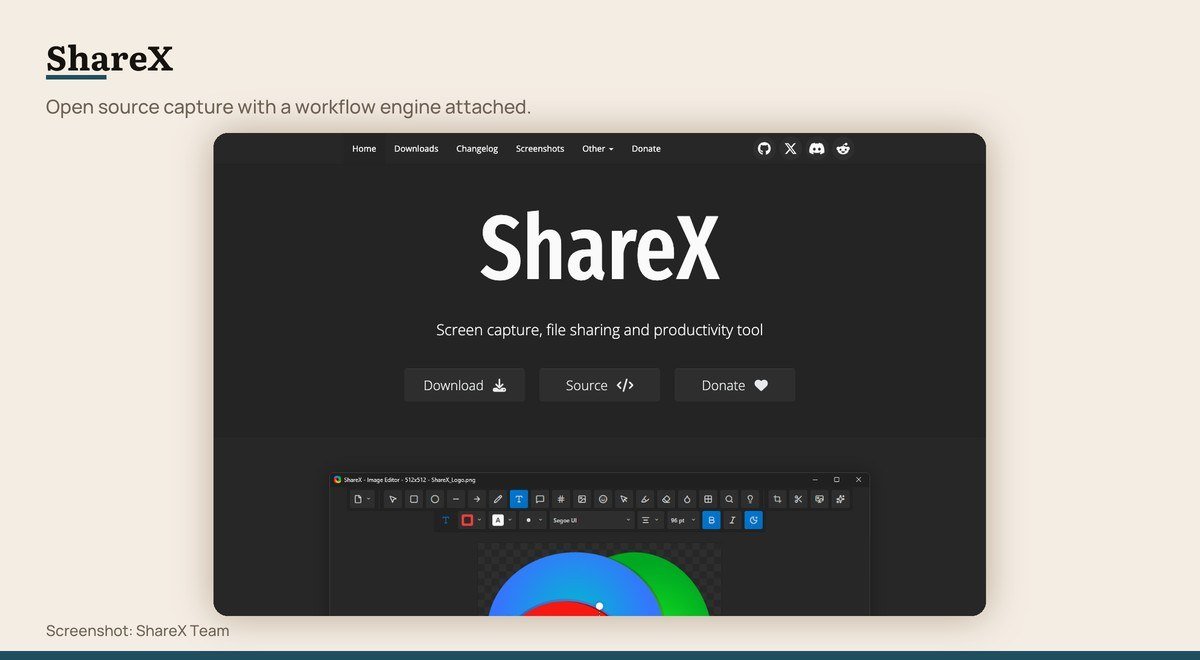
Platforms: Windows · Version: 21.0.0 · Updated: July 3, 2026 · Free limit: None · System audio: Through an external encoder
ShareX is a capture tool wrapped in an automation engine. It records screen or region to MP4 or GIF, then runs whatever you configured next: rename, watermark, upload, copy the link to the clipboard. For anyone who screenshots and shares all day, it removes most of the steps.
The stable release is 21.0.0 from July 3, 2026. A version 22 exists as a pre-release and its own changelog describes it as significantly less stable, so stay on 21 unless you enjoy filing bug reports. Windows only.
6. Screenity: Recording a browser tab with annotation
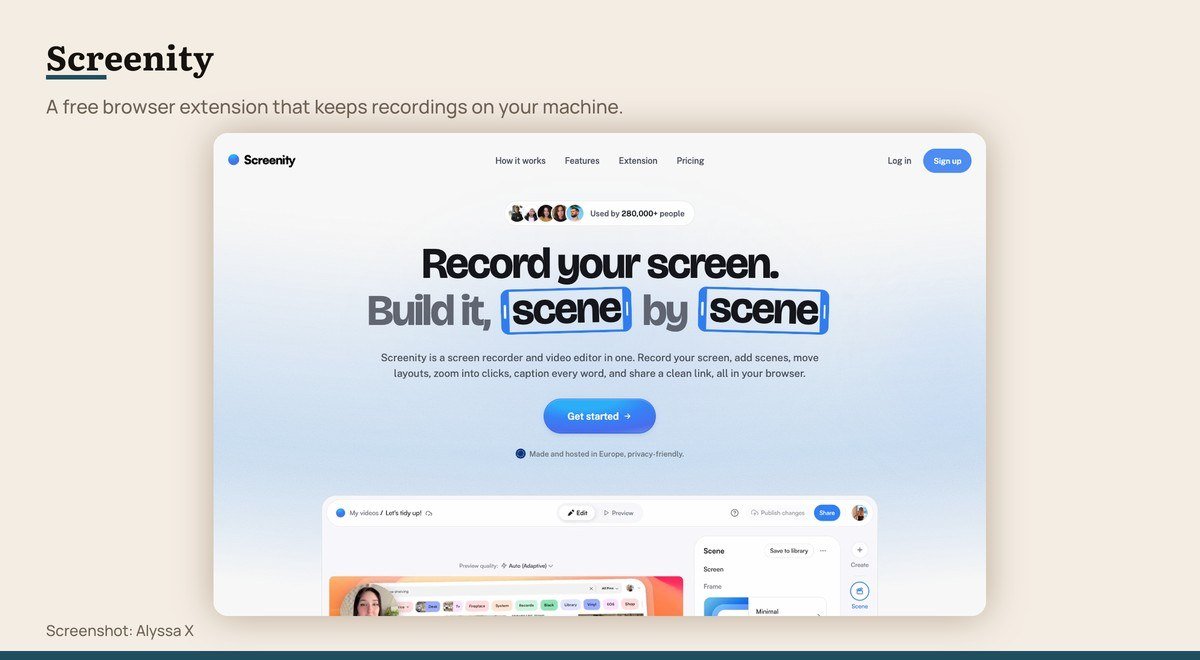
Platforms: Chrome and Chromium browsers · Version: 4.7.1 · Updated: October 22, 2026 · Free limit: None · System audio: Where the operating system allows it
Screenity records inside the browser with drawing tools, a spotlight and a countdown, and it keeps everything local rather than uploading to a service. No account, no cap on length, free and open source, at version 4.7.1 from October 22, 2026.
It is the right answer for recording web applications and tutorials where you want to annotate as you talk. It is a browser extension, so anything outside the browser is out of its reach.
Hosted Free Tiers and What They Withhold
More polished, with sharing built in. Each one keeps something back, and the table above says what.
7. FlashBack Express: An unlimited free recorder on Windows
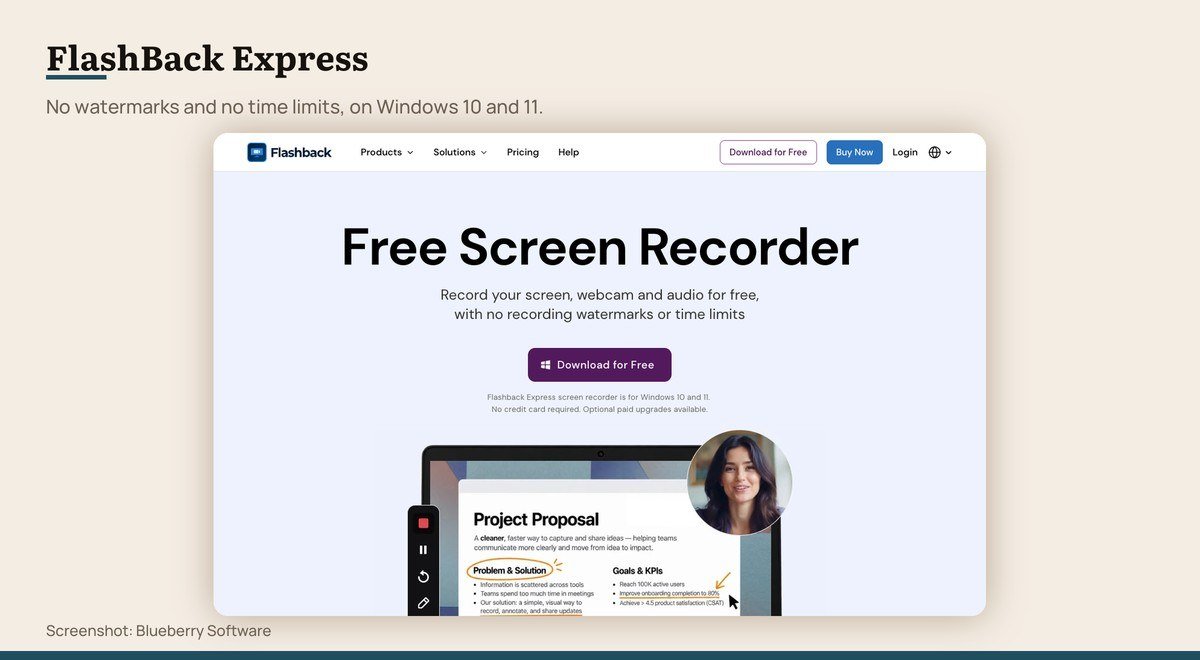
Platforms: Windows 10 and 11 · Version: Express 7 · Updated: 2026 build · Free limit: None · System audio: Yes
FlashBack Express promises what most free recorders will not: record your screen, webcam and audio for free, with no recording watermarks or time limits, and no credit card. That combination is rare outside open source.
It is Windows 10 and 11 only, and the paid FlashBack Pro sits above it with the editing and export options. For long recordings on Windows where OBS feels like too much machinery, this is the straightforward choice.
FlashBack Express product page
8. Microsoft Clipchamp: Recording and editing without switching tools
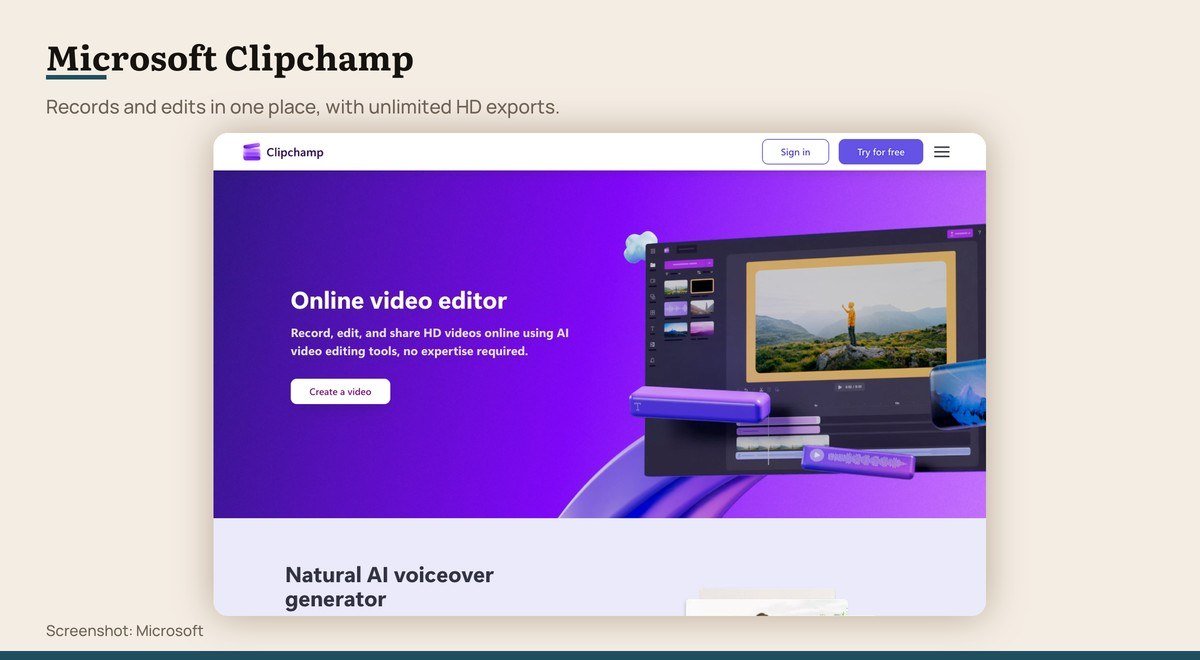
Platforms: Browser, Windows app · Version: Browser service · Updated: Rolling release · Free limit: Unlimited HD exports · System audio: Yes
Clipchamp records screen, webcam and audio and then drops the result straight onto a timeline, which is the step every other recorder here leaves you to solve separately. Microsoft states unlimited video and audio exports in HD quality with no watermarks.
It needs a personal Microsoft account and it runs in a browser, so the recording goes through the browser rather than the system. For a tutorial that needs trimming and captions before it is sent, the combination saves real time.
Microsoft Clipchamp product page
9. ScreenPal: A quick recording with nothing to sign up for
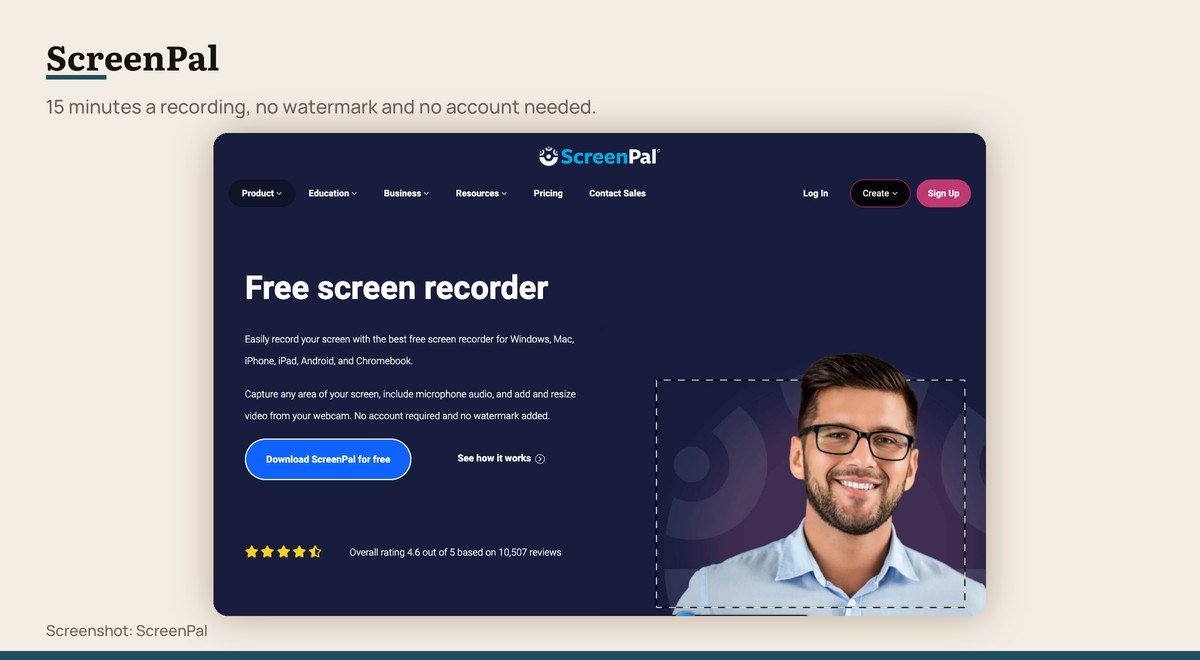
Platforms: Windows, macOS, iOS, iPadOS, Android, Chrome OS · Version: Current release · Updated: Rolling release · Free limit: 15 minutes per recording · System audio: Paid tiers only
ScreenPal’s free tier states its terms plainly on the page: record the screen with microphone and webcam, with no account required and no watermark added. Fifteen minutes is the cap on a single recording.
The limitation that catches people is audio. Capturing what the computer is playing, as opposed to what the microphone hears, is reserved for the paid tiers, so a recording of a video call or a video will come back with your voice and nothing else.
10. Loom: Sending a recording to somebody immediately
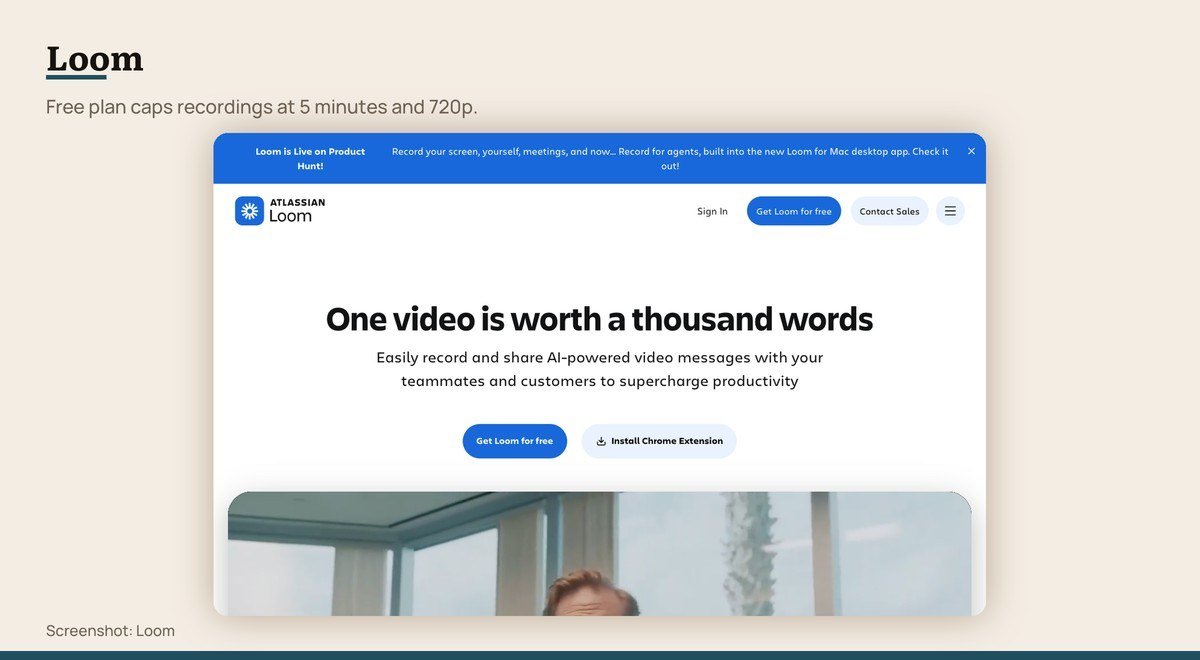
Platforms: Browser, Windows, macOS, iOS, Android · Version: Current release · Updated: Rolling release · Free limit: 25 videos, 5 minutes each, 720p · System audio: Yes
Loom’s value is the link. Stop recording and a shareable URL is already on the clipboard, with viewer analytics and comments attached, which is why it spread through workplaces rather than through enthusiasts.
The free Starter plan is tightly drawn: up to 25 videos per person, a five minute limit on each recording and video quality up to 720p, for up to 50 members. Business is listed at $18 per user a month. Five minutes is the number that decides whether Loom suits you.
The System Audio Problem
Recording a microphone is easy and every tool here does it. Recording the audio the computer itself is producing is a privileged operation, and support for it is uneven.
- Free and supported: OBS Studio, the Xbox Game Bar, FlashBack Express, Clipchamp, Loom.
- Paid tiers only: ScreenPal captures screen and microphone free, but not the computer’s own output.
- System dependent: Screenity captures it where the operating system allows it, and on macOS the built-in toolbar gained it in macOS 27.
Test it with a thirty second recording before anything important. The failure mode is a silent video with your narration over it, discovered on playback when the session is already over.
For a single step in a process, a still image often explains more than footage does, and taking a screenshot on Windows needs no recorder at all.
The Three Tests Each Recorder Had to Pass
A current build. A free tier that produces a finished file rather than a preview with payment at the export step. And a limit the vendor publishes, since an unstated cap is worse than a small one.
Captura failed the first test, with a last stable release from November 2018 and a repository describing the project as no longer actively maintained.
Output quality was not compared, because these tools pass the encode to the same libraries. At the same bitrate a capture from ShareX and one from OBS are indistinguishable.
Choosing Between Them
Start built in. The macOS toolbar and the Game Bar handle a large share of recordings with no install, no cap and no account, and most people reaching for a download never tried them.
Install OBS Studio when a recording needs more than one source, separate audio tracks or a camera overlay, and accept that the first session is configuration rather than recording.
Pick Loom when the recording exists to be sent, and watch the five minute ceiling. Pick FlashBack Express on Windows for long sessions, or ScreenPal when you want something immediate with nothing to sign up for.
Whatever records it, something has to trim it afterwards. A free video editor handles that, unless you chose Clipchamp, which puts the recorder and the timeline in one window.
Frequently Asked Questions
What is the best free screen recorder with no watermark?
None of the ten adds one. OBS Studio, ShareX, Screenity and both built-in tools are free with no tier above them, and ScreenPal, FlashBack Express and Clipchamp all state on their own pages that they add no watermark.
How long can I record for free?
Indefinitely with OBS Studio, ShareX, Screenity, FlashBack Express and the built-in tools. The hosted services cap it: ScreenPal at 15 minutes per recording and Loom at five minutes, with 25 videos per person.
Why is there no sound in my screen recording?
Almost always because the tool captured the microphone rather than the system audio. ScreenPal’s free tier does not include system audio at all, and on macOS the built-in recorder gained it only in macOS 27.
Can I record my iPhone screen on a Mac?
Yes, with QuickTime Player. Connect the device, choose New Movie Recording and select the iPhone as the camera source. Nothing else on this list does it without installing something on the phone.





