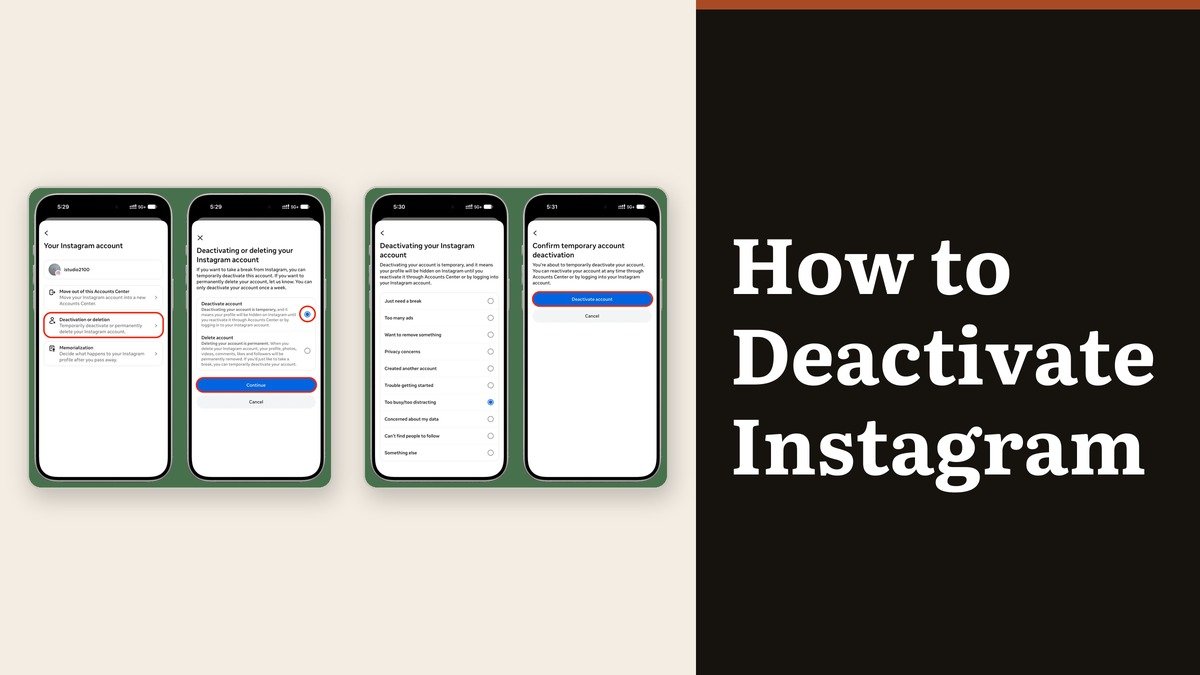
Knowing how to deactivate Instagram is useful precisely because it is reversible. Nothing is destroyed. Your photos, comments and likes are hidden from everyone until you log back in, your username stays reserved, and your follower list is waiting where you left it. It is the social-media equivalent of closing the curtains rather than moving house.
The awkward part is where the option lives. It is not in the Instagram settings list at all, but inside Accounts Center, and on the final screen it sits directly beside permanent deletion. Reading that screen carefully is the whole job.
Where Instagram hides the deactivation setting
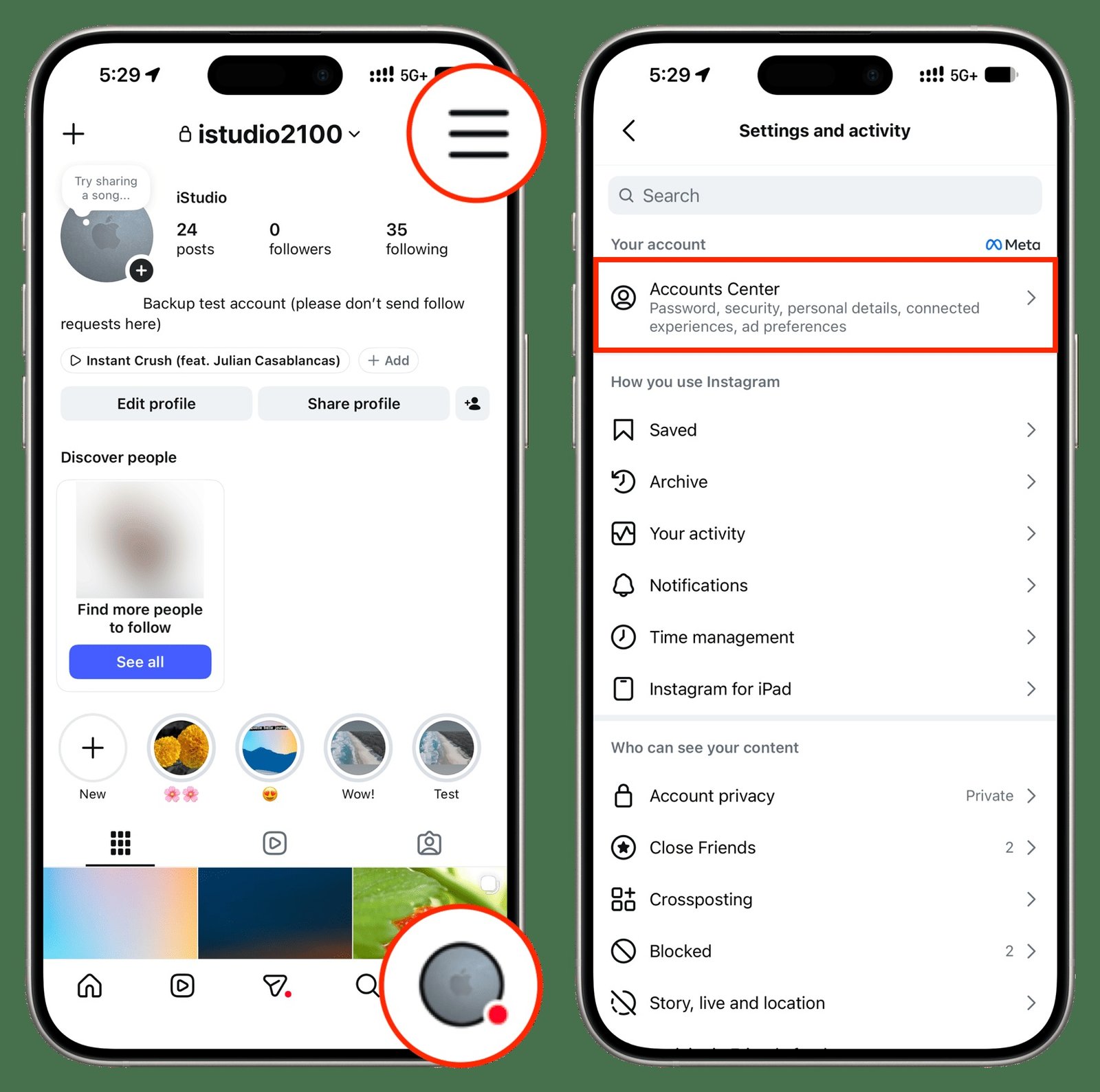
Open your own profile, tap the menu in the top right, and look for Accounts Center near the top of the panel. Instagram is currently moving people across to a newer Meta Account layout, so the row may be labelled either way and the menu underneath has two shapes. Scroll to the bottom of Accounts Center to tell them apart: it either says Manage accounts or it says Accounts.
The route is the same on a phone, a phone browser and a desktop. Only the first tap differs, because on a computer you start from More in the bottom left rather than from your profile.
How to deactivate Instagram step by step
- Open your profile and tap the menu in the top right.
- Tap Accounts Center.
- Tap Personal details, then Account ownership and control. On the other menu shape, tap Profiles and personal details, then Manage next to the account.
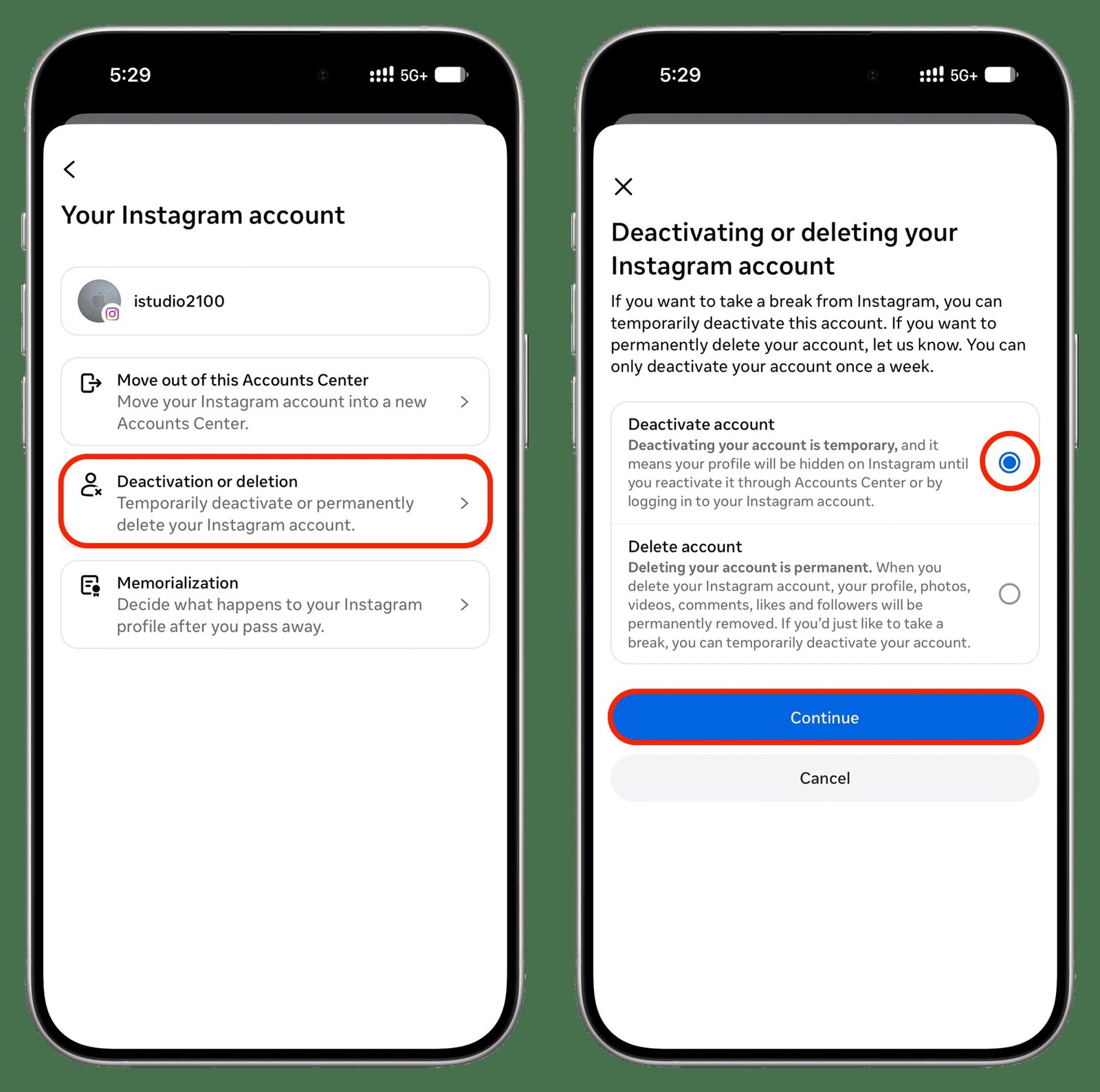
- Tap Deactivation or deletion.
- Choose the account you want to hide.
- Select Deactivate account, not Delete account, then tap Continue.
- Pick a reason from the list, then confirm and re-enter your password.
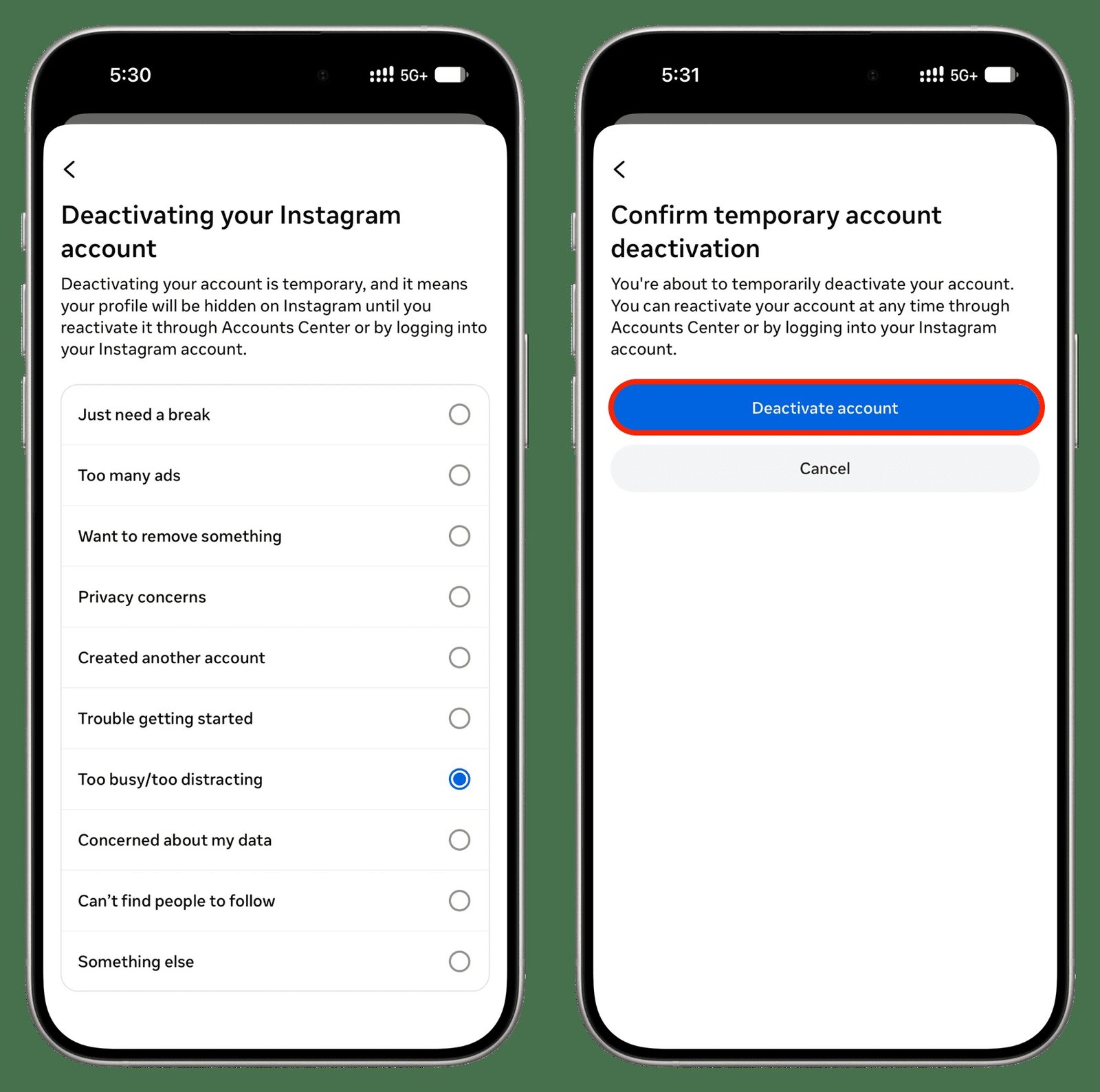
The reason list is not optional and it does not change anything about the outcome, so pick whichever is closest and move on. The password prompt at the end is a security check, which means an account you cannot log in to cannot be deactivated. If you are locked out, recovering the password comes first.
You can only do this once a week
This is the limit that catches people out, and Instagram states it flatly: a profile can only be deactivated once a week. Deactivate on a Monday, change your mind on Tuesday and log in, and you cannot hide the account again until the following Monday.
It matters because logging in is what reactivates the account. There is no separate reactivate button and no confirmation step. Open the app, sign in, and everything is public again. So if you have deactivated to take a break, signing in just to check something spends the week’s allowance.
What disappears and what stays put
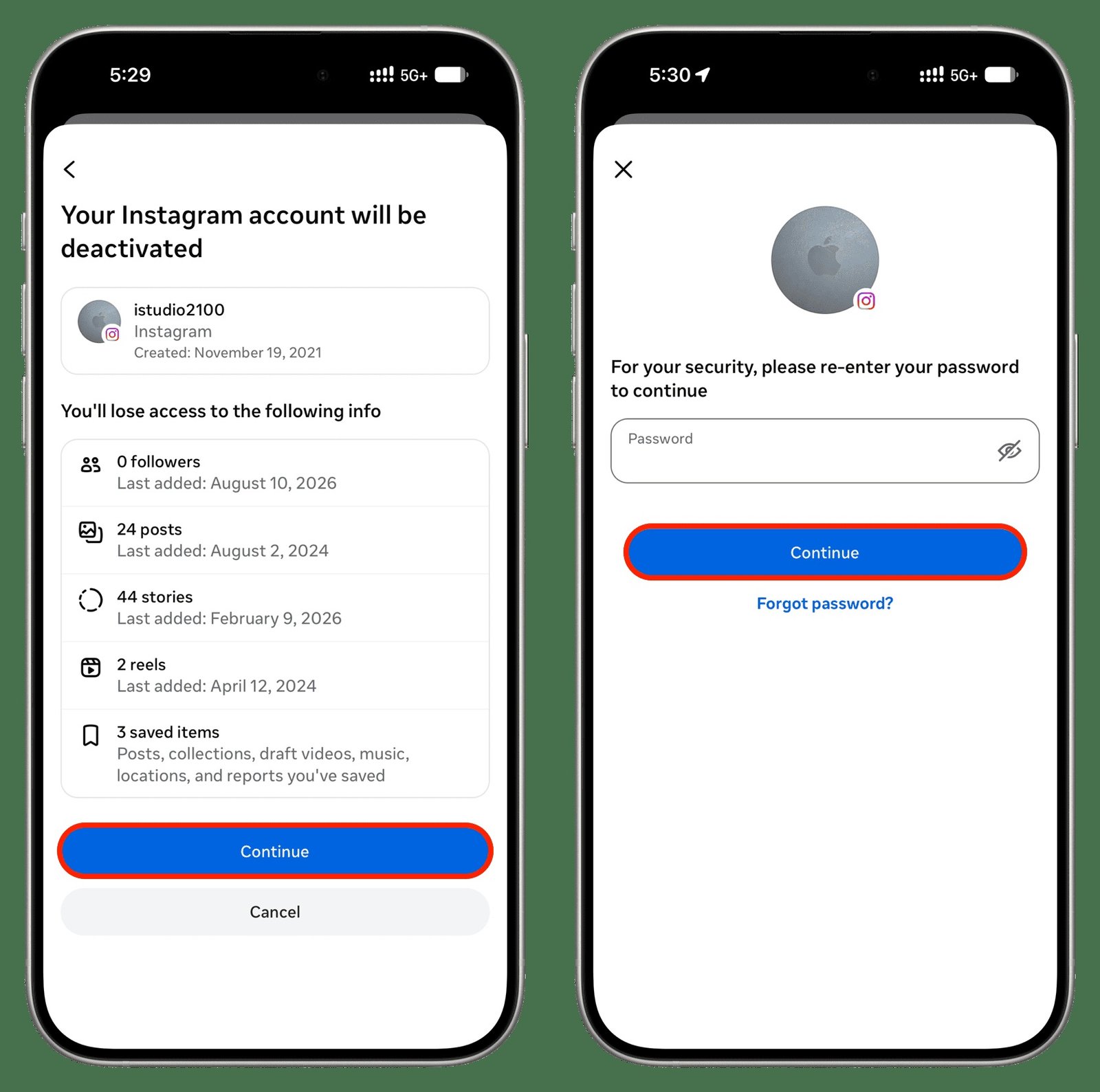
Instagram shows a summary before it commits, listing how many posts, stories, reels and saved items are about to be hidden. The one thing the summary does not spell out is what survives outside your profile.
| What it is | What happens while you are deactivated |
|---|---|
| Your profile, photos and reels | Hidden from everyone, including people who follow you |
| Your comments and likes | Hidden wherever you left them |
| Your username | Held for you and not released to anyone else |
| Your followers and following lists | Kept intact and restored on return |
| Direct messages you sent | Stay visible in the other person’s inbox |
| A linked Threads profile | Separate, and not deactivated with Instagram |
Messages you have already sent are the exception worth planning around. They sit in the other person’s inbox and do not vanish, although your name and photo appear differently while the account is hidden. If the point of deactivating is that someone specific stops seeing you, deactivation is the wrong tool and blocking works more like what you want, on any platform that offers it.
Deactivation against deletion
The two options share a screen, which is the reason to be careful with the radio button. Deactivation is temporary, reversible by logging in, and keeps everything. Deletion is permanent, removes the profile, photos, videos, comments, likes and followers, and after the cancellation window nothing can be retrieved.
If you are leaning towards deletion, export your data first, because the export tool is gone once the account is. The pattern is the same elsewhere: our walkthrough of deleting a WhatsApp account covers an account closure with no reversible middle option at all, which is a useful contrast with what Instagram offers here.
Frequently Asked Questions
Will people know I deactivated my Instagram?
Nobody is notified. Your profile simply stops loading and your comments disappear from other people’s posts, so anyone who looks will notice the absence. From the outside it is indistinguishable from an account that has been deleted or that has blocked them.
How long can an Instagram account stay deactivated?
There is no time limit and no automatic deletion at the end of it. The account stays hidden until you log in again, whether that is next week or next year.
Can I deactivate from the Instagram app?
Yes. Deactivation works from the app, a mobile browser and a computer. This was not always true, which is why older guides insist you need a browser, but the option is in the app now.
Does deactivating Instagram also deactivate Threads?
No. A Threads profile is handled separately, with its own deactivation and deletion controls, even though it was created from your Instagram account.