Learning how to enable 2fa fortnite players actually need takes about two minutes, and it is the only account setting in the game that pays you for switching it on. Epic hands over an emote, and on Save the World accounts a good deal more than.
It is also a hard requirement for things people assume are standard. You cannot send a gift without it, you cannot enter competitive events, and some free Epic Games Store titles will not claim.
What 2FA Actually Unlocks
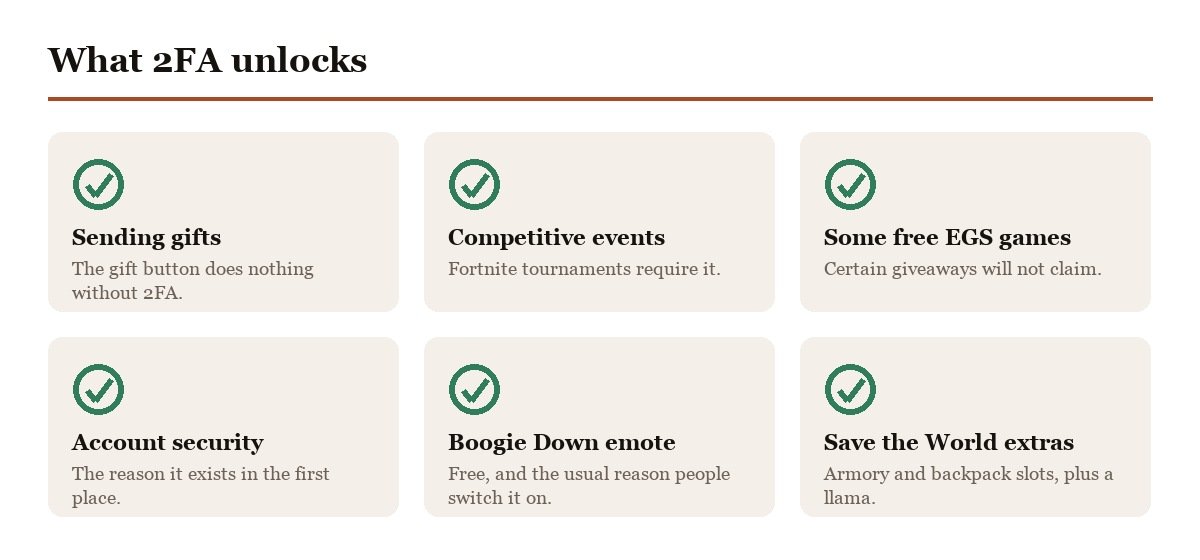
Epic lists four reasons to turn it on, and only one of them is about security in the abstract. The rest are features that simply stop working without it.
- Sending gifts in Fortnite. The gifting button does nothing without it.
- Claiming some free games on the Epic Games Store.
- Entering Fortnite competitive events, which will not accept an unprotected account.
- Keeping the account itself, which is the reason that matters most.
The gifting requirement surprises people most, usually at the worst moment. A player buys a skin for a friend’s birthday, reaches the send screen and finds the option greyed out. There is no way around it and no waiting period once 2FA is active, so the fix takes minutes rather than days.
The Rewards for Turning It On
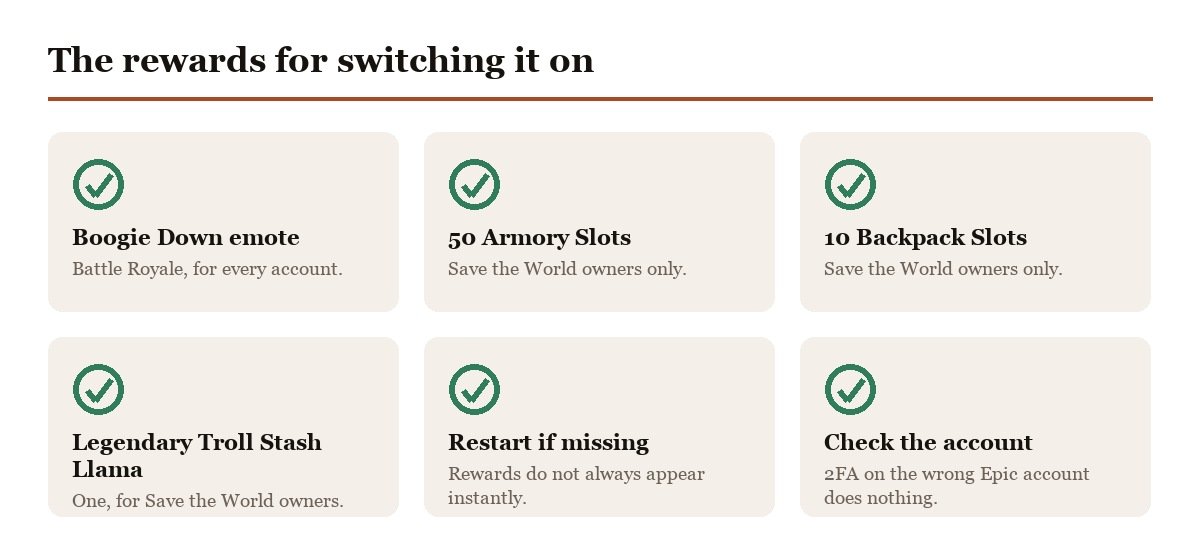
Epic publishes the reward list separately, and it is more generous than the single emote most players know about.
- The Boogie Down emote in Fortnite Battle Royale.
- 50 Armory Slots if you own Save the World.
- 10 Backpack Slots in Save the World.
- 1 Legendary Troll Stash Llama in Save the World.
The Boogie Down emote has been the headline reward for years and is the reason most accounts have 2FA at all. The Save the World items are the part that goes unnoticed, because they only land on accounts that own the co-op mode, and 50 Armory Slots is a meaningful amount of storage for anyone who plays it seriously.
How to Enable 2FA on a Fortnite Account
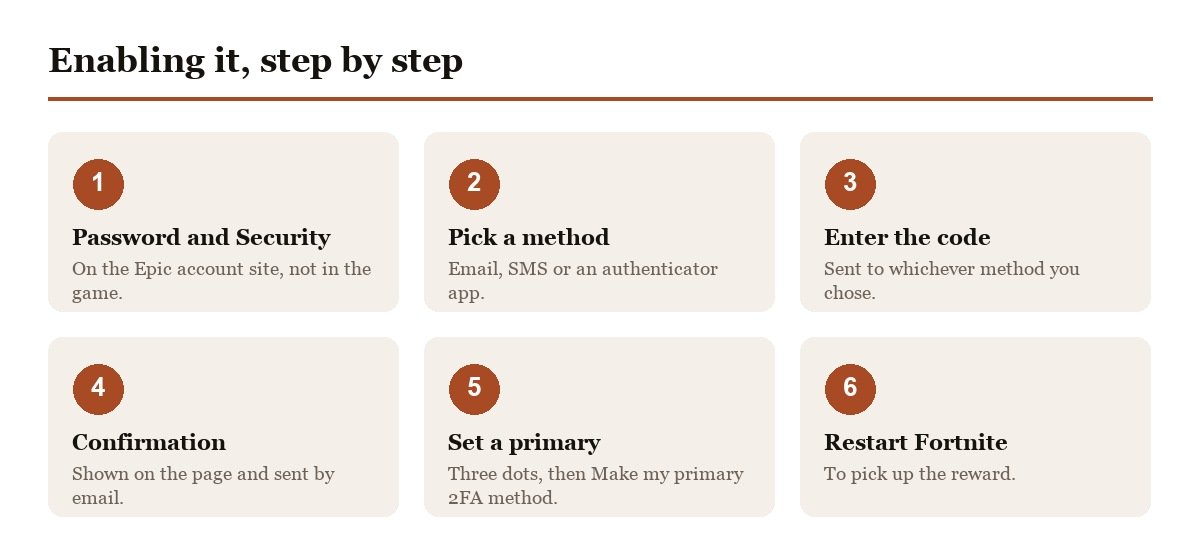
The setting lives on the Epic Games account site rather than inside Fortnite, which is why players hunting through the in-game menus never find it.
- Open the Password and Security section of your Epic Games account.
- Find Two-Factor Authentication and click Set up next to your preferred method.
- Enter the code sent by email, SMS or your authenticator app.
- Wait for the confirmation, which appears on the account page and in an email.
- Set a primary method if you enabled more than one, using the three dots menu and Make my primary 2FA method.
Epic sends a confirmation email whenever a method goes live, which is worth keeping. If one ever arrives that you did not trigger, someone else has your password and is part way into the account, and that email is the earliest warning you will get.
You can hold more than one method at once, and there is a good reason to. An authenticator app is the strongest option but useless if you lose the phone, so pairing it with email gives you a way back in. The primary method is the one Epic prompts for first, and you can switch it at any time.
Choosing a Method
- Authenticator app: the most secure, and it works with no signal at all.
- Email: the easiest to recover, and the most common fallback.
- SMS: convenient, but unavailable in some countries and dependent on network coverage.
- More than one: the sensible answer, with a primary set for convenience.
SMS is the method worth being careful with. Epic publishes separate guidance on countries where SMS 2FA is not available, and coverage problems mean a code that never arrives at the moment you need to log in. An authenticator app generates codes on the device itself and does not care about signal, which makes it the better primary for anyone who travels.
If the Rewards Do Not Appear
This is the most common complaint after setup, and it is almost never a fault.
- Restart Fortnite. Epic says rewards may not appear immediately.
- Check which account you secured, because 2FA on a second Epic account does nothing for the one you play on.
- On console, confirm the link, since the console account has to be connected to the Epic account for rewards to arrive.
- Check for a Cabined Account, which is a child account with a different feature set.
Give it a few minutes before assuming something has failed. Entitlements propagate through Epic’s systems rather than appearing the instant you press confirm, and a restart is usually all that stands between the confirmation email and the emote showing up in your locker.
The multiple-account problem is the usual culprit. Players who signed in with a console login years ago often have an Epic account they have never visited, and securing the wrong one produces exactly this symptom. The display name on the account page should match the one you see in the lobby.
Cabined Accounts Work Differently
If the player is a child and a parent has not helped set up the account, Epic may have created a Cabined Account instead of a standard one. These have a reduced feature set until a parent verifies them, which changes what 2FA does and does not unlock.
It is worth checking before troubleshooting anything else, because a missing reward on a Cabined Account is expected behaviour rather than a bug. The same applies to gifting and competitive play: the restriction is the account type, not the security setting.
Households with younger players usually want the parental side configured as well as the security side. Our guide to Fortnite parental controls covers the PIN, the spending limits and the playtime windows, which are separate settings from 2FA and sit in a different menu.
What 2FA Does Not Protect
Two-factor authentication stops someone signing in with a stolen password. It does not undo anything done from your own device, and that boundary matters.
- Purchases you made yourself are still governed by the normal refund rules.
- Items given away by gifting cannot be recovered, and gifts are non-refundable.
- A shared password defeats the point entirely if the second factor is shared too.
- Phishing sites can ask for the code as well as the password, so treat unexpected prompts as suspicious.
If a purchase has already gone wrong, 2FA is not the tool for it. Our explanation of the Fortnite refund system covers the 24 hour cancellation window and the three Return Tickets, which is the mechanism that actually applies there.
Doing It on Console
Console players hit one extra hurdle, and it is the reason most of the missing-reward complaints come from PlayStation, Xbox and Switch rather than PC.
- Find out which Epic account you actually own. Signing in through a console creates one automatically, often with an address you have forgotten.
- Add or confirm an email address on that account so codes have somewhere to go.
- Enable 2FA in a browser, on a phone or a PC, since the setting is not in the console interface.
- Check the console account is linked to the Epic account before expecting rewards.
- Restart Fortnite and the emote should be in your locker.
The link between a console profile and an Epic account is what carries progress and entitlements across devices, and it is the same connection the reward system checks. An unlinked console account can play perfectly well for years without anyone noticing the gap, right up to the point where a reward fails to arrive or a purchase appears on the wrong profile.
Frequently Asked Questions
Can you turn 2FA off again?
You can, but the features that depend on it stop working immediately: gifting, competitive events and some free Epic Games Store claims all go with it. The Boogie Down emote you have already claimed stays in the locker, so there is nothing to gain from switching it off.
What do you get for enabling 2FA in Fortnite?
The Boogie Down emote in Battle Royale. If you own Save the World you also receive 50 Armory Slots, 10 Backpack Slots and one Legendary Troll Stash Llama.
Where is the 2FA setting in Fortnite?
It is not in the game. Two-factor authentication is enabled in the Password and Security section of your Epic Games account on the web, and the change applies to Fortnite automatically.
Do you need 2FA to gift skins in Fortnite?
Yes. Epic lists sending gifts in Fortnite as one of the features that requires two-factor authentication, alongside competitive events and claiming certain free Epic Games Store titles.
Why did my Boogie Down emote not arrive?
Restart Fortnite first, since Epic says rewards may not appear immediately. If it still has not arrived, confirm you enabled 2FA on the same Epic account you play on, and on console make sure that account is linked to your console profile.





