
A Windows Update troubleshooter run is the right first move on Windows 11 and Windows 10, but it is the first of several repairs: it does not free disk space, replace a bad driver or pull a PC out of a restart loop. Start it from the path for your version, then match what you see, a code, a frozen percentage or a loop, to the repair that fits.
Steps marked administrator need an elevated Command Prompt or Terminal. The troubleshooter takes a few minutes, and DISM takes longer. Back up personal files first, as Microsoft advises.
Which Windows Do You Have? Check Before You Fix
Open Start > Settings > System > About and read Windows specifications for the edition and version. Microsoft’s lifecycle table and support notices put each one in a different position today.
| Your version | Where Microsoft stands | What it means here |
|---|---|---|
| Windows 10 | Free updates, support and security fixes ended October 14, 2025 | The troubleshooter still runs; it cannot restore free updates |
| Windows 11 24H2 (Home, Pro) | Lifecycle table lists an end date of October 14, 2026 | Plan to move to a newer version |
| Windows 11 25H2 (Home, Pro) | Lifecycle table lists an end date of October 13, 2027 | In support until the listed date |
| Windows 11 26H2 (Home, Pro) | Lifecycle table lists a start of September 29, 2026 | Newest listed |
Windows 11 24H2 on Home or Pro has passed its listed end date, so install a newer version when Windows Update offers it, and use the repairs below if it will not install.
Windows Update Troubleshooter on Windows 11: Where It Is Now
On Windows 11, open Start > Settings > System > Troubleshoot > Other troubleshooters and select Run beside Windows Update; the tool then opens in the Get Help app. You can also open Get Help and search windows update troubleshooter. Restart afterward and select Check for updates to see whether the repair worked.
Microsoft lists Windows Update among the troubleshooters that Settings redirects to the Get Help platform, because the MSDT engine behind the legacy tools is being retired. So Run in Settings and a search in Get Help end in the same place.
- Select Start > Settings > System > Troubleshoot > Other troubleshooters.
- Under Most frequent, select Run beside Windows Update.
- In Get Help, pick the question that matches your case.
- Follow the prompts, then restart.
- Select Start > Settings > Windows Update > Check for updates.

You pick between I can’t download, install, or uninstall an update and I installed an update, but that update has caused a problem. The second answer belongs with the rollback section further down. You can also open Get Help and type windows update troubleshooter in the Search bar. You will know it worked when Check for updates finishes with no error.
Windows Update Troubleshooter on Windows 10: Additional Troubleshooters
- Select Start > Settings > Update & Security.
- Select Troubleshoot in the left menu.
- Select Additional troubleshooters.
- Under Get up and running, select Windows Update > Run the troubleshooter.
- Restart, then select Start > Settings > Update & Security > Windows Update > Check for updates.
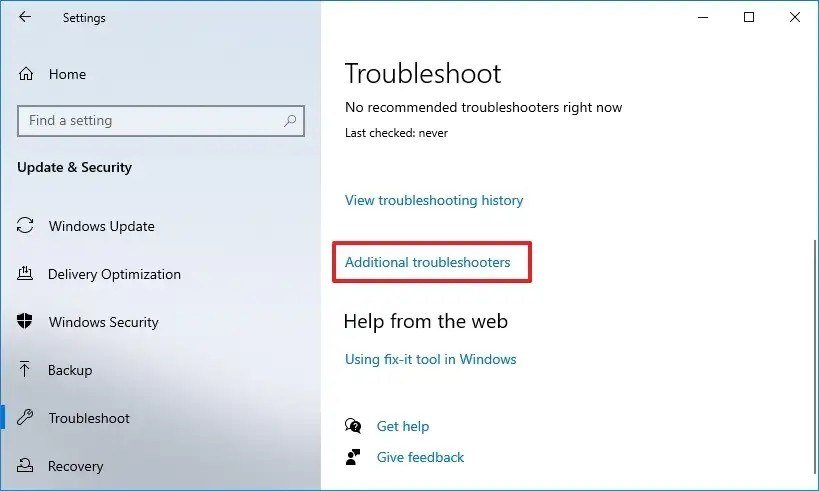
Microsoft also points Windows 10 users to Get Help first, so the same search works there. If the issue continues, Microsoft says to run the troubleshooter again to catch additional errors.
What the Troubleshooter Will Not Do
- Free space. Microsoft needs 16 GB free for a 32-bit OS and 20 GB for a 64-bit OS.
- Swap a driver. Error 0xC1900101 means an incompatible driver, which you update or remove in Device Manager.
- Grant rights. Some updates need administrator access, and Microsoft suggests asking an administrator.
- Rebuild the component store. Microsoft assigns that to DISM, covered below.
Two Quick Checks Before Any Command: Clock and Plugged-In Hardware
Microsoft lists a wrong clock and extra hardware among the general causes, and both take a minute to rule out.
- Windows 11 clock: Start > Settings > Time & language > Date & time, turn on Set time automatically and Set time zone automatically, then select Sync now under Additional settings.
- Windows 10 clock: Start > Settings > Time & language > Date & time, turn on Set time automatically, then select Sync now under Synchronize your clock.
- Hardware: unplug external drives, docks and anything not needed for basic use, then run the check again.
You will know it worked when the clock matches your time zone and Check for updates runs with the extras unplugged.
Decode the Windows Update Error Code Before You Change Anything
An error that starts 0x8007 is a Win32 code inside an HRESULT, and the last four digits are the Win32 value. The Win32 system error code list gives each meaning, such as 2 for file not found. Capture the code with the shortcuts in our Windows screenshot guide.
| Code | Win32 meaning on Microsoft Learn | Microsoft’s cause and fix |
|---|---|---|
| 0x80070003 | The system cannot find the path specified | Update failed to install: restart, run the troubleshooter, free disk space |
| 0x80070020 | The file is in use by another process | Another program is blocking the update: restart, pause antivirus |
| 0x80070422 | The service is disabled | Windows Update service stopped: set it to Automatic and Start it |
| 0x800705b4 | The timeout period expired | Update took too long: check the connection, pause antivirus, restart |
| 0x8007000E | Not enough storage is available | Disk space: free 16 GB or 20 GB |
| 0x80240034 | Not a 0x8007 code | Stuck update or connection issue: confirm the update services run |
| 0x80248014 | Not a 0x8007 code | Update database or service not running: Start the service |
| 0x800F081F | Not a 0x8007 code | Corrupted or missing files: sfc /scannow |
Two codes that appear often: 0x80070002 reads as file not found, and 0x800f0922 is named CBS_E_INSTALLERS_FAILED on Microsoft Learn. Microsoft’s fixes for both include freeing disk space, and for 0x800f0922 also turning off a VPN.
Windows Update Not Working? Clear Space on the Drive First
Open File Explorer > This PC and read the free space under the drive. Windows 10 and 11 differ here:
- Windows 11: Start > Settings > System > Storage > Cleanup recommendations, then Clean up beside each category you check.
- Windows 10: Start > Settings > System > Storage, then Temporary files, or search disk cleanup and choose Clean up system files.

If the drive is small, Microsoft suggests an external drive to complete a feature update, so a spare USB drive can supply the room a feature update asks for. You will know it worked when the free space passes 20 GB on a 64-bit PC.
Fix Windows Update by Resetting Its Services and Folders
This is Microsoft’s advanced procedure, and it needs administrator rights. On Windows 11 press the Windows key + X and choose Windows Terminal (Admin). On Windows 10 search command prompt and choose Run as administrator. Type each line and wait for it to finish:
net stop bitsnet stop wuauservren %systemroot%\softwaredistribution softwaredistribution.bakren %systemroot%\system32\catroot2 catroot2.baknet start bitsnet start wuauserv
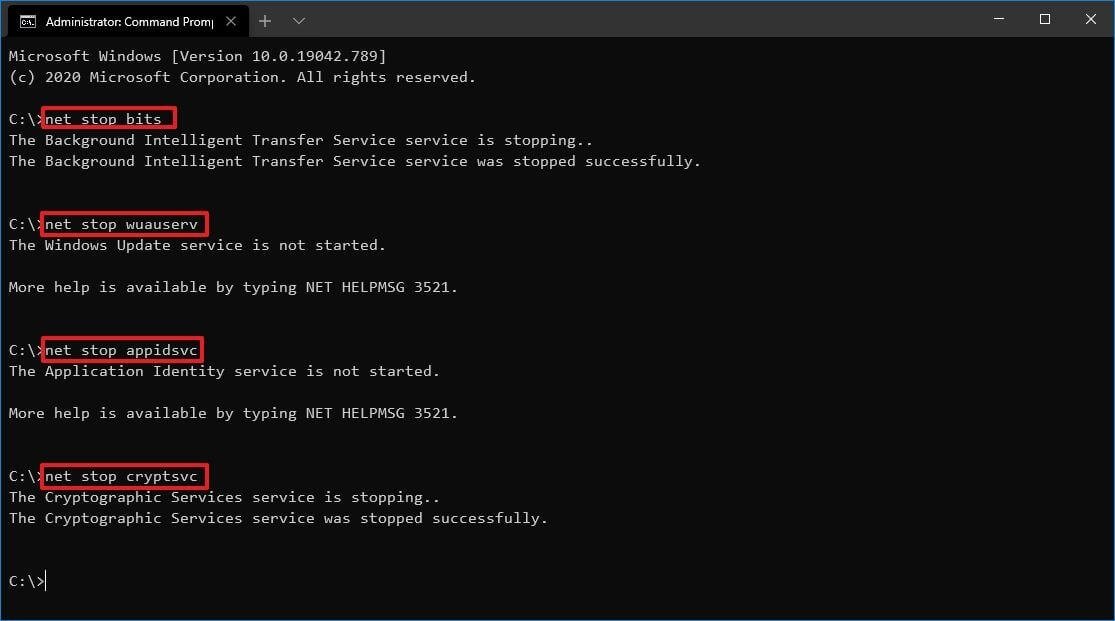
Close the window and restart. The screenshot shows Windows 10 reporting The Windows Update service is not started, which only means that service was already stopped. If you prefer a window, Microsoft’s other route is Win + R, services.msc, then Stop on Windows Update before clearing C:\Windows\SoftwareDistribution. Windows Update is the Microsoft service that automates downloading and installing updates, which is why Microsoft stops it before touching its folders.
DISM First, sfc Second: Repair the Files Windows Update Draws From
In an administrator prompt run DISM.exe /Online /Cleanup-image /Restorehealth, which Microsoft says to run before the System File Checker, then sfc /scannow. You will know DISM worked when it prints that the restore operation completed successfully.

The System File Checker replaces corrupted protected files from a cached copy, and the window must stay open until verification hits 100 percent. Microsoft lists four results: no violations, could not perform the operation, repaired, or repaired some but not all.

- DISM pulls from Windows Update unless you point it elsewhere with /Source and /LimitAccess.
- If sfc cannot run, boot into safe mode and retry.
- Details live in %windir%\Logs\CBS\CBS.log.
Windows Update Stuck at a Percentage or on Downloading
- 0% or 100%: restart, check Start > Settings > Network & Internet > Wi-Fi, then free space. If the page will not load, start with our no internet connection guide.
- 51% to 99%: Microsoft says time depends on speed, network settings and update size, so check for updates again or rerun the troubleshooter.
- Downloading: pause, then resume, to restart the download.
On Windows 11, select Start > Settings > Windows Update, then Pick a date on Pause updates. Microsoft says pausing cancels updates in progress and allows up to 35 days. Select Resume updates and the PC checks again. Windows 10 only documents Pause updates for 7 days, which resumes on its own.
Windows Update Restart Loop or Failed Install: Roll the Update Back
Windows starts its Recovery Environment by itself after two consecutive failed starts. You can force it with Shift + Restart on the sign-in screen, then choose Troubleshoot > Advanced options > Uninstall updates. Microsoft says your files and apps are not affected.
- A BitLocker recovery key may be required for most options.
- In a widespread outage, Windows 11 24H2 or later with quick machine recovery on tries to apply a fix from Windows Update by itself.
- If Windows starts, use Settings > Windows Update > Update history > Uninstall updates.
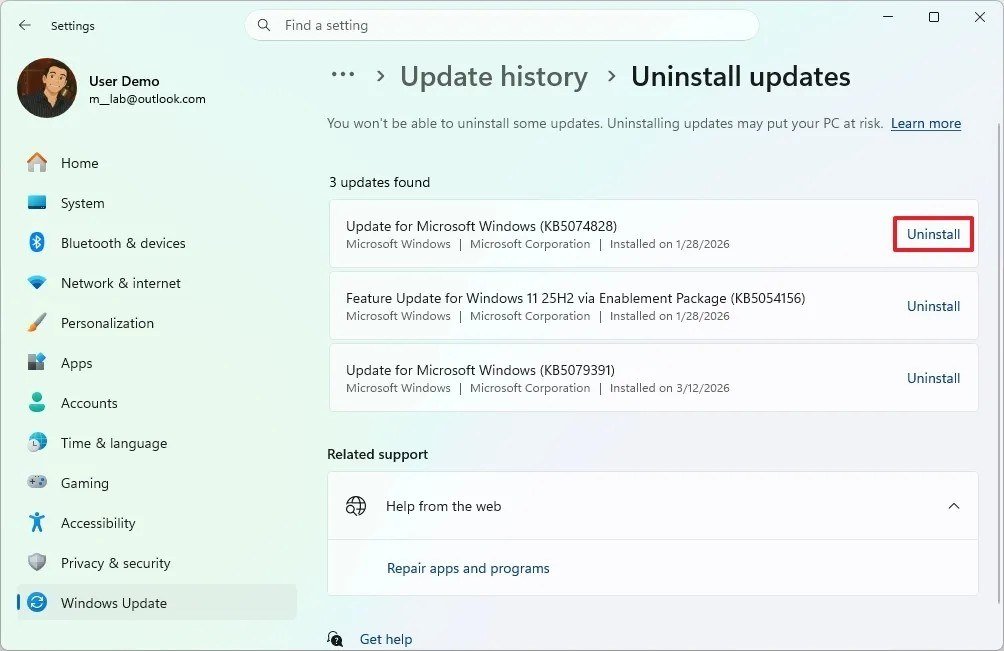
Microsoft warns that some updates cannot be uninstalled. You will know it worked when the PC reaches the sign-in screen.
When Windows Update Still Fails: The Last Repairs
- Run
chkdsk /f C:in an administrator prompt and accept the restart. - Remove third-party security software temporarily, as Microsoft suggests.
- Use Reset this PC last, since Microsoft ranks it the most disruptive option.
Three Slips That Undo a Repair
- Pasting the rename lines into a window that is not elevated.
- Stopping sfc before 100 percent.
- Skipping the restart after the six-line reset.
Frequently Asked Questions
Where is the Windows Update troubleshooter in Windows 11?
Start > Settings > System > Troubleshoot > Other troubleshooters, then Run beside Windows Update under Most frequent. It opens in Get Help.
Why has Windows Update failed again after the troubleshooter?
The troubleshooter reports findings and remedies, but a full drive, a bad driver or damaged files need the manual steps above. Read the code in the table to pick the right one.
How long should I wait on a stuck update?
Microsoft gives no limit, only that time depends on connection speed, network settings and update size. A percentage that holds after a restart and a connection check is stuck.
Do I need an administrator account to fix Windows Update?
For the service reset, DISM and sfc, yes. Microsoft says those procedures need administrator permissions.





