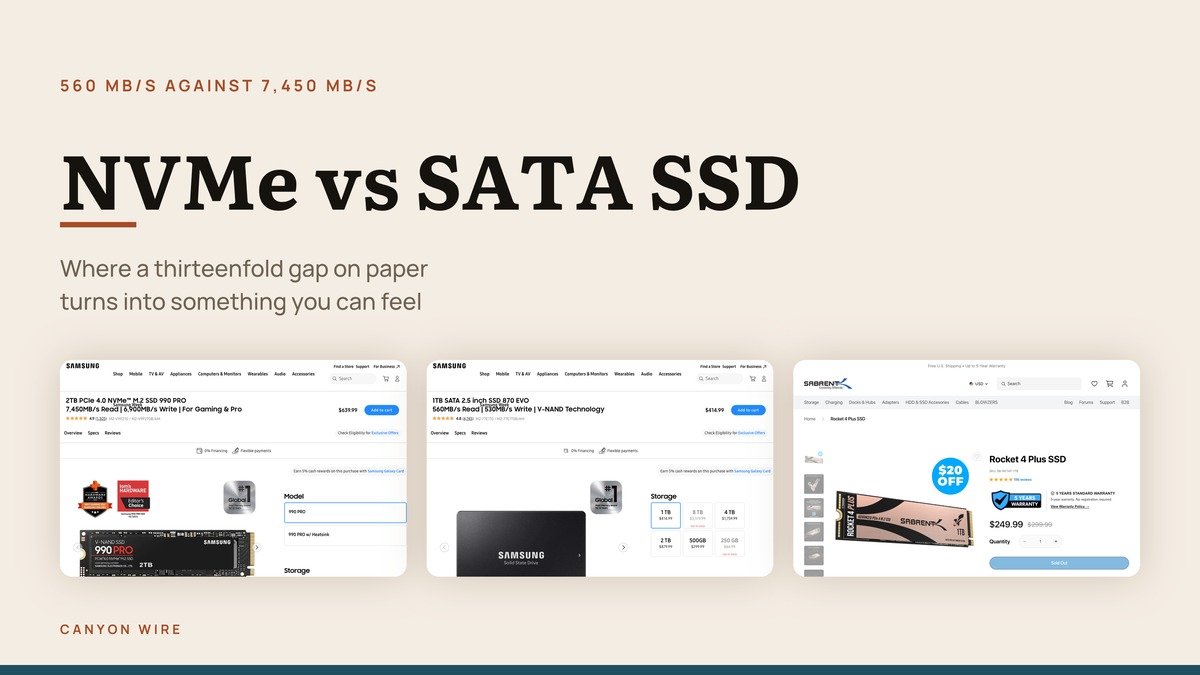
On paper the NVMe vs SATA SSD speed gap is enormous: 7,450 MB/s against 560 MB/s, a factor of thirteen between two drives from the same manufacturer. In daily use the difference is far smaller than that, and knowing why is what stops you overpaying.
The interface, the shape and the protocol are three separate things that get muddled together in product listings. Below is what each one actually means, what the published numbers are, and the two situations where the faster drive genuinely earns its price.
Three Things That Get Confused: Protocol, Shape and Lane
Most of the confusion in this comparison comes from treating one decision as three, or three as one. They are separate and they combine freely.
- The protocol is NVMe or AHCI. AHCI was written for mechanical disks that had to move a head to reach data. NVMe assumes flash, allows deep parallel queues, and is the reason the ceiling moved at all.
- The shape is M.2 or 2.5 inch. M.2 is the bare stick that screws to the board. It is a form factor only, and an M.2 drive can be either kind underneath.
- The lanes are PCIe or SATA. This is the actual road the data travels, and it is where the hard ceiling lives.
The trap is M.2 SATA. A drive can be the small stick shape, screw into the same slot, and still be a SATA drive running at 560 MB/s. It looks identical to an NVMe drive in a photograph. Read the interface line in the specification, never the shape.
NVMe vs SATA SSD Speed and Interface Compared
The published figures for one drive of each kind, taken from the maker own product pages.
| # | Drive | Type | Interface | Rated speed |
|---|---|---|---|---|
| 1 | Samsung 990 PRO | NVMe | PCIe 4.0 x4, M.2 2280 | 7,450 MB/s read, 6,900 MB/s write |
| 2 | Samsung 870 EVO | SATA | SATA, 2.5 inch | 560 MB/s read, 530 MB/s write |
| 3 | Sabrent Rocket 4 Plus | NVMe | PCIe 4.0 x4, NVMe 1.3 | Backward compatible with PCIe 3.0 and 2.0 sockets |
What Each Drive Type Looks Like in Practice
Three real products, with the figures their makers publish rather than rounded estimates.
1. The NVMe Drive: Any desktop or laptop with a spare M.2 slot
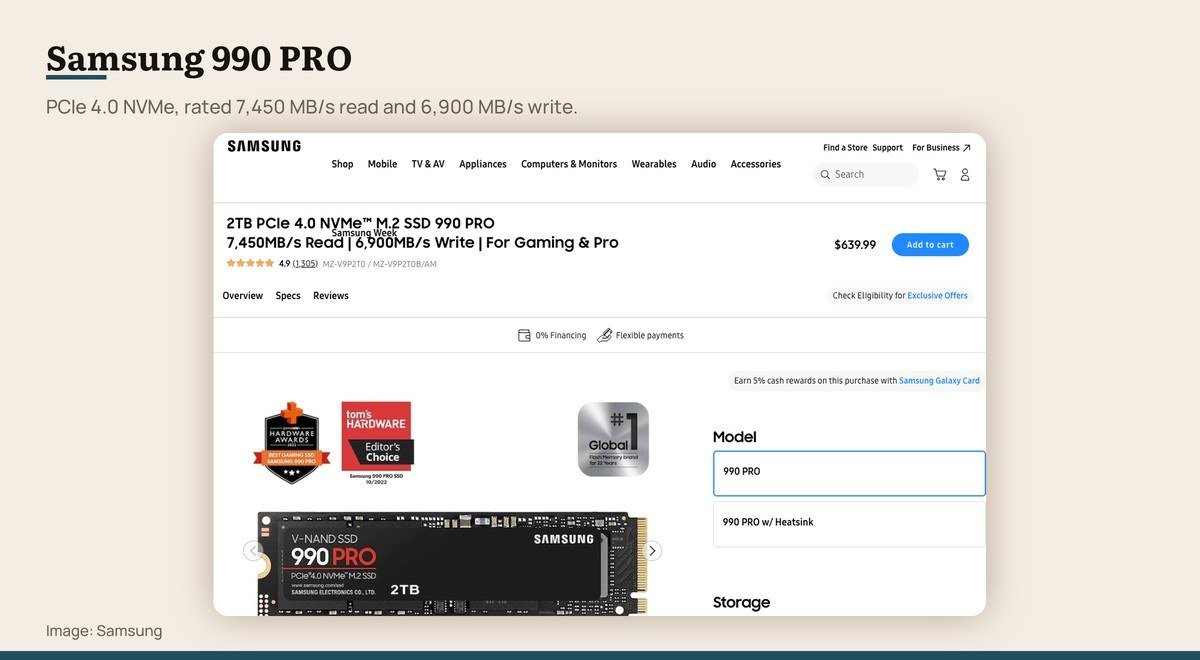
Interface: PCIe 4.0 x4, M.2 2280 · Rated speed: 7,450 MB/s read, 6,900 MB/s write · Capacities: 1 TB to 4 TB, with or without heatsink
An NVMe drive is a stick of flash that slots directly into the motherboard with no cable, talking to the processor over PCIe lanes. The 990 PRO is rated at 7,450 MB/s read and 6,900 MB/s write on a PCIe 4.0 x4 connection.
The heatsink version exists for a reason. Fast drives throttle when they get hot during sustained writes, and many motherboards now ship with their own M.2 heatsinks, in which case buying the bare drive is the right choice.
2. The SATA Drive: Older machines, and bulk storage beside a fast drive
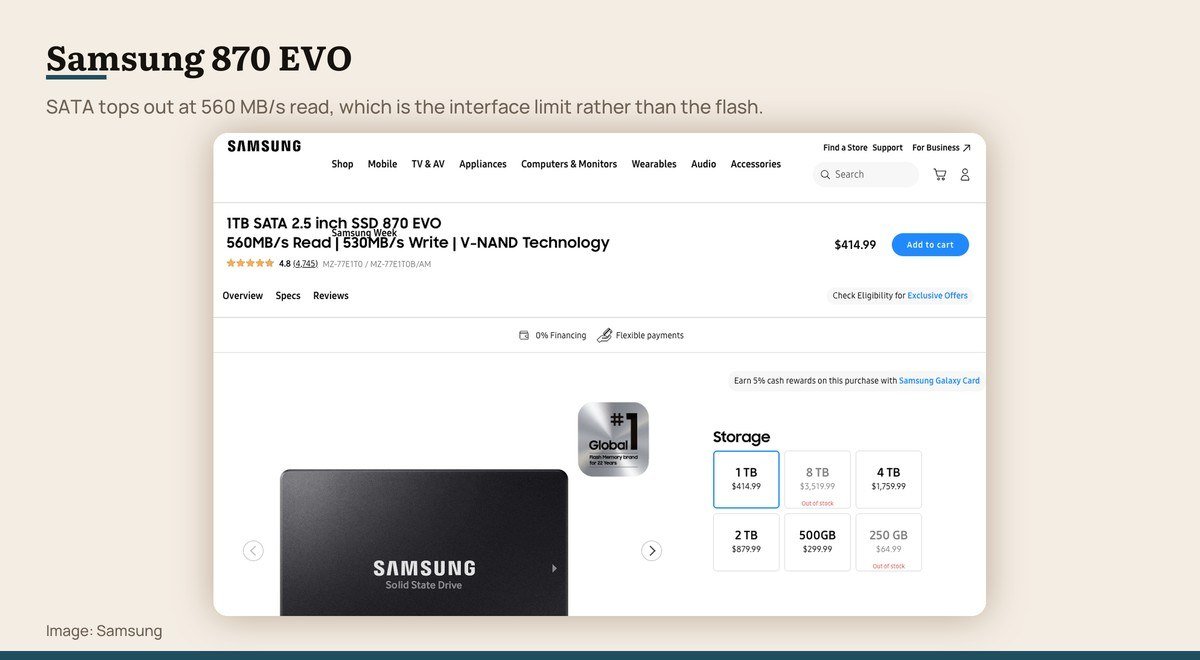
Interface: SATA, 2.5 inch · Rated speed: 560 MB/s read, 530 MB/s write · Capacities: 1 TB to 8 TB
A SATA SSD is the older arrangement: a 2.5 inch drive connected by a data cable and a power cable, using an interface designed when hard disks were the thing being connected. The 870 EVO reads at 560 MB/s and writes at 530 MB/s.
That ceiling is the interface, not the flash inside. SATA has nothing left to give, which is why every SATA SSD on sale quotes roughly the same number. It is still an enormous improvement over a mechanical hard disk, and it still makes an old laptop feel new.
3. PCIe Generations: Understanding what fits in an older board

Interface: PCIe 4.0 x4, NVMe 1.3 · Rated speed: Backward compatible with PCIe 3.0 and 2.0 sockets · Capacities: M.2 2280
PCIe generations double the data rate each time: 8 GT/s per lane at 3.0, 16 at 4.0, 32 at 5.0 and 64 at 6.0. A drive and a slot of different generations will still work together, and they settle at whichever of the two is slower.
Sabrent states this plainly for the Rocket 4 Plus, a PCIe 4.0 x4 drive that is backward compatible with PCIe 3.0 and 2.0 M.2 sockets. So a newer drive in an older machine is never wasted, it simply does not reach its rated figures until the machine is replaced.
Sabrent Rocket 4 Plus product page
Why a Thirteenfold Gap Feels Like Very Little
The published number is a sequential figure: one enormous file read end to end. Almost nothing a computer does during normal use looks like that.
Booting an operating system, opening an application and loading a game are mostly small scattered reads, where both drive types are limited by other things entirely. Queue depth, the processor and the software itself all get in the way long before the interface does.
This is why moving from a hard disk to any SSD is transformative and moving from a SATA SSD to an NVMe one often is not. The first change removes a physical arm that had to swing across a spinning platter. The second raises a ceiling almost nothing was touching.
Two cases break that rule. Copying very large files, such as video footage off a card, scales almost directly with the sequential figure. And newer games that stream textures continuously during play benefit from the higher throughput in a way older titles do not.
Which Drive to Put in Which Machine
For any machine with a free M.2 slot, buy NVMe. The price difference has largely closed, the cabling is simpler, and there is no reason to choose the slower interface when both cost about the same for the same capacity.
Buy SATA in two situations. The first is a machine with no M.2 slot at all, which covers most desktops and laptops more than a few years old. The second is bulk storage alongside a fast drive, where the 8 TB capacities are useful and the speed is irrelevant.
Capacity deserves the money that speed does not. A 2 TB drive at ordinary speeds will serve better than a 1 TB drive at record speeds, because running out of room is a problem you notice every week and a sequential benchmark is not.
One practical note on fitting. A PCIe 4.0 drive drops to PCIe 3.0 rates in an older slot and continues to work, so buying the current generation for an older machine is not wasted. It simply arrives at full speed later, when the rest of the machine catches up.
Where a Mechanical Hard Disk Still Earns Its Place
Spinning hard disks have not disappeared, and the reason is cost per terabyte. For archives, backup targets and media libraries that are read occasionally rather than constantly, a mechanical drive still stores more for less money than any flash drive.
What they are no longer suitable for is the drive the operating system lives on. The delay while a head physically moves to the data is what made older computers feel sluggish, and no amount of memory or processor compensates for it.
The sensible arrangement in a desktop with room for both is an NVMe drive for the system and the programs in use, and a large mechanical disk for everything being kept rather than used. Laptops rarely have the space for that, which is why capacity matters more when buying one.
One caution on any single-drive plan. A solid state drive fails differently from a mechanical one, usually without the warning noises people learned to listen for, so a backup on separate hardware matters more now rather than less.
Frequently Asked Questions
Is NVMe always faster than SATA?
On sequential transfers, yes, and by a very large margin. On the small scattered reads that make up booting and opening programs, the two are much closer, because the limit sits in the software and the processor rather than in the interface.
Can I put an NVMe drive in any M.2 slot?
Not always. Some M.2 slots are wired for SATA only, and some are wired for both. The motherboard manual states it per slot, and it is worth reading, because the drive will physically fit either way and then not be detected.
Will a PCIe 4.0 SSD work in a PCIe 3.0 slot?
Yes, at PCIe 3.0 speeds. Makers state the backward compatibility explicitly. The drive is not damaged or wasted, it simply reports lower sequential figures until it is moved to a newer board.
How long does an SSD last?
Makers rate drives in terabytes written, and ordinary desktop use falls far below those figures across a drive’s practical life. Wear is rarely what retires a consumer SSD. Running one close to full is harder on it than writing to it, so leaving some free space is the useful habit.
Does an SSD need a heatsink?
A fast PCIe 4.0 or 5.0 drive benefits from one during long sustained writes, where heat causes throttling. Many motherboards now include M.2 heatsinks, and in that case buying the bare drive avoids paying for the same part twice.