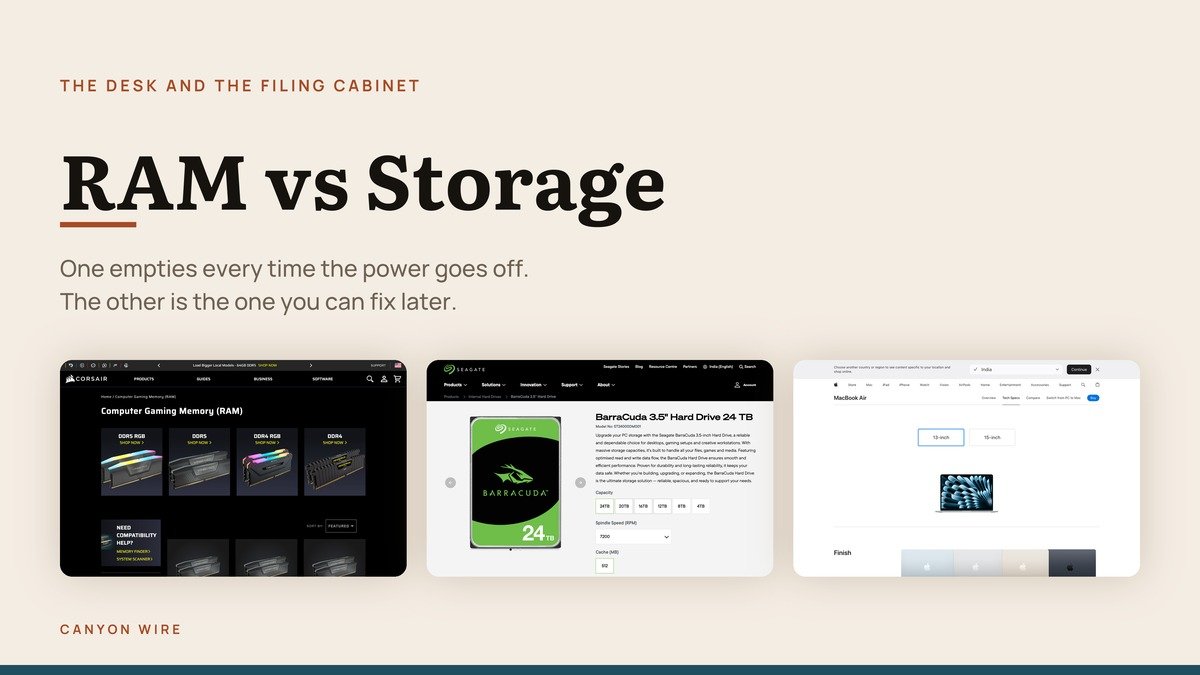
RAM vs storage is the single most common confusion in computer specifications, and it costs people real money because they buy more of the wrong one. Both are measured in gigabytes, both appear side by side on every spec sheet, and they do completely different jobs.
The short version: memory is where work happens and it empties every time the machine powers off. Storage is where things are kept and it does not. A machine with 16 GB and 512 GB has 16 GB of the first and 512 GB of the second.
The Desk and the Filing Cabinet
The comparison that makes this stick is a desk and a filing cabinet, and it holds up further than most analogies do.
- The desk is small and fast. You can reach anything on it instantly, but there is not much room, and at the end of the day it gets cleared completely.
- The cabinet is large and slow. It holds everything you own, it takes longer to fetch from, and what goes in stays there overnight.
- Work happens on the desk, not in the cabinet. To edit a document, you take it out of the cabinet and put it on the desk first. That is a file being opened.
- Saving is putting it back. Until you do, the only copy is on the desk, which is why an unsaved file disappears when the power fails.
The analogy also explains the symptom people actually notice. A full cabinet means you cannot keep anything new. A full desk means you cannot work, because there is nowhere to put the thing you are working on, and that is what makes a computer feel slow rather than merely cramped.
RAM vs Storage Compared: What Each One Holds
The two numbers on every specification sheet, and what each actually describes.
| # | Which | Holds | Survives power off | |
|---|---|---|---|---|
| 1 | Memory is the desk | Memory | Open applications, the file being edited, the operating system | No, it empties at every shutdown |
| 2 | Storage is the filing cabinet | Storage | Installed programs, documents, photos, games | Yes, it survives power loss |
| 3 | What a current machine ships with | Both | Both figures appear on every spec sheet | Memory no, storage yes |
Each One, and What a Real Spec Sheet Says
What memory holds, what storage holds, and how to read the two numbers when they sit next to each other on a product page.
1. Memory: The Desk: Working on several things at once
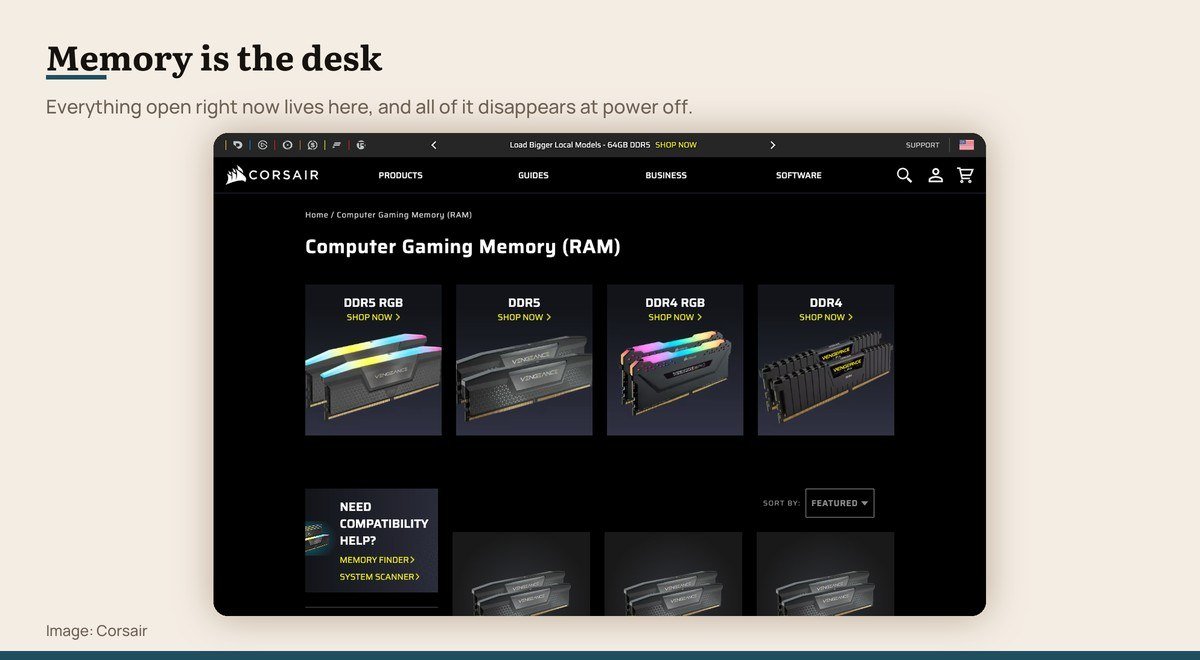
Holds: Open applications, the file being edited, the operating system · Survives power off: No, it empties at every shutdown · Measured in: Measured in gigabytes, typically 8 to 64
Memory is the desk you work at. Whatever is open right now sits on it: the operating system, every running application, the browser tabs, the file being edited. The processor reads and writes there constantly, which is why it has to be fast.
It is also temporary. Cut the power and the desk is cleared completely, which is the reason an unsaved document is gone after a crash. Nothing on it survives a restart, by design.
Desktops buy it as modules that slot into the board. Laptops increasingly solder it down, and Apple goes further by sharing one pool between processor and graphics, which is why a MacBook Air lists 16 GB of unified memory rather than separate figures.
Memory is the desk product page
2. Storage: The Cabinet: Keeping things you are not using right now
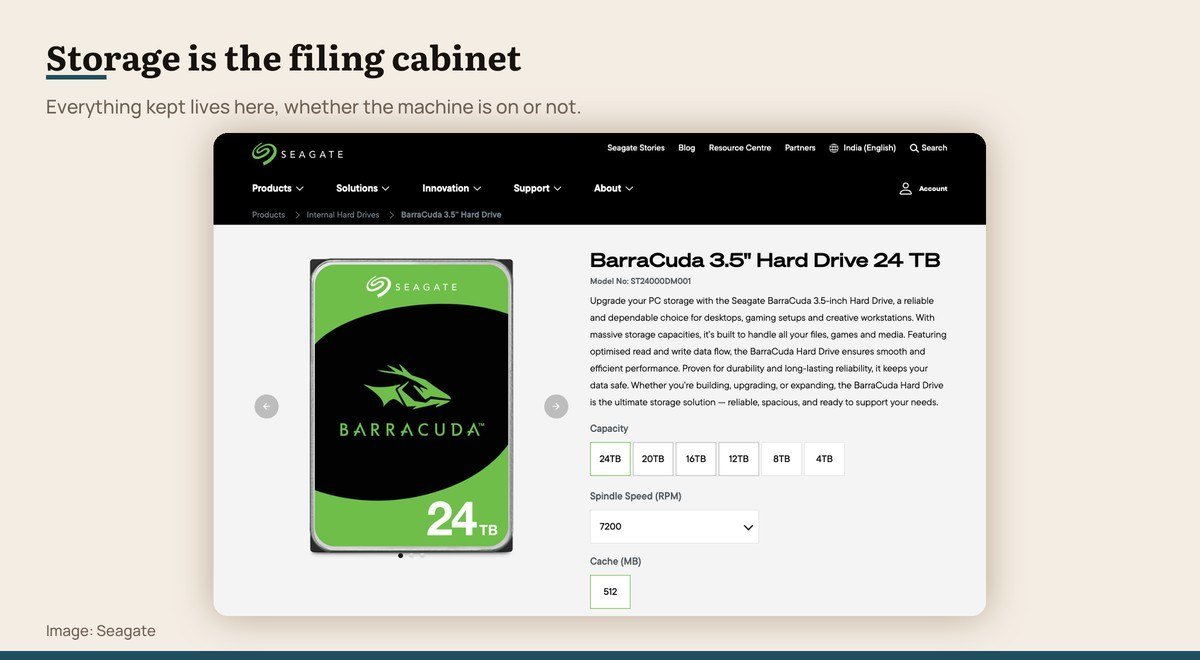
Holds: Installed programs, documents, photos, games · Survives power off: Yes, it survives power loss · Measured in: Measured in terabytes, typically 0.5 to 8
Storage is the filing cabinet beside the desk. It holds everything the machine keeps: the operating system files, installed applications, documents, photographs and games. It is far larger than memory and far slower.
Crucially, it survives a power cut. That is the whole point of it, and it is the difference people mean when they say a file is saved.
It comes in three speeds now. A mechanical hard disk is cheapest per terabyte, a SATA solid state drive is several times faster, and an NVMe drive is faster again. All three keep their contents when the power goes off.
Storage is the filing cabinet product page
3. What Machines Ship With: Reading a specification sheet correctly
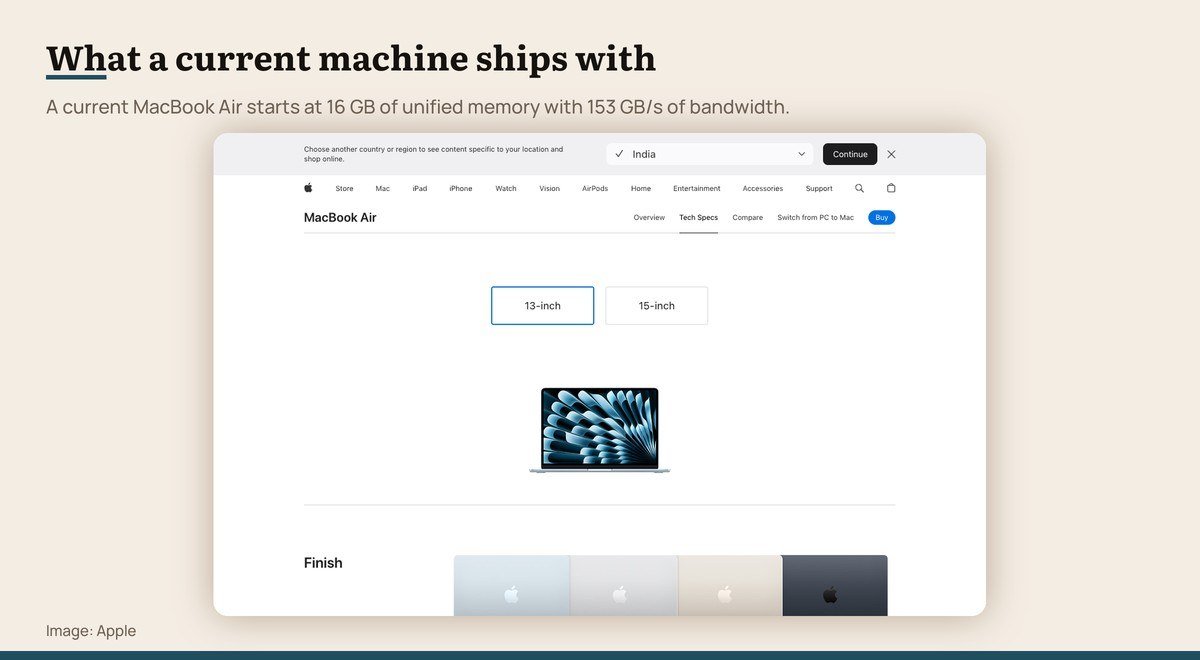
Holds: Both figures appear on every spec sheet · Survives power off: Memory no, storage yes · Measured in: Memory in GB, storage in GB or TB
Every specification sheet lists both, usually next to each other, which is exactly why they get confused. A machine described as having 16 GB and 512 GB has 16 GB of memory and 512 GB of storage, and the smaller number is the more important one.
Apple’s current MacBook Air starts at 16 GB of unified memory, configurable to 24 or 32 GB, with 153 GB/s of memory bandwidth. Unified means the processor and graphics share one pool rather than having separate allocations.
The practical consequence of soldered memory is that the figure chosen at purchase is permanent. Storage can usually be supplemented with an external drive later. Memory cannot be supplemented at all, so it is the specification to be generous with when ordering.
What a current machine ships with product page
What Happens When Memory Runs Out
The machine does not stop. It does something worse: it starts using storage as overflow memory, copying data that will not fit back and forth between the two.
That process has a name, and its effect is dramatic. Storage is orders of magnitude slower than memory even at NVMe speeds, so a machine that has run out behaves as though it has lost most of its performance. Applications pause, switching windows takes seconds, and the drive activity light stays on.
This is why adding memory to an older machine so often feels like a bigger upgrade than a faster processor would be. You are not making it quicker, you are stopping it from falling back on something hundreds of times slower.
A fast drive hides the symptom slightly and does not fix it. The only fix is enough memory for the work, which is why the smaller number on the spec sheet deserves more attention than the larger one.
How Much of Each to Buy
Memory first, because it is the one you usually cannot change later. Sixteen gigabytes is the sensible floor for a new machine. Thirty-two is right for photo and video work, many browser tabs alongside large applications, or virtual machines. Sixty-four is specialist.
Eight gigabytes still appears at the budget end and should be avoided in anything bought new, because it is already tight and the machine will be in use for years.
Storage is more forgiving, because it can nearly always be extended. Five hundred gigabytes is workable if files live in the cloud or on an external drive, one terabyte is comfortable, and two is the right answer for anyone keeping a game library or video projects locally.
When the two compete for the same money in a laptop, buy the memory. Soldered memory is permanent, whereas an external drive solves a storage shortage for a fraction of the price of the upgrade at the point of purchase.
Checking What Your Machine Has
On Windows, open Task Manager and choose the Performance tab. Memory is listed with its total, its current use and how many slots are occupied, which tells you immediately whether an upgrade means adding modules or replacing them. Disks are listed separately below.
On a Mac, the Apple menu leads to System Settings and then General, where About reports memory and storage. Activity Monitor adds a memory pressure graph, which is more useful than the raw number because it shows whether the machine is actually short.
On a phone, neither figure is usually upgradeable, so the check is about knowing what you have rather than planning a change. Storage can at least be managed by offloading photographs; memory cannot be managed at all.
Frequently Asked Questions
Is RAM the same as storage?
No. Memory holds what is open right now and empties when the power goes off. Storage holds what is kept and survives a shutdown. Both are measured in gigabytes, which is the reason they get confused on specification sheets.
Which matters more, RAM or storage?
Memory, in the sense that too little of it makes a machine feel broken while too little storage merely makes it full. Storage can usually be extended with an external drive. Memory often cannot be extended at all, particularly in laptops.
Can I add more RAM to a laptop?
Sometimes. Laptops with accessible slots can be upgraded, but a large and growing number solder memory to the board, where no upgrade is possible at any price. Check the specific model before buying, and assume soldered unless stated otherwise.
Does more RAM make a computer faster?
Only up to the point where there is enough. Going from too little to enough produces a dramatic improvement because the machine stops spilling onto the drive. Going from enough to more produces no measurable change at all.