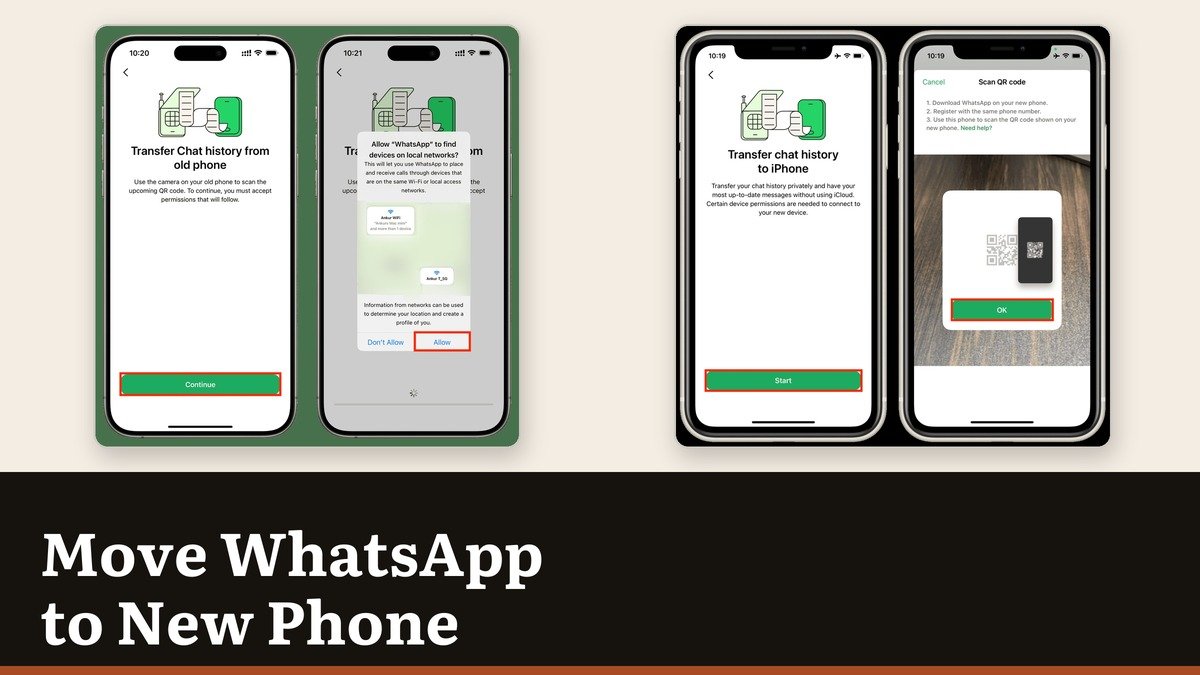
The cleanest way to move WhatsApp to new phone hardware is Chat Transfer, which sends your account straight from one handset to the other over a local Wi-Fi link. Nothing passes through Google, Apple or WhatsApp on the way, and it carries more than a backup restore does: account information, every conversation, media and settings rather than just chat data.
One condition governs all of it. The new phone must not have been registered on WhatsApp before the transfer starts. Once an account is activated there, the transfer option is gone and the old and new histories cannot be combined afterwards.
What survives each direction
Same-platform moves carry almost everything. The two cross-platform routes each drop a different set of items, and the differences are not symmetrical.
| Item | Same platform | Android to iPhone | iPhone to Android |
|---|---|---|---|
| Messages and media | Yes | Yes | Yes |
| Group chats and communities | Yes | Yes | Yes |
| Call history | Yes | No | Yes |
| Display name | Yes | No | No |
| Status updates | Yes | Not stated | No |
| Payment messages | No | No | No |
Call history is the odd one. It travels from an iPhone to an Android phone but not in the reverse direction. Media you received through Channels does not move in any direction, and neither do peer-to-peer payment messages.
Android to Android, and iPhone to iPhone
Both same-platform moves use a QR code and a direct link. Have both phones charging, within arm’s reach, and awake.
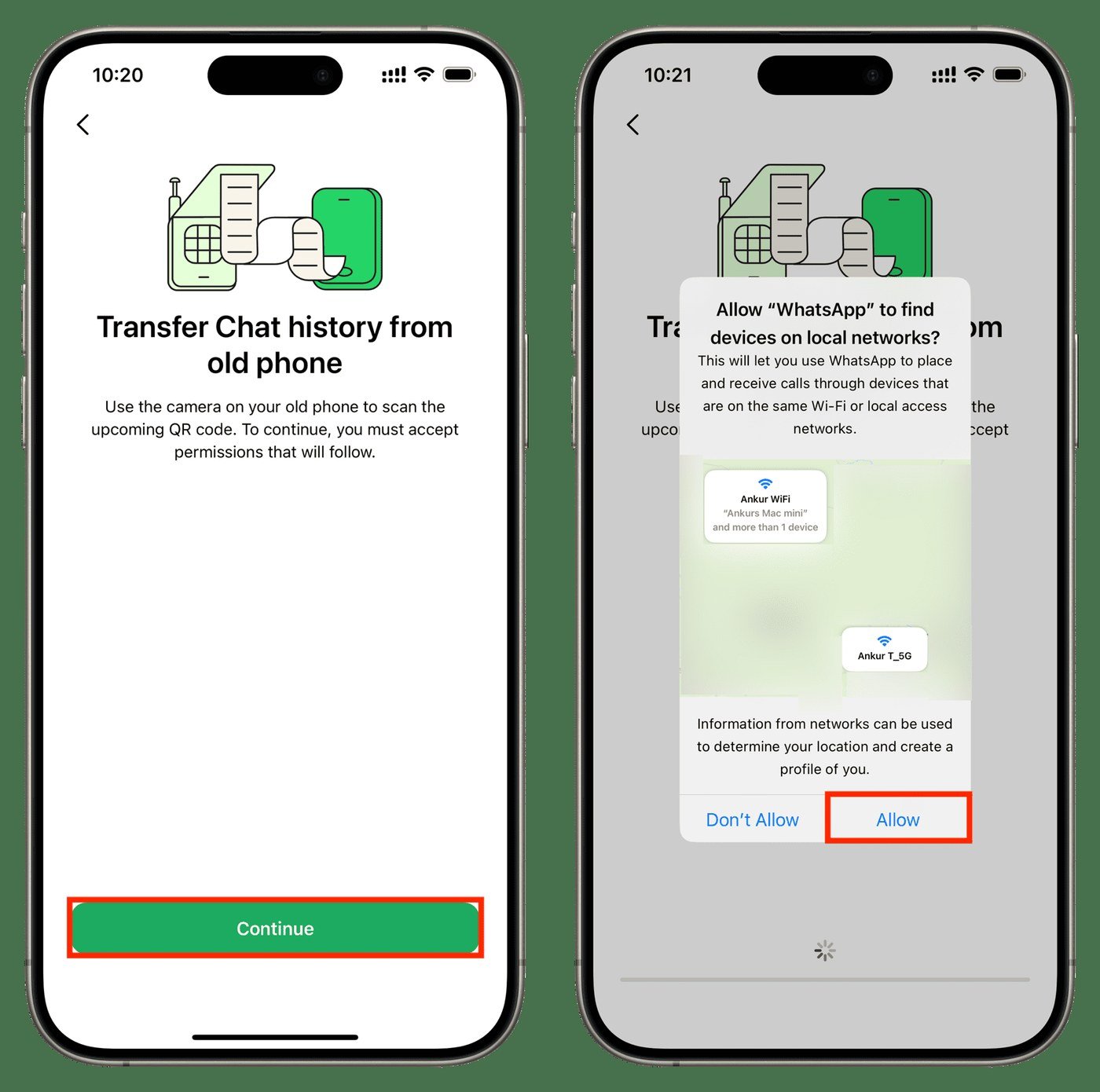
- Android, old phone: three-dot menu, then Settings, then Chats, then Transfer chats, then Start.
- iPhone, old phone: profile picture, then Chats, then Transfer Chats to iPhone, then Start.
- New phone, either platform: install WhatsApp, agree to the terms and verify the same number.
- On Android, pick Transfer from old phone under Restore or transfer chats. On iPhone, tap Continue on the transfer screen.
- Accept the nearby-devices or local-network permission, then scan the new phone’s QR code with the old phone’s camera.
- Leave both screens on and stay inside WhatsApp until the bar completes, then tap Next.
Android needs version 6 or above on both handsets and precise location permission, which is how the system gates nearby-device discovery. Two iPhones need the current iOS and the current WhatsApp on each, plus an actual internet connection rather than Wi-Fi merely switched on. Messaging pauses while it runs and the transfer can be cancelled at any point.
Android to iPhone needs a clean iPhone
This direction does not use WhatsApp’s transfer at all. It rides inside Apple’s Move to iOS app during iPhone setup, which means the iPhone has to be factory new or factory reset. An iPhone that has already been set up and used cannot do this.
- Install Move to iOS on the Android phone. Other transfer apps are unsupported and break the migration.
- Begin iPhone setup, choose to move from Android, and type the iPhone’s code into the Android phone.
- Choose WhatsApp on the Transfer Data screen, then tap Start on Android and wait for the export.
- The Android phone signs you out once the export is ready. Tap Next, then Continue in Move to iOS.
- Install WhatsApp from the App Store, sign in with the same number, and tap Start when asked.
Requirements are Android 5 or above, iOS 15.5 or above, the current WhatsApp from both stores, both phones on power, and either a shared Wi-Fi network or the Android phone joined to the iPhone’s hotspot. Opening the WhatsApp folder through Files during the migration is not supported and will derail it.
iPhone to Android
The reverse trip is simpler, needs no Apple app and no reset, and keeps your call history.
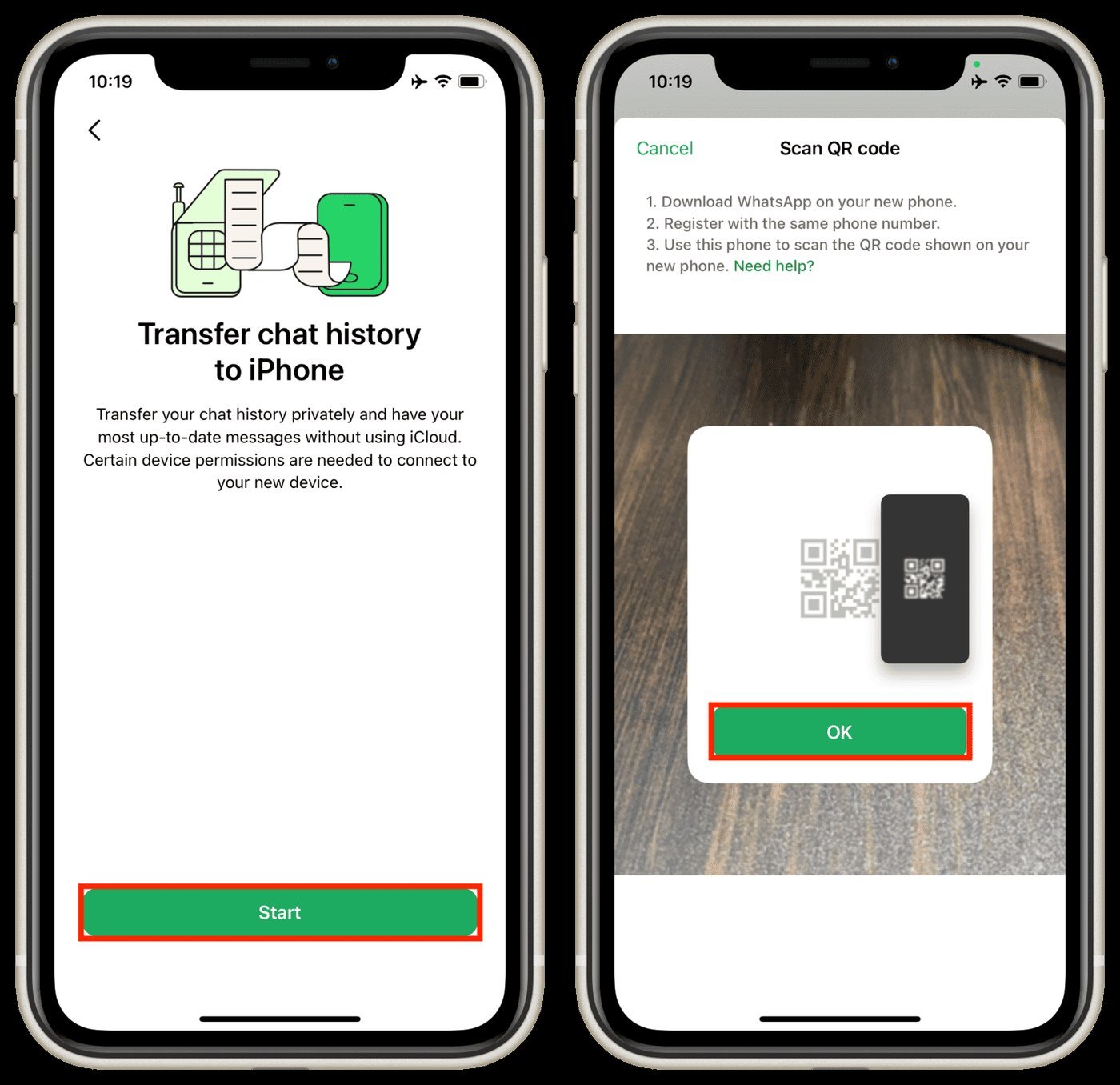
- iPhone: Chats, then Transfer chat history, then Transfer to Android.
- Tap Continue when the chats are ready and allow camera access.
- Android: open WhatsApp, verify the same number, and tap Allow so the phones can find each other.
- Scan the QR code on the Android screen with the iPhone camera.
- Tap Join to connect to the network, then Next on Android when it finishes.
Keep the iPhone awake for the duration and leave its WhatsApp data in place until the Android phone shows the chats. Status updates and your display name stay behind. A stable Wi-Fi connection is listed as a requirement, so if the link keeps dropping, our guide to a connection that will not hold is worth a look before trying again.
Five ways this goes wrong
- The new phone was registered first. Uninstall WhatsApp there and start over. Coming from Android to an iPhone, the device itself has to be erased.
- The old phone was wiped too soon. It is the only complete copy until the new handset confirms.
- A new number at the same time. Transfers only run between identical numbers. Switch the number on the old handset first, then run the transfer.
- WhatsApp Business. Chat transfer is unavailable in the Business app in every direction.
- A phone that locked or switched apps. Both have to stay awake and inside WhatsApp until the bar fills.
Because the transfer never reaches cloud storage, it also leaves you without a backup on the new phone. Set one up once the chats have landed: our walkthrough of setting up a chat backup covers the schedule and the encryption step that is off by default.
Frequently Asked Questions
How long does moving WhatsApp take?
It depends on how much is being moved, and WhatsApp gives no estimate. A few gigabytes of photos and video takes considerably longer than a text-heavy history of the same age.
Can I merge chats from both phones?
No. WhatsApp states that new chats on the new phone and old chats on the old phone cannot be combined. It is one history or the other.
Does the old phone keep my messages?
Yes, until you delete WhatsApp from it or wipe it. The account moves, but the local data stays where it is, which is useful insurance until the new phone is confirmed working.
Do I need a backup if I am using chat transfer?
Not for the move itself, which is device to device. You need one afterwards, because the transfer creates no cloud copy on the new phone.